Introduction
Sometimes we will get a requirement that we need to export the data from Excel or other source into the database table. Here, I am explaining how we can export the data from an Excel sheet data into particular SQL table.
For exporting an Excel data, we need an Excel sheet with the data to be exported into SQL table.
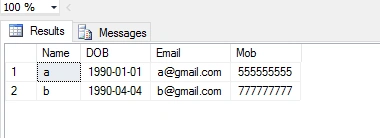
For this demo, I have created a database and a table. I inserted two records, using the script given below.
CREATE Database db_Test
USE [db_Test]
GO
SET ANSI_NULLS ON
GO
SET QUOTED_IDENTIFIER ON
GO
CREATE TABLE [dbo].[Student](
    [Name] [nvarchar](50) NULL,
    [DOB] [date] NULL,
    [Email] [nvarchar](150) NULL,
    [Mob] [nvarchar](50) NULL
) ON [PRIMARY]

GO
INSERT [dbo].[Student] ([Name], [DOB], [Email], [Mob]) VALUES (N'a', CAST(N'1990-01-01' AS Date), N'[email protected]', N'555555555')
INSERT [dbo].[Student] ([Name], [DOB], [Email], [Mob]) VALUES (N'b', CAST(N'1990-04-04' AS Date), N'[email protected]', N'777777777')
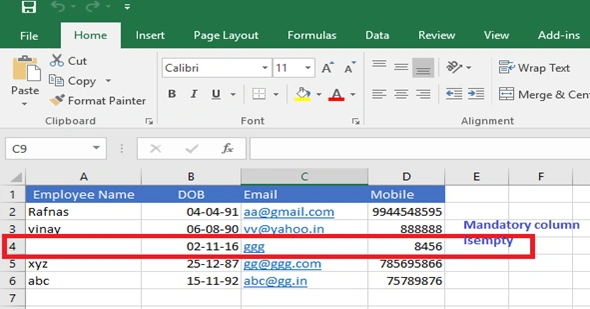
The Excel sheet, which I have created is given below.
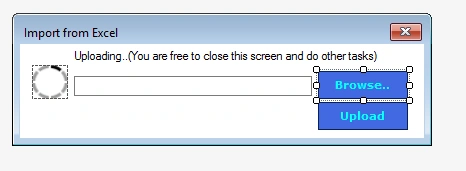
I have created win form Application and I added Form named as ImportFromExcel. I designed it, as given below (two buttons, One textbox, one label and one GIF image).
I added the code for browse button to browse an Excel file, as shown below.
To browse, I am calling OpenFileDialog class, given filter and add file path to Text Box.
OpenFileDialog od = new OpenFileDialog();
od.Filter = "Excell|*.xls;*.xlsx;";
od.FileName = "EmployeeList.xlsx";
DialogResult dr = od.ShowDialog();
if (dr == DialogResult.Abort)
    return;
if (dr == DialogResult.Cancel)
    return;
txtpath.Text = od.FileName.ToString();
btUpload.Visible = true;
Add string _path; outside this button, so that I can access this string outside this button and assign Excel file path to this _path string, as shown below.
_path = txtpath.Text;
Next is the main task, i.e we need to read the data from an Excel sheet and insert all the data into the table. This code can be done in an Upload button.
Before beginning, we know that this task is a log task, since we need to take the data from an Excel sheet and we need to insert all this data into the table. If we do this directly, then the form will respond until the task finishes, so we need to use Background worker process here, as shown below.
- Add usingComponentModel; in namespace for using BackgroundWorker.
- Add the lines given below into this form class.
BackgroundWorker bw = new BackgroundWorker
{
    WorkerReportsProgress = true,
    WorkerSupportsCancellation = true
}
Write the function for importing Excel data, as shown below.
Create function as below
private void InsertExcelRecords()
{
}
Inside this, we are going to write all the functionalities.
Create an Excel connection, using OLEDb. For this, first add namespace.
using System.Data.OleDb;
And add Excel connection as below
string constr = string.Format(@"Provider=Microsoft.ACE.OLEDB.12.0;Data Source={0};Extended Properties=""Excel 12.0 Xml;HDR=YES;""", _path);
Econ = new OleDbConnection(constr);
Now, add select query to select the data from this Excel sheet and open this Excel connection, as shown below
string Query = string.Format("Select [Employee Name],[DOB],[Email],[Mobile] FROM [{0}]", "Sheet1$");
OleDbCommand Ecom = new OleDbCommand(Query, Econ);
Econ.Open();
Note
In select statement, column names and Excel sheet column names should be the same and if an Excel sheet has column name with spaces like above Employee Name, then you need to provide this into two square braces.
Create one dataset and fill this data set with this selected items, using oledbdataadpter, as shown below.
DataSet ds = new DataSet();
OleDbDataAdapter oda = new OleDbDataAdapter(Query, Econ);
Econ.Close();//close Excel connection after adding to data set
oda.Fill(ds);
DataTable Exceldt = ds.Tables[0]; //copy data set to datatable
Check if any mandatory field is required before uploading to the table, if mandatory field value is empty in Excel, then we can remove that row from the above data table, as shown below.
Here, I am checking two mandatory fields, if any one value is null, then I will delete that row and update the data table.
for (int i = Exceldt.Rows.Count - 1; i >= 0; i--)
{
    if (Exceldt.Rows[i]["Employee Name"] == DBNull.Value || Exceldt.Rows[i]["Email"] == DBNull.Value )
    {
        Exceldt.Rows[i].Delete();
    }
}
Exceldt.AcceptChanges();
Now, we will use SQLbulkcopy to map this Excel data into student table, as shown below.
//creating object of SqlBulkCopy
SqlBulkCopy objbulk = new SqlBulkCopy(con);
//assigning Destination table name
objbulk.DestinationTableName = "Student";
//Mapping Table column
objbulk.ColumnMappings.Add("[Employee Name]", "Name");
objbulk.ColumnMappings.Add("DOB", "DOB");
objbulk.ColumnMappings.Add("Email", "Email");
objbulk.ColumnMappings.Add("Mobile", "Mob");
In source column, we have given Excel columns and destination column table column fields.
Now, we have to insert this mapped data into student table, as shown below.
SqlConnection sqlConnection = new SqlConnection();
sqlConnection.ConnectionString = "server = VSBS01; database = dbHRVeniteck; User ID = sa; Password = veniteck@2016"; //Create DataBase Connection Details
con.Open(); //Open DataBase conection
objbulk.WriteToServer(Exceldt); //inserting Datatable Records to DataBase con.Close(); //Close DataBase conection
MessageBox.Show("Data has been Imported successfully.", "Imported", MessageBoxButtons.OK, MessageBoxIcon.Information);
Full function code is given below.
private void InsertExcelRecords()
{

    try
    {

      //  ExcelConn(_path);
        string constr = string.Format(@"Provider=Microsoft.ACE.OLEDB.12.0;Data Source={0};Extended Properties=""Excel 12.0 Xml;HDR=YES;""", _path);
        Econ = new OleDbConnection(constr);
        string Query = string.Format("Select [Employee Name],[DOB],[Email],[Mobile] FROM [{0}]", "Sheet1$");
        OleDbCommand Ecom = new OleDbCommand(Query, Econ);
        Econ.Open();

        DataSet ds = new DataSet();
        OleDbDataAdapter oda = new OleDbDataAdapter(Query, Econ);
        Econ.Close();
        oda.Fill(ds);
        DataTable Exceldt = ds.Tables[0];

        for (int i = Exceldt.Rows.Count - 1; i >= 0; i--)
        {
            if (Exceldt.Rows[i]["Employee Name"] == DBNull.Value || Exceldt.Rows[i]["Email"] == DBNull.Value )
            {
                Exceldt.Rows[i].Delete();
            }
        }
        Exceldt.AcceptChanges();
        //creating object of SqlBulkCopy
        SqlBulkCopy objbulk = new SqlBulkCopy(con);
        //assigning Destination table name
        objbulk.DestinationTableName = "Student";
        //Mapping Table column
        objbulk.ColumnMappings.Add("[Employee Name]", "Name");
        objbulk.ColumnMappings.Add("DOB", "DOB");
        objbulk.ColumnMappings.Add("Email", "Email");
        objbulk.ColumnMappings.Add("Mobile", "Mob");

        //inserting Datatable Records to DataBase
        SqlConnection sqlConnection = new SqlConnection();
        sqlConnection.ConnectionString = "server = VSBS01; database = dbHRVeniteck; User ID = sa; Password = veniteck@2016"; //Connection Details
        con.Open();
        objbulk.WriteToServer(Exceldt);
        con.Close();
        MessageBox.Show("Data has been Imported successfully.", "Imported", MessageBoxButtons.OK, MessageBoxIcon.Information);

    }
    catch (Exception ex)
    {
        MessageBox.Show(string.Format("Data has not been Imported due to :{0}", ex.Message), "Not Imported", MessageBoxButtons.OK, MessageBoxIcon.Warning);
        pb1.Visible = false;
        txtpath.Text = "";
        btBrowse.Enabled = true;
        label1.Visible = false;
    }
}
Now, we can start writing the code below. Upload button click, as shown below.
Hide this upload button, so that the user will not click again, while its already uploading, as shown below.
btUpload.Visible = false;
Check whether the task is running or not, if it is running, then return from background worker task.
if (bw.IsBusy)
{
    return;
}
To start or stop the background worker, use stopwatch, as shown below.
System.Diagnostics.Stopwatch sWatch = new System.Diagnostics.Stopwatch();
Now, we will call the log executing function. Here, we are exporting the data from an Excel sheet into table in background worker dowork event, as shown below.
bw.DoWork += (bwSender, bwArg) =>
{
    sWatch.Start();         //To start Watching
    InsertExcelRecords(); //Function which created to export data
};
After completing this task, you can write in runworkercomplete event in background worker, as shown below.
bw.RunWorkerCompleted += (bwSender, bwArg) =>
{
    //now you're back in the UI thread you can update the form
    //remember to dispose of bw now

    sWatch.Stop();//To start Watching
    //work is done, no need for the stop button now...
    pb1.Visible = false; //To disable gif image
    txtpath.Text = "";
    btBrowse.Enabled = true;
    label1.Visible = false;
    bw.Dispose(); //To disposing background worker
};
After this, we can write what all we need to do before task begins like making GIF image visible etc. and start running this task, as shown below.
pb1.Visible = true;
label1.Visible = true;
btBrowse.Enabled = false;

//Starts the actual work - triggerrs the "DoWork" event
bw.RunWorkerAsync();
The full code of upload button is shown below.
private void btUpload_Click(object sender, EventArgs e)
{
    btUpload.Visible = false;
    _path = txtpath.Text;
    if (txtpath.Text == "" || !txtpath.Text.Contains("EmployeeList.xlsx"))
    {
        MessageBox.Show("Please Browse EmployeeList.xlsx to upload", "", MessageBoxButtons.OK, MessageBoxIcon.Information);
        txtpath.Text = "";
        btUpload.Visible = false;
        return;
    }
    if (bw.IsBusy)
    {
        return;
    }

    System.Diagnostics.Stopwatch sWatch = new System.Diagnostics.Stopwatch();
    bw.DoWork += (bwSender, bwArg) =>
    {
        //what happens here must not touch the form
        //as it's in a different thread
        sWatch.Start();
        InsertExcelRecords();
    };

    bw.ProgressChanged += (bwSender, bwArg) =>
    {
        //update progress bars here
    };

    bw.RunWorkerCompleted += (bwSender, bwArg) =>
    {
        //now you're back in the UI thread you can update the form
        //remember to dispose of bw now

        sWatch.Stop();

        //work is done, no need for the stop button now...
        pb1.Visible = false;
        txtpath.Text = "";
        btBrowse.Enabled = true;
        label1.Visible = false;
        bw.Dispose();
    };

    //lets allow the user to click stop
    pb1.Visible = true;
    label1.Visible = true;
    MsgBox.Show("Uploading has been started !.\nyou are free to do any other tasks in this application,if you wish to close this screen  you can do it.but please don't close this application until upload message popups.", "Upload processing..", MsgBox.Buttons.OK, MsgBox.Icon.Info, MsgBox.AnimateStyle.FadeIn);

    btBrowse.Enabled = false;

    //Starts the actual work - triggerrs the "DoWork" event
    bw.RunWorkerAsync();

    //InsertExcelRecords();
}
Output

Before importing, the screen will look, as shown below.
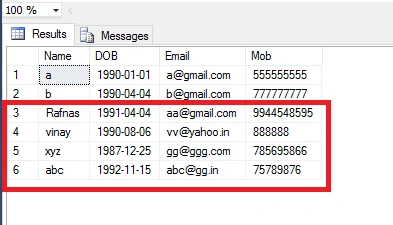
After importing, the screen will look, as shown below.


Senior MelvinPosted Jan 31, 2025, 3:29 PM
Good day, can you upload your project to the file share? I couldn't repeat it unfortunately, thank you.
Oluyemi OyewolePosted Dec 24, 2022, 12:09 AM
Please provide me with the source code or the link to get it.
Oluyemi OyewolePosted Dec 24, 2022, 12:07 AM
I thank you for this project.
priyankarPosted Dec 1, 2022, 1:40 PM
In azure app service this solution not working . Getting Internal server error: System.InvalidOperationException: The 'Microsoft.ACE.OLEDB.12.0' provider is not registered on the local machine. Any solution to fix this issue ?
Azammuddin SalimanPosted Jan 16, 2021, 2:39 PM
Can you please provide me the source file
sara ajayPosted Jul 3, 2020, 2:00 AM
Can you please provide me the source file.
Julio MartinezPosted Nov 11, 2019, 11:39 AM
Can you please provide the source code or repo link?
Neil LandichoPosted Aug 1, 2019, 12:23 AM
I have the same project right now and aside from bulk upload. I also want to include a session variable during the upload to the database (this is a new column which does not exist in the excel sheet). Can anyone show me how. Many thanks
hassan IBNO EL FATAPosted Jun 20, 2019, 2:15 PM
Can you please provide me the source file.
Huxaifa SiddiquiPosted Feb 14, 2019, 4:20 AM
Can you please provide me the source file.
Daniel RayMarksPosted Dec 18, 2018, 9:48 AM
And in a web page you may need to thread the Open Dialogue like this: #region Open Dialog Box try { var t = new Thread((ThreadStart)(() => { OpenFileDialog od = new OpenFileDialog(); od.Filter = "Excell|*.xls;*.xlsx;"; od.FileName = "EmployeeList.xlsx"; DialogResult dr = od.ShowDialog(); if (dr == DialogResult.Abort) return; if (dr == DialogResult.Cancel) return; txtpath.Text = od.FileName.ToString(); btnUpload.Visible = true; })); t.SetApartmentState(ApartmentState.STA); t.Start(); t.Join(); } catch (Exception ex) { lblResult.Text = ex.Message; } #endregion
Daniel RayMarksPosted Dec 18, 2018, 9:47 AM
Nice. Here it is as as function in as class... public string InsertExcelRecords() { string rtnTxt = ""; try { string constr = string.Format(@"Provider=Microsoft.ACE.OLEDB.12.0;Data Source={0};Extended Properties=""Excel 12.0 Xml;HDR=YES;""", _path); OleDbConnection Excon = new OleDbConnection(constr); string ExQuery = string.Format("Select [Employee Name],[DOB],[Email],[Mobile] FROM [{0}]", "Sheet1$"); OleDbCommand Ecmd = new OleDbCommand(ExQuery, Excon); Excon.Open(); DataSet ds = new DataSet(); OleDbDataAdapter oda = new OleDbDataAdapter(ExQuery, Excon); Excon.Close();//close Excel connection after adding to data set oda.Fill(ds); DataTable Exceldt = ds.Tables[0]; //copy data set to datatable // Check if any mandatory field is required before uploading to the table // If mandatory field value is empty in Excel, then we can remove that row from the above data table, as shown below. // Here, I am checking two mandatory fields, if any one value is null, then I will delete that row and update the data table. for (int i = Exceldt.Rows.Count - 1; i >= 0; i--) { if (Exceldt.Rows[i]["Employee Name"] == DBNull.Value || Exceldt.Rows[i]["Email"] == DBNull.Value) { Exceldt.Rows[i].Delete(); // Or some other warning } } Exceldt.AcceptChanges(); // Now, we will use SQLbulkcopy to map this Excel data into student table, as shown below. //creating object of SqlBulkCopy SqlBulkCopy objbulk = new SqlBulkCopy(_conn); //assigning Destination table name objbulk.DestinationTableName = "Student"; //Mapping Table column from Excel Datatable to SQL Table objbulk.ColumnMappings.Add("[Employee Name]", "Name"); objbulk.ColumnMappings.Add("DOB", "DOB"); objbulk.ColumnMappings.Add("Email", "Email"); objbulk.ColumnMappings.Add("Mobile", "Mob"); // Now, we insert this mapped data into student table, as shown below. objbulk.WriteToServer(Exceldt); //inserting Datatable Records to DataBase objbulk.Close(); //Close DataBase conection rtnTxt = "Data has been Imported successfully."; } catch (Exception ex) { _gonewrong = true; _err = ex.Message; rtnTxt = _err; } return rtnTxt; }
steve sehatiPosted Sep 18, 2018, 7:45 AM
Sorry where do you define con ? i cant find it
Sagar PithadiyaPosted Jul 2, 2018, 1:11 AM
Can you please help me... i getting error while passing excel connections string to SQLBULKCOPY cunstrunctor
Kiran MaramPosted Apr 19, 2017, 3:33 AM
Nice article thanks for sharing. I tried this with the larger excel (250 MB file size, with 160 columns and 6.5Lak records) getting out of memory exception. To resolved this is there any other alternatives to handle these kind of excel file. Please help me..