

When building reports in Power BI, one of the most important decisions you’ll make happens right at the start: how your data will be connected. Power BI offers multiple connection modes, but the two most common ones are Import and DirectQuery.
Both have their advantages and limitations, and the choice you make can have a big impact on performance, data freshness, scalability, and user experience. In this article, we’ll break down the differences, explore pros and cons, and help you understand when to use each.
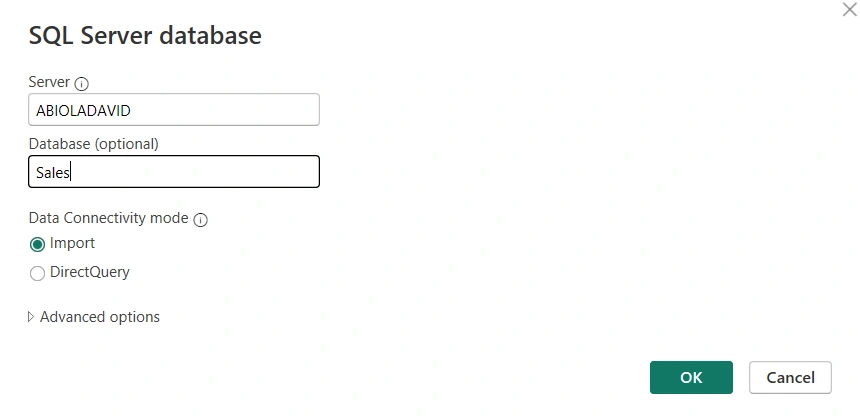
What is Import Mode?
Import Mode is the default and most widely used connection type in Power BI. When you use Import, Power BI loads a copy of your data into its in-memory engine (VertiPaq). This compressed, optimized dataset is stored inside the .pbix file and/or in the Power BI Service when published.
Key Characteristics of Import Mode
Data is cached in memory (highly compressed).
Refresh is needed to keep the dataset updated (manual or scheduled).
Excellent query performance thanks to the VertiPaq engine.
Advantages of Import Mode
✅ High Performance: Reports are lightning fast because queries run against memory, not the source system.
✅ Rich Features: Supports all Power BI modeling features, complex DAX calculations, time intelligence, relationships, etc.
✅ Offline Availability: Once data is imported, you don’t need a live connection to the source to view reports.
✅ Compression: Large datasets often shrink significantly when loaded (10–20x compression is common).
Limitations of Import Mode
❌ Data Latency: Data is only as fresh as the last refresh. If you refresh once a day, the report may be up to 24 hours out of date.
❌ Dataset Size Limits: In Power BI Pro, the limit is 1 GB per dataset; with Premium capacity, this can be much higher (up to 400 GB).
❌ Refresh Constraints: Pro allows up to 8 scheduled refreshes per day; Premium allows up to 48.
What is DirectQuery Mode?
With DirectQuery, Power BI does not store the data in memory. Instead, it queries the underlying data source directly whenever a user interacts with the report (e.g., clicks a slicer, filters, or loads a visual).
This means that the source system must handle the queries in real time.
Key Characteristics of DirectQuery
Data remains in the source system (SQL Server, Azure SQL Database, Snowflake, etc.).
Each interaction sends a query to the database.
Data is always up to date, no refresh needed.
Advantages of DirectQuery
Real-Time Data: Always queries the latest data from the source.
No Dataset Size Limit: Since data is not imported, you can work with massive datasets beyond memory constraints.
Centralized Security: Leverages the source system’s security (e.g., row-level security in SQL).
Limitations of DirectQuery
Performance Issues: Every interaction results in a query to the source, so performance depends heavily on the database and network.
Limited Modeling: Some DAX functions, transformations, and time intelligence features are not supported.
Query Limitations: Some data sources have restrictions on the number of queries per minute.
Dependency on Source Availability – If the database is slow or down, reports won’t work properly.
Join the conversation! Your thoughts help the community grow.