

If you have gone through the last post about
Productivity Power Tool and found it useful then here I am again with a new
HotShot stuff that will increase your productivity +1 level up. Are you ready to
take a tour on this? yes.. you are that's why you are developers guys. So let's
get started. So our next Tool for Visual Studio 2010 is the PowerCommands Tool.
Go and download the PowerCommands for Visual Studio 2010 here.
Download PowerCommands for Visual Studio 2010 Extension
 [
I somehow manage to create this image to looks relevant ]
 This is hottest in the market I'm telling you. When I saw the download and
rating, it made me post about it. See the figures when I was writing this post.
And these figures it earned in very short time.
Install is simple, steps are as any other addin for VS2010. Now restart Visual Studio
and let's see what you can do with it:
1. New Context menu commands for files, projects and solution
Right click on any file in the Project and see new options
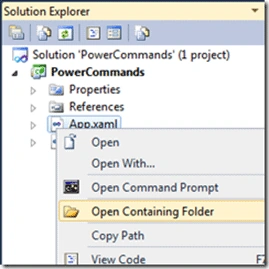
- Yes Open Containing Folder is previously was only for Project and Solution files but now each file can be directly be navigated in the containing folder.
- Open the CommandPrompt in the Containing folder. You may ask how often will I use it.. But I can tell you few instance svcutil, wsdl, snkey etc. for these utilities you need command prompt. Now this sounds cool isn't it.
2. Copy Reference
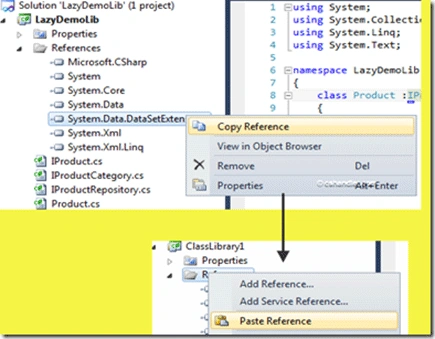
Now its more cool then ever and easy with time saving on adding reference. If
you have one reference in one project in your solution and want to add the same to any other project then Right Click the reference and Copy Reference. Go and Paste
it in other project.
3. Copy As Project Reference
This command copies a project as a project reference to the clipboard. It can be
executed from a project node. Quick way to add the project as reference.
4. 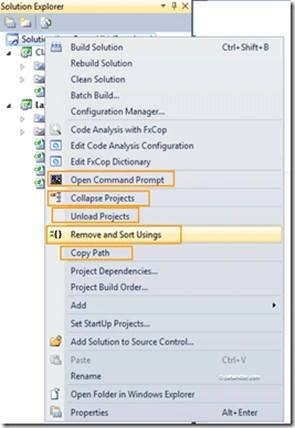
Right on the solution file will show you a few new commands added.
=> Copy Path
This command copies the full path of the currently selected item to the
clipboard. It can be executed by right-clicking one of these nodes in the
Solution Explorer:
The solution node; A project node; Any project item node; Any folder.
=> Format document on save / Remove and Sort Usings on save
The Format document on save option formats the tabs, spaces, and so on of the
document being saved. It is equivalent to pointing to the Edit menu, clicking
Advanced, and then clicking Format Document. The Remove and sort usings option
removes unused using statements and sorts the remaining using statements in the
document being saved.
Note: The Remove and sort usings option is only available for C#
documents.
Note: Format document on save and Remove and sort usings both are
initially defaulted OFF.
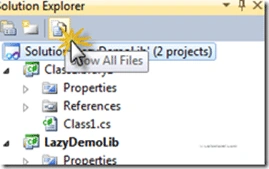
=> Collapse Projects
Join the conversation! Your thoughts help the community grow.