

In this article, I am going to you through one of the most practical patterns in Microsoft Fabric—moving curated tables from the Lakehouse into the Warehouse using Copy Jobs. This is a workflow you’ll see in real production environments, especially when you need a high‑performance SQL serving layer on top of your Lakehouse data.
In Fabric, the Lakehouse is fantastic for storage, transformation, and large‑scale processing. But when the business needs fast SQL queries, relational constraints, or high‑concurrency reporting, the Warehouse becomes the right destination. That’s why this pattern—Lakehouse to Warehouse—is so important.
In the screenshot below, I have Sales_WH Fabric Warehouse created without any tables
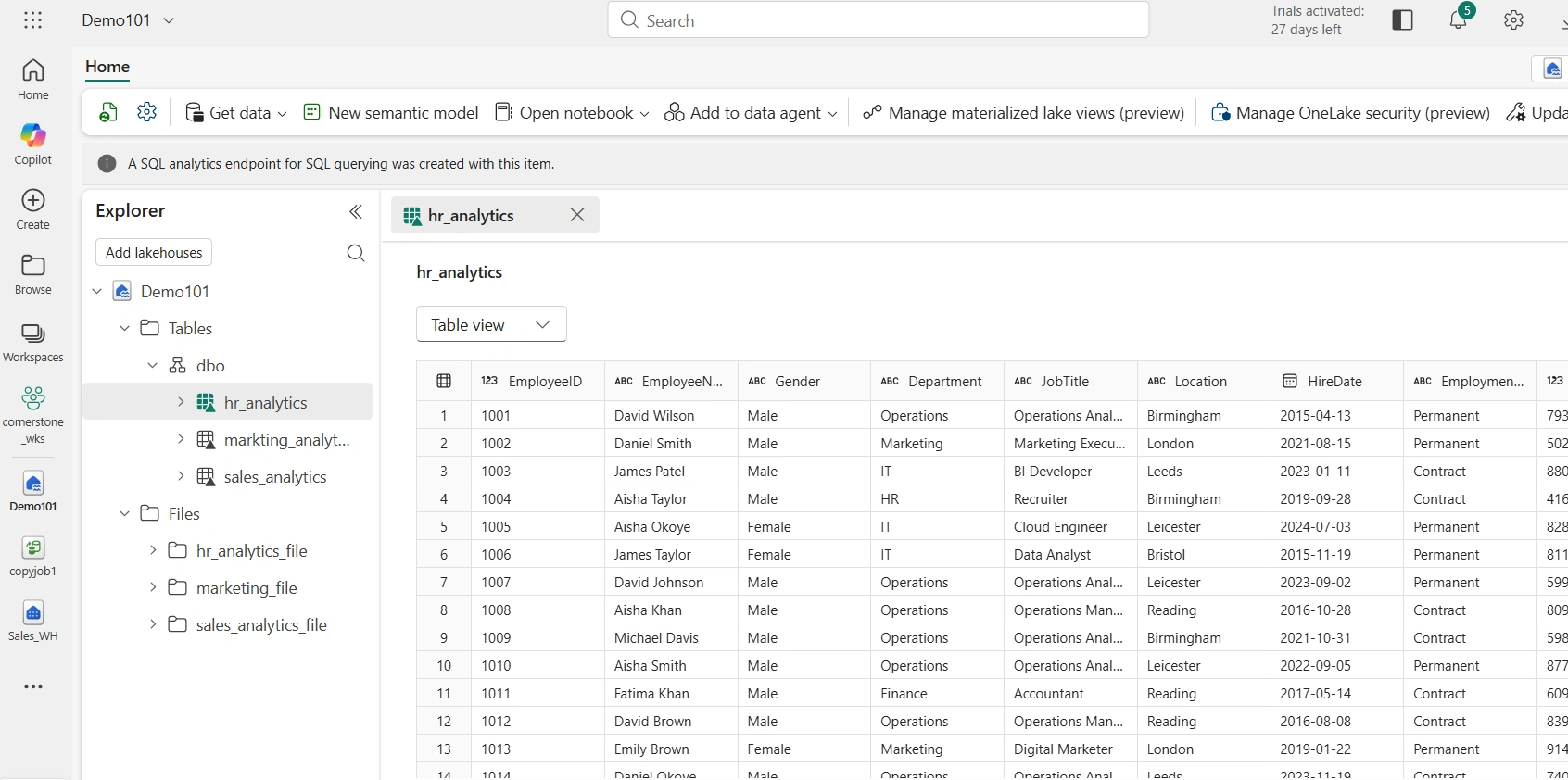
In the screenshot below, I have Demo101 Lakehouse that contains three delta tables that I want to copy to the Sales_WH Fabric Warehouse using copy job item
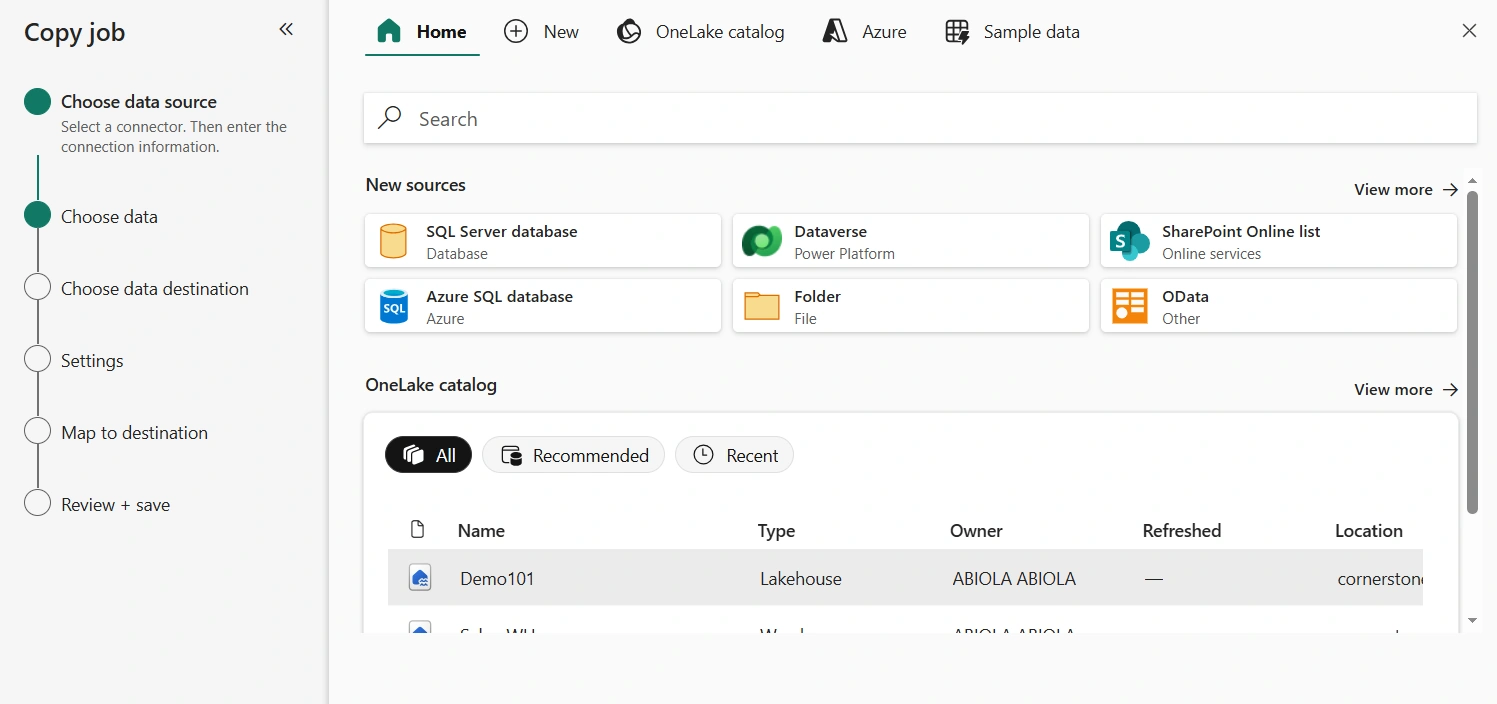
To ingest the data in those three tables, I am going to come into the Copy Job and select Choose Data Source. From the OneLake catalog, I can see the Demo101 Lakehouse. I selected it
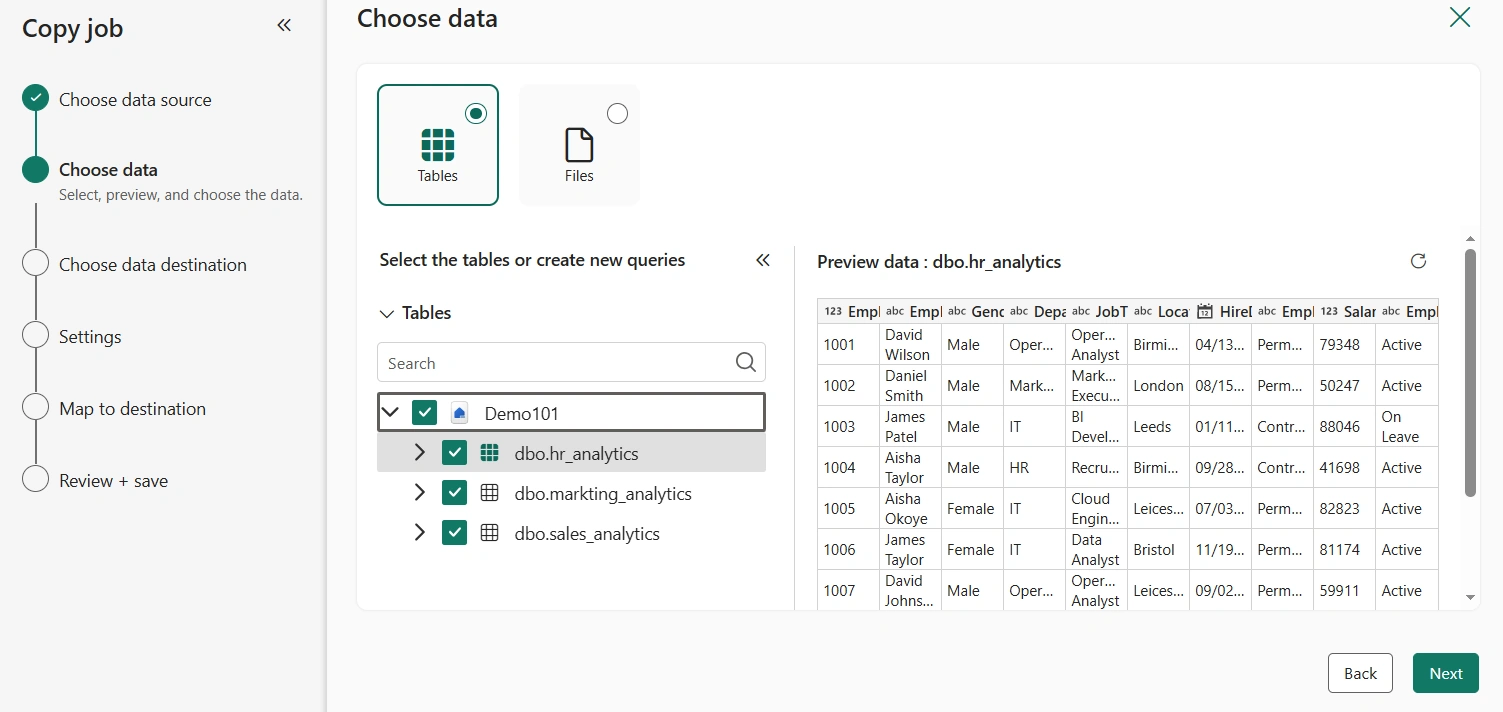
In the next intermediate window, I can see all the three Lakehouse tables as seen below
I selected the three tables
Click Next
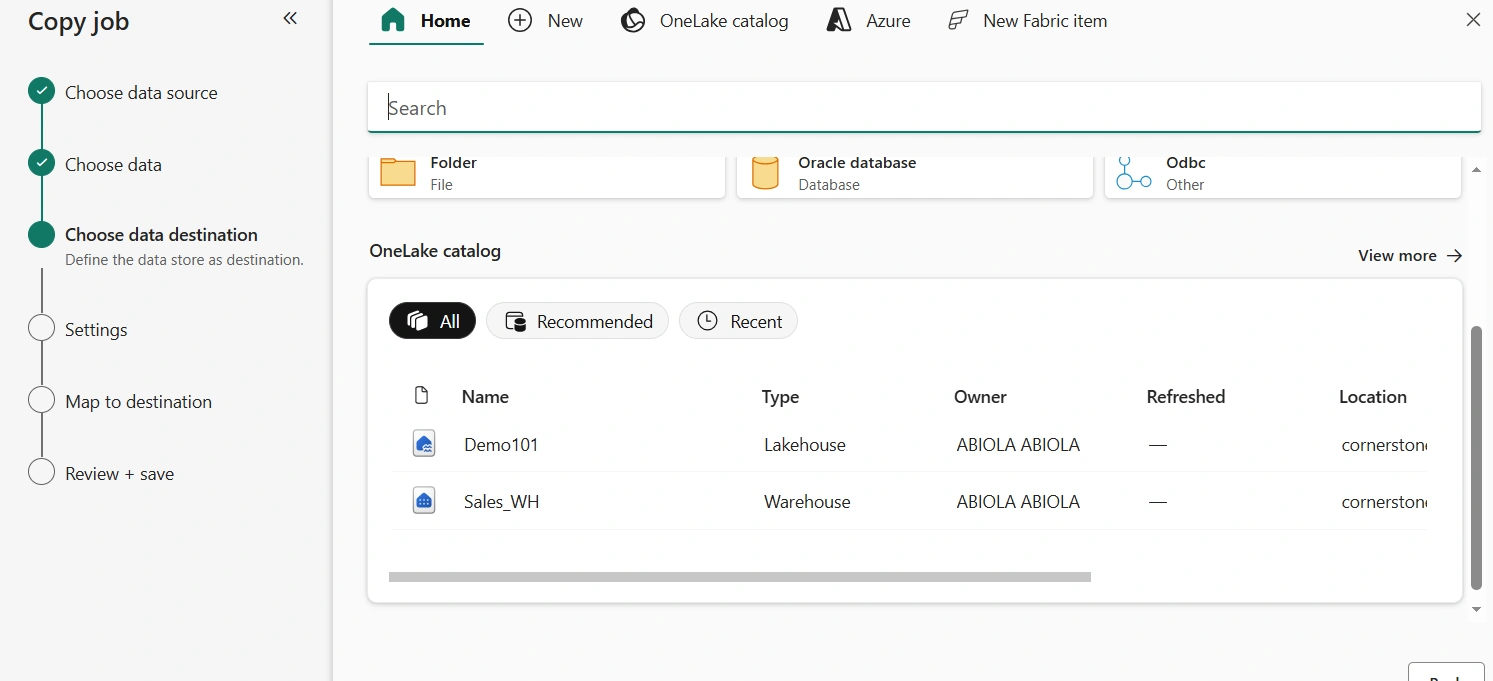
In the Choose data destination window, I can see the Sales_WH Warehouse. I selected it
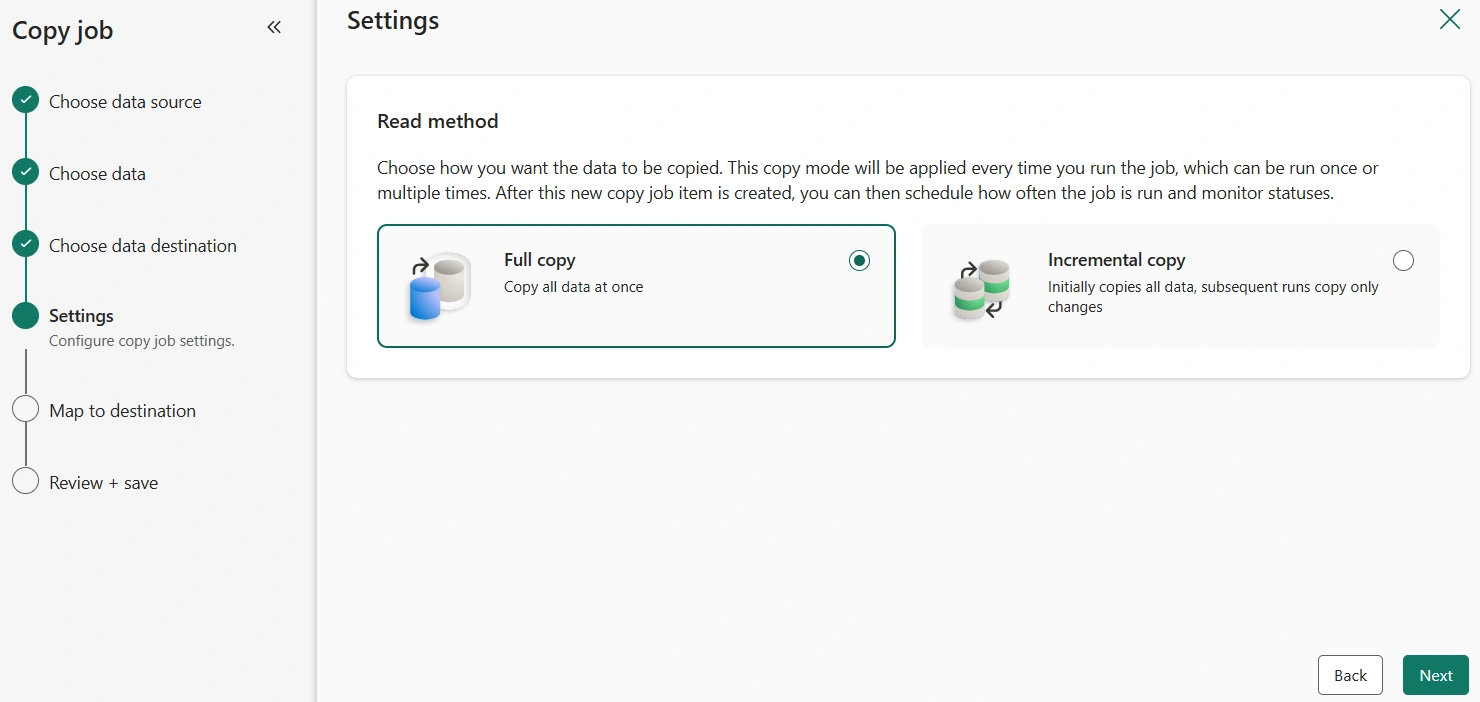
Next, we need to determine the Read method. Since this is one-time copy operation, I proceeded with the Full copy read method.
Click Next
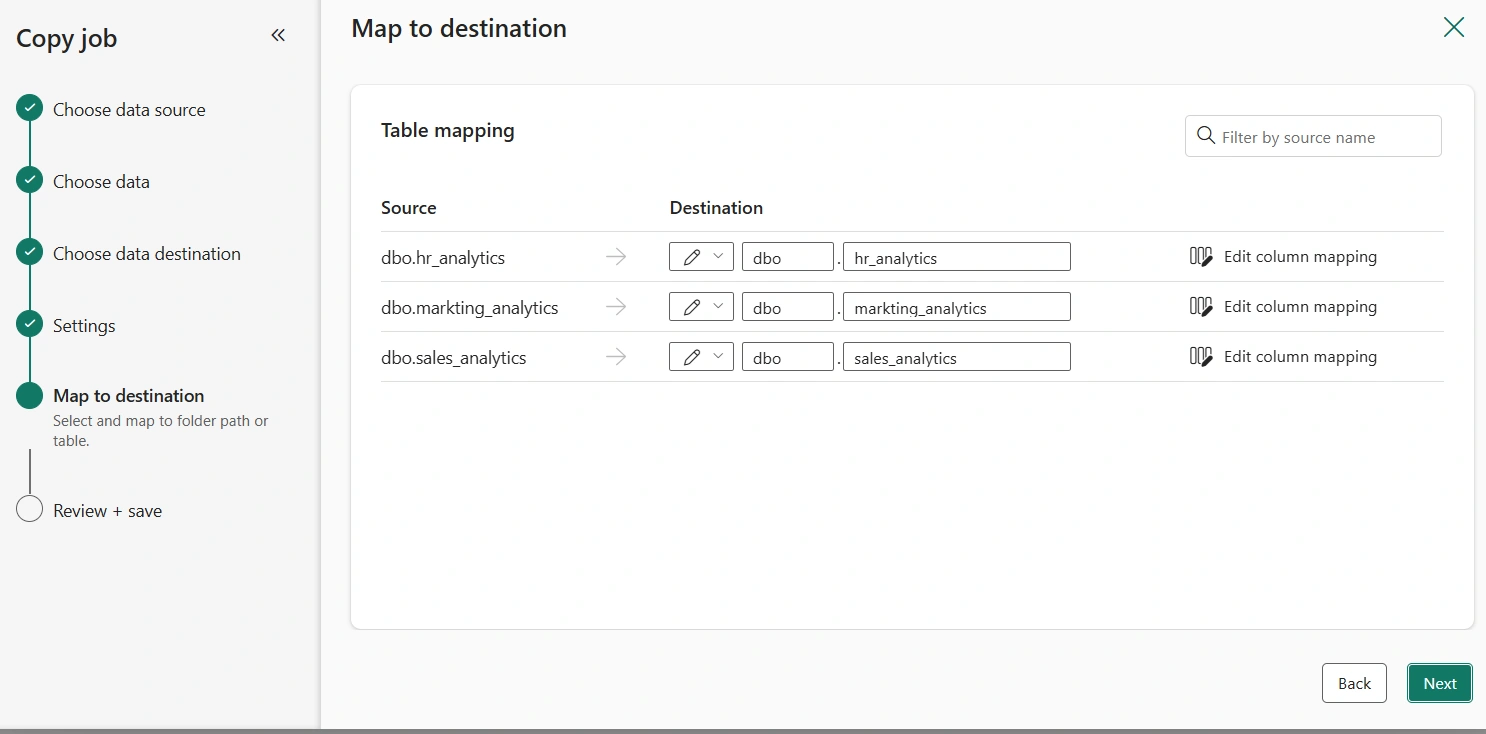
The map to destination is fine. Click Next
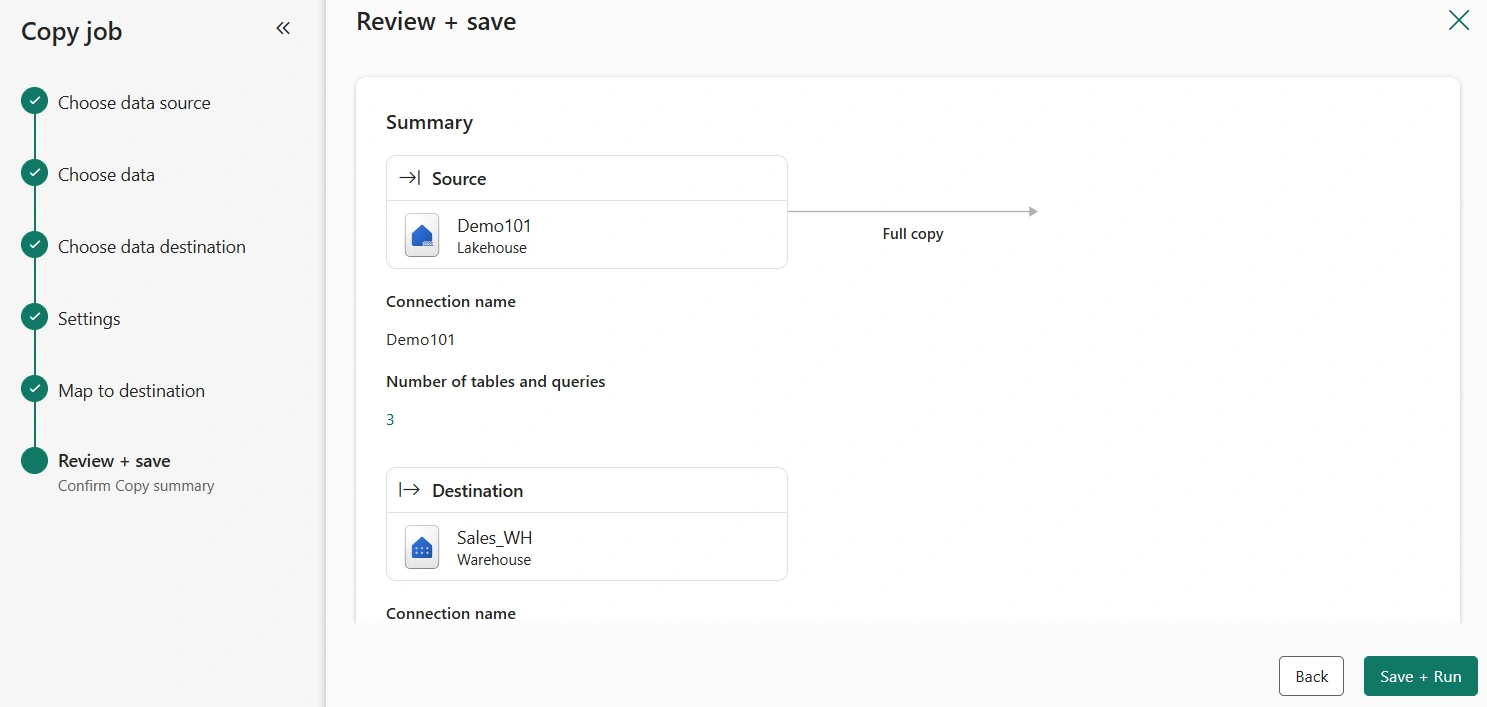
Finally, we can review all the changes and save. Click Save + Run
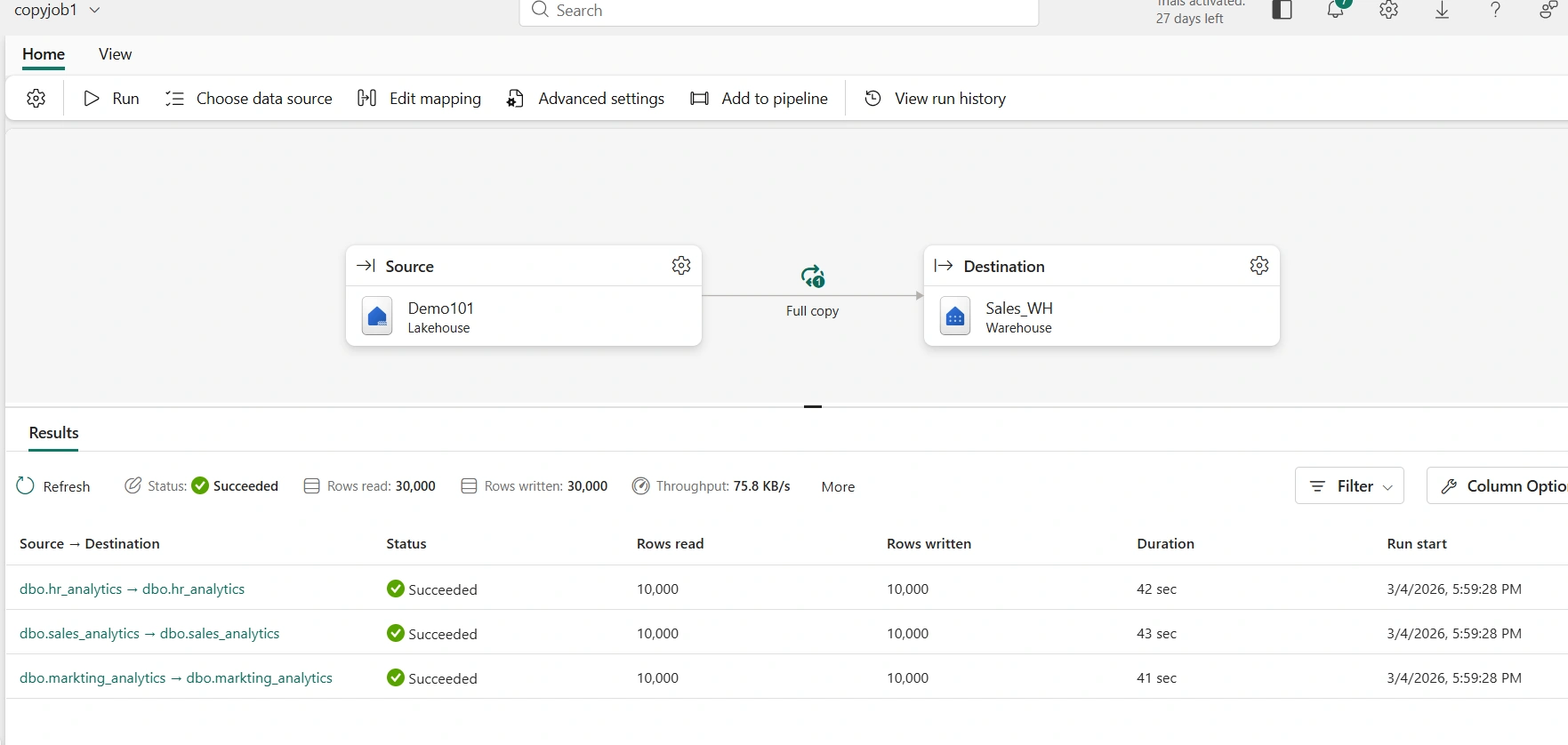
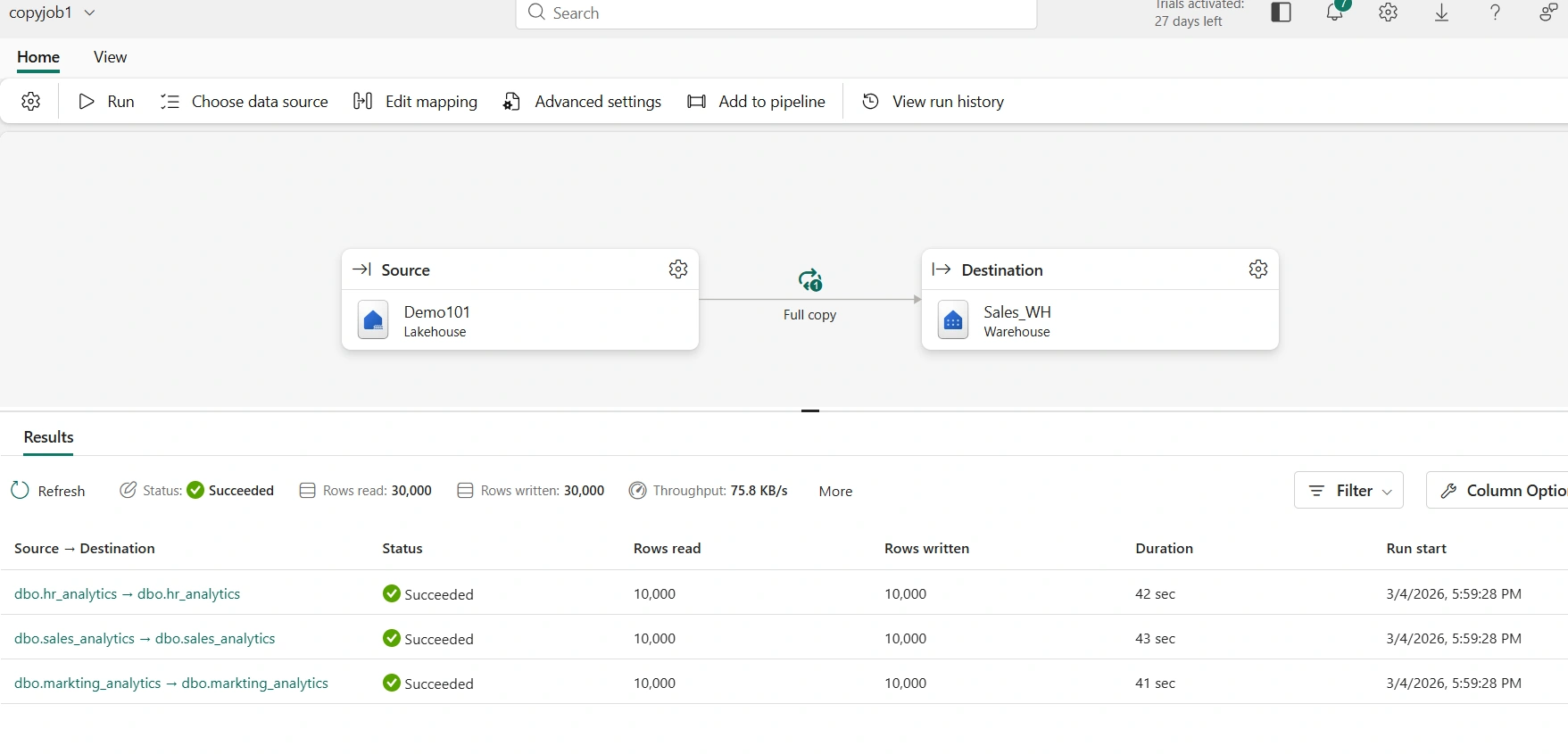
As seen in the copy job details, all the three tables are successfully ingested into the Sales_WH Warehouse
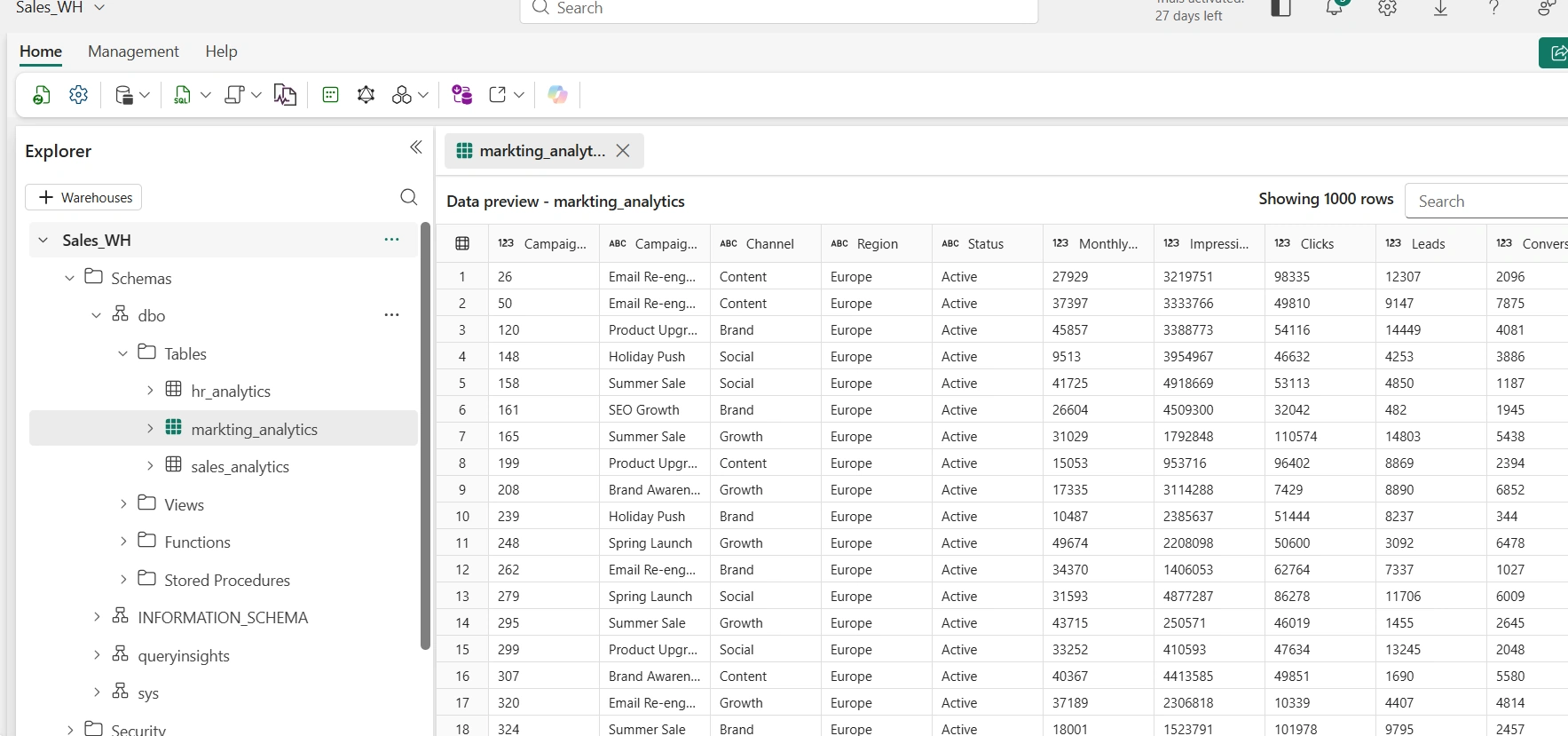
As seen in the Sales_WH Warehouse, we have all the three tables and we can start querying using SQL
See you in the next article
Join the conversation! Your thoughts help the community grow.