

In this article I’m going to explain how to install/uninstall Nuget packages for your application in Visual Studio using “Nuget Package Manager” and “Package Manager Console”. I assume that you have Visual Studio 2013/2015 on your machine.
Before that, if you are not aware about “Nuget” means the following explanation is for you.
“NuGet is the package manager for the Microsoft development platform including .NET. The NuGet client tools provide the ability to produce and consume packages. The NuGet Gallery is the central package repository used by all package authors and consumers.”.
Install Nuget Package using ‘Nuget Package Manager’
Step 1: Right click on your project and select “Manage Nuget Packages”.

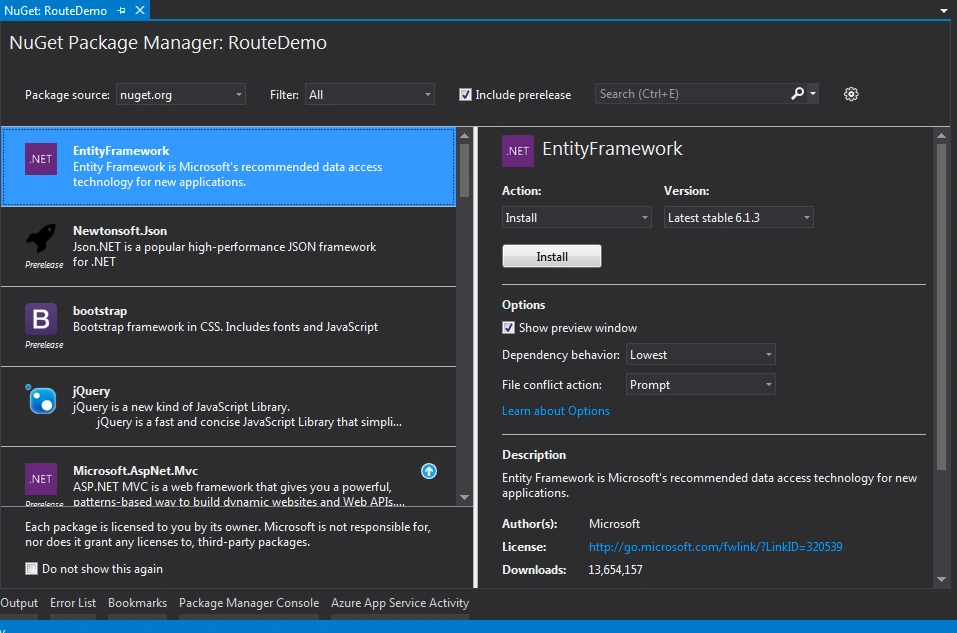
Step 2: Now the “Nuget Package Manager” window will appear with the list of nuget packages.
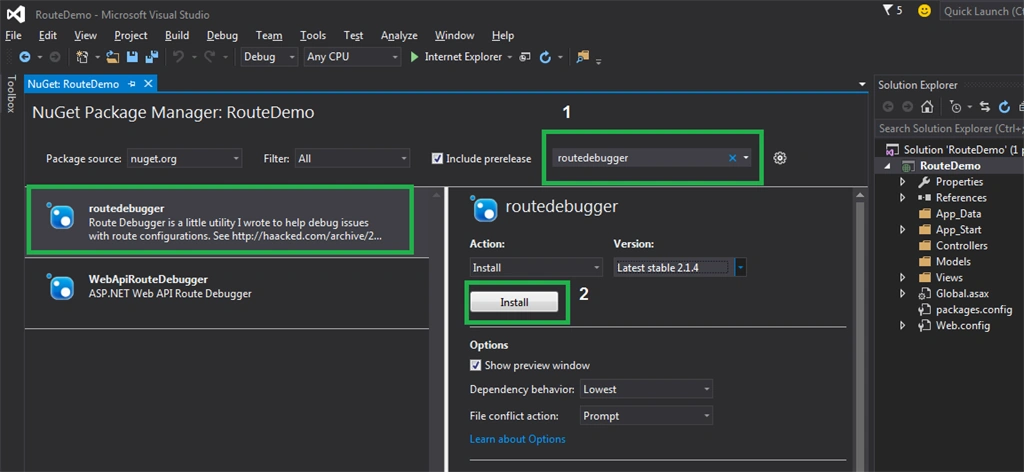
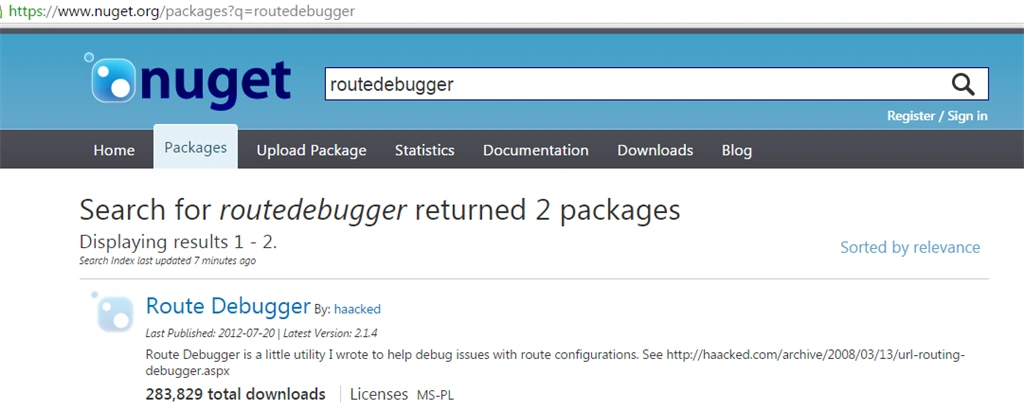
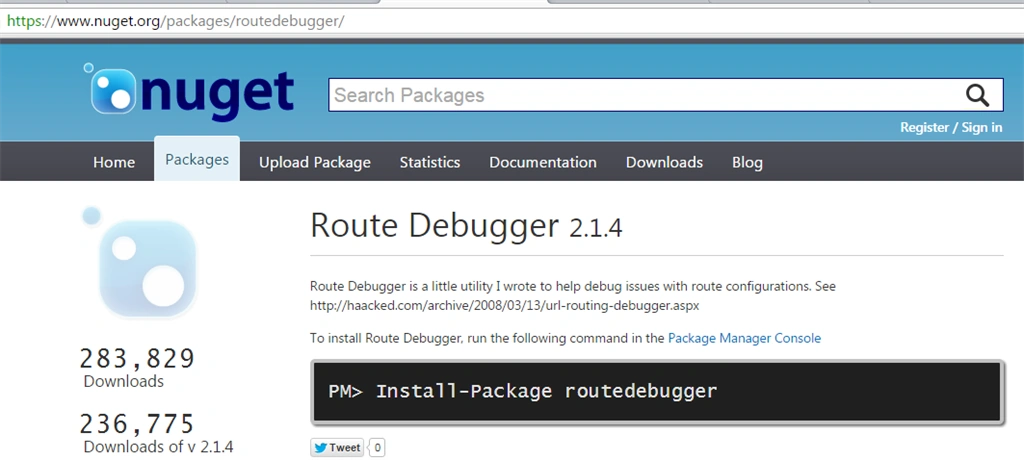
Step 3: In the search box, type the package you look for and hit enter. In this example, I just searched for “routedebugger” package and installed it by clicking the “Install” button.
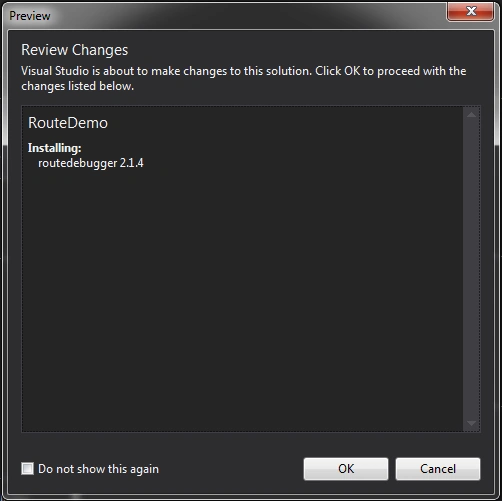
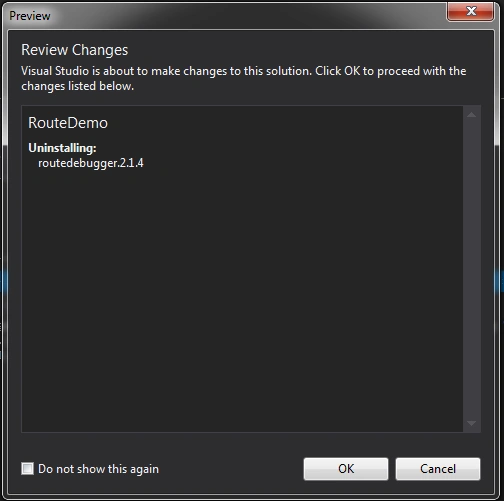
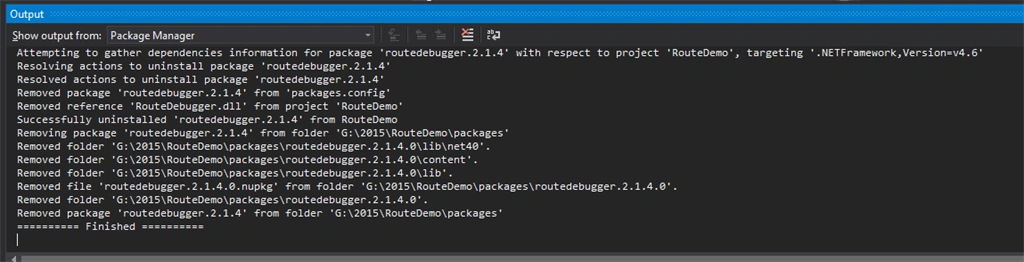
Step 4: While installing if the downloaded package tries to change the files in the solution/project it will popup the dialog to warn us. Just click “OK” for it and you can see the “installation progress” in the Output window.
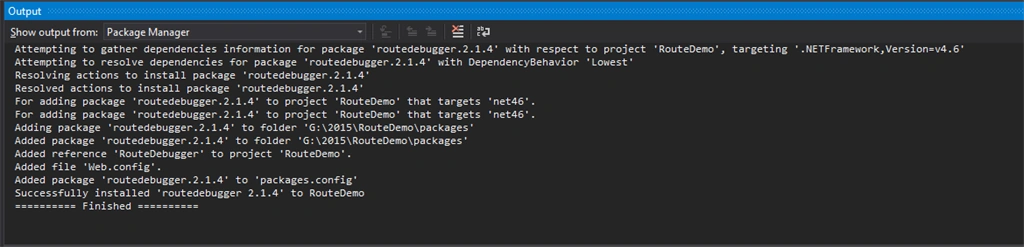
Step 5: Now you can just expand the “Solution Explorer” window. See in the “Reference” to check that particular reference is added or not.
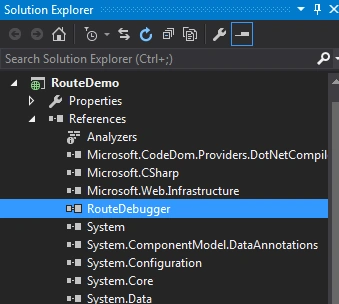
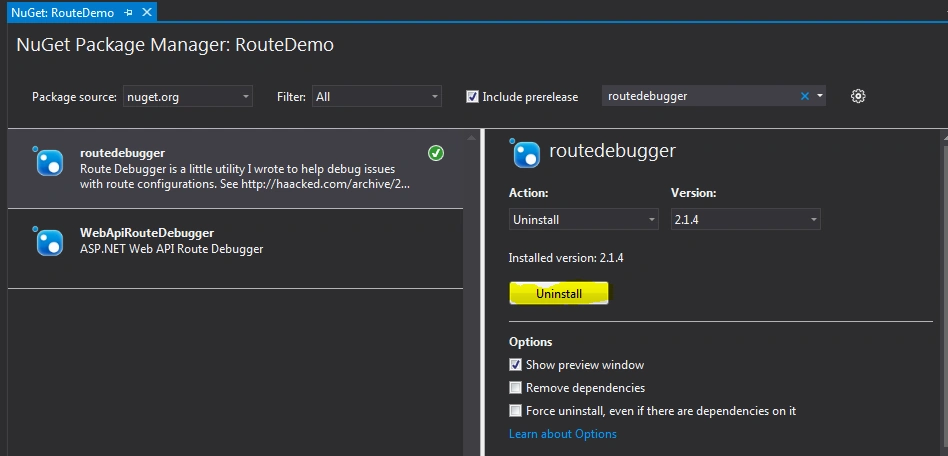
Uninstall NuGet Package using ‘Nuget Package Manager’
Sibeesh VenuPosted Oct 27, 2015, 8:35 AM
Nice Share
Mukesh KumarPosted Oct 27, 2015, 7:38 AM
Great work!
Gowtham KPosted Oct 27, 2015, 3:23 AM
Good One
Nilesh JadavPosted Oct 27, 2015, 2:55 AM
Nice one sir !!