

Introduction
Remote Blob Storage (RBS) facilitates storage of BLOB data outside the SQL Server Content Database onto the file system by using the FILESTREAM feature of SQL Server 2008. The advantages of storing BLOBs on the file system are:
- Cheaper storage solution.
- Improved database performance since database size becomes smaller as BLOB data is stored on the file system.
- Better integration of SharePoint with other ECM systems.
- Small and medium size customers can get around with the SQL Express limit of 4GB DB size.
There are five steps to be performed for RBS to be up and running on a SharePoint 2010 Farm:
- Enable FILESTREAM on SQL Server
- Provision the Content Database to use RBS Filestream Provider
- Install RBS
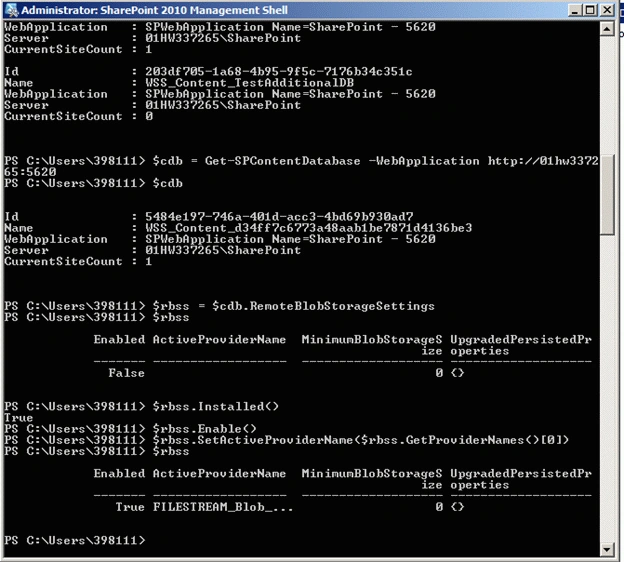
- Enable RBS on Content Database
- Test RBS data store
Enable FILESTREAM on SQL Server
- Click Start => All Programs => SQL Server 2008 R2 => Configuration Tools => SQL Server Configuration Manager.
- Under SQL Server Configuration Manager in the left pane, select SQL Server Services.
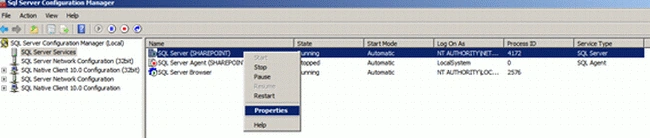
- Locate the instance of the SQL Server that needs to be enabled as shown above.
- Right-click the SQL Server instance and select Properties.
- In the SQL Server Properties dialog box, select the FILESTREAM tab.
- Ensure that Enable FILESTREAM for Transact-SQL access is checked.
- Ensure that Enable FILESTREAM for file I/O stream access is checked.
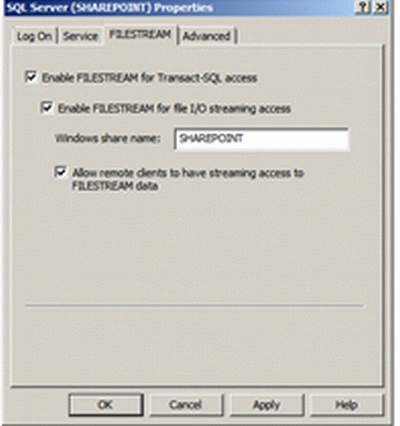
- Ensure that Allow remote clients to have streaming access to FILESTREAM data is checked as shown above.
Setting the filestream_access_level Parameter
By default, the filestream_access_level parameter in SQL Server is set to 1 (Enables FILESTREAM for Transact-SQL access). In order for the RBS provider to function properly, this parameter must be set to 2 (Enables FILESTREAM for Transact-SQL and Win32 streaming access).
- Open SQL Management Studio and click New Query to launch the Query Editor
- Execute the following commands using the Query Editor:
EXEC sp_configure filestream_access_level, 2
RECONFIGURE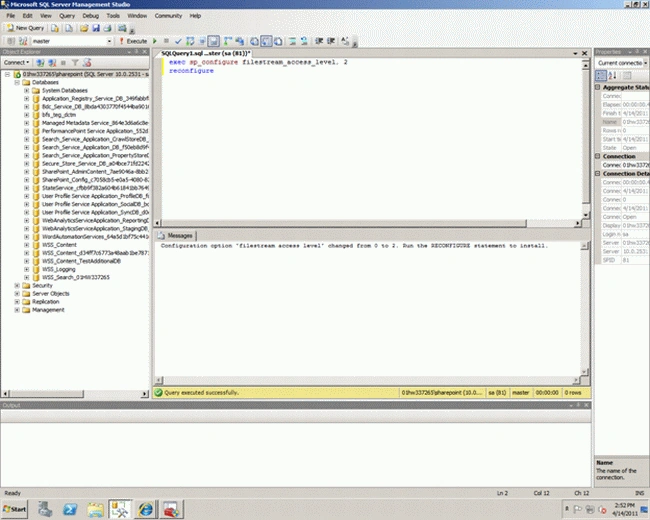
3. To verify that the configuration has been enabled, execute the following command using the Query Editor:
EXEC sp_configure filestream_access_level
The results should look like this:
Provision the Content Database to use RBS Filestream Provider
- Select the content database for which you want to create a BLOB store, and then click New Query.
- In the Query pane, copy and execute each of the following SQL queries in the sequence provided here.
use [ContentDbName]
if not exists (select * from sys.symmetric_keys where name = N'##MS_DatabaseMasterKey##')create master key encryption by password = N'Admin Key Password !2#4'
use [ContentDbName]
if not exists (select groupname from sysfilegroups where groupname=N'RBSFilestreamProvider')alter database [ContentDbName]
add filegroup RBSFilestreamProvider contains filestream
use [ContentDbName]
alter database [ContentDbName] add file (name = RBSFilestreamFile, filename = 'd:\Blobstore') to filegroup RBSFilestreamProvider
Where [ContentDbName] is the content database name, and d:\BLOBStore is the directory in which you want the BLOB store created. You can provision a BLOB store only one time.
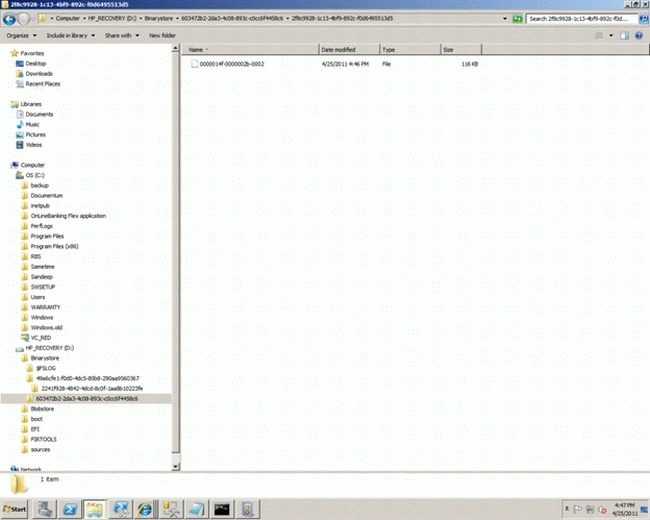
You should see something like this on the file system.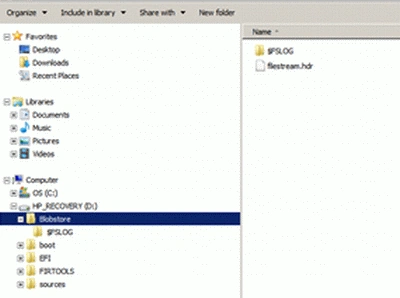
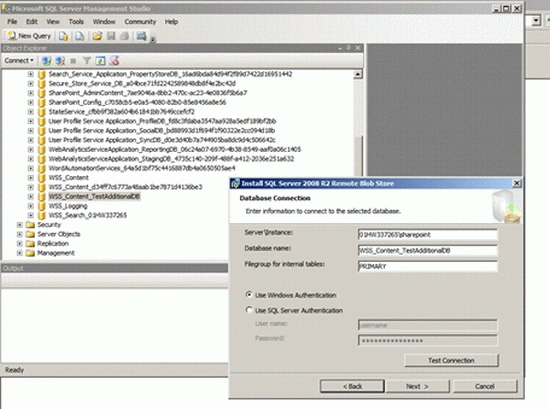
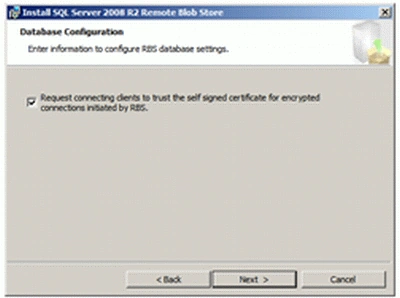
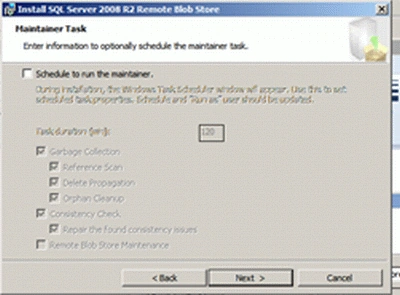
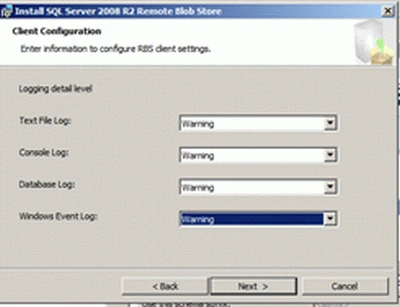
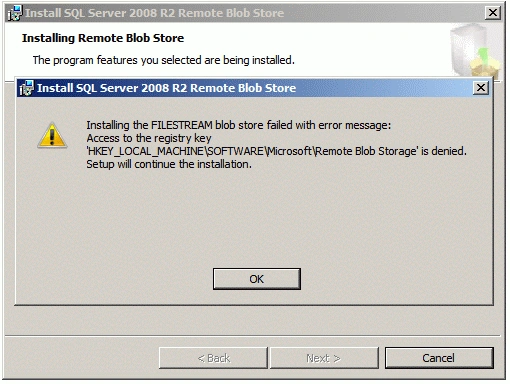
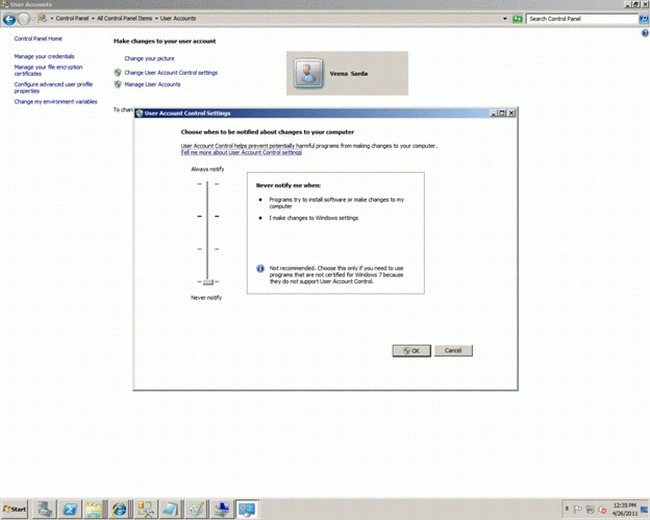
Install RBS
Dinesh BeniwalPosted Apr 24, 2012, 7:44 AM
Good Work Veena.
Arjun PanwarPosted Apr 23, 2012, 12:33 AM
Hi, Good information about installation and verification of RBS on SharePoint 2010.