

Introduction
IIS is a web server to run websites and provide various services on the web, such as:
- IIS supports .NET (by default) as well as other technologies, such as Java, PHP, etc.
- IIS was first released as version 6.0 and the latest version is 8.0
Version 6.0 -- Version 7.0 -- Version 7.5 -- Version 8.0
From version 7.0 IIS provided many features and because of that it became one of the top and favorite web servers of the current time.
Installation of IIS : (IIS installs only on the Windows operating system)
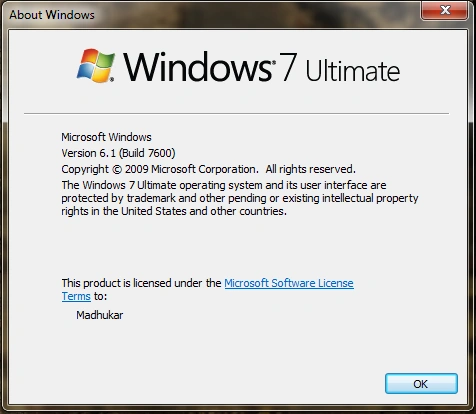
Step 1: Check the Operating Systems Compatibility with IIS
Home Basic and Starter Editions are not supported for IIS Installation.
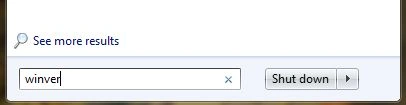
Go to Windows then type "winver".
For windows XP
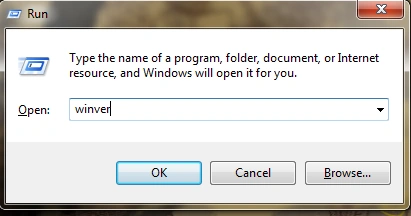
Go to Windows then "Run" then type "winver" .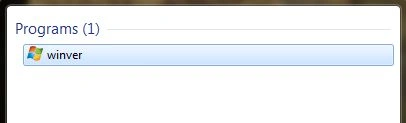
Step 2: Start installation
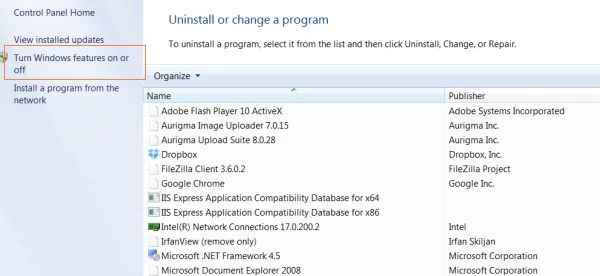
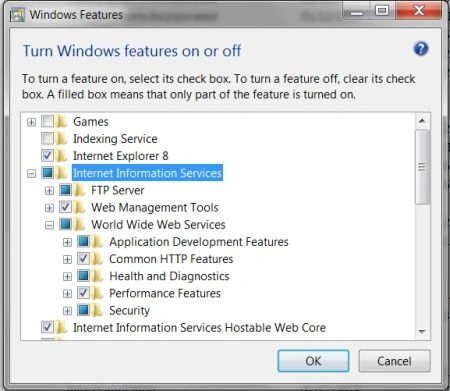
Go to "Control Panel" - "Programs and features" - "Turn Windows features on/off" - select "IIS (Internet Information Services)" with its sub-options then click "Ok".
Windows XP
Go to "Control Panel" - "Add and Remove programs" - "Add and Remove programs" - select "IIS (Internet Information Services)" with its sub-options then click "Ok" (in some cases it will ask for the CD; if it does then enter the XP CD and press Enter).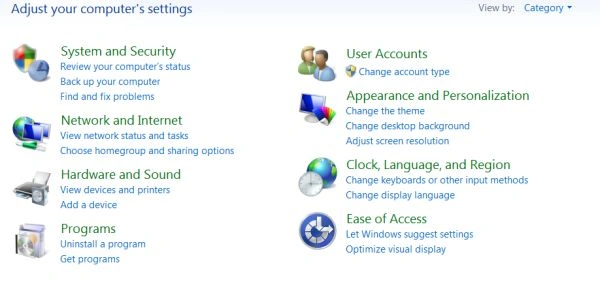
Step 3: After installation check if IIS is running
Go to any browser then type "http://localhost" then check if IIS information is in the browser (the IIS information display is in a different format depending on the OS and version of IIS).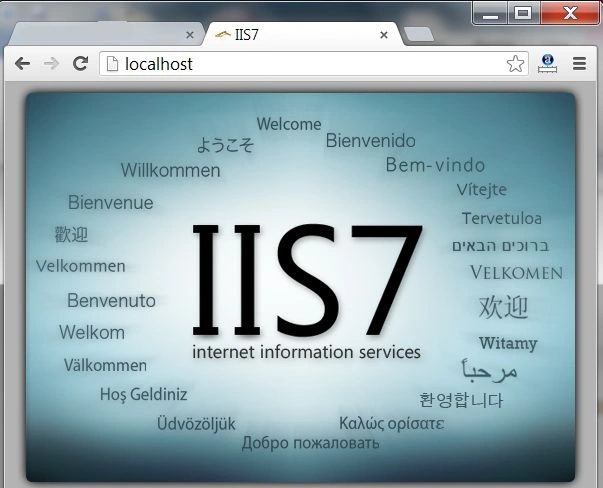
In case IIS information is not displayed because of some unwanted software installed in your system they will corrupt the information page or block the port then follow these steps to check if IIS is running or not: Go to Windows then type "inetmgr" .
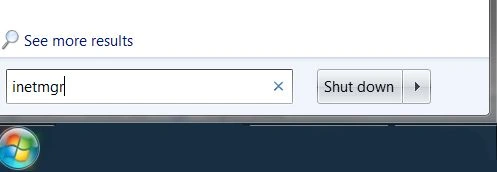
Or go to "Control Panel" - "Admistrative tools" - "IIS Manager Program" and we will get the following screen: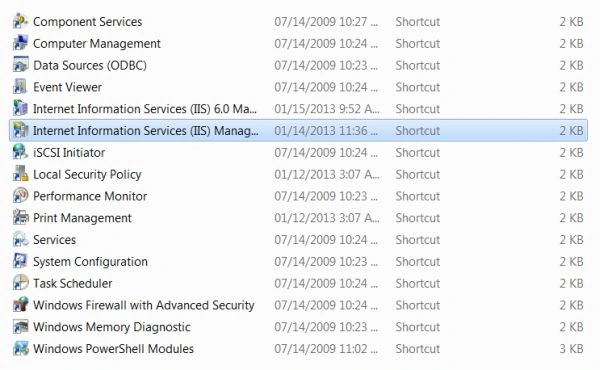
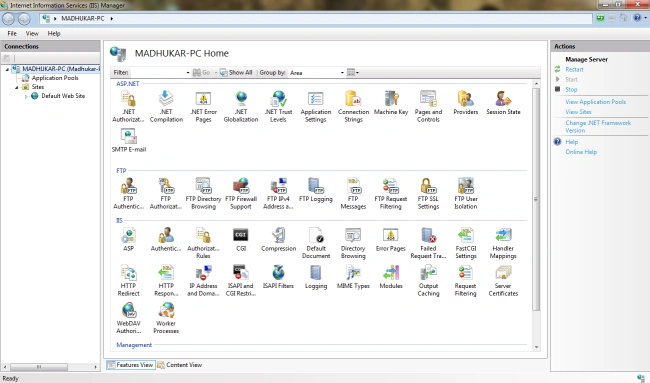
Create Virtual directory in IIS Manager
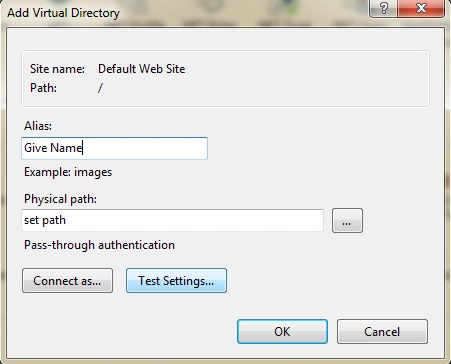
Go to "Control Panel" - "Admistrative tools" - "IIS Manager Program" then in the left pane go to "default Web sites" then right-click and select "Virtual Directory" then enter an Alias name and Set the path and press "Ok".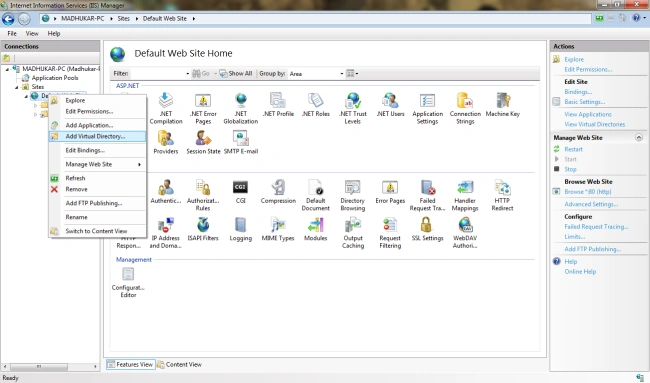
Dinesh BeniwalPosted Mar 4, 2013, 8:41 AM
Good Start.
Former membereditedPosted Mar 3, 2013, 7:49 AMEdited Mar 3, 2013, 7:50 AM
nice article.