

The following document will provide you the step by step guide to create a Windows Server operating system and install the docker in it. To proceed with this, you need to login to your Microsoft Azure portal.
Step 1 Windows Server VM Creation
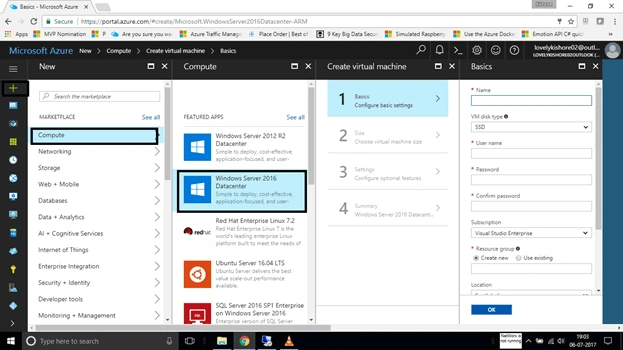
Create a new Windows Server VM by going to New->Compute->Windows Server 2016 Data Center.
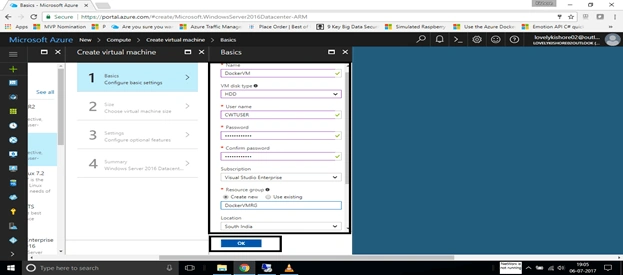
Enter some username and password by creating a new resource group and choosing some location.
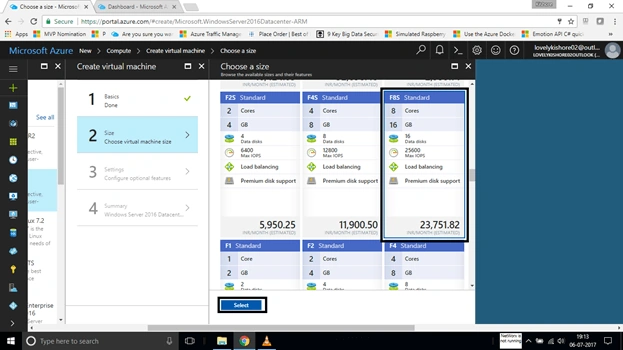
Choose F8S Standard sized virtual machine in the next step.
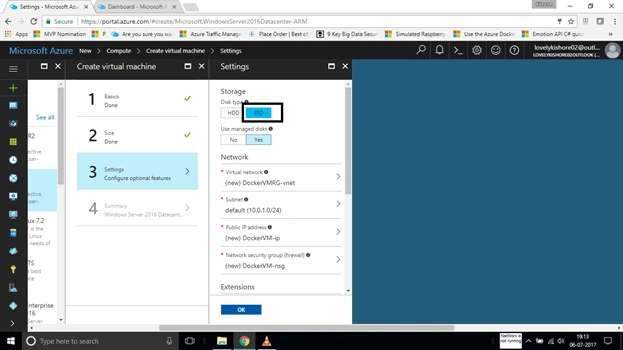
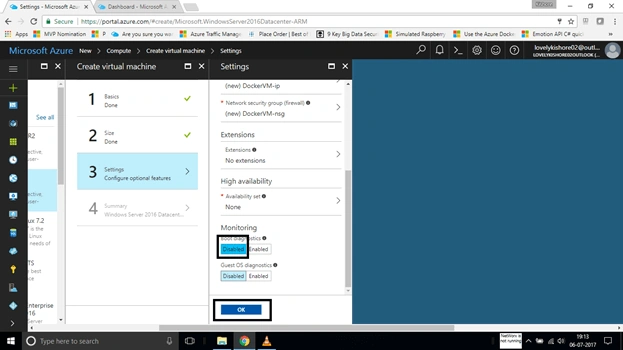
In the Settings blade, choose the disk type to SSD and Boot diagnostics to NO. Then, create the VM.
Once the VM gets created, log into the VM. Now, the next step is installing the docker.
Step 2 Installing Docker using PowerShell
- Login to your Server VM and check for Windows updates. If any updates are found, install them first.
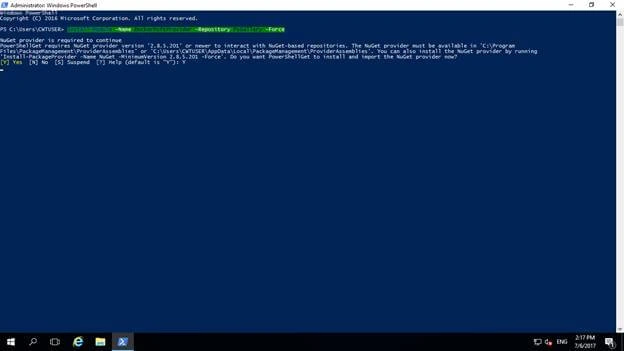
- After finishing installation of updates, open PowerShell with administrator privileges. Then, run the following command to get the Docker module for Windows. While executing the below two commands, make sure to give permission as "Yes" when prompted for permission.
Install-Module -Name DockerMsftProvider -Repository PsGallery -Force
- Now, install the docker package from the gallery which we have installed now.
Install-Package -Name docker -Providername DockerMsftProvider -Verbose
- Once the installation gets done, restart your Server VM.
Step 3 Starting Docker
- Now, check whether Docker is running by using the command.
Get-Service docker
- If it doesn’t run, execute the following command.
Start-Service docker
- Now, execute the command.
docker version
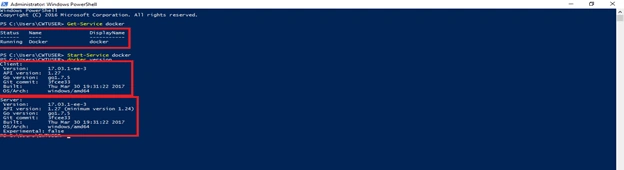
Thus, we have successfully installed the docker inside Windows Server VM.
Vidyadharran GPosted Jul 29, 2017, 11:43 PM
Nice article thanks for sharing........:)