

Introduction
This is a continuation of my previous article. I highly recommend you to go through my previous article before going through this one.
What we will learn here?
- Creating an Azure Function
- Integrating a function with Azure Queue Storage
Creating a function
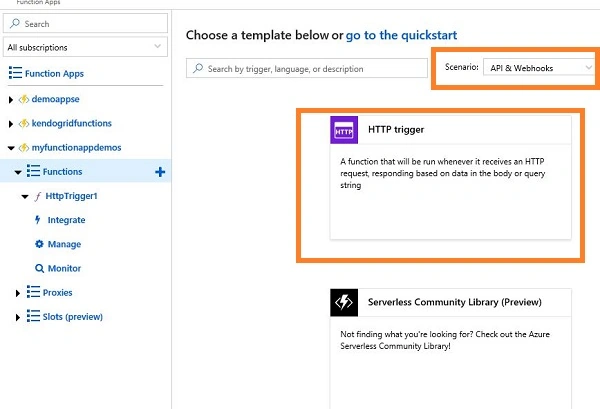
Figure 1: HTTP Trigger Template
Now, it will prompt the form to create a function. Give a function name, like I named it as QueueIntrgrationDemo, and click "Create". Now, Azure will start creating a new function.
Let’s create a function which will accept the order details as a JSON payload, deserialize it, and respond to the user. Replace the existing code with the code given below.
- public class Order{
- public string OrderId{get;set;}
- public string ProductId{get;set;}
- public string UserEmail{get;set;}
- public decimal Price {get;set;}
- }
- public static async Task<object> Run(HttpRequestMessage req, ILogger log, IAsyncCollector<Order> outputQueueItem)
- {
- string jsonContent= await req.Content.ReadAsStringAsync();
- var myOrder= JsonConvert.DeserializeObject<Order>(jsonContent);
- log.LogInformation($"Order {myOrder.OrderId} received from {myOrder.UserEmail} for product{myOrder.ProductId}");
- return (object)new OkObjectResult($"Your Order is Placed with Order Id {myOrder.OrderId}, Thank you" );
- }
Consider a scenario where the user placed the order. The order details are in a JSON payload and will be sent to the Azure Function we created. And, based on the above code, the JSON Payload will be deserialized and respond back to the user with a success message.
Now, we will extend this method to process the data further by integrating the Azure Queue Storage.
Integrating with Azure queue storage
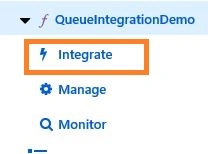
Currently, we can have one trigger, i.e., HTTP Request, and one output, i.e., HTTP Response.
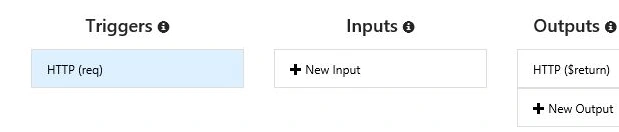
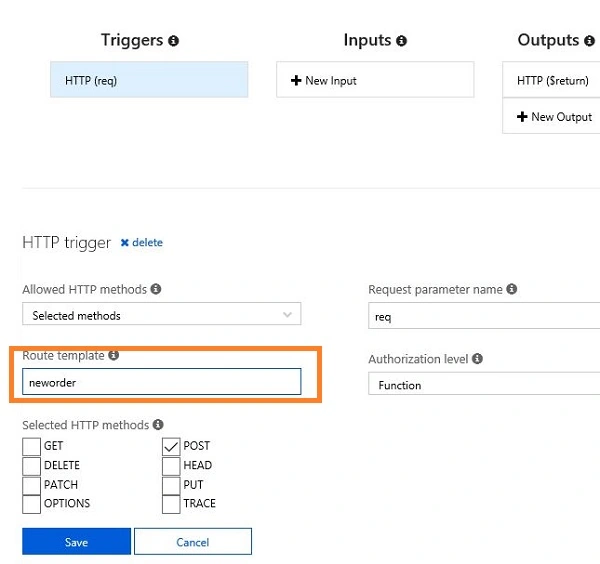
Figure 4: HTTP Trigger
Now, just jump into the function and check whether the changes are reflected. Click on "get function URL".
https://myfunctionappdemos.azurewebsites.net/api/neworder?code=xQz5ZRPhRVCxOX4z5PoIGziXZVzxZuANgb5rJuGng1pI8A0ahR6Piw==
Got the URL? Now, you can see that based on the route template changes, the API URL is updated. Let’s test the API using POSTMAN.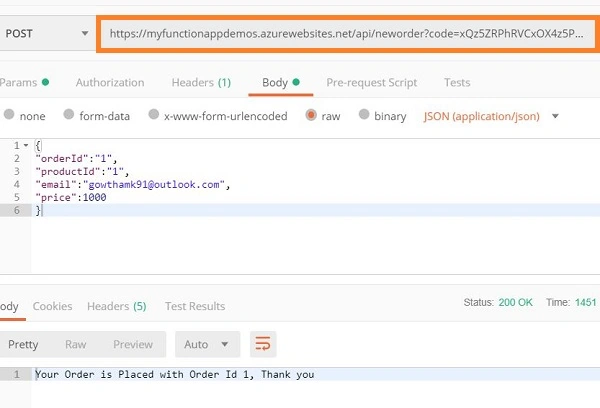
Go to "Integrate" and let’s add one more output. Click on the new output and choose "Azure Queue Storage" and click "Select". Click here to learn more about Azure Queue Storage.
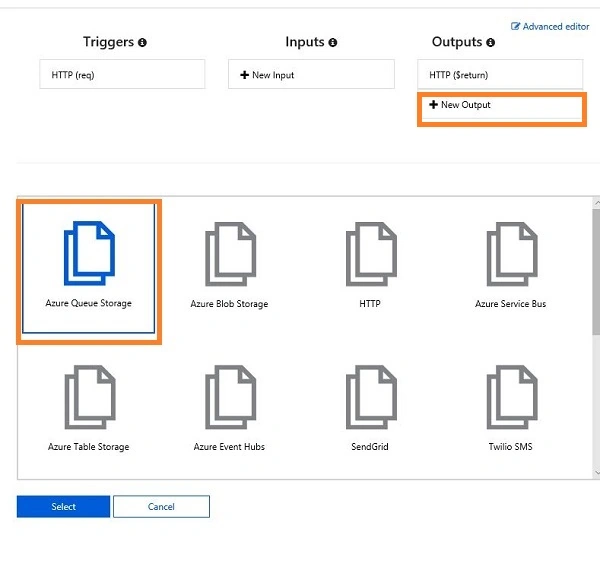
Give the Queue a name and the Storage account connection which is used for the Function App, as shown in the below figure.
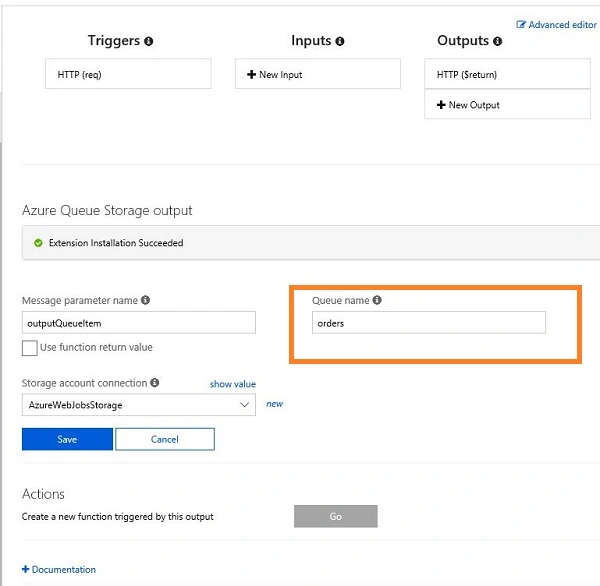
Let’s modify our function based on the changes we made in the output.
- public class Order{
- public string OrderId{get;set;}
- public string ProductId{get;set;}
- public string UserEmail{get;set;}
- public decimal Price {get;set;}
- }
- public static async Task<object> Run(HttpRequestMessage req, ILogger log, IAsyncCollector<Order> outputQueueItem)
- {
- string jsonContent= await req.Content.ReadAsStringAsync();
- var myOrder= JsonConvert.DeserializeObject<Order>(jsonContent);
- log.LogInformation($"Order {myOrder.OrderId} received from {myOrder.UserEmail} for product{myOrder.ProductId}");
- await outputQueueItem.AddAsync(myOrder);
- return (object)new OkObjectResult($"Your Order is Placed with Order Id {myOrder.OrderId}, Thank you" );
- }
Now, let us listen to the Queue message which contains the incoming order details and create an invoice.
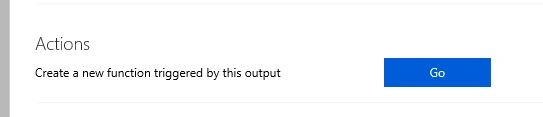
Just go to the "Integrate" window, click on Azure Queue Storage from outputs. In the bottom of the window, you can see the Actions option which says to create a new function triggered by its output. Click on "Go".
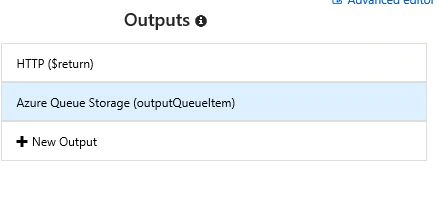
Figure 8
Give the function a name, as GenerateInvoice; give the queue a name and storage account which is used while creating the Azure Queue Storage output for the HTTP trigger, as shown in the below figure.
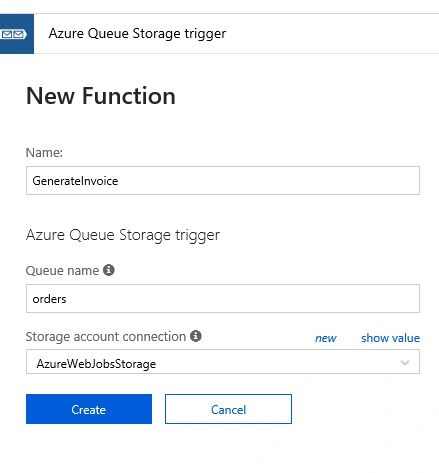
Click "Create". It will generate a function which will display the message in a log available in the Queue, as shown below.
- using System;
- public class Order{
- public string OrderId{get;set;}
- public string ProductId{get;set;}
- public string UserEmail{get;set;}
- public decimal Price {get;set;}
- }
- public static void Run(Order myQueueItem, ILogger log)
- {
- log.LogInformation($"{myQueueItem}");
- }
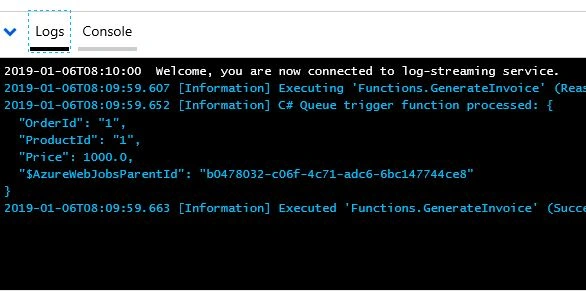
Figure 10
- Go to your Azure function App.
- Under our GenerateInvoice function, let's click on "Monitor". You can see the application insights.
- If you have not created it yet, click on "Create an Application Insight for the Function App".
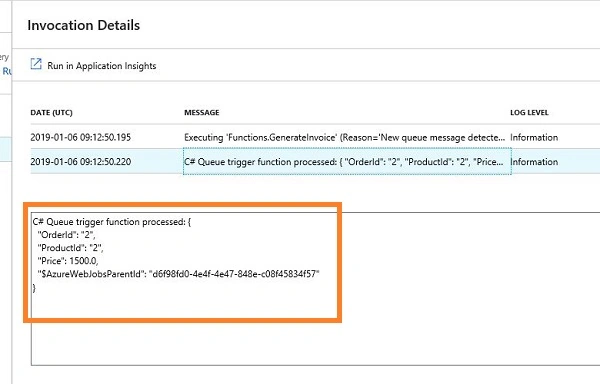
From the application insight, you can see the history of invocation. If we click on the recent log, we can see the order details, which means we have successfully deserialized the JSON payload.
Conclusion
We have seen how to modify an Azure Function by deserializing the JSON payload using the portal and integrate it with Azure Queue Storage service. In my next article, we will see how to integrate an Azure Function with Blob by generating the invoice and storing it in a blob.
Join the conversation! Your thoughts help the community grow.