Overview

Welcome to Bot Development with the Microsoft Power Virtual Agent. During this entire article series, we will learn how to create a Chatbot using Microsoft Power Virtual Agent without writing a single line of code. From this series, you will learn the complete end to end process from development to deployment.
I have divided this article series into the following parts.
  1. Introduction to Microsoft Power Virtual Agents – Part One
  2. Get Started with the Bot Development Step by Step – Part Two
  3. Connect your Power Virtual Agents with the MS Power Automate – Part Three
  4. Publish Power Virtual Agents ChatBot and Deploy to MS Teams – Part Four
  5. Deploy Power Virtual Agents ChatBot to Any Website – Part Five
  6. Integrate Power Virtual Agents ChatBot to Power BI – Part Six

Use Case

In this article, we will talk about how we can deploy our Power Virtual Agents ChatBot to the Power BI Dashboard.

Recap

In my previous article, we have created Power Virtual Agents ChatBot and deployed the Chatbot to MS Teams and custom web sites.
So, now let’s get started!
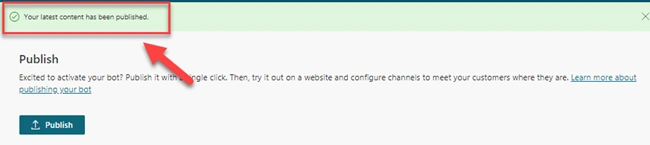
Step 1
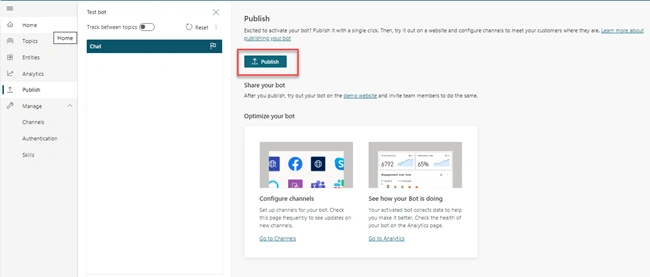
Publish the Chatbot.
Integrate Power Virtual Agents Chat Bot With Power BI Dashboard
Step 2
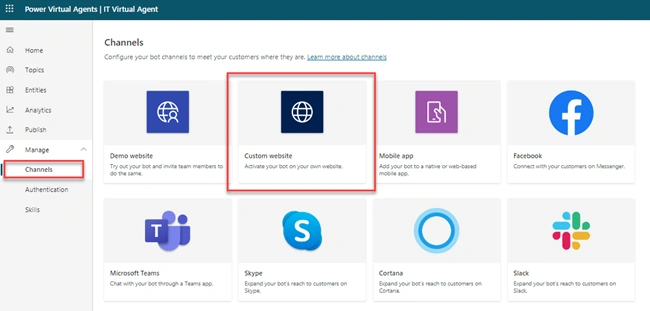
Go to Manage > Channels
Integrate Power Virtual Agents Chat Bot With Power BI Dashboard
Step 3
Select Custom Website
This will open the following screen.
Copy HTML code.
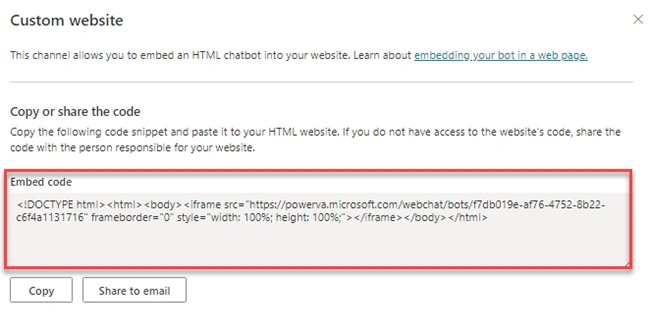
  1. <!DOCTYPE html><html><body><iframe src="https://powerva.microsoft.com/webchat/bots/f7db019e-af76-4752-8b22-c6f4a1131716" frameborder="0" style="width: 100%; height: 100%;"></iframe></body></html>
Copy only iframe tags for future reference.
Integrate Power Virtual Agents Chat Bot With Power BI Dashboard
Step 4
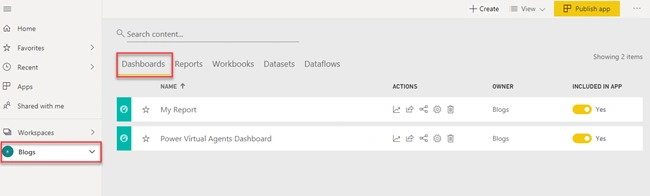
Go to Power BI and select the workspace where you wish to embed your Power Virtual Agents ChatBot.
Integrate Power Virtual Agents Chat Bot With Power BI Dashboard
Step 5
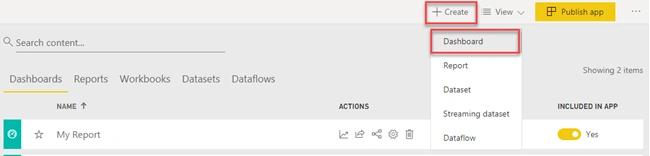
Click on Create button to create a dashboard.
Integrate Power Virtual Agents Chat Bot With Power BI Dashboard
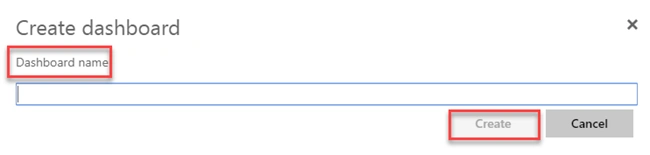
Give the name of the Power BI Dashboard.
Integrate Power Virtual Agents Chat Bot With Power BI Dashboard
Step 6
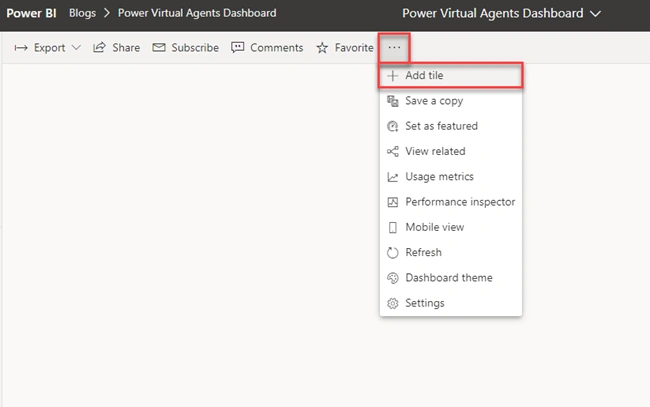
Add a Tile to your Dashboard.
Step 7
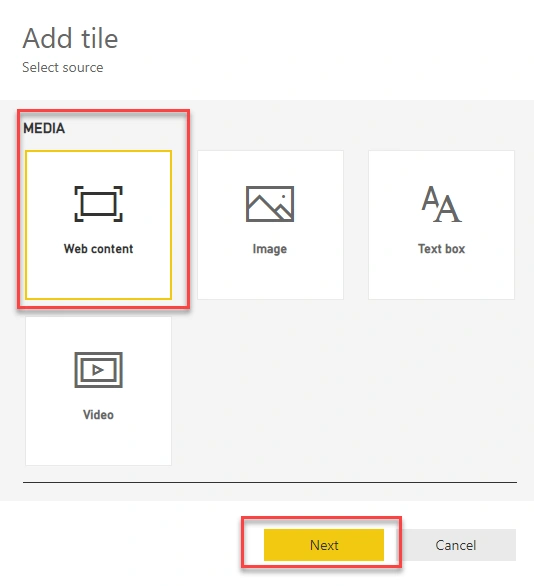
From Media, select Web content.
Integrate Power Virtual Agents Chat Bot With Power BI Dashboard
Step 8
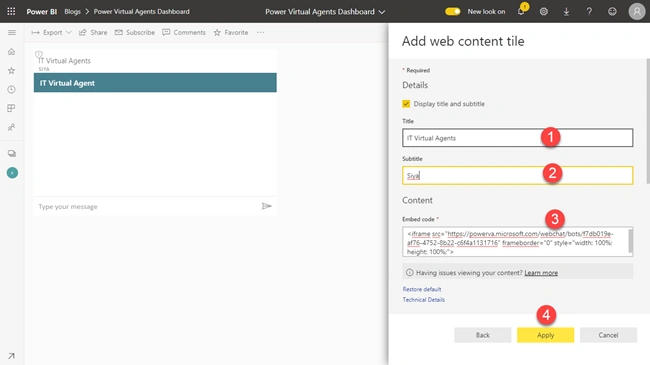
Add Title and Sub title. These are optional parameters. Based on our requirements, we can set the values.
Integrate Power Virtual Agents Chat Bot With Power BI Dashboard
In the Embed code section, paste the code which we have copied in Step 3.
Paste only the code available in <iframe> and </iframe> code.
Integrate Power Virtual Agents Chat Bot With Power BI Dashboard
Testing
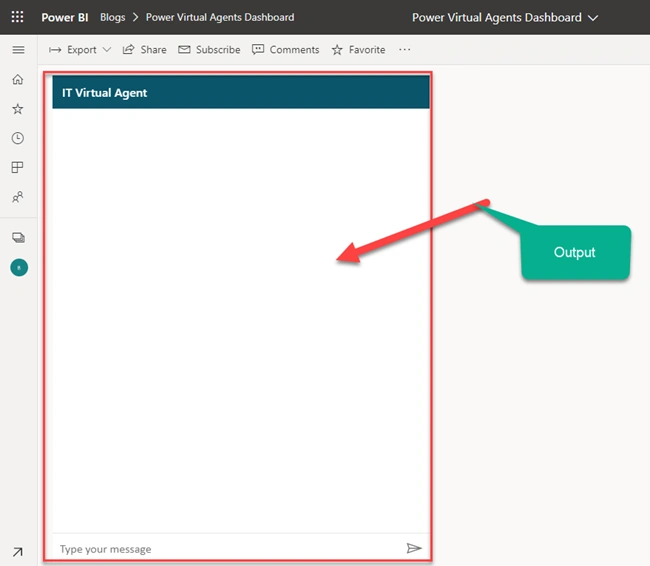
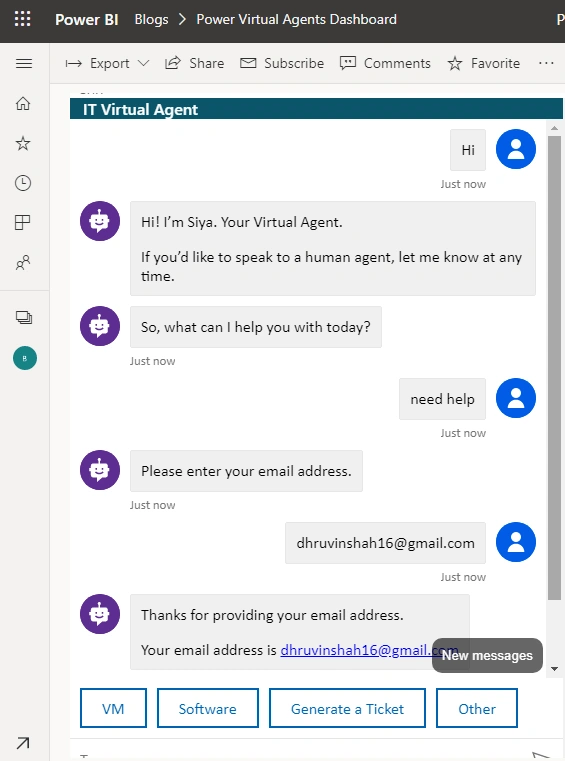
Now, let’s test a Power Virtual Agents Chatbot within Power BI. Here is the output.
Integrate Power Virtual Agents Chat Bot With Power BI Dashboard

Conclusion

This is how we can easily integrate our Power Virtual Agents Chatbot with Power BI Dashboard.
Isn’t it amazing?
Hope you love this article.
Stay connected with me for more amazing articles!