

Introduction
Developing a voice-driven user experience raises a design challenge. UX (or User Experience) design is something most developers are familiar with. Voice User experience (VUX) is new territory and with it comes with new terminology and new technology. Traditional applications have a user interface between the user and the application logic. With a voice-first application, natural language processor sits between the user and application logic, which maps the user’s spoken request to an actionable request to a voice application. This article shows you how to design the voice interaction model for both Alexa and Google Assistant.
Alexa and Google Assistant
Alexa Skills are configured in the Alexa Skill Console on developer.amazon.com using an Amazon account. Google Actions are configured on console.actions.google.com and integrate with DialogFlow at console.dialogflow.com with a Google account. This article covers how the user's intention is communicated to Alexa Skills and Google Actions. The Alexa Skill Console and DialogFlow use much of the same terminology and the same concepts discussed in this article carry over to both environments. Differences are discussed where applicable.
Invocation Names
Amazon calls voice applications Alexa Skills; Google calls them Actions. Both use the term "invocation name" to refer to what the user says to launch voice applications.
Use a name that communicates the functionality of the application. For example, I created an Alexa Skill that queries the public clinicaltrials.gov website that hosts a directory of clinical trials. The invocation name is "clinical trial finder."
Avoid homophones in your name. I released a skill with the invocation name "eye of the elder gods." It worked as expected when testing the application, but it did not launch after it was released to production. Alexa heard the user say "i of the elder gods" and it didn't launch. I opened a support ticket directly with Amazon. Within a few weeks, Amazon released an update which resolved the name.
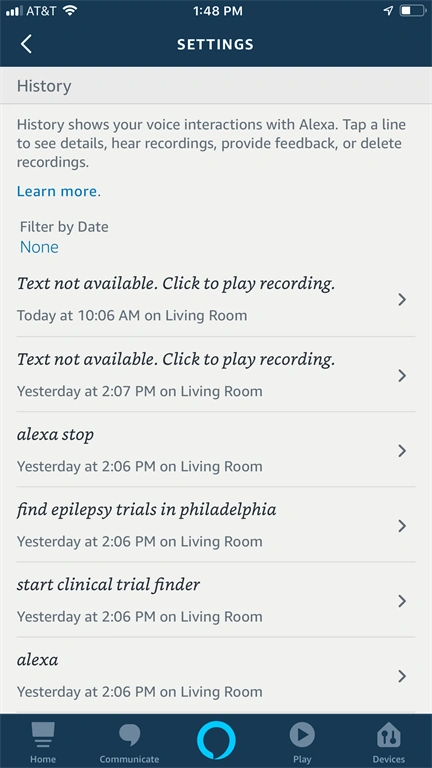
One approach to test whether an invocation name or any phrase is translated to text as expected is to speak it to the device. For example, you could say "Alexa, [test invocation name]" and check your interaction history. To check your history in Alexa, open the Amazon Alexa mobile app. Select the icon in the upper left corner to open the slide out menu. Select Settings -> Alexa Account -> History and you'll see a record of every interaction with Alexa.
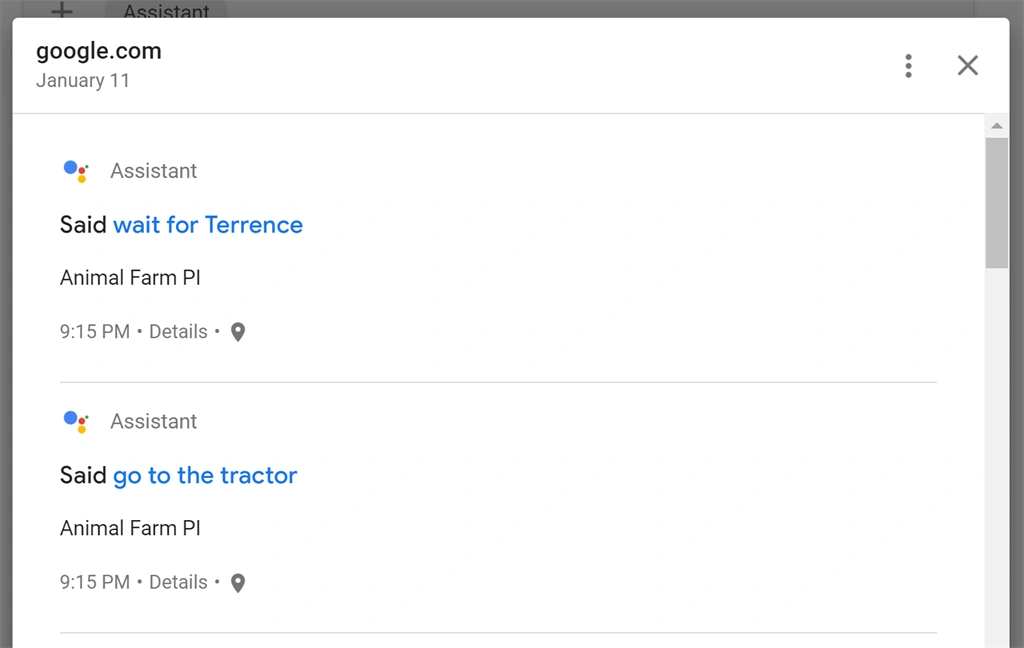
For Google, navigate to myactivity.google.com in a browser and log in with your Google account. Expand the plus icon under the search bar and select Assistant.
On a side note, when you delete your interaction history in Alexa, even Amazon tech support cannot retrieve it. I discovered that after testing the "eye of the elder gods" invocation name issue and working through the trouble support ticket.
Amazon allows Skills with duplicate invocation names. Avoid using a duplicate invocation name. You don't have any control over which Skill Alexa starts when the user speaks a duplicate invocation name. The only certain way to launch a skill with duplicate names is to navigate to the Skill listing page on amazon.com and click the "Enable Skill" button. Google, on the other hand, does not allow duplicate invocation names.
It's also worth noting that the invocation name is can be different than the display name on Alexa. I released Animal Farm P.I. on Alexa. The invocation name is "animal farm p. i." Note the space between p. and the i. The first time I submitted the skill for publication, it was rejected since Alexa requires spaces between abbreviated initials. On Google Assistant, the invocation name is the display name, but you can specify a different pronunciation. When I put "Animal Farm P.I." as the invocation name for a Google Action, it pronounced the word "period" and said, "Animal Farm P period I period." I then tried "Animal Farm PI" and Google pronounced it as "Animal Farm Pie." Finally, I was able to get the right pronunciation with a space between the P and the I: "Animal Farm P I".
Intents
Voice applications on Alexa and Google Assistant do not receive the MP3 file of the user's voice. A natural language processor converts the speech to text and then runs the text through a processor that maps the phrase to an intent
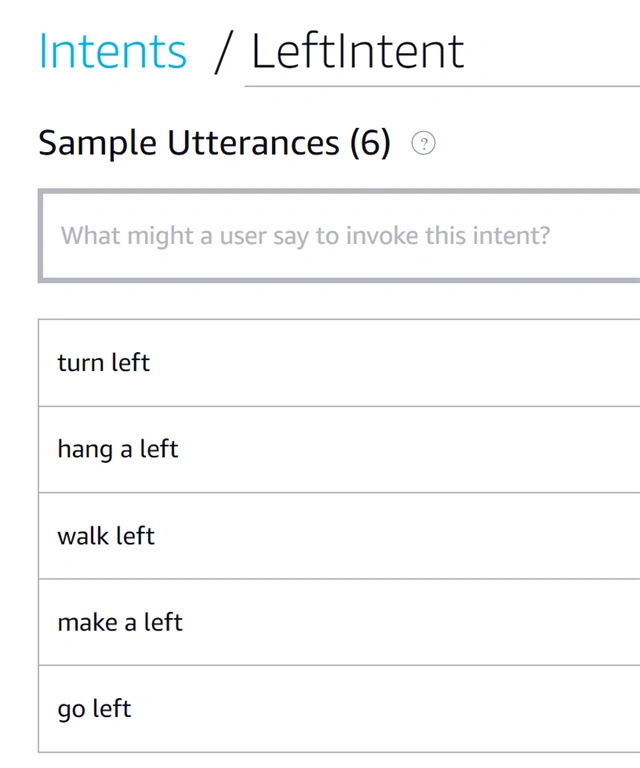
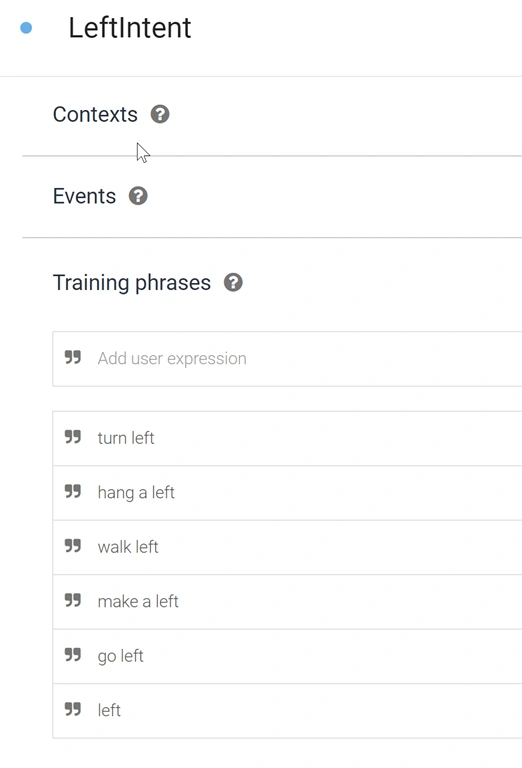
It could be as simple as a one-word response to a question (yes, no) or a full sentence. Let's say you are designing a maze game where the user can go left or right. When Alexa says, "Would you like to go left or right?" the user, most likely, will respond with a phrase indicating the direction. To go left, the user could say:
turn left
hang a left
walk left
make a left
go left
left
All of these phrases map to the same command. The Alexa Skill model refers to them as utterances.
DialogFlow refers to the spoken phrase as a training phrase.
Maintaining Context
When processing the intent, the voice application must maintain and apply context. Using the maze example, going left at one location may result in a dead end, while in another, it could lead to the exit. Knowing where the user is in the maze provides context to the direction and what directions are available.
If the context should live only for the duration of the user's session, then you can use the session attributes portion of the Alexa response. Session attributes are echoed back to the application in the subsequent Alexa request.
- "session": {
- "new": false,
- "sessionId": "SessionId.DFJHUE....",
- "application": {
- "applicationId": "amzn1.ask.skill.SUFDHG..."
- },
- "attributes": {
- "mazeLocation": "node5"
- },
- "user": {
- "userId": "amzn1.ask.account.edited"
- }
Up to 10k of session data can be stored in a Google DialogFlow response in the userContext attribute.
If the user's context needs to be persisted between sessions, then some form of server-side storage is necessary, like DynamoDB, S3, or an RDS database instance, if you are hosting on Amazon or CosmosDB or Blob storage if you're hosting on Azure.
- {
- "payload": {
- "google": {
- "expectUserResponse": true,
- "userStorage": "{\"mazeLocation\":\"node5\"}"
- }
- }
- }
Join the conversation! Your thoughts help the community grow.