

Here we will see how to attach an intrinsic database in a LightSwitch Application (Visual C#) in Visual Studio 2012.
The following is the procedure to attach an intrinsic database.
Step 1
Open the Solution Explorer.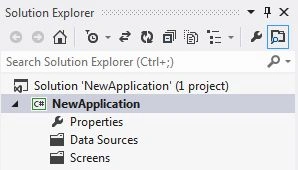
Step 2
In the Solution Explorer, right-click on the Server and choose "Add Table".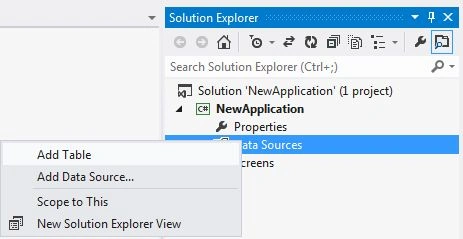
Step 3
The table appears.
Step 4
Go to SQL Server Management Studio (SSMS) and right-click on it and select "Run as Administrator".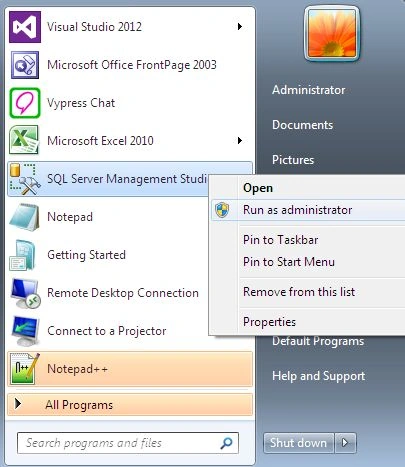
Step 5
The SSMS will open. Provide UserName and word to connect to the server.
Step 6
Now go to Object Explorer and right-click on the database and select "Attach".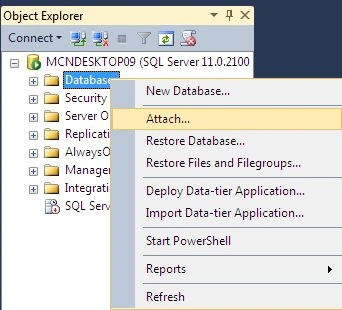
The Attach Database dialog box will appear.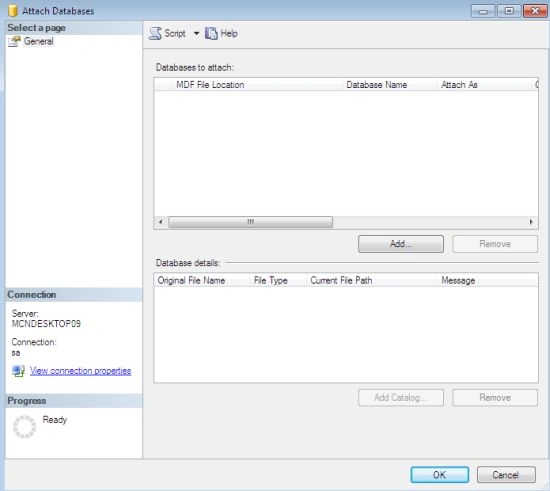
Click on the "Add" Button and the Locate Database File dialog box will appear by which you can locate your .mdf database file.
Step 7
The File Name along with its path will appear in the Attach DataBase dialog box.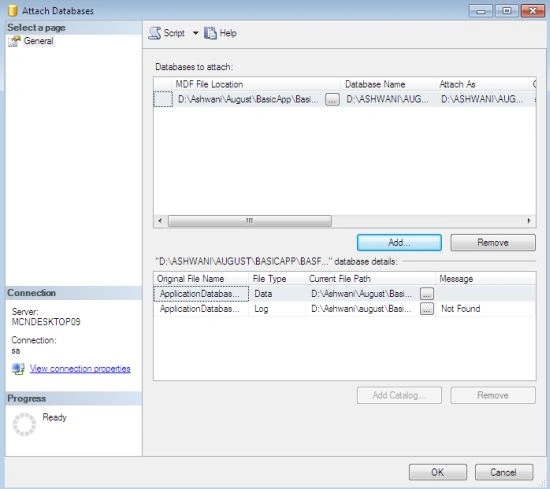
As we click "OK" the table will appear in the database.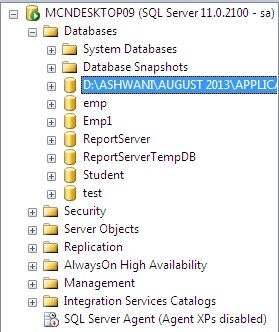
Join the conversation! Your thoughts help the community grow.