

ASP.NET is an exciting server side technology used for developing web based applications. It uses the namespaces, classes and methods provided by the .NET Framework. ASP.NET 2.0 is the popular framework and latest among developers. Nowadays, developers are working to convert existing ASP.NET 1.1 applications to 2.0 to take advantage of its rich features. ASP.NET 2.0 has simplified the work of developers by providing many new controls. You can perform all tasks using Wizards. There is no need to write long lines of code even for database access.
In this article, you will learn how to develop ASP.NET 2.0 applications with C# programming language.
Basic Requirements
You need a computer with a minimum of 512 MB of RAM to properly develop and execute ASP.NET applications. Firstly, you should install .NET Framework SDK 2.0. The SDK can be downloaded from the website of Microsoft.
Visual Studio 2005 is not compulsorily required for developing ASP.NET applications. You can make use of Notepad as an editor for entering source codes. Visual Studio 2005 will greatly simplify the development task as you can drag and drop controls from the Toolbox. It also comes with Intellisense which will help you to complete the code. I will show you how to make use of both these editors for developing ASP.NET applications.
You can also use Visual Web Developer Express which is available for download free of cost. Microsoft had recently announced that Express versions will be always free. It is a light weight editor and its interface looks like Visual Studio 2005.
I assume that you have installed .NET Framework 2.0 on your system. Notepad comes with the Windows operating system so there is no need to install it separately. Let us examine how to write a simple ASP.NET program with Notepad as the editor.
Fire up Notepad, enter the following code and save the file as Welcome.aspx. This file is called as a WebForm. Each and every ASP.NET page is termed as a WebForm.
<%
@ Page Language="C#" %><script runat="server">
void Button1_Click(object sender, EventArgs e) {
TextBox1.Text = "Welcome to ASP.NET";
}
</script>
<html>
<head>
</head>
<body>
<form id="Form1" runat="server">
<p>
<asp:TextBox id="TextBox1" runat="server"></asp:TextBox>
</p>
<p>
<asp:Button id="Button1" onclick="Button1_Click" runat="server" Text="OK"></asp:Button>
</p>
</form>
</body>
</html>
Enter the URL http://localhost/Welcome.aspx to execute the above program.
A server with the specific port will be started if you use Visual C # 2005 Express for executing the above program. You can locate the server on the TaskBar.
In the above code, we have placed a textbox control and a button control. When the user clicks the button the text "Welcome to ASP.NET" will be displayed on the Textbox.
Let us now examine the code in a much deeper way
<
asp:Button id="Button2" onclick="Button1_Click" runat="server" Text="OK"></asp:Button>All .NET Server controls should be coded in the format of <asp:CONTROLNAME></asp:CONTROLNAME>. The runat attribute is important as it signifies that the control is a server side one. The onclick attribute is an event handler. Its value is given as Button1_Click. This is because the event is fired when the button is clicked.
All server side tags are enclosed within <form></form> tag. The code for handling the event is to be given inside <script></script> tag as shown in the above example.
You can comment the code using the following format
// code goes here
/* code here
Code here
*/
Let us now examine the usage of some of the other WebForm controls.
Label
It is the simplest of all controls and is required for almost all applications you develop. It will show what you should enter inside the text box or what to pick from the drop down box. Its usage is given below
<
asp:label id = "lblAge" runat = "server"></asp:label>The attribute id denotes the name for a specific control. This is of not much importance for the Label control but it is required for other controls such as Buttons, DropDownList as you will make use of the relevant controls during the coding phase.
TextBox
This control is mainly used to accept text from the end user. You have the option to set three different modes such as SingleLine, MultiLine and Password. Let us examine each of these modes with sample code
SingleLine mode
<
asp:TextBox id="TextBox2" runat="server">This is TextBox</asp:TextBox>MultiLine mode
<
asp:TextBox id="TextBox2" runat="server" TextMode="MultiLine">This is the multiline textbox</asp:TextBox>Password mode
<
asp:TextBox id="TextBox3" runat="server" TextMode="Password"></asp:TextBox>CheckBox
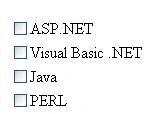
This control is used to select one or more options by putting a checkmark near the word.
<asp:CheckBox id="CheckBox1" runat="server" Text="Visual C# .NET" Checked="True"></asp:CheckBox><asp:CheckBox id="CheckBox2" runat="server" Text="Visual Basic .NET"></asp:CheckBox>
If you set Checked property to True as shown in the above code then that checkbox will be automatically selected when you run the ASP.NET page.
RadioButton
This control is used to select only one choice from a list of various entries.
<
asp:RadioButton id="RadioButton1" runat="server" Text="USA" GroupName="Countries"></asp:RadioButton><
asp:RadioButton id="RadioButton2" runat="server" Text="UK" GroupName="Countries"></asp:RadioButton>You should note that GroupName property is important for the proper functioning of RadioButton control. If you fail to set this property then you will be able to select both the options.

ambrish yadavPosted Jan 20, 2008, 4:26 AM
hi anand i m ambrish i m new here i have one problem i have one gridview how we can edit,delete in gridview and how we can set edit and delete event in gridview by asp.net source code give complete code in asp.net with c#.net