

Introduction
Any Android application consists of four parts, which are Activity, Broadcast Receiver, Content Provider and Service. Activity is nothing but the user interface of the application. In this article, I will cover activity life cycle methods and how to create activity in our project. Mostly, activities are used for two things, which are given below.
- Call one activity to another activity without exchanging data or information.
- Exchanging data or information between the activities.
Activity Life Cycle
Any Android application works in four different states, which are given below.
- Active or Running state
- Pause state
- Stop or Background state
- Restart state
Each state is handled by Android OS and "Xamarin.Android" framework. When any activity changes its state, Android OS calls specific methods on that activity. The relationship between an activity life cycle and activity Methods are shown below.
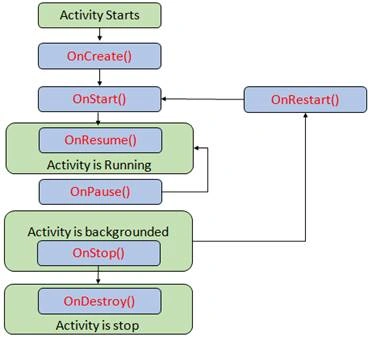
| Activity Method | Use |
| OnCreate() | This method is used for start-up initializations like set content views, variables. |
| OnStart() | This method is always called after OnCreate() method. This method helps the developer to refresh user interface views or initialize variables before the activity is visible to the user. |
| OnResume() | This method is always called after OnStart() method. In this method, an activity is ready to interact with the user. |
| OnPause() | This method is called when an activity in the background mode or an activity that requires any Services. |
| OnStop() | This method is called when an activity is not visible to the user due to starting new activity or exit from an activity. |
| OnDestroy() | This method is called when an activity instance released their resources and cleans up the memory. Mostly, clean up memory perform in OnStop() or OnPause() method. |
| OnRestart() | This method is called after OnStop() method. Good example of calling this method is when user the rotates his/her mobile, activity, it must be restarted with the views. |
The steps are given below to create two activities in an Android application.
Step 1
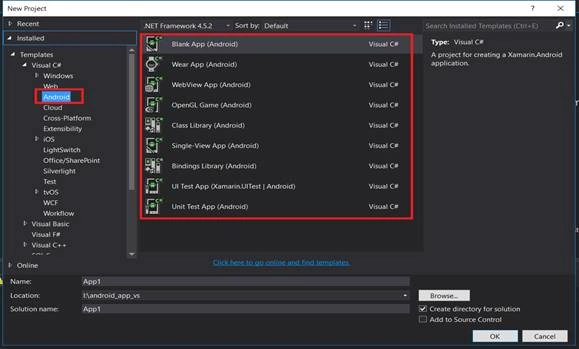
I have selected "Blank App(Android)" from the template for this article.
Step 2
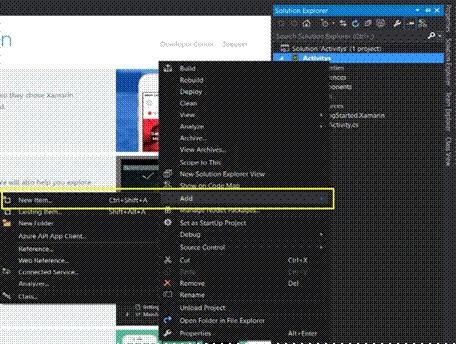
When we create a project, using wizard, the project content's main activity in "Resource/Main.axml" is layout of Main Activity and also it has MainActivity.cs. For adding new layout and activity, right click on project in Solution Explorer, select Add->New Item. New Window will open, first add new “Android Layout” and then add new “Activity”.
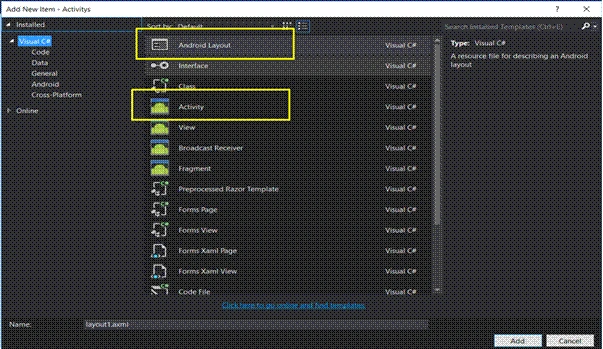
Here, I have added layout name as “second.axml” and Activity as “SecondActivity.cs”. Now, our project contents two .axml and two activities.
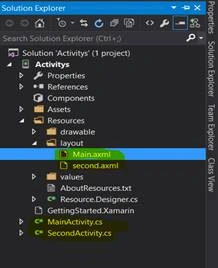
As I discussed previously, there are two types of scenarios. First is to call second activity from main activity without exchanging the data or the information. Hence, in this, we need to call one activity to second activity and then we will pass the data or the information between the activities.
Step 3
To do this, I took one TextView and button in Main Layout and one TextView in second layout.
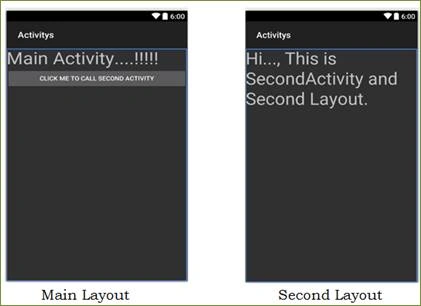
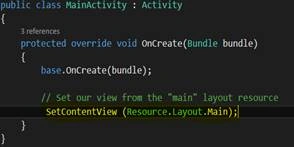
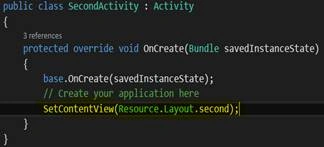
First, we need to define layouts for each activity. To do this, we need to call SetContentView method in OnCreate() method of each activity. The OnCreate() method in MainActivity.cs and SecondActivity.cs looks, as shown below.
|
MainActivity.cs |
SecondActivity.cs |
Now, I have to call SecondActivity from MainActivity, when the user clicks on “Click Me to Call Second Activity” button in MainActivity. I have also defined click event of this button and created one intent for “SecondActivity” and OnCreate() method of MainActivity.cs, which looks, as shown below.
- Protected overridevoid OnCreate(Bundle bundle)
- {
- base.OnCreate(bundle);
- // Set our view from the "main" layout resource
- SetContentView (Resource.Layout.Main);
- Button btnsecond = (Button)FindViewById(Resource.Id.btnclickme);
- btnsecond.Click += (sender, e) =>
- {
- var intent = newIntent(this, typeof(SecondActivity));
- StartActivity(intent);
- };
- }
Step 4
To show how to pass the data from an activity to another activity, I have to add one EditText box (for entering name of person) and one more Button “Add Name in List in Second Activity” to Main Layout(Main.axml). Modified Main Layout is shown below. Similarly, I have added one ListView in Second Layout (second.axml) to display the names supplied from the main activity.
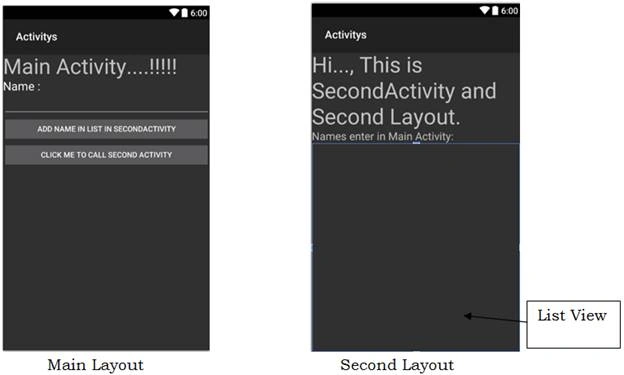
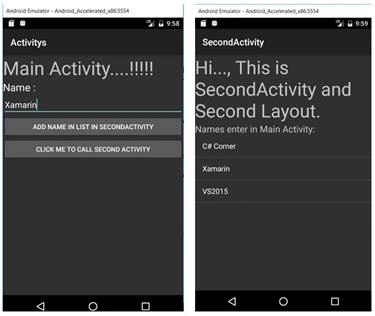
For adding the functionality as discussed before, I need to add “Add Name in List in Second Activity” button, click event in MainActivit.cs. I need to create one array called “personname” to store the text of the textbox, when clicked on “Add Name in List in Second Activity”. For passing the string of the textbox to ListView of second activity, I need to pass “personname” arrary to second activity, using PutStringArrayListExtra () function. Similarly, for SecondActivity.cs activity, I need to get passing array by GetStringArrayListExtra() function.
Modified MainActivity.cs OnCreate() function
- Protected overridevoid OnCreate(Bundle bundle)
- {
- base.OnCreate(bundle);
- SetContentView (Resource.Layout.Main);
- Button btnsecond = (Button)FindViewById(Resource.Id.btnclickme);
- Button btnaddlist = (Button)FindViewById(Resource.Id.btnaddlist);
- EditText txtpersonname = (EditText)FindViewById(Resource.Id.txtname);
- btnaddlist.Click += (sender, e) =>
- {
- personname.Add(txtpersonname.Text);
- txtpersonname.Text = "";
- };
- btnsecond.Click += (sender, e) =>
- {
- var intent = newIntent(this, typeof(SecondActivity));
- intent.PutStringArrayListExtra("txtpersonname", personname);
- StartActivity(intent);
- };
- }
- Protected overridevoid OnCreate(Bundle savedInstanceState)
- {
- base.OnCreate(savedInstanceState);
- // Create your application here
- SetContentView(Resource.Layout.second);
- ListView personname = (ListView)FindViewById(Resource.Id.personnamelist);
- var pname = Intent.Extras.GetStringArrayList("txtpersonname") ?? newstring[0];
- personname.Adapter = newArrayAdapter<string>(this,
- Android.Resource.Layout.SimpleListItem1, pname);
- }
Summary
In this article, we learned about activity life cycle and how to create new activity, calling/invoke one activity to other activity and exchanging the data or the information between the activities.
Join the conversation! Your thoughts help the community grow.