Introduction to Big Data
Big Data
Big Data refers to data that is too large or complex for analysis in traditional databases because of factors such as the volume, variety, and velocity of the data to be analyzed.
Volume
Volume is the quantity of data that is generated.
For example, consider analyzing application logs, where new data is generated each time a user does some action in an application. This may generate several lines per minute or even per second as the user works.
Variety
The data that needs to be analyzed is not standard, consisting of both structured and unstructured data. One example of this can be the analysis of Social Media data consisting of emoticons, hashtags and texts in several languages.
Velocity
This is where data is being generated very frequently. This is becoming quite common with emerging technologies such as the Internet of Things where devices/sensors generate data continuously.
Apache Hadoop
Apache Hadoop is an open-source Java framework primarily intended for storage and processing of very large sets of data.
It does distribute processing of large data sets where the data is split across clusters of computers using simple programming models.
It is designed to scale up from single servers to thousands of machines, each offering local computation and storage.
MapReduce
MapReduce is the application logic that splits the data for processing by various nodes in the Hadoop cluster.
A MapReduce job usually splits the input data-set into independent chunks that are processed by the map tasks in a completely parallel manner.
The framework sorts the outputs of the maps that are then input to the reduce tasks. Typically both the input and the output of the job are stored in a file system.
The framework also takes care of scheduling tasks, monitoring them, and re-executing the failed tasks.
MapReduce is done in the following 3 steps:
- Source data is divided among data nodes.
- Map phase generates key/value pairs.
- Reduce phase aggregates values for each key.
Introduction to Azure HDInsight
Azure HDInsight deploys and provisions Apache Hadoop clusters in the cloud, providing a software framework designed to manage, analyze, and report on big data.
The Hadoop core provides reliable data storage with the Hadoop Distributed File System (HDFS), and a simple MapReduce programming model to process and analyze, in parallel, the data stored in this distributed system.
Creating an HDInsight Cluster
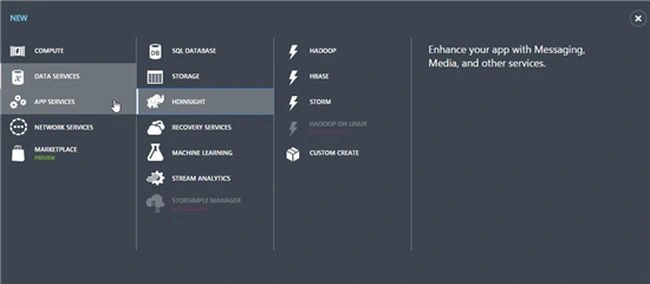
To create an Azure HDInsight Cluster, open the Azure portal then click on New > Data Services > HDInsight.
The following options are available:
- Hadoop is the default and native implementation of Apache Hadoop.
- HBase is an Apache open-source NoSQL database built on Hadoop that provides random access and strong consistency for large amounts of unstructured data.
- Storm is a distributed, fault-tolerant, open-source computation system that allows you to process data in real-time.
This article uses the Hadoop cluster.
The next step is to add a cluster name, select the cluster size, add a password, select storage, and click on create HDInsight cluster.
Enable Remote Desktop on the Cluster
Once the cluster has been created, its jobs and contents can be viewed by remote connection. To enable remote connection to the cluster, use the following procedure:
- Click HDINSIGHT on the left pane. You will see a list of deployed HDInsight clusters.
- Click the HDInsight cluster that you want to connect to.
- From the top of the page, click CONFIGURATION.
- From the bottom of the page, click ENABLE REMOTE.
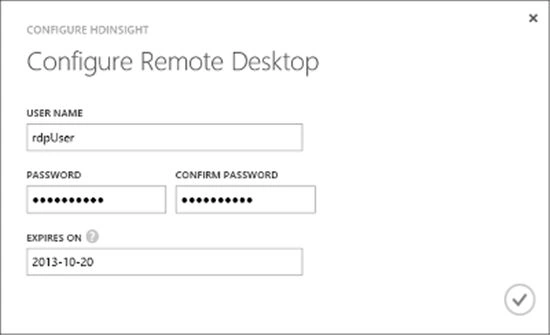
In the Configure Remote Desktop wizard, enter a user name and password for the remote desktop. Note that the user name must be different from the one used to create the cluster (admin by default with the Quick Create option). Enter an expiration date in the EXPIRES ON box.
Accessing the Hadoop Cluster using Remote Desktop Connection
To connect to the cluster via Remote Desktop Connection, in the portal, select your cluster and go to configuration and click connect.
An RDP file will be downloaded that shall be used to connect to the cluster. Open the file, enter the required credentials and click connect.
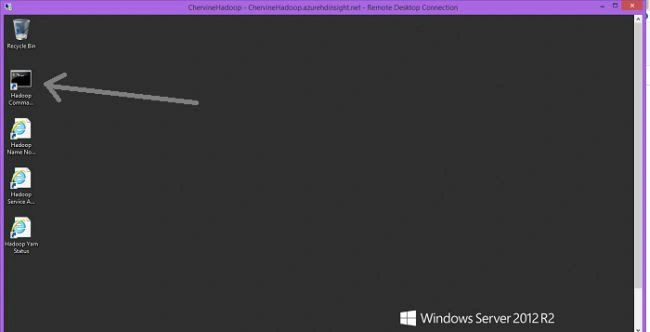
Once the Remote Connection is established, double-click the Hadoop Command Line icon.
This will be used to navigate through the Hadoop File System.
View files in the root directory
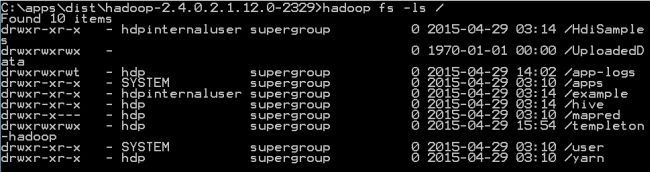
Once the command line is open, you may view all the files in the root folder.
The syntax to use is Hadoop fs followed by the Linux command used inside the Hadoop File System.
The command above will list all the files in the root folder.
Browse to the Example folder
When the cluster has been created, some sample files and data have already been included. To view them, navigate to the example folder.
Browse to Jars folder
Jar is the file type in which Java code is compiled. In this folder, there is an implementation of MapReduce.
- hadoop fs -ls /example/jars
View the sample data available
- hadoop fs -ls /example/data
Browse to Gutenberg folder
- hadoop fs -ls /example/data/gutenberg
From the Gutenberg folder, assume that MapReduce needs to be done on the file davinci.txt.
The file has many text that is actually an extract of an ebook.
Run MapReduce<
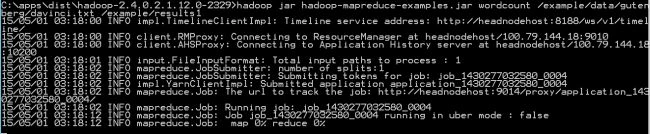
To run a MapReduce job on the file davinci.txt, the following command is used.
- hadoop jar hadoop-mapreduce-examples.jar wordcount /example/data/gutenberg/davinci.txt /example/results
The command consists of:
- hadoop-mapreduce-examples.jar which is the compiled Java code used.
- wordcount is the method called from the jar file.
- /example/data/gutenberg/davinci.txt is the source data.
- /example/results is the folder where the result shall be stored.
- hadoop fs -tail /example/results/part-r-00000
The MapReduce job has been executed and the result saved in /example/results/.
Running MapReduce Jobs using PowerShell
Download and Install PowerShell
PowerShell can be download at the link
here.
Connect PowerShell to a Microsoft Azure Account
Once PowerShell is installed, it's time to connect it to your Azure Account.
The code below will open up the Azure portal, ask for your credentials, and download a file.
- PS C:\> Get-AzurePublishSettingsFile
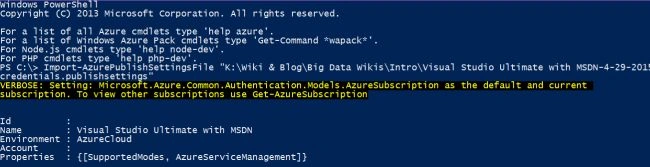
Key in the following command, together with the path to the file download above.
- PS C:\> Import-AzurePublishSettingsFile "FILE PATH \Visual Studio Ultimate with MSDN-4-29-2015-redentials.publishsettings"
PowerShell is now connected to your Azure Account.
Upload Data
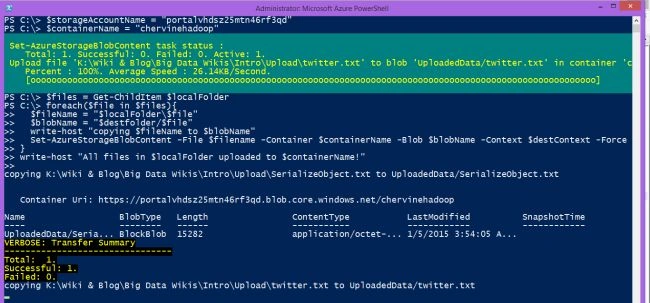
The script below will upload all the files from the local folder to Azure storage. The source location should be entered in the variable $localFolder whereas the location to save the file on Azure should be in the variable $destFolder.
The script shall loop through all the files in the local folder and upload them to the destination folder.
The values of
$storageAccountName and
$containerName should be replaced by values that maps the Azure account being used.
- $storageAccountName = ""
- $containerName = "chervinehadoop"
-
- $localFolder = "K:\Wiki & Blog\Big Data Wikis\Intro\Upload"
- $destfolder = "UploadedData"
-
-
- $storageAccountKey = (Get-AzureStorageKey -StorageAccountName $storageAccountName).Primary
- $destContext = New-AzureStorageContext -StorageAccountName $storageAccountName -StorageAccountKey $storageAccountKey
-
- $files = Get-ChildItem $localFolder
- foreach($file in $files){
- $fileName = "$localFolder\$file"
- $blobName = "$destfolder/$file"
- write-host "copying $fileName to $blobName"
- Set-AzureStorageBlobContent -File $filename -Container $containerName -Blob $blobName -Context $destContext -Force
- }
- write-host "All files in $localFolder uploaded to $containerName!"
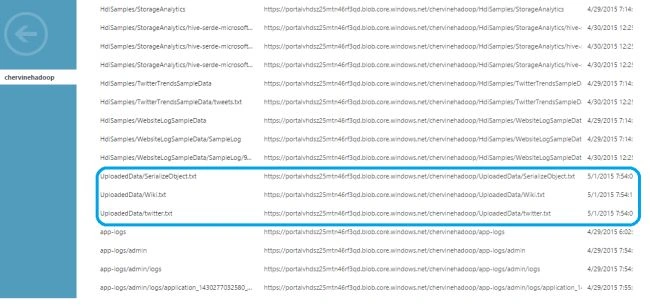
Once the files have been uploaded, they may be viewed from the portal by going to the cluster > dashboard > linked Resources > Containers.
Run the MapReduce
Once that data has been uploaded, it needs to be processed using MapReduce and the script that creates a new MapReduce job definition.
The command New-AzureHDInsightMapReduceJobDefinition takes the following parameters:
- JarFile "wasb:///example/jars/hadoop-mapreduce-examples.jar": The location of the Jar file containing the MapReduce code.
- ClassName "wordcount": The class to be used inside the Jar file.
- Arguments "wasb:///UploadedData", "wasb: ///UploadedData/output": Represents the Source and Destination folder respectively.
Once the definition of the job is created, the job is executed by the command Start-AzureHDInsightJob that takes as parameter the cluster name and the job definition.
- $clusterName = "ChervineHadoop"
-
- $jobDef = New-AzureHDInsightMapReduceJobDefinition -JarFile "wasb:///example/jars/hadoop-mapreduce-examples.jar" -ClassName "wordcount" -Arguments "wasb:///UploadedData", "wasb:///UploadedData/output"
-
- $wordCountJob = Start-AzureHDInsightJob –Cluster $clusterName –JobDefinition $jobDef
-
- Write-Host "Map/Reduce job submitted..."
-
- Wait-AzureHDInsightJob -Job $wordCountJob -WaitTimeoutInSeconds 3600
-
- Get-AzureHDInsightJobOutput -Cluster $clusterName -JobId $wordCountJob.JobId -StandardError
The execution progress shall be displayed on the PowerShell console.
View the result
When the MapReduce completes, the output folder specified above shall be created and the result shall be stored in it.
From the Azure portal, navigate to the storage account > Container and notice that the folder "output" has been created.
Select the files and download them to view the results.
Conclusion
This article provided the basic concepts of Big Data before looking at some examples of how the Microsoft Azure platform can be used to solve big data problems. Using Microsoft Azure, it is not only easy to use and explore big data, but it is also easy to automate these tasks using PowerShell. Using the combination of Azure and PowerShell gives the user the possibility to automate the process completely from creating a Hadoop cluster to getting the results back.
See Also
References




 The next step is to add a cluster name, select the cluster size, add a password, select storage, and click on create HDInsight cluster.
 Once the cluster has been created, its jobs and contents can be viewed by remote connection. To enable remote connection to the cluster, use the following procedure:
 To connect to the cluster via Remote Desktop Connection, in the portal, select your cluster and go to configuration and click connect.
An RDP file will be downloaded that shall be used to connect to the cluster. Open the file, enter the required credentials and click connect.
Once the Remote Connection is established, double-click the Hadoop Command Line icon.
This will be used to navigate through the Hadoop File System.
To connect to the cluster via Remote Desktop Connection, in the portal, select your cluster and go to configuration and click connect.
An RDP file will be downloaded that shall be used to connect to the cluster. Open the file, enter the required credentials and click connect.
Once the Remote Connection is established, double-click the Hadoop Command Line icon.
This will be used to navigate through the Hadoop File System.
 Once the command line is open, you may view all the files in the root folder.
The syntax to use is Hadoop fs followed by the Linux command used inside the Hadoop File System.
Once the command line is open, you may view all the files in the root folder.
The syntax to use is Hadoop fs followed by the Linux command used inside the Hadoop File System.








Sr KarthigaPosted Mar 29, 2016, 8:51 AM
good one
Sr KarthigaPosted Mar 29, 2016, 8:51 AM
nice explanation
Abhishek JaiswalPosted Jul 20, 2015, 1:49 AM
Nice read, thanks for sharing!! :)
Rahul Kumar SaxenaPosted Jul 19, 2015, 9:50 AM
Good Show..
SharadPosted Jul 17, 2015, 3:55 AM
great efforts...
Nilesh JadavPosted Jul 16, 2015, 9:16 AM
Nice article sir
Yashwant VishwakarmaPosted Jul 14, 2015, 5:27 AM
Superb Article... Looking for more from you in future :-)
Sibeesh VenuPosted Jul 12, 2015, 8:21 AM
Nice share
Santhakumar MunuswamyPosted Jul 12, 2015, 12:03 AM
Great Article! Welcome....
Chervine BhiwooPosted Jul 11, 2015, 2:45 PM
Thanks Mahesh Chand. More articles about Azure/ Data Analytics to come in the near future :)
Mahesh ChandPosted Jul 11, 2015, 2:42 PM
Great work. Welcome to C# Corner. Need more experts on big data and Azure. Great to see this kind of article.
Gopi ChandPosted Jul 11, 2015, 1:24 PM
Excellent work
RakeshPosted Jul 11, 2015, 12:58 PM
Good one
Chervine BhiwooPosted Jul 11, 2015, 12:54 PM
Thanks mate!
Pankaj Kumar ChoudharyPosted Jul 11, 2015, 12:37 PM
Nice explain Sir......
Dinesh BeniwalPosted Jul 11, 2015, 11:55 AM
Thanks for sharing, welcome to C# Corner Chervine.