

Introduction
Code4Fun is a user interface toolkit which contains a collection of components such as a color slider, color range, color hexagon and color picker. It provides graphical representation to the Windows Universal Application by adding color and color range to labels, shapes etc.
Code4Fun is an extended color picker which contains attributes and properties to maintain their states. In this article, we are going to discuss how to use Metro Flow in Universal Windows Platform.
Now Code4Fun is available in CodePlex, Nuget Package manager and at the Code4Fun official website.
Before reading this article please go through the following articles to get some more knowledge about Universal Windows Platform (UWP) and Code4Fun Color Picker Component in UWP Using C#.
- Introduction to Universal Windows Platform (UWP) App Development
- Code4Fun Color Picker Component in UWP Using C#
The following are some of the requirements needed to complete this article.
- Visual Studio 2015 Update 1 (Community or Enterprise edition)
If you don’t have Visual Studio 2015 community edition it is absolutely free. To download Visual Studio 2015 Download Now. To install Universal Windows Platform (Windows 10 SDK) we are in need of the internet with good bandwidth.
- Windows 10 (Mandatory)
- Code4Fun Toolkit (Mandatory)
Open up Visual Studio to build Color Picker app in Universal Windows Platform.
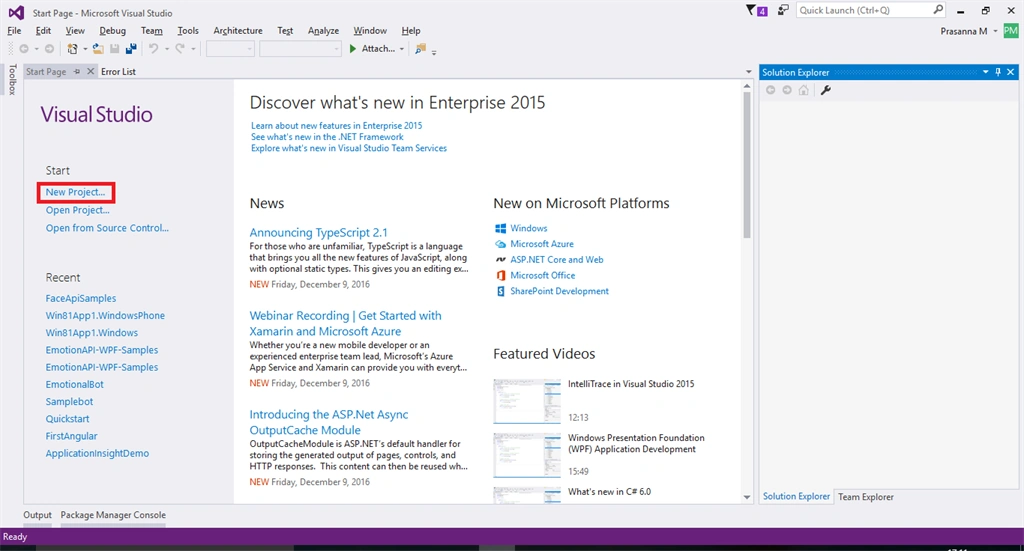
Click New Project or File and then click New followed by Project / solution and new project creation wizard appears. Select Visual C# and then Windows.
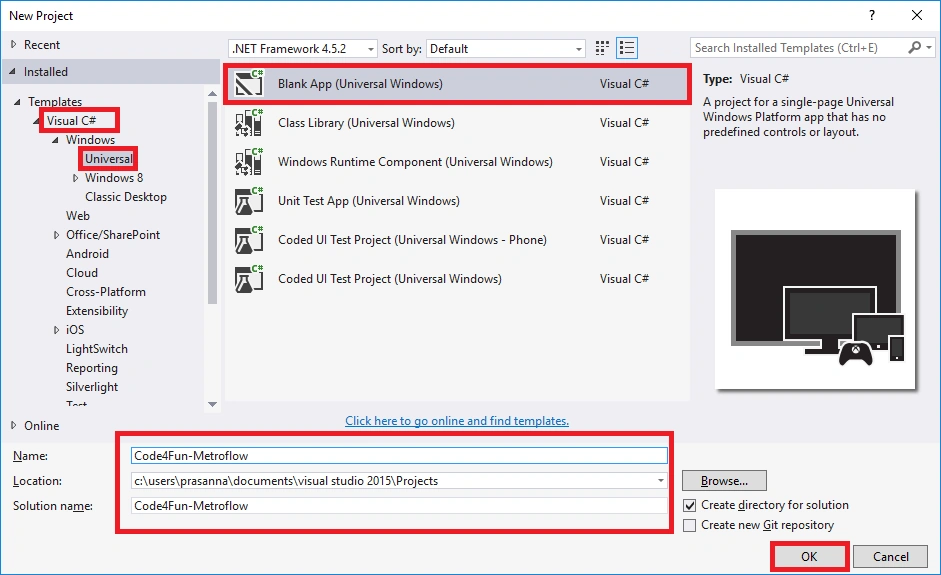
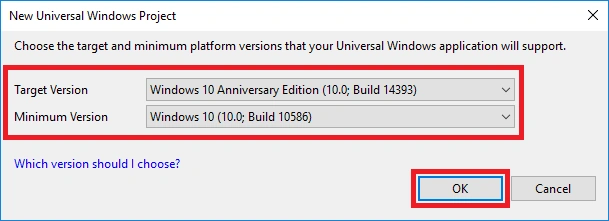
Provide File name and click create a button to created the project. Then choose minimum target version from targeted version to start developing a Universal Windows application.
Now it's time to download and install Code4Fun Toolkit from the internet. Click Tools followed by Manage Nuget Packet Manager and then Package Manager Console. Then use the following command to download Code4Fun toolkit.
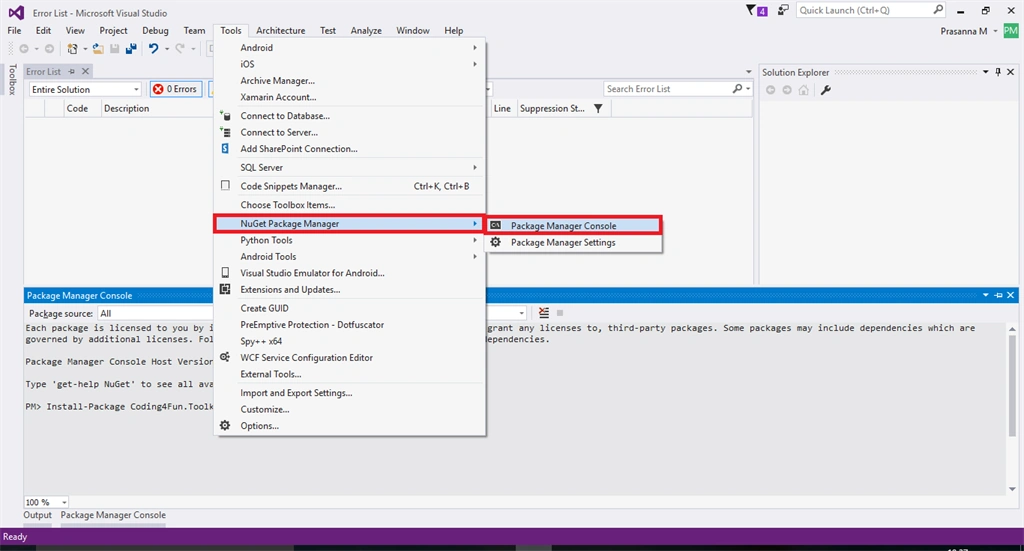
Install-Package Coding4Fun.Toolkit.Controls
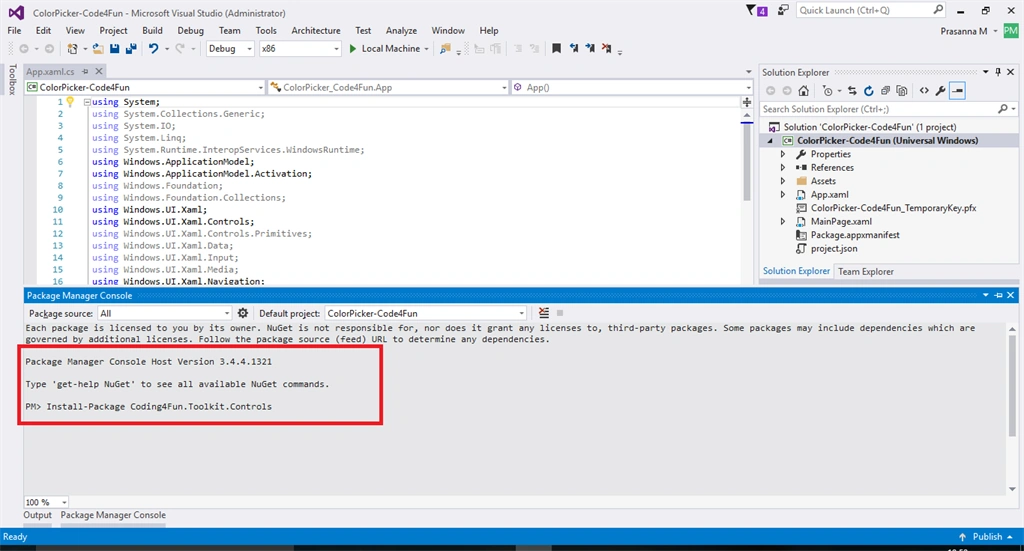
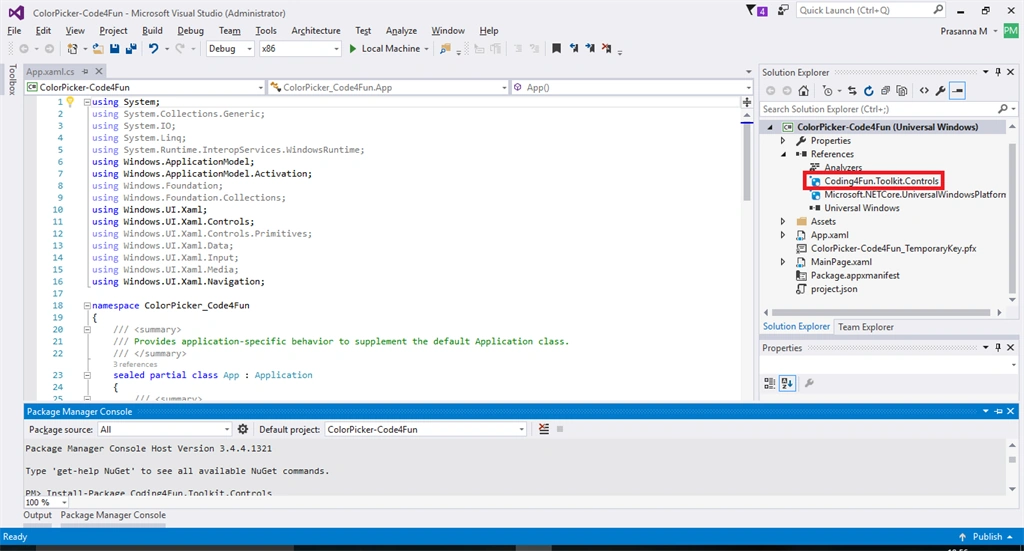
Package Manager console takes up to 10 to 20 seconds to install the Code4Fun toolkit in our solution. After Code4Fun toolkit installation you will be able to find Coding4Fun.Toolkit.Controls under reference as shown below.
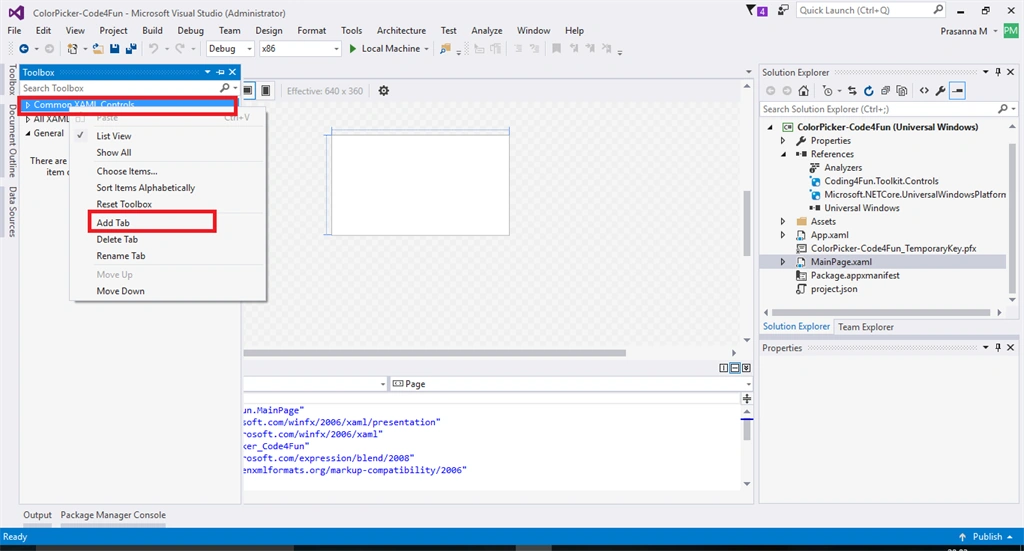
Then add the code4fun tools in the toolbar. So open toolbar and then right click on common XAML Toolkits and click Add New Tab option and provide a name for your Code4Fun tools. Here I use Code4Fun as a tools name.
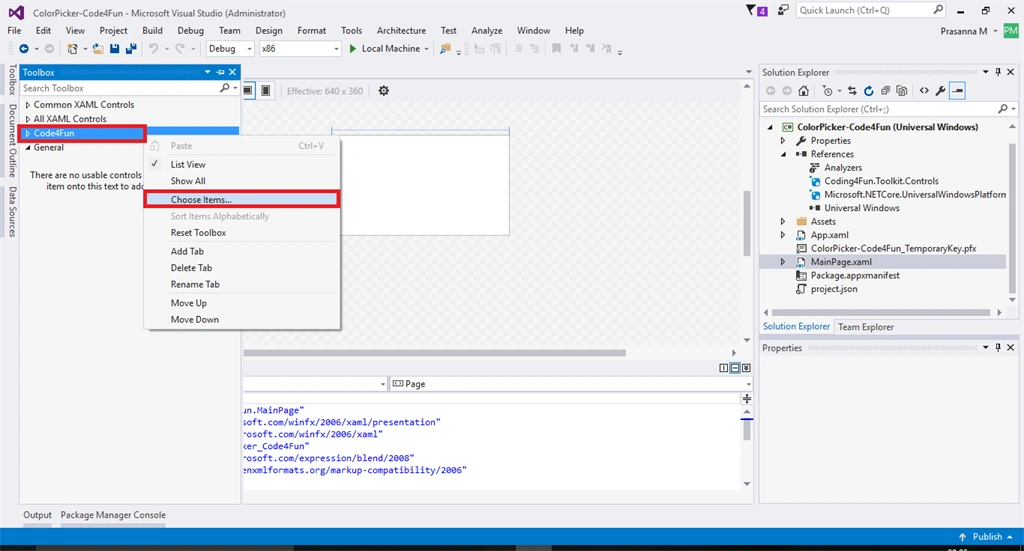
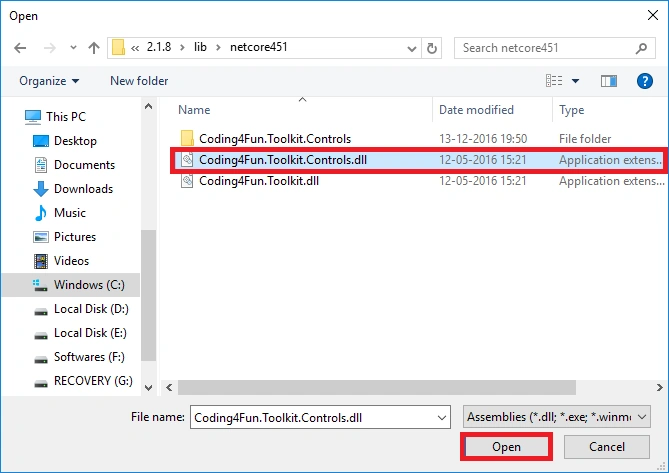
Right click on “Code4Fun” and click choose items and add the Code4Fun toolkit library file. So locate the Coding4Fun.Toolkit.Controls.dll that is available in a .nuget folder in the user's folder.
Path must be - C:\Users\<username>\.nuget\packages\Coding4Fun.Toolkit.Controls\2.1.8\lib\netcore451\ Coding4Fun.Toolkit.Controls.dll and click open button to add the code4fun tools.
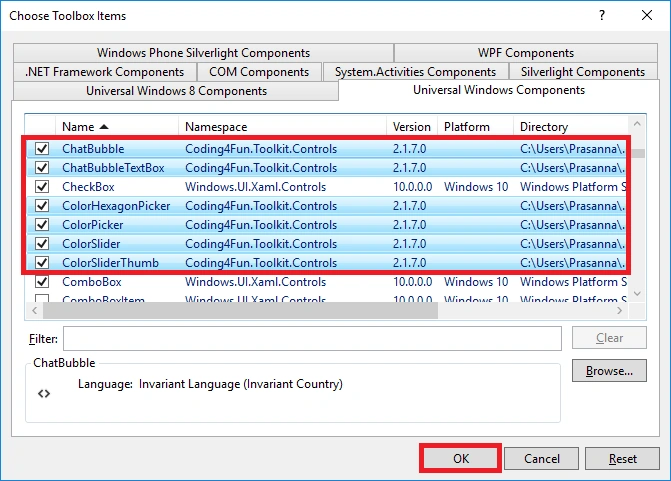
Now in Choose Toolbox Items you may review the changes as shown below and click Ok to apply changes.
Now open toolbox and you will be able to find added tools. From that, select color picker and drag that one into MainPage.XAML and provide the name for the metro flow.
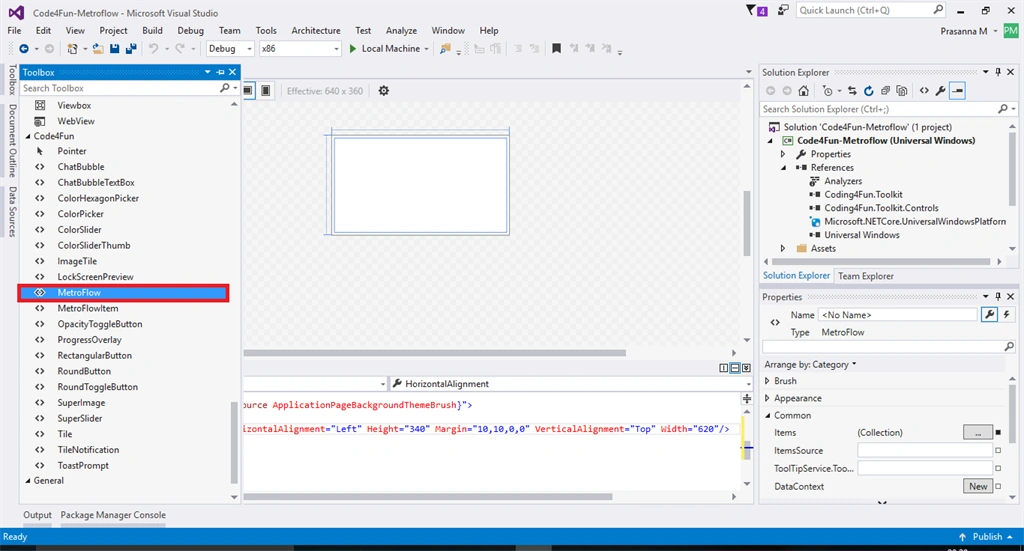
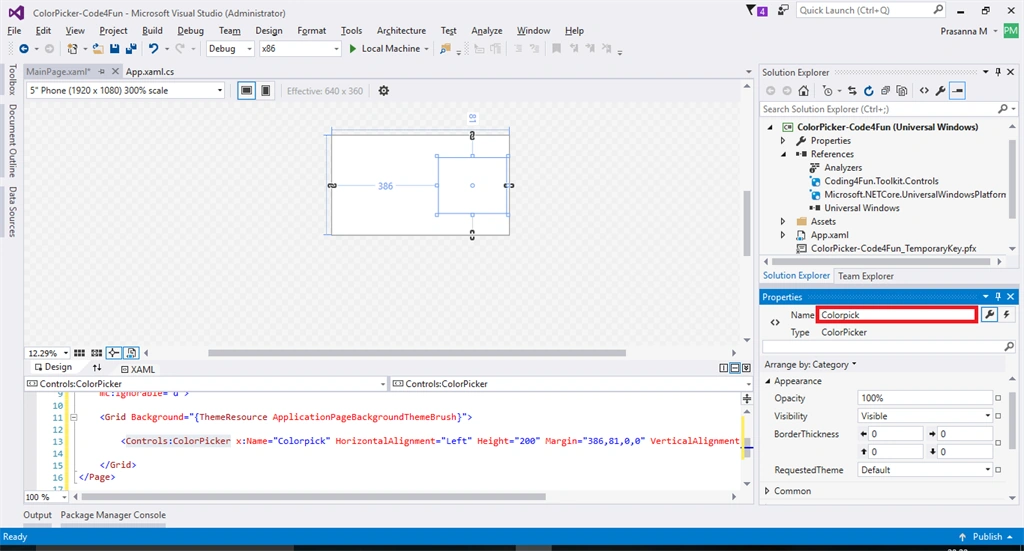
Then finally add metro flow data into designer window and provide the name for the component and add the image source to display the image. In this article my wish is for 3 data flow, so I added three metro flow components. Add this for your needs.
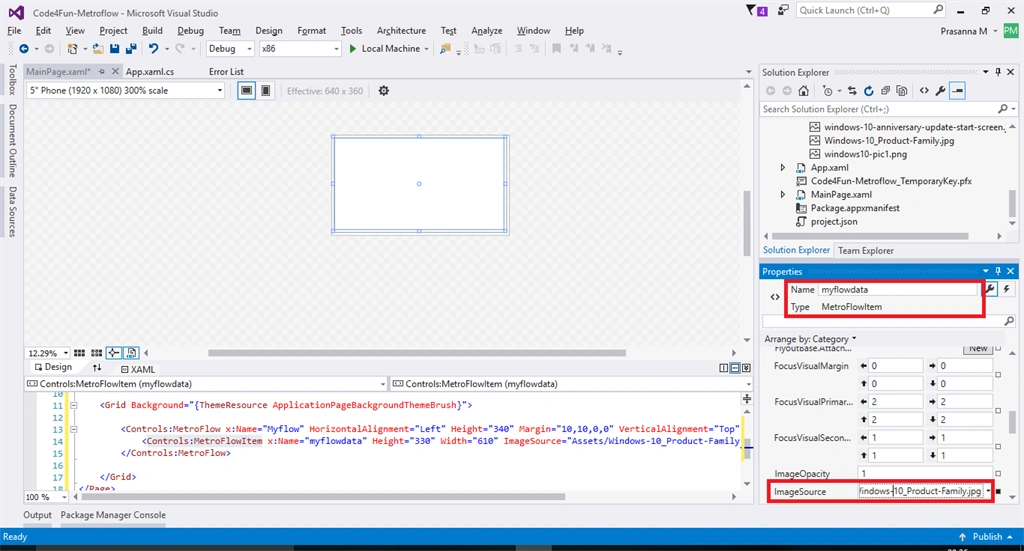
Then add the following code in MainPage.xaml.cs under MainPage initializeComponent.
- <Grid Background="{ThemeResource ApplicationPageBackgroundThemeBrush}">
- <Controls:MetroFlow x:Name="Myflow" Height="161" Margin="10,0">
- <Controls:MetroFlowData x:Name="myflow1" ImageUri="Assets/windows-10-anniversary-update-start-screen.jpg" Title="First" />
- <Controls:MetroFlowData x:Name="MFD2" ImageUri="Assets/Windows-10_Product-Family.jpg" Title="Second" />
- <Controls:MetroFlowData x:Name="MFD3" ImageUri="Assets/windows10-pic1.png" Title="Third" />
- </Controls:MetroFlow>
- </Grid>
All done! Click F5 button to deploy our solution. Here we are deploying an output for the Local machine and the output follows.
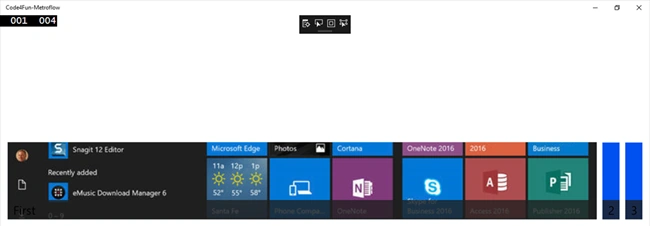
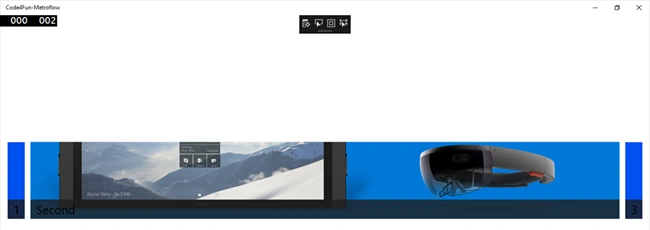
I hope you enjoyed reading this article. Thanks for reading.
Happy coding.
Join the conversation! Your thoughts help the community grow.