

This article will give basic knowledge on IIS Server, HTTP request lifecycle, hosting a website in IIS, and introduction to application pool. Before we start on this, let's have a quick look on what is a website and how it’s related to Servers.
So, let’s get started.
Website
Website is a collection of webpages which contains numerous types of information in the form of graphics templates, scripts, and contents (texts & images). These web pages usually reside on a web server which is connected to the internet. Web Server is a computer which is used to store, process, and deliver webpages to the clients. Web Server is specially used to host the websites by Web Hosting Provider Company.
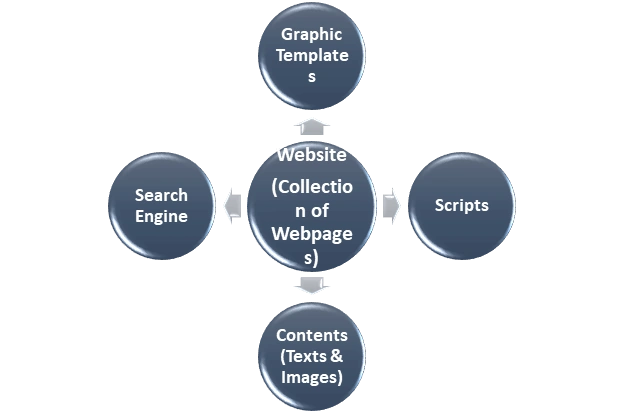
Fig-1 represents a basic pictorial representation of a website.
Introduction to IIS
IIS stands for Internet Information Services. Formerly known as Internet Information Server, IIS is a Web Server or a Windows component that accepts requests from Client browser and responds with the requested page(s). It is an extensible web server that supports HTTP, HTTPS, FTP, FTPS, SMTP, & NNTP protocols.
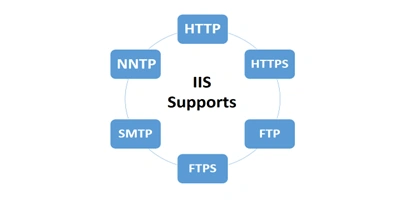
Fig-2 represents the protocols supported by IIS Server.
IIS Versions
The following versions supported by IIS in Windows Servers:-
- IIS server 1.0 supports Windows NT 3.51.
- IIS server 2.0 supports Windows NT 4.0.
- IIS server 3.0 supports Service pack 2 of Windows NT 4.0.
- IIS server 4.0 supports Option pack for Windows NT 4.0.
- IIS server 5.0 supports Windows 2000.
- IIS server 5.1 supports Windows XP Professional.
- IIS server 6.0 supports Windows Server 2003 & Windows XP Professional.
- IIS server 7.0 supports Windows Vista & Windows Server 2008.
- IIS server 7.5 supports Windows 7 & Windows Server 2008 R2.
- IIS server 8.0 supports Windows Server 2012 & Windows 8.
- IIS server 8.5 supports Windows Server 2012 R2 & Windows 8.1.
- IIS server 10 supports Windows Server 2016 & Windows 10.
IIS Manager is the tool used to configure & manage IIS.
IIS can be launched using the below two steps.

OR,

During the installation of IIS, a default website is created. This default website can be deleted or replaced by new websites.
The physical path for default website in IIS is c:\inetpub\wwwroot and the port is 80.
HTTP Request Life Cycle
Web Applications require a lot of technologies to build our code .When the user interacts with the app causes several HTTP request to run parallel. The http request life cycle is described as below:-
- Web Browser submits the request to the server after creating a socket in local progress.
- The http server waits for the request to come on socket i.e. port-80.
- The web browser translates the yahoo.com to an IP address if it does not knows it.
- If the web browser does not recognize the address it contacts a DNS Server to resolve the name.
- The browser will open a TCP connection to the IP address of yahoo.com and send a HTTP GET request over.
- The request is then submitted to DNS server where IP address is fetched based on domain name.
- Now the request is submitted to Http Server as per HTTP protocol.
- Http server receives the request and shifts the client to another socket.
- So the socket on port-80 is released to receive request from other clients.
- Web Browser & server both are connected to each other.
- The server will process the request, renders the response & breaks the connection.
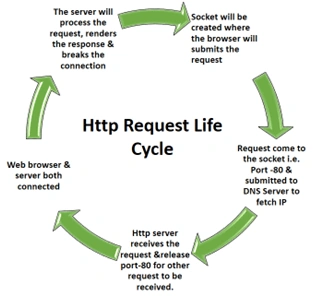
Fig-3 represents an Http request life cycle.
Hosting a website in IIS Server
For hosting a website in IIS follow the below steps:-
- Type inetmgr as shown in the below screenshot.
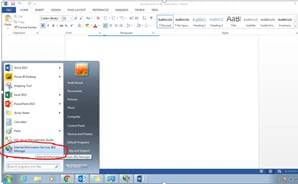
- Right click on IIS Manager & click “Run as Administrator” below screen will appear.
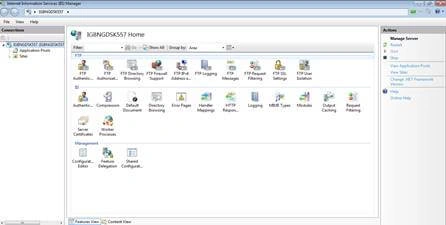
- Right click on sites present in left side of the windows pane & Select “Add Web Site” as shown in the below screenshot.
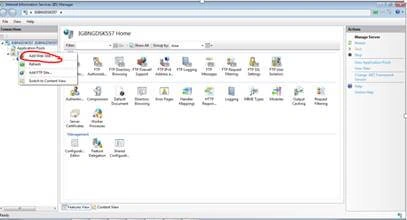
- On clicking “Add Website” below screen will appear,
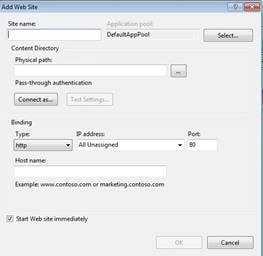
- Give the site name, physical path, host name & click ok as shown in the below screenshot,
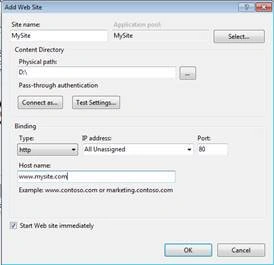
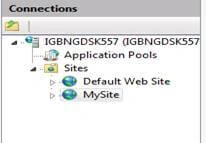
- Mysite will appear on the left pane of the window as shown below.
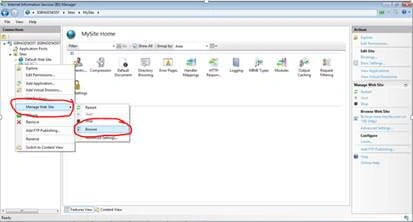
- Right click on website name & Go to “Manage Web Site” & select “Browse” as shown in the below screenshot,
Introduction to Application Pool
IIS web application is a collection of one or more websites. The application pool is a collection of web applications which allow isolation between different web applications. Suppose we are hosting three applications in two different application pools, if web application 3 crashes web application 2 will not be affected. However, web application 1 will be affected as it is in the same application pool.
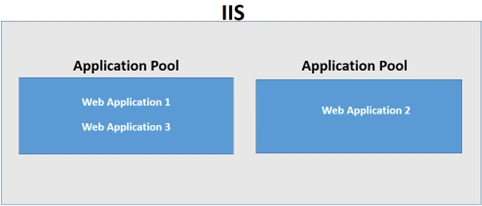
Fig-4 represents an application pool.
A separate application pool can be created to avoid crashing of the web application. Each application pool runs its own worker process, so that an error in one application pool will not affect the applications running in other application pools which will increase the level of security.
Ramzanali MominPosted Oct 20, 2018, 7:12 AM
Nice article