

Introduction
Power BI is a powerful tool for data visualization and business intelligence. It allows users to connect to various data sources, transform data, and create insightful reports and dashboards. To leverage its full potential, understanding how to manage connections and gateways is crucial.
Note. You must have the appropriate Power BI license to access and manage these features. This article will guide you through the process of viewing all connections and gateways, including on-premises and virtual network data gateways, in Power BI.
Features
Power BI offers robust features for managing data connections and gateways, ensuring seamless data integration and accessibility. These features include support for various connection types such as SQL, Oracle, ODBC, PostgreSQL, SharePoint, Web, Folder, and OLE DB. Additionally, Power BI provides tools to manage on-premises gateways and virtual network data gateways, enhancing the security and efficiency of data access.
Advantages and Disadvantages
Advantages
- Centralized Management: Power BI allows you to manage all your data connections and gateways from a single interface, making it easier to keep track of your data sources.
- Secure Data Access: By using on-premises and virtual network data gateways, Power BI ensures that your data is transferred securely between your data sources and the Power BI service.
- Wide Range of Supported Data Sources: Power BI supports a variety of data sources, including SQL, Oracle, ODBC, PostgreSQL, SharePoint, Web, Folder, and OLE DB, allowing you to connect to almost any data source you need.
Disadvantages
- Complex Setup: The initial setup of connections and gateways can be complex, especially for users who are not familiar with Power BI or data integration.
- Ongoing Maintenance: Managing connections and gateways requires ongoing maintenance and monitoring to ensure that data is being transferred correctly and securely.
Steps to Get All Your Connections and Gateways
- Open app.powerbi.com
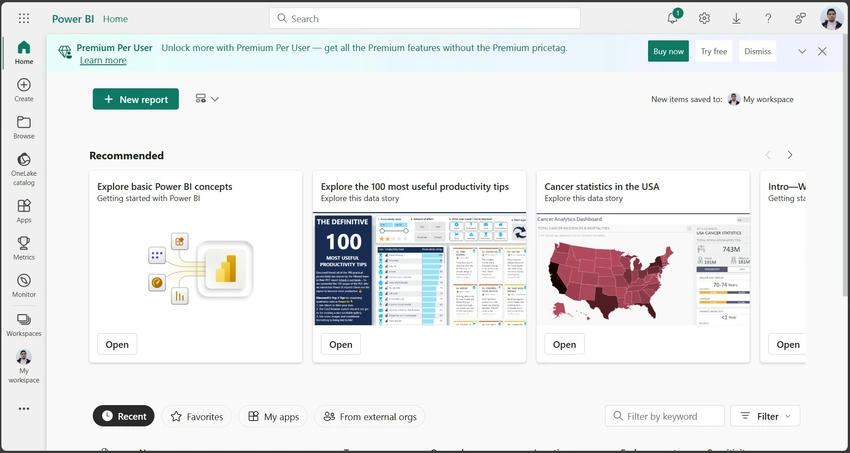
- Navigate to the Power BI service by opening app.powerbi.com.
- Click the Gear Icon on the Top Right.

- Click the gear icon located at the top right corner of the screen.
- Click Manage Connections and Gateways.
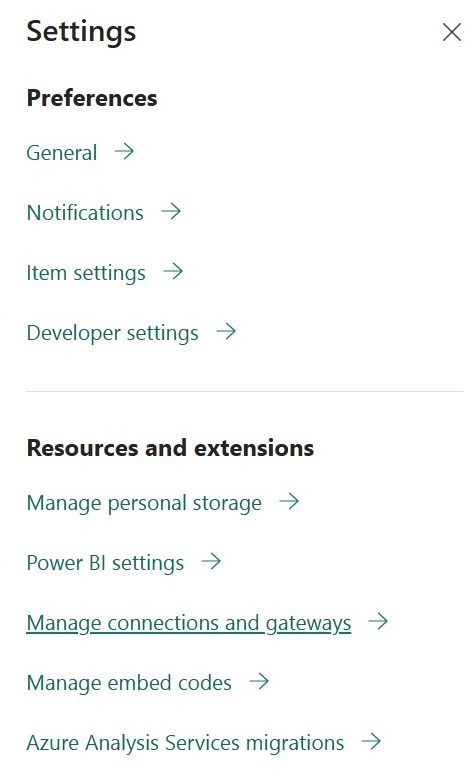
- Select "Manage connections and gateways" from the dropdown menu.
Explanation of Sections
- Connections
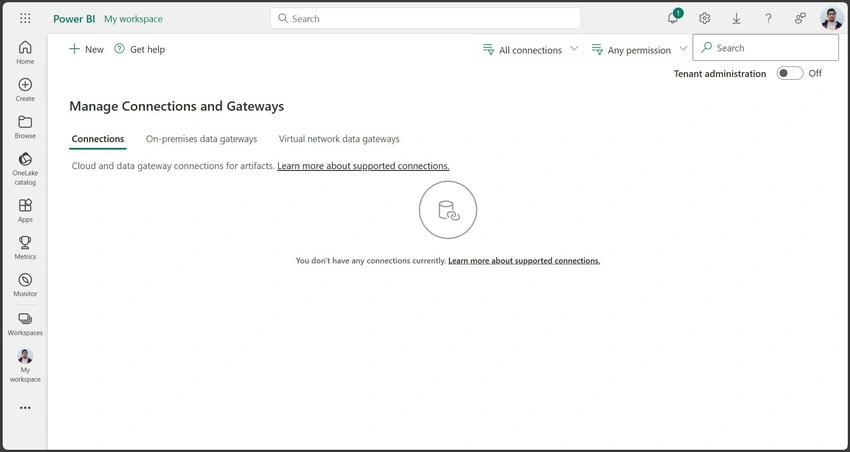
- Here, you can see all your connections categorized by type, such as SQL, Oracle, ODBC, PostgreSQL, SharePoint, Web, Folder, OLE DB, etc.
- If no connections are set up, it will display a message: "You don't have any connections currently. Learn more about supported connections."
- Example: If you have a SQL connection, it will be listed under the SQL type, showing details like the server name, database name, and connection status.
- On-Premises Gateway.
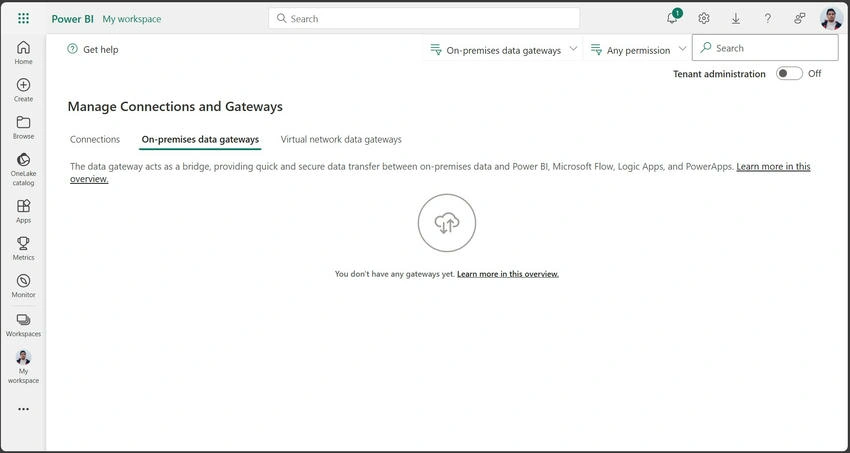
- This section allows you to manage on-premises gateways, which facilitate secure data transfer between on-premises data sources and Power BI.
- If no on-premises gateway is set up, it will display a message: "You don't have any connections currently. Learn more about supported connections."
- Example: An on-premises gateway might be used to connect to a local SQL Server database, ensuring that data is transferred securely to Power BI.
- Virtual Network Data Gateways.
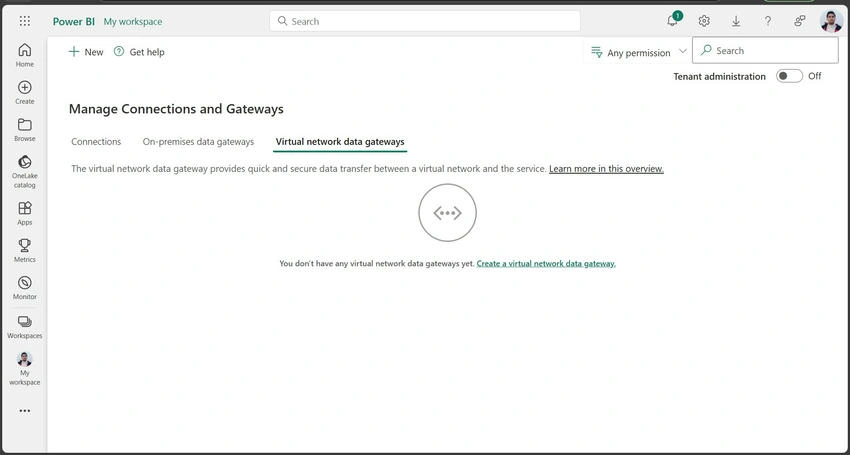
- This section allows you to manage virtual network data gateways, which connect to data services within an Azure virtual network.
- If no virtual network data gateway is set up, it will display a message: "You don't have any connections currently. Learn more about supported connections."
- Example: A virtual network data gateway might be used to connect to an Azure SQL Database, keeping the data traffic within the Azure backbone for enhanced security.
Conclusion
In this article, we explored how to view and manage connections and gateways in Power BI, including on-premises and virtual network data gateways. Understanding these features is essential for efficient data management and integration. In the next article, we will delve into how to create connections in Power BI.
Join the conversation! Your thoughts help the community grow.