

In today’s digital-first workplace, organisations are continually seeking ways to improve efficiency, minimise manual effort, and reduce operational errors. Microsoft Power Automate is a low-code, cloud-based automation platform that enables businesses to automate workflows across applications and services with minimal development effort.
This article provides a concise and practical introduction to Power Automate, covering its core components, flow types, business use cases, and enterprise considerations.
What is Microsoft Power Automate?
Microsoft Power Automate allows users to create automated workflows between applications such as Outlook, Microsoft Teams, SharePoint, OneDrive, Excel, and hundreds of third-party services.
Using a visual drag-and-drop designer, both business users and developers can design workflows without writing code. This democratises automation and supports faster digital transformation across organisations.
Core Components of Power Automate
Every automation is built using three essential elements:
Flows – Automated workflows connecting apps and services
Triggers – Events that start a flow (e.g., receiving an email or uploading a file)
Actions – Operations performed after the trigger (e.g., saving files, sending alerts, updating records)
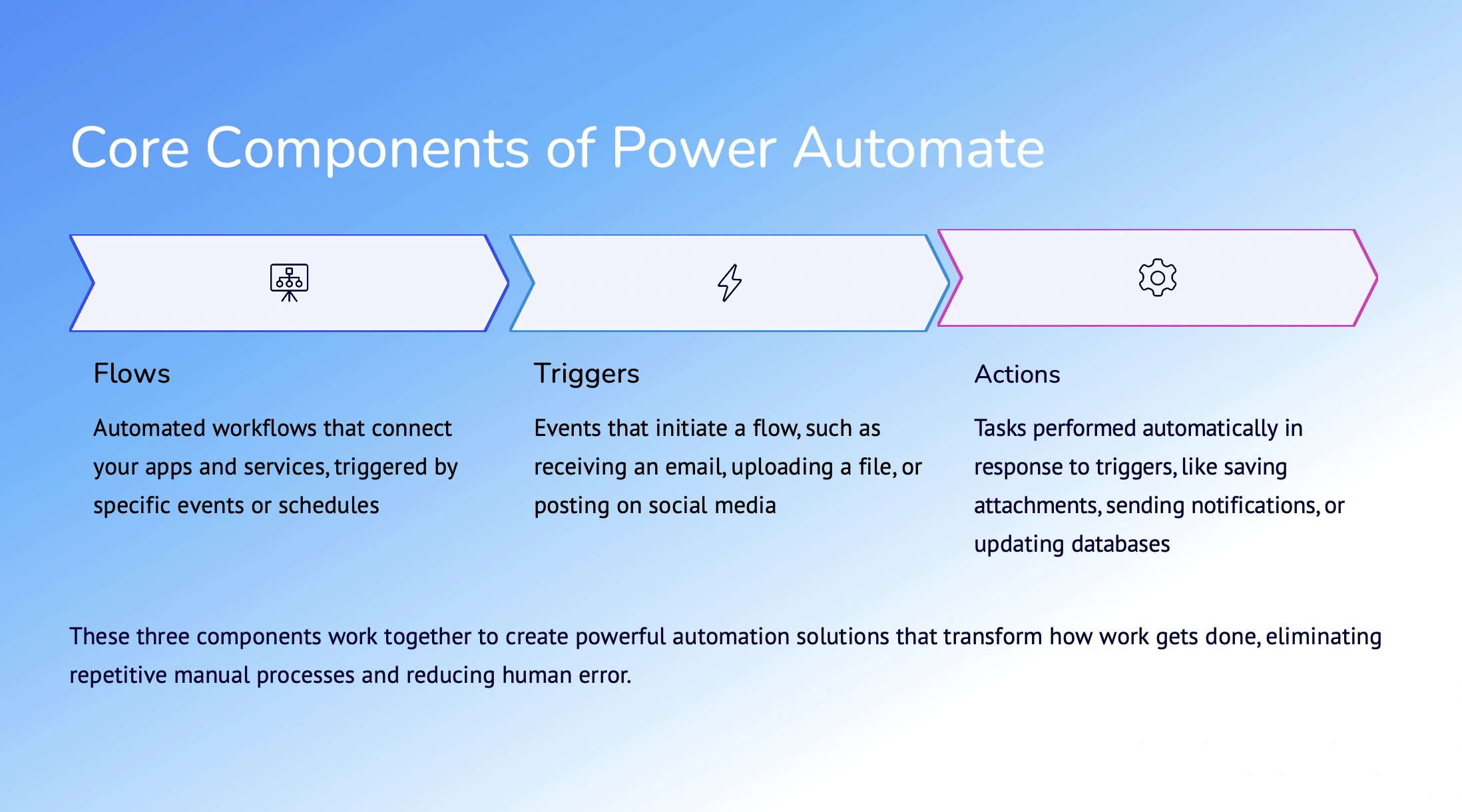
Together, these components enable organisations to eliminate repetitive manual work and improve process consistency.
Types of Flows in Power Automate
Power Automate supports multiple flow types to address different automation needs:
Automated flows – Triggered automatically by system events
Instant flows – Manually triggered using a button
Scheduled flows – Run at fixed times or intervals
Business process flows – Guide users through structured, multi-step processes
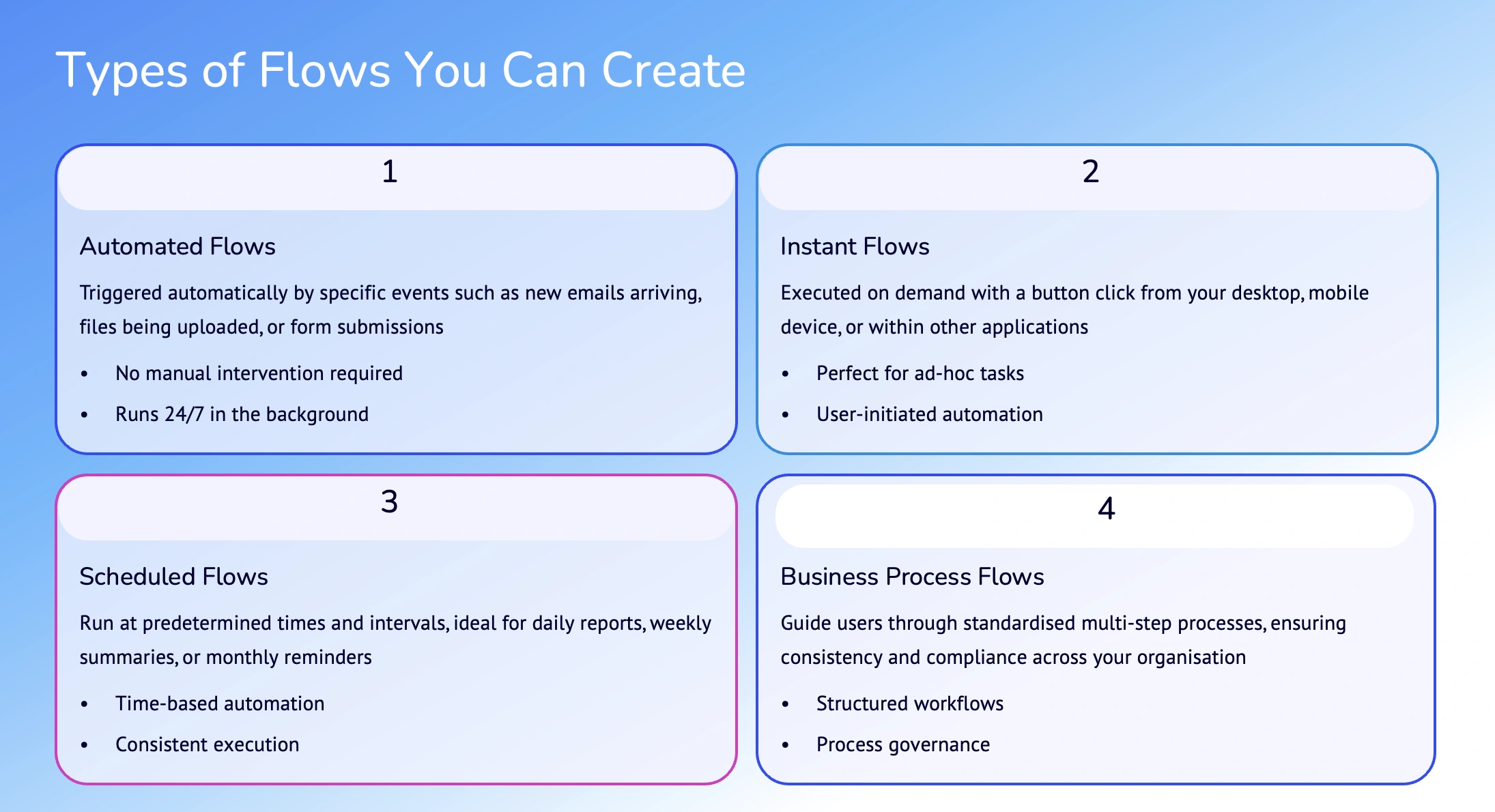
This flexibility makes Power Automate suitable for both individual productivity and enterprise-scale workflows.
Building Your First Flow
Creating a flow is straightforward. For example, users can automate saving email attachments to OneDrive by:
Selecting a pre-built template from make.powerautomate.com
Connecting Outlook and OneDrive
Customising filters and folder paths
Testing and enabling the flow
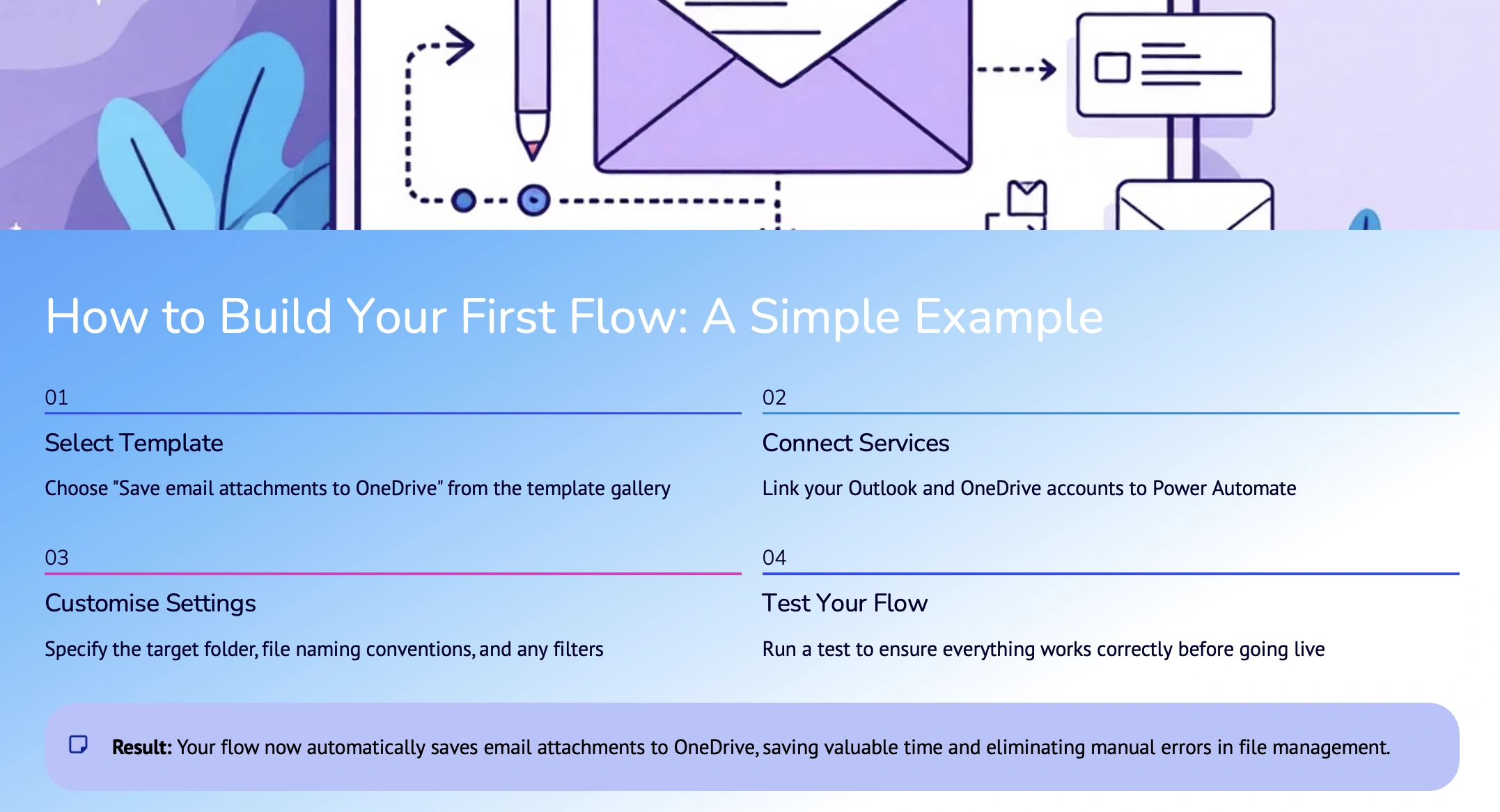
This simple automation can significantly reduce manual file handling and improve efficiency.
Real-World Business Use Cases
Power Automate is widely adopted across departments for:
Approval workflows in HR, finance, and operations
Instant notifications for critical business updates
Data synchronisation across Teams, SharePoint, and Excel
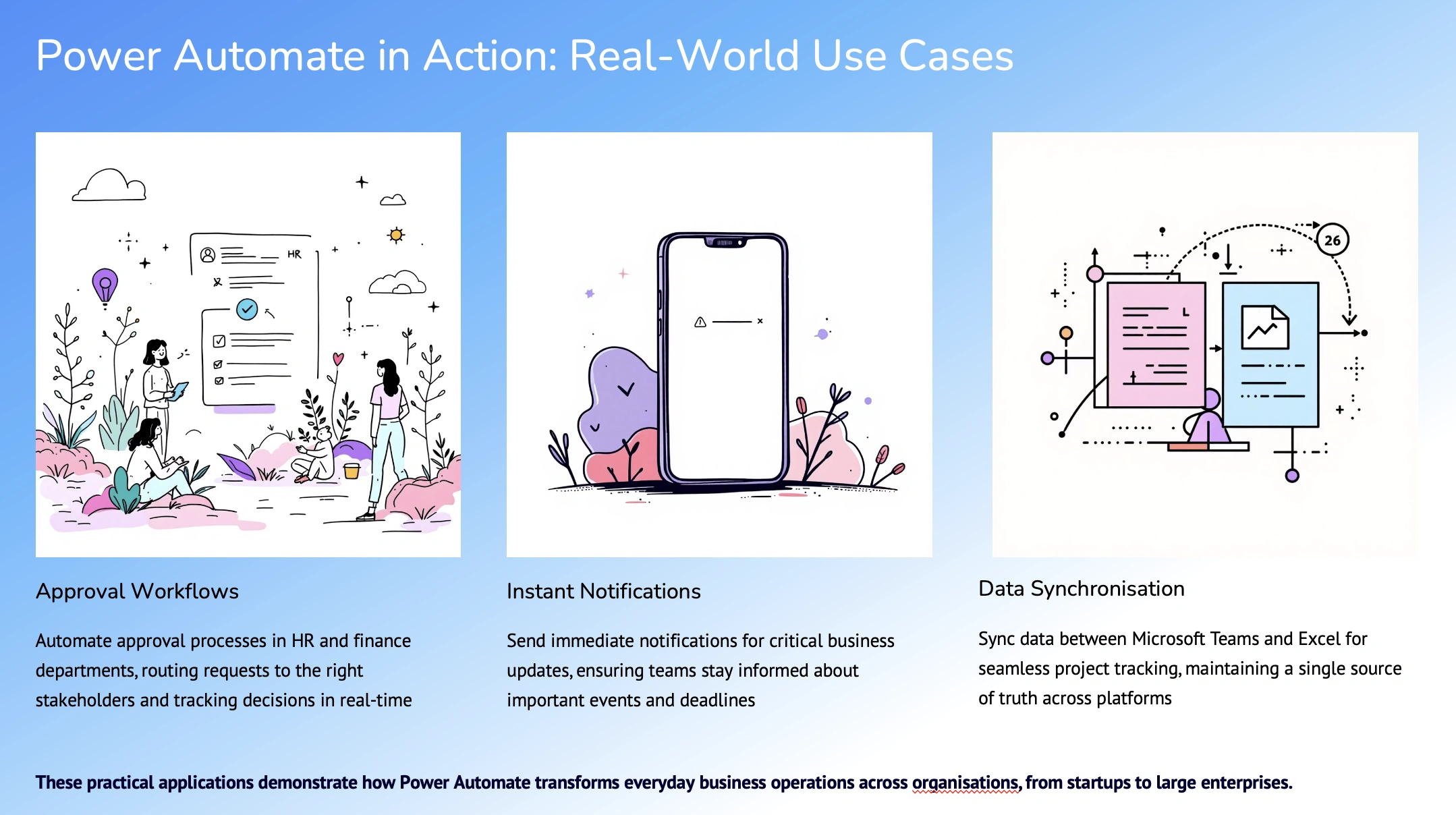
These scenarios highlight how organisations use automation to enhance visibility, accuracy, and productivity.
Integrations, Security, and Governance
Power Automate offers 1,000+ connectors, including deep integration with Microsoft 365, Dynamics 365, and Power Platform, as well as support for third-party systems and custom connectors.
Enterprise-grade capabilities include:
Data encryption and compliance standards
Admin controls and data loss prevention (DLP) policies
Flow monitoring and governance tools
Before large-scale adoption, organisations should establish governance policies, security standards, and monitoring practices.
Getting Started with Power Automate
To begin:
Visit make.powerautomate.com and sign in
Explore built-in templates
Learn through Microsoft Learn modules and community forums
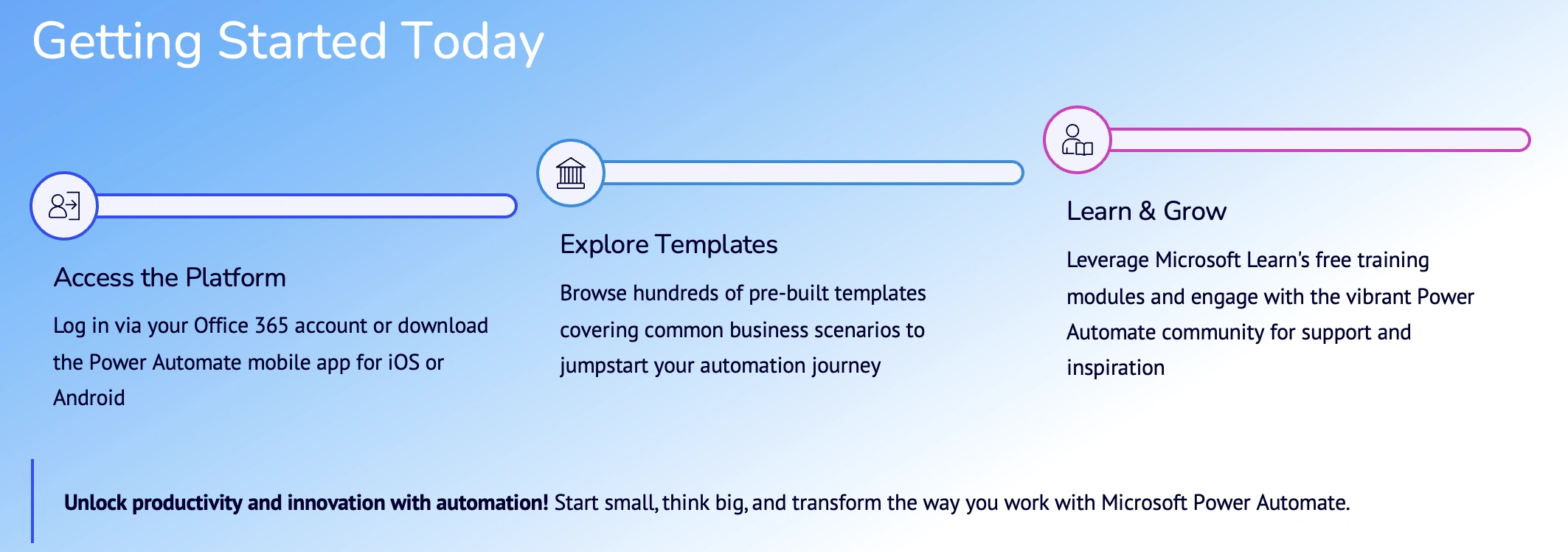
Start small, focus on high-impact processes, and scale automation strategically.
Conclusion
Microsoft Power Automate empowers organisations to modernise business processes through low-code automation. By integrating systems, standardising workflows, and enforcing governance, businesses can unlock higher productivity and operational excellence.
Join the conversation! Your thoughts help the community grow.