

Introduction
Last week, during the Day 1 Keynote at PASS Summit (October 30-November 3, 2017), Microsoft announced the Public Preview of their free lightweight cross-platform tool called as SQL Operations Studio. It supports Windows, macOS, and Linux for SQL Server, Azure SQL Database, and Azure SQL Data Warehouse.
To know more, visit SQL Server Blog>>.
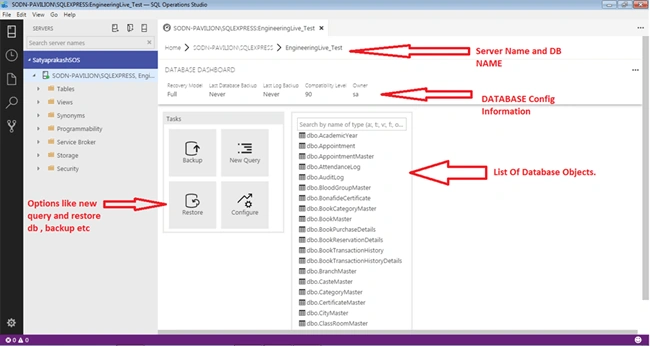
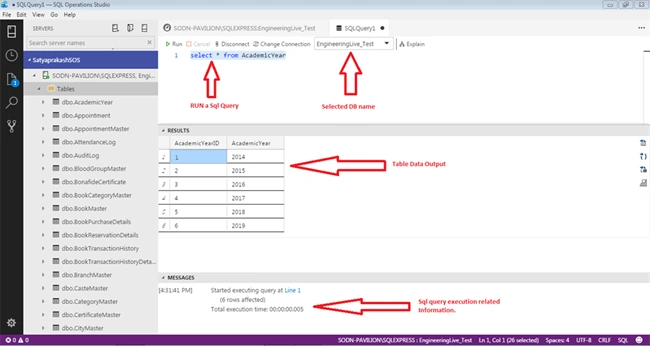
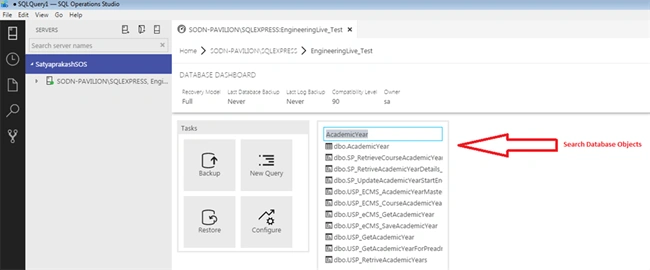
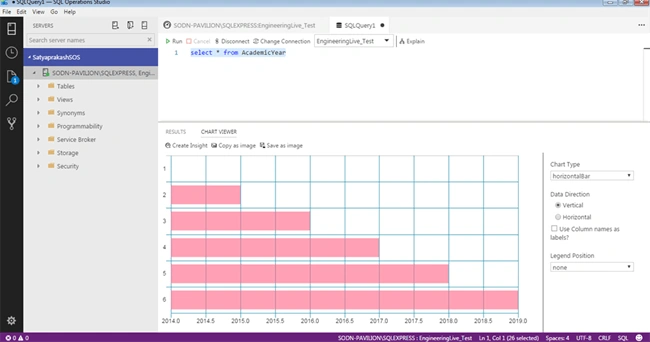

Here, I will show you how to connect SQL Server with SQL Operations Studio and retrieve the existing databases and their related objects like Tables, Functions, Views, Stored Procedures. Also, we will see how the SQL query result is exported to various formats and how to report issues to GitHub link and tweet your feedback.
Version of SQL Operations Studio Preview
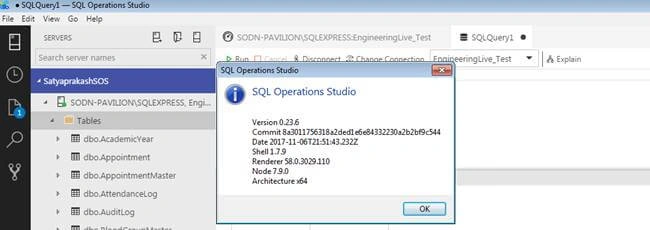
Difference between SQL Server Management Studio and SQL Operations Studio
The primary IDE which developers and DBAs use to connect to their database instance.
SQL Server Management Studio
It is the client tool that can be used to write and execute the SQL queries.The tool includes both, script editors and graphical tools which work with objects and features of the server. Microsoft also incorporated backward compatibility for older versions of SQL Server, thus allowing a newer version of SSMS to connect to the older versions of SQL Server instances. SQL Server Management Studio (SSMS) works with Windows only.
Its initial release is 2005.
SQL Operations Studio
It is a free, light-weight tool that runs on Windows, macOS, and Linux for managing SQL Server, Azure SQL Database, and Azure SQL Data Warehouse. It’s easy to connect to Microsoft SQL Server with SQL Operations Studio and perform the routine database operations.
It is a quick learning tool with multiplatform support. Non-professional database administrators can also take responsibility for developing and operating databases with the help of this tool. They also get the ability to create rich customizable dashboards to monitor and quickly detect the performance bottlenecks in SQL databases on-premises or in Azure.
Its preview initial release is 2017.
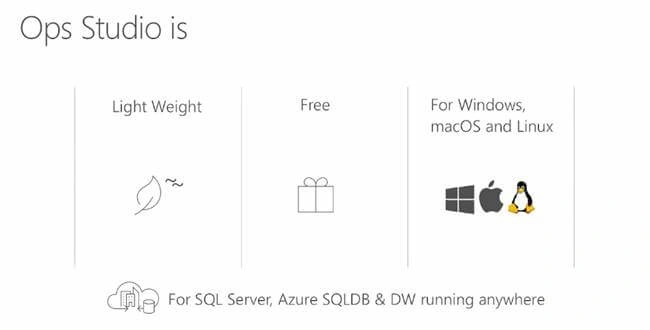
More Notes on SQL Operations Studio
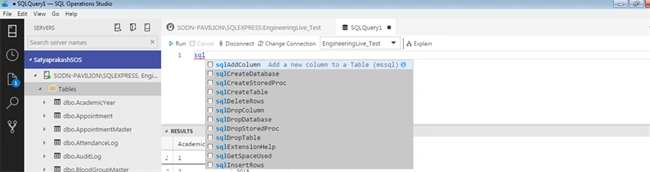
You’ll be able to leverage your favorite command line tools like Bash, PowerShell, sqlcmd, bcp, and ssh in the integrated terminal window right within the SQL Operations Studio user interface. They can easily generate and execute the CREATE and INSERT scripts for SQL database objects to create copies of their database for development or testing purposes. Database developers can increase their productivity with smart T-SQL code snippets and rich graphical experiences to create new databases and database objects, such as tables, views, stored procedures, users, logins, roles, etc. or to update the existing database objects.
Contribution to SQL Operations Studio
You can contribute directly to SQL Operations Studio via pull requests from the GitHub repository.
Which one is faster?
SOS is the faster, lightweight, and powerful one than the current SSMS IDE.
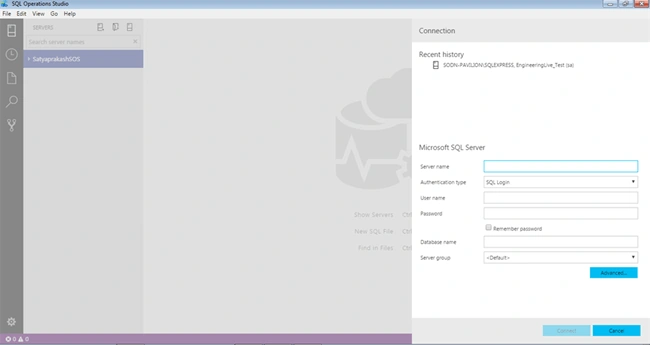
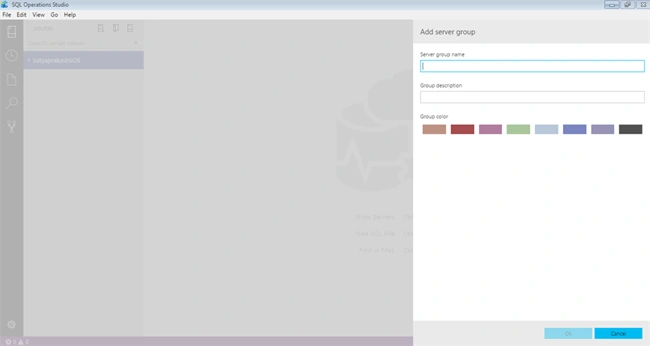
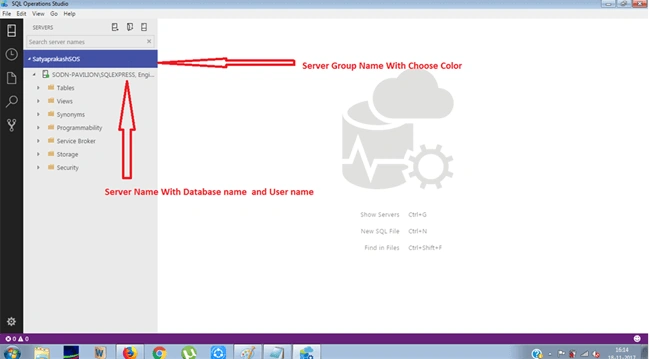
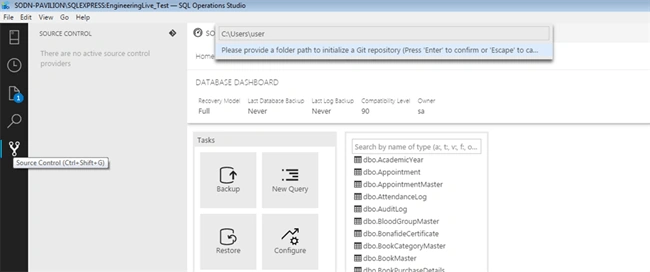
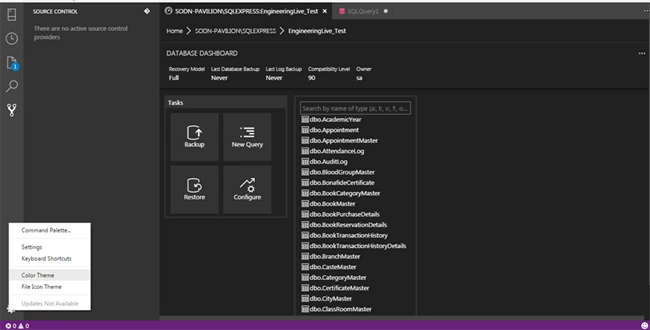
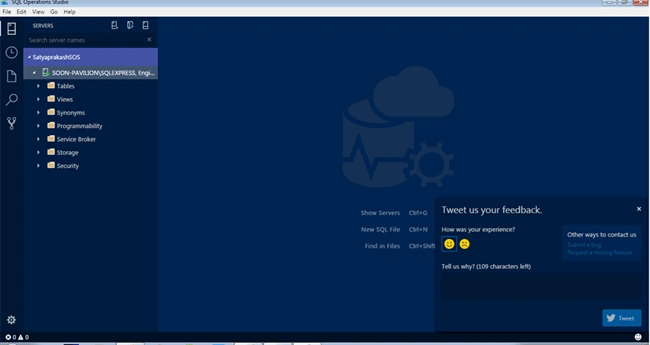
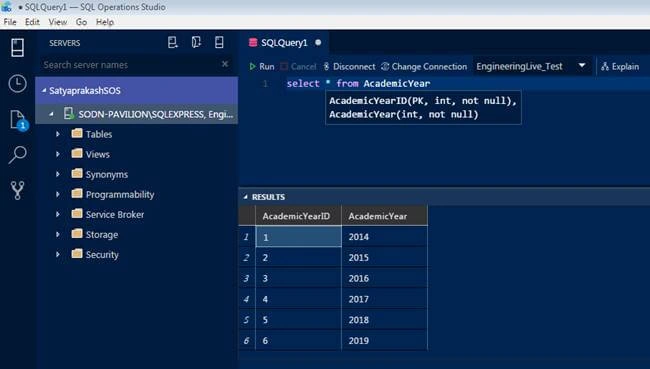
Steps to connect the SQL Operations Studio With SQL Server
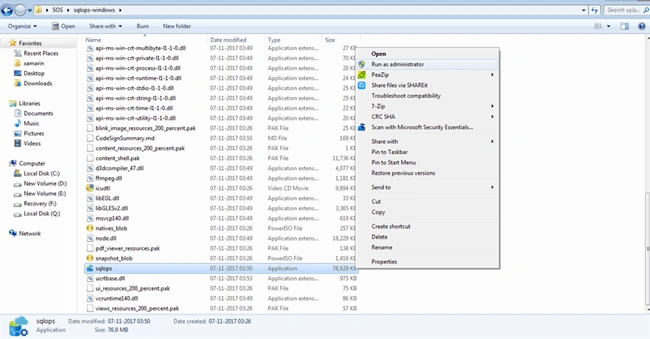
First, download It for Windows OS.
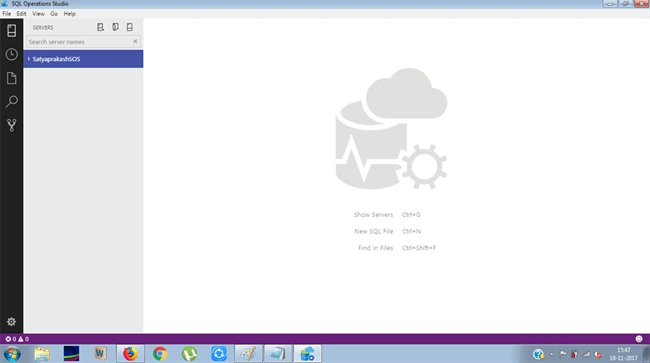
Step 1
Hadshana KamalanathanPosted Jul 16, 2018, 8:22 PM
Thank you for sharing
Sagar Pandurang KapPosted Dec 6, 2017, 4:52 AM
Fabulous Article and the GIF was ultimate for understanding quickly.
Humayun Kabir MamunPosted Nov 21, 2017, 12:28 AM
Thanks for this nice article...