

The user interface of SharePoint Designer 2010 has been completely redesigned to "put the 'SharePoint' in SharePoint Designer." All of the important components in a site or solution - lists and content types, views and forms, workflows, data sources and external content types, page layouts and master pages can be easily found and customized. We can also see how components are related to each other.
File Tab
When we start SharePoint Designer 2010, the new File tab makes it easy to get started. There are options to open existing sites or create new sites. We can open pages or sites that we have recently worked with. We can also add new components such as lists and workflows to the current site. A Help menu and Option tab are also available. The Option tab allows us to customize some of the features.
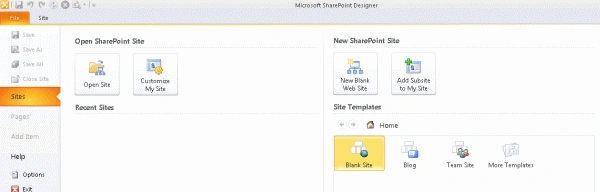
Figure 3
Site Summary Page
SharePoint Designer 2010 has a summary page where we can change settings or manage various aspects of our site, as you can see in Figure 4. We can manage permissions directly from SharePoint Designer 2010. Like every summary page, the site summary page shows related components. We can easily view and navigate to all subsites in the current site.
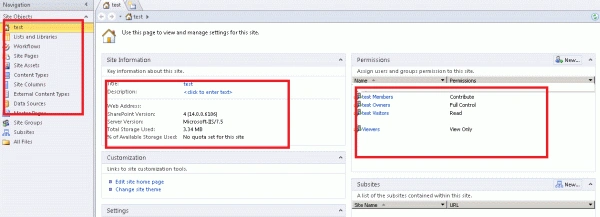
Figure 4
Navigation Pane
The new improved Navigation pane makes it easy to find and navigate to all of the important components in a site that you use to build a solution. We can just work with the navigation pane to work on different tasks like creating a workflow or lists etc. See Figure 5.
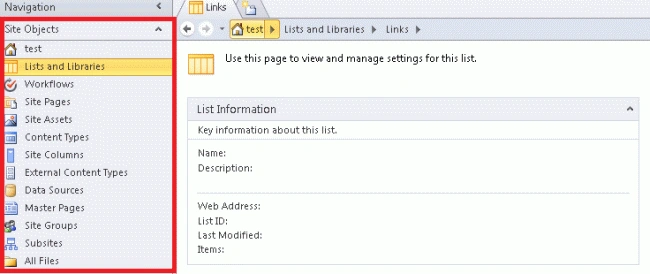
Figure 5
Gallery Pages
Gallery pages are one of the good features in SharePoint Designer 2010, as you can see in Figure 6. It is very easy to find and edit any of the important components of our solution. In the Navigation pane, clicking any component will show you a gallery of all such components in the current site. In the screen shot shown below, we have selected the workflows; we can see the details in the page as shown below. On a gallery page, just click any component to edit it.
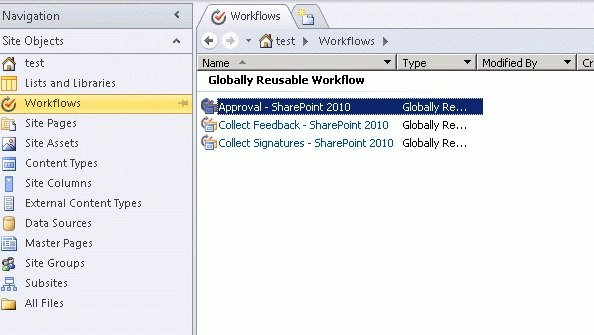
Figure 6
Summary Pages
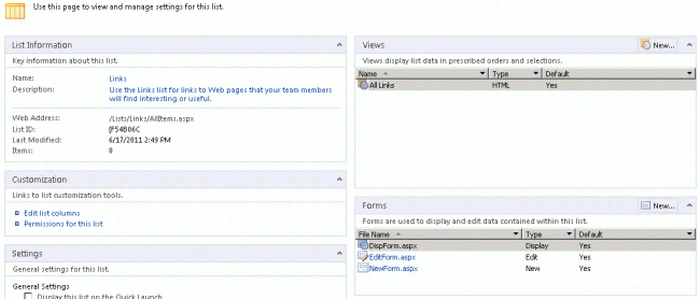
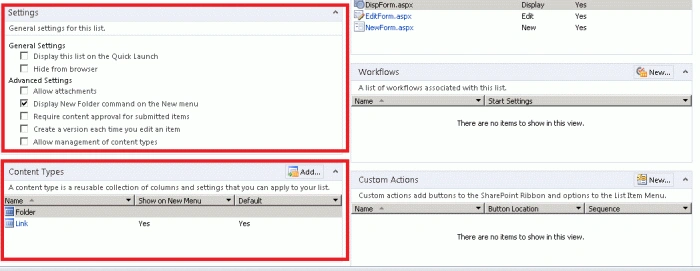
A summary page gives us an all-up interpretation or portal into all of the pieces that make up a module. For example, the summary page for a list shows you the forms and workflows for that list. From a summary page, you can edit the settings for that module like name, permissions or even edit the component itself. Figure 7 shows a summary page.

Sonakshi SinghPosted Jan 27, 2012, 3:56 AM
very useful article, Thank you Destin....