

Here we will see how to invoke the lost focus event in a LightSwitch Application (Visual C#) in Visual Studio 2012.
The following is the procedure for invoking the lost focus event in LightSwitch.
Step 1
Open the Solution Explorer.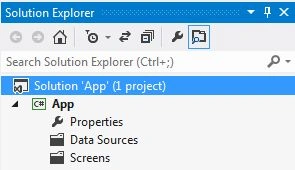
Step 2
In the Solution Explorer, right-click on the Screens and choose "Add Screen".
Step 3
The Add New Screen dialog box appears. Select the "Editable Grid Screen" from the Screen Template, under screen information, choose "None" under screen data and provide a name to the Screen, and click the "OK" button.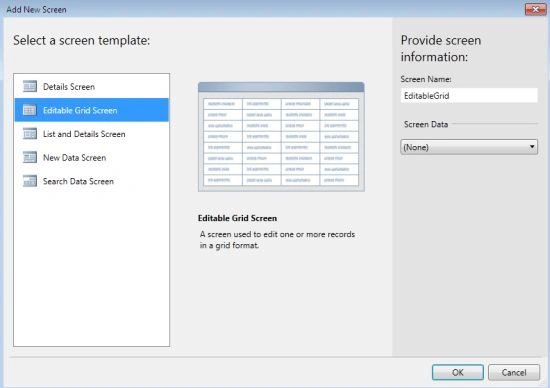
Add another Editable Grid Screen, choose "None" under screen data and provide a name to the Screen, and click the "OK" button.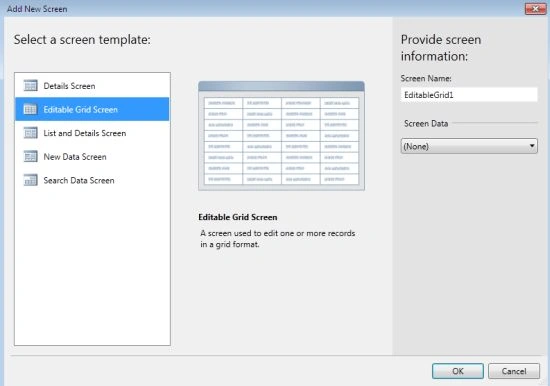
Step 4
The Screen Designer appears for both the Screens.
Editable Grid Screen
Editable Grid1 Screen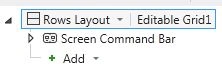
Step 5
For the first screen (Editable Grid), go to the Menu Bar and choose the "Write Code()" drop down list and select the "_Activated()" method.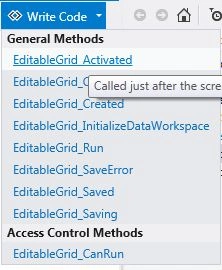
The Code Designer appears.
using System;
using System.Linq;
using System.IO;
using System.IO.IsolatedStorage;
using System.Collections.Generic;
using Microsoft.LightSwitch;
using Microsoft.LightSwitch.Framework.Client;
using Microsoft.LightSwitch.Presentation;
using Microsoft.LightSwitch.Presentation.Extensions;
using Microsoft.VisualStudio.ExtensibilityHosting;
using Microsoft.LightSwitch.Sdk.Proxy;
namespace LightSwitchApplication
{
public partial class EditableGrid
{
partial void EditableGrid_Activated()
{
IServiceProxy proxy = VsExportProviderService.GetExportedValue<IServiceProxy>();
VsExportProviderService.GetExportedValue<IServiceProxy>().ActiveScreensViewModel.PropertyChanged += ScreensViewModel_PropertyChanged;
}
private void ScreensViewModel_PropertyChanged(object sender, System.ComponentModel.PropertyChangedEventArgs e)
{
//throw new NotImplementedException();
this.Details.Dispatcher.BeginInvoke(() =>
{
VsExportProviderService.GetExportedValue<IServiceProxy>().ActiveScreensViewModel.PropertyChanged -= ScreensViewModel_PropertyChanged;
this.ShowMessageBox("Screen lost focus event fired");
});
}
}
}
Step 6
Press F5 to run the application and open both screens.
Join the conversation! Your thoughts help the community grow.