

Problem Statement
Provide access only to the person whose name is present in the column Employee name of the particular list item; or,
The list item is only visible to a person whose name is present in the Employee name column.
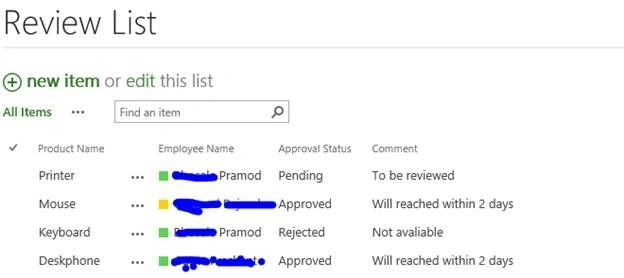
Solution
- Create SharePoint List named “Review List”.
- Go to Settings and rename the title column as Name and create columns as shown in below table.
|
sr no
|
Column Name
|
Column Type
|
Description
|
|
1
|
Product Name
|
Single Line of text
|
Renamed Title column
|
|
2
|
Employee Name
|
Person or Group
|
People Picker
|
|
3
|
Approval Status
|
Choice (menu to choose from)
|
Pending, Approved, Rejected (by default Pending)
|
|
4
|
Comment
|
Multiple lines of text
|
For comment
|
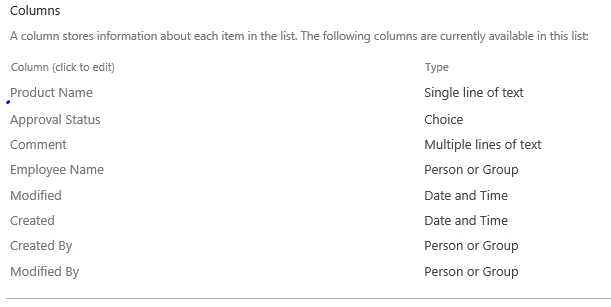
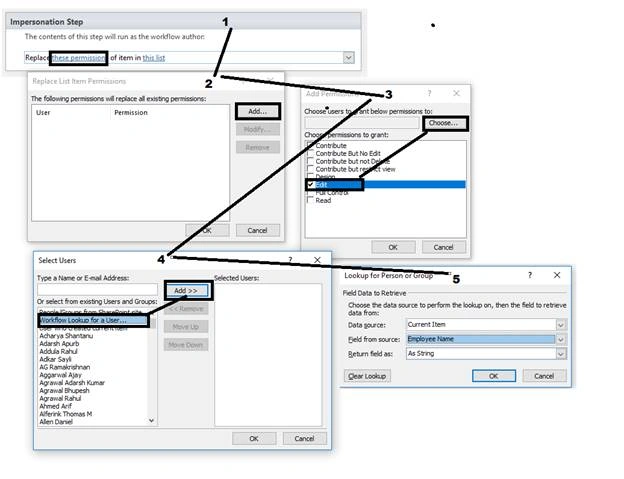
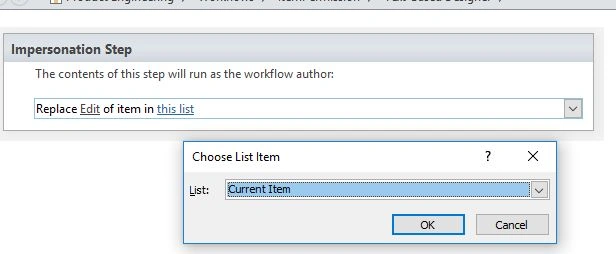
- Edit the list by using SharePoint Designer.
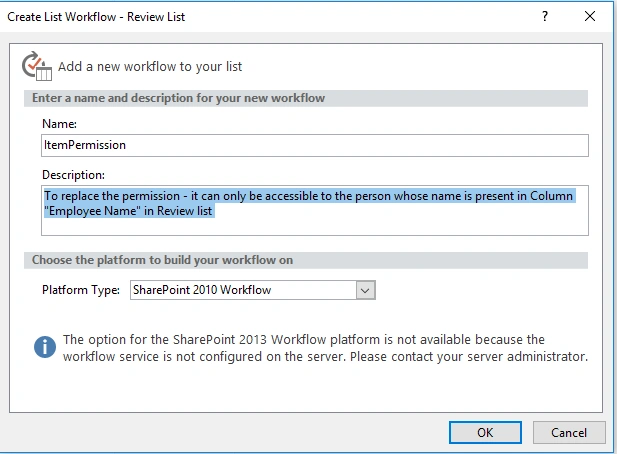
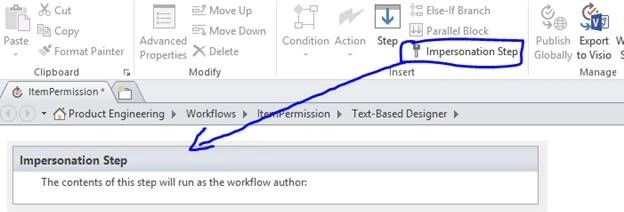
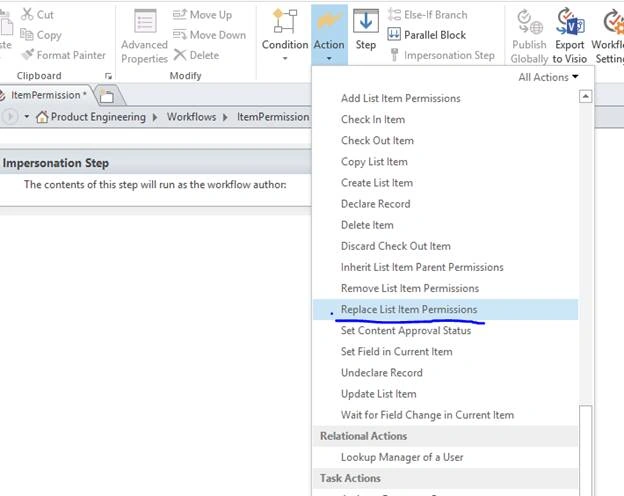
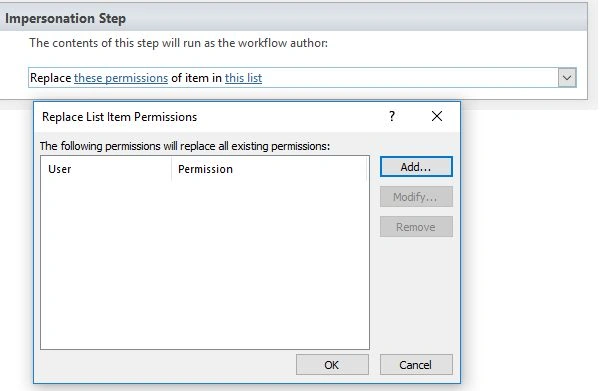
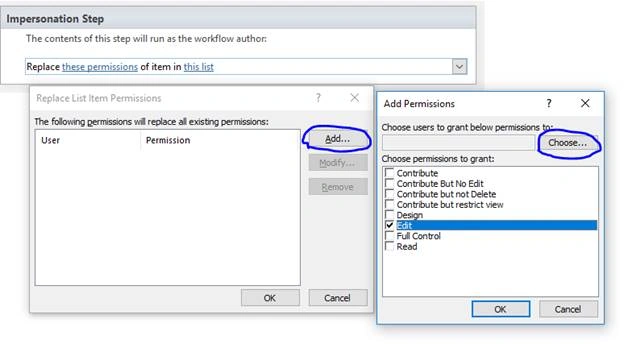
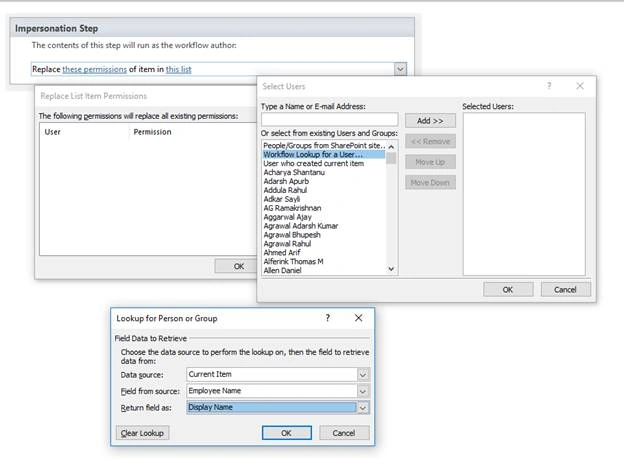
- Create a workflow named “ItemPermission” for “Review List”.
V SPosted Sep 23, 2019, 6:56 AM
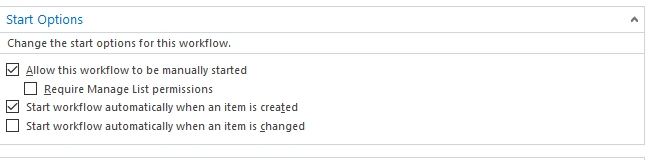
Hi Pramod, thank you for the quick response! Kindly note I added the Checkbox "Start Workflow automatically when an item is changed" without success, After the first workflow is run, the employee A is added to the Workflow Users Permission list in the SP. However, when I removed the first employee A and replace it by a different employee B, the workflow is not removing the access from the previous employee A since he still in the Workflow User permission. However it is granted access for the new employee B....I might be missing something, since the access are nor removed yet. Than you in advance for any guide to fix this :)
V SPosted Sep 22, 2019, 6:43 PM
Thank you for the Post! The information is great!! I am working on a workflow that will grant item level permission to an employee based on a column on a SP List (same as the solution proposed) and if the column is updated with another employee name, I need to remove the permission to the previous employee and provide access to the new employee....I am new in SP Designer and will really appreciate if you could please guide me on how I am able to remove permission of an employee that is removed from a column and give access to the new employee added. Thank you very much in advance :)