

This article shows how to use a jqGrid. This approach will work in an ASP.NET application or a SharePoint site. I will try to cover as many properties of jqGrid as I can.
To begin, I added references to the following files in my *.aspx page.
- jquery-ui-1.8.18.custom.css
- ui.jqgrid.css
- jquery-1.7.1.min.js
- jquery-ui-1.8.18.custom.min.js
- grid.locale-en.js
- jquery.jqGrid.min.js
- json2.js
Files 1 and 4 and the corresponding images files can be downloaded from the jQuery UI ThemeRoller site. And files 2, 5 and 6 can be downloaded from the jqGrid site's download page. (Although I recommend downloading these files from a site that has a working example of jqGrid. The reason I suggest this method is, when I tried downloading these files from the jqGrid's website by selecting the required modules, things worked fine for me initially, but later I reached a point where the jqGrid was not working for me, though there was no problem in my code. Then I replaced the jqGrid JavaScript file that I downloaded from the jqGrid website with a JavaScript file from a site that has a working example and Voila! It worked, without make any changes in my code. This happened to me twice, so perhaps I was doing something wrong but just wanted to let you guys know of this case. This is just like one of those Visual Studio restart things. :) Just kidding.) I will talk about file 7 at the end of this blog.
First let's consider a normal jqGrid with some static data.
Add the following HTML to your page:
- <table id="myGrid"></table>
- <div id="pager"></div>
- var mydata = [{
- EID: "8",
- EmployeeName: "Name 1",
- EmployeeIndex: "10.00",
- EmployedDate: "2010-05-24",
- CurrentlyEmployed: true,
- SiteID: "a"
- }, {
- EID: "67",
- EmployeeName: "Name 2",
- EmployeeIndex: "20.00",
- EmployedDate: "2010-05-25",
- CurrentlyEmployed: false,
- SiteID: "b"
- }, {
- EID: "34",
- EmployeeName: "Name 3",
- EmployeeIndex: "30.00",
- EmployedDate: "2007-09-01",
- CurrentlyEmployed: true,
- SiteID: "c"
- }, {
- EID: "14",
- EmployeeName: "Name 4",
- EmployeeIndex: "10.00",
- EmployedDate: "2007-10-04",
- CurrentlyEmployed: false,
- SiteID: "d"
- }, {
- EID: "52",
- EmployeeName: "Name 5",
- EmployeeIndex: "20.00",
- EmployedDate: "2007-10-05",
- CurrentlyEmployed: true,
- SiteID: "e"
- }, {
- EID: "6",
- EmployeeName: "Name 6",
- EmployeeIndex: "30.00",
- EmployedDate: "2007-09-06",
- CurrentlyEmployed: false,
- SiteID: "f"
- }, {
- EID: "2",
- EmployeeName: "Name 7",
- EmployeeIndex: "10.00",
- EmployedDate: "2007-10-04",
- CurrentlyEmployed: true,
- SiteID: "g"
- }
- ];
- $(function() {
- var grid = jQuery("#myGrid");
- grid.jqGrid({
- data: mydata,
- datatype: "local",
- height: 200,
- hidegrid: false, //hides the arrow button at the top right corner for collapsing the jqGrid
- rowNum: 10,
- rowList: [10, 20, 30],
- viewrecords: true,
- caption: "Employees",
- pager: "#pager",
- colNames: ['EID', 'Name', 'Index', 'Employed Date', 'Employed', 'Url'],
- colModel: [{
- name: 'EID',
- index: 'EID',
- width: 100,
- align: "center",
- sorttype: 'int'
- }, {
- name: 'EmployeeName',
- index: 'EmployeeName',
- width: 100,
- align: "left"
- }, {
- name: 'EmployeeIndex',
- index: 'EmployeeIndex',
- width: 100,
- align: "center"
- }, {
- name: 'EmployedDate',
- index: 'EmployedDate',
- width: 120,
- align: "right",
- formatter: 'date',
- formatoptions: {
- newformat: 'm-d-Y'
- },
- datefmt: 'm-d-Y'
- }, {
- name: 'CurrentlyEmployed',
- index: 'CurrentlyEmployed',
- width: 100,
- align: "center",
- formatter: 'checkbox'
- }, {
- name: 'SiteID',
- index: 'SiteID',
- width: 100,
- formatter: linkFormatter,
- sortable: false
- }]
- });
- });
- function linkFormatter(cellValue, options, rowdata, action) {
- return "<a href='https://praneethmoka.wordpress.com?rid=" + options.rowId + "' target='_blank'>Click here</a>";
- }
So, here's how the jqGrid looks so far.
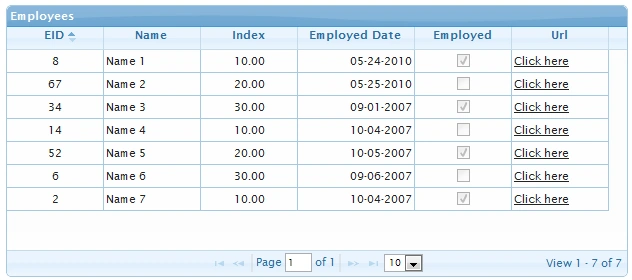
Both sorting and paging automatically come Out-Of-The-Box for jqGrid. So, you need not go through all the struggle trying to set these up as you would for a Repeater or DataList.
You can also add search functionality to this jqGrid and that can be done in two ways, depending on your preference of UI.
Method 1
Add the following line after line 34 in my “myJqCodeBlock”.
- grid.jqGrid('navGrid', "#pager", { edit: false, add: false, del: false, search: true, refresh: true });
After adding the preceding line, the jqGrid looks as follows:
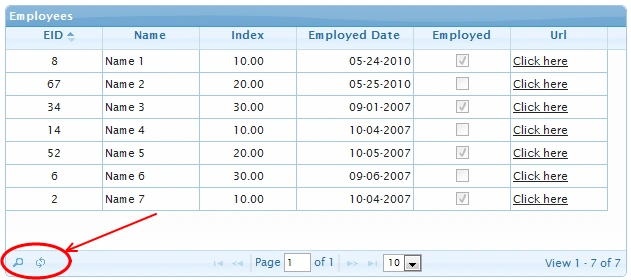
See the new buttons added at the bottom-left corner of the jqGrid. One button was added by setting the “search” property to true and the second button was added by setting the “refresh” property to true.
The “refresh/reload” button just reloads the jqGrid data.
Ok, now if you click the “search” button, a new popup (see the image below) will come up where you can specify your search criteria.
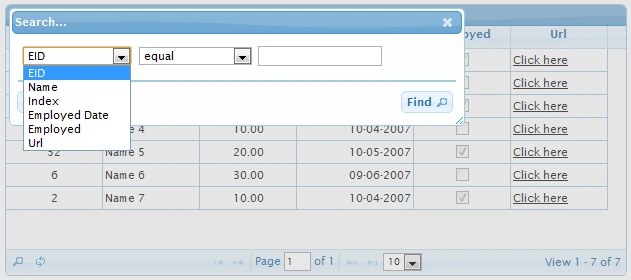
Here you can get a wide range of search options all Out-Of-The-Box. Ok, now let's move on to the next method.
Method 2
In the second method, instead of having a search popup for setting your seach criteria, we can create a filter toolbar that appears below the jqGrid column headers as follows:
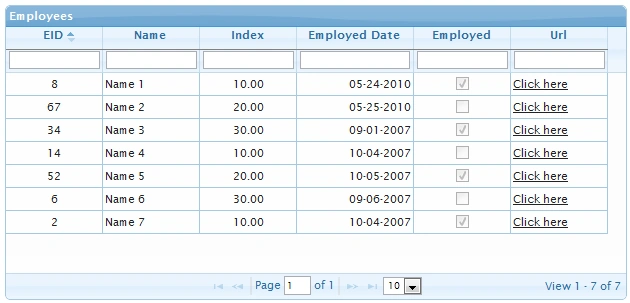
See the text boxes below each column heading, you can type in your text in these text boxes and as you type in your text, jqGrid content will be filtered automatically without any page refreshes.
To get the preceding Filter Toolbar, add the following code after line 34 in “myJqCodeBlock”.
- grid.jqGrid('filterToolbar', { stringResult: true, searchOnEnter: false, defaultSearch: "cn" });
And while you are playing with the Filter Toolbar, you might notice that the search is not case-sensitive. To make it case-sensitive, all you must do is set the following property in the jqGrid properties.
Add the following property after line 23 in my “myJqCodeBlock”.
ignoreCase: true
If you have already noticed, the way filtering works is, is it looks for records with a column having a value that contains your search text. If you want to change this filtering in a way that jqGrid looks only for records with column having an exact match of your search text, all you must do is change the “defaultSearch” property of the Filter Toolbar property to “eq”. (Check the code below.)
- grid.jqGrid('filterToolbar', { stringResult: true, searchOnEnter: false, defaultSearch: "eq" });
- var $toolbar = $("tr.ui-search-toolbar", grid[0].grid.hDiv);
- $toolbar.height(30);
- colModel: [{
- name: 'EID',
- index: 'EID',
- width: 100,
- align: "center",
- sorttype: 'int'
- }, {
- name: 'EmployeeName',
- index: 'EmployeeName',
- width: 100,
- align: "left"
- }, {
- name: 'EmployeeIndex',
- index: 'EmployeeIndex',
- width: 100,
- align: "center"
- }, {
- name: 'EmployedDate',
- index: 'EmployedDate',
- width: 120,
- align: "right",
- formatter: 'date',
- formatoptions: {
- newformat: 'm-d-Y'
- },
- datefmt: 'm-d-Y'
- }, {
- name: 'CurrentlyEmployed',
- index: 'CurrentlyEmployed',
- width: 100,
- align: "center",
- formatter: 'checkbox',
- search: false
- }, {
- name: 'SiteID',
- index: 'SiteID',
- width: 100,
- formatter: linkFormatter,
- sortable: false,
- search: false
- }]
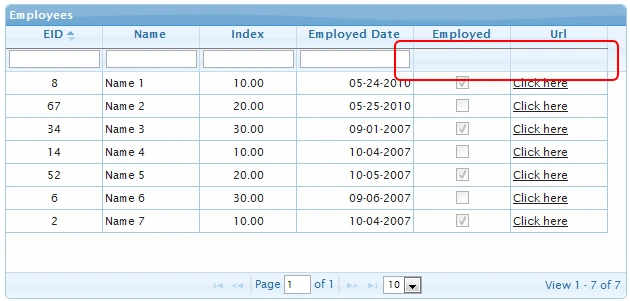
Notice the difference marked in Red in the highlighted section.
Next, you might sometimes want to show/hide the toolbar at your will. To do this, I added a button to the pager and I called the “toggleToolbar()” function in its onClick event. Add the following code after adding the Filter Toolbar. The code goes as follows:
- grid.jqGrid('navButtonAdd', "#pager", {
- caption: "Search",
- title: "Search Toolbar",
- buttonicon: 'ui-icon-search',
- onClickButton: function() {
- grid[0].toggleToolbar();
- }
- });
- grid[0].toggleToolbar(); //To hide the Toolbar initially
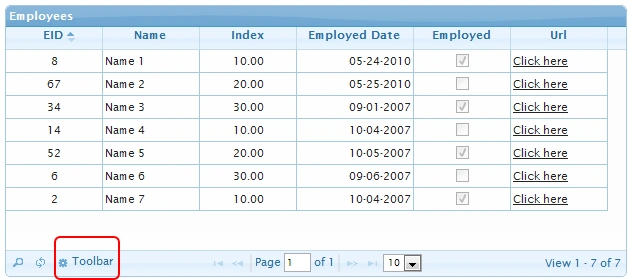
Note: To use the “navButtonAdd” method, a “navGrid” method should be called before calling “navButtonAdd”.
Instead of text boxes in the Filter Toolbar, we can also get a Dropdown list that has a list of unique values in a column. Now, let's try changing the TextBox to Dropdown list for the “Name” column.
Add the following functions to your JavaScript code:
- function buildSearchSelect(uniqueNames) {
- var values = ":All";
- $.each(uniqueNames, function(index) {
- values += ";" + this + ":" + this;
- });
- return values;
- }
- function getUniqueNames(uList, columnName) {
- var uniqueTexts = [],
- text, textsMap = {}, i;
- for (i = 0; i < uList.length; i++) {
- text = uList[i][columnName];
- if (text !== undefined && textsMap[text] === undefined) {
- textsMap[text] = true;
- uniqueTexts.push(text);
- }
- }
- return uniqueTexts;
- }
- function setSearchSelect(grid, uList, columnName, filterType) {
- grid.jqGrid('setColProp', columnName, {
- stype: 'select',
- searchoptions: {
- value: buildSearchSelect(getUniqueNames(uList, columnName)),
- sopt: [filterType],
- dataInit: function(elem) {
- $(elem).height(20);
- $(elem).css('margin-top', '2px');
- }
- }
- });
- };
- grid.jqGrid({
- data: mydata,
- datatype: "local",
- hidegrid: false,
- height: 200,
- rowNum: 10,
- rowList: [10, 20, 30],
- viewrecords: true,
- caption: "Employees",
- ignoreCase: true,
- pager: "#pager",
- colNames: ['EID', 'Name', 'Index', 'Employed Date', 'Employed', 'Url'],
- colModel: [{
- name: 'EID',
- index: 'EID',
- width: 100,
- align: "center",
- sorttype: 'int'
- }, {
- name: 'EmployeeName',
- index: 'EmployeeName',
- width: 100,
- align: "left"
- }, {
- name: 'EmployeeIndex',
- index: 'EmployeeIndex',
- width: 100,
- align: "center"
- }, {
- name: 'EmployedDate',
- index: 'EmployedDate',
- width: 120,
- align: "right",
- formatter: 'date',
- formatoptions: {
- newformat: 'm-d-Y'
- },
- datefmt: 'm-d-Y'
- }, {
- name: 'CurrentlyEmployed',
- index: 'CurrentlyEmployed',
- width: 100,
- align: "center",
- formatter: 'checkbox',
- search: false
- }, {
- name: 'SiteID',
- index: 'SiteID',
- width: 100,
- formatter: linkFormatter,
- sortable: false,
- search: false
- }],
- loadComplete: function() {
- setSearchSelect(grid, mydata, 'EmployeeName', 'eq');
- }
- });
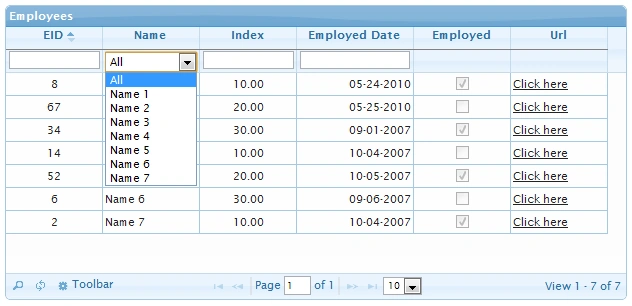
Ok, now the search part of the jqGrid is over. Let's move on to the next feature.
We can also hide columns in a jqGrid. We can either do this when we set up the colModel properties of the jqGrid or through a line of JavaScript code later based on some condition. To hide the “EID” column, add the “hidden” property in its colModel property.
- { name: 'EID', index: 'EID', width: 100, align: "center", sorttype: 'int', hidden: true }
- grid.jqGrid('hideCol', grid.getGridParam("colModel")[0].name); // 0 indicates first column in this case
This guy posted some code and using that we can add a button to the Column headers of the jqGrid. The following picture explains what I am talking about.
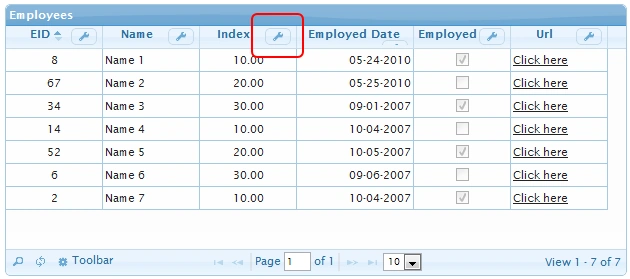
To add buttons in column headers, add the following JavaScript code after setting up the jqGrid.
- grid.closest("div.ui-jqgrid-view").find("div.ui-jqgrid-hdiv table.ui-jqgrid-htable tr.ui-jqgrid-labels > th.ui-th-column > div.ui-jqgrid-sortable")
- .each(function() {
- $('<button>').css({
- float: "right",
- height: "17px"
- }).appendTo(this).button({
- icons: {
- primary: "ui-icon-wrench"
- },
- text: false
- }).click(function(e) {
- var idPrefix = "jqgh_" + grid[0].id + "_",
- thId = $(e.target).closest('div.ui-jqgrid-sortable')[0].id;
- // thId will be like "jqgh_list_name"
- if (thId.substr(0, idPrefix.length) === idPrefix) {
- alert('Clicked the button in column "' + thId.substr(idPrefix.length) + '"');
- return false;
- }
- });
- });
I created a custom C# class called “Manager”.
- public class Manager
- {
- public int EID { get; set; }
- public string EName { get; set; }
- public float EIndex { get; set; }
- public DateTime EmployedDate { get; set; }
- public bool CurrentlyEmployed { get; set; }
- public string SiteID { get; set; }
- }
- protected string BuildManagers()
- {
- double d = 10.3;
- List managers = new List();
- bool temp = false;
- for (int i = 0; i < 10; i++)
- {
- managers.Add(new Manager
- {
- EID = i + 1,
- EmployeeName = "Name " + i,
- EmployeeIndex = Math.Round((d + i) / 3, 3),
- EmployedDate = DateTime.Now,
- CurrentlyEmployed = temp,
- SiteID = "a" + (i + 1)
- });
- temp = !temp;
- }
- System.Web.Script.Serialization.JavaScriptSerializer oSerializer = new System.Web.Script.Serialization.JavaScriptSerializer();
- return oSerializer.Serialize(managers);
- }
- <%= var mydata = BuildManagers() %>;
We can also add data dynamically to jqGrid as in the following:
- for(var i = 0; i < mydata.length; i++)
- {
- grid.jqGrid('addRowData', i + 1, mydata[i]);
- }
- grid.addJSONData(mydata);
And the next functionality that I want to discuss is the showing of a jqGrid (sub grid) within a jqGrid. Let's consider the Manager -> Employee hierarchy for this case. I will show all the Managers in the Parent grid and all the Employees under a specific Manager in a sub grid. (The data might not make sense, I just made it up to show the functionality of a sub grid.)
To implement this functionality, instead of loading all the data at once on PageLoad (that might take a lot of time depending on the data size), we will load data (using Ajax and PageMethods in ASP.NET) as we need it.
Let's start.
Create the following C# classes.
Employee.cs
- public class Employee
- {
- public int EID
- {
- get;
- set;
- }
- public int MID
- {
- get;
- set;
- }
- public string EmployeeName
- {
- get;
- set;
- }
- }
- EmployeeManagement.cs(This must be a static class)
- public static class EmployeeManagement {
- public static List GetEmployeesByMID(int ManagerID)
- {
- List allEmployees = BuildEmployeesList();
- return allEmployees.Where(e = > e.MID == ManagerID).ToList();
- }
- private static List BuildEmployeesList()
- {
- List employees = new List();
- employees.Add(new Employee
- {
- EID = 1,
- EmployeeName = "Employee 1",
- MID = 2
- });
- employees.Add(new Employee
- {
- EID = 2,
- EmployeeName = "Employee 2",
- MID = 2
- });
- employees.Add(new Employee
- {
- EID = 3,
- EmployeeName = "Employee 3",
- MID = 3
- });
- return employees;
- }
- }
Now, in my code-behind file (Grid.aspx.cs), add the following method.
- [System.Web.Services.WebMethod(EnableSession = false)]
- public static string GetEmployees(int ManagerID)
- {
- List employees = EmployeeManagement.GetEmployeesByMID(ManagerID);
- JavaScriptSerializer serializer = new JavaScriptSerializer();
- return serializer.Serialize(employees);
- }
Now, to get the sub grid add the jqGrid code as follows:
- var mydata = ;
- $(function() {
- var grid = jQuery("#myGrid");
- grid.jqGrid({
- data: mydata,
- datatype: "local",
- hidegrid: false,
- height: 250,
- rowNum: 10,
- rowList: [10, 20, 30],
- viewrecords: true,
- caption: "Employees",
- ignoreCase: true,
- pager: "#pager",
- colNames: ['EID', 'Name', 'Index', 'Employed Date', 'Employed', 'Url'],
- colModel: [{
- name: 'EID',
- index: 'EID',
- width: 100,
- align: "center",
- sorttype: 'int'
- }, {
- name: 'EmployeeName',
- index: 'EmployeeName',
- width: 100,
- align: "left"
- }, {
- name: 'EmployeeIndex',
- index: 'EmployeeIndex',
- width: 100,
- align: "center"
- }, {
- name: 'EmployedDate',
- index: 'EmployedDate',
- width: 120,
- align: "right",
- formatter: 'date',
- formatoptions: {
- newformat: 'm-d-Y'
- },
- datefmt: 'm-d-Y'
- }, {
- name: 'CurrentlyEmployed',
- index: 'CurrentlyEmployed',
- width: 100,
- align: "center",
- formatter: 'checkbox',
- search: false
- }, {
- name: 'SiteID',
- index: 'SiteID',
- width: 100,
- formatter: linkFormatter,
- sortable: false,
- search: false
- }],
- loadComplete: function() {
- setSearchSelect(grid, mydata, 'EmployeeName', 'eq');
- },
- jsonReader: {
- userdata: 'Data'
- },
- subGrid: true,
- subGridOptions: {
- "plusicon": "ui-icon-triangle-1-e",
- "minusicon": "ui-icon-triangle-1-s",
- "openicon": "ui-icon-arrowreturn-1-e"
- },
- subGridRowExpanded: function(subgrid_id, row_id) {
- var subgrid_table_id, pager_id;
- subgrid_table_id = subgrid_id + "_t";
- pager_id = "p_" + subgrid_table_id;
- $("#" + subgrid_id).html("<table id='" + subgrid_table_id + "' class='scroll'></table><div id='" + pager_id + "' class='scroll'></div>");
- //To get the selected ManagerID
- curManagerID = grid.getGridParam('data')[row_id - 1]['EID'];
- var subGrid = $("#" + subgrid_table_id).jqGrid({
- datatype: 'jsonstring',
- colNames: ['Employee ID', 'Employee Name'],
- colModel: [{
- name: "EID",
- index: "EID",
- width: 100,
- key: true,
- align: "center",
- sorttype: 'int'
- }, {
- name: "EmployeeName",
- index: "EmployeeName",
- width: 100,
- align: "center"
- }],
- autowidth: true,
- height: '80px',
- rowNum: 10,
- rowList: [1, 5, 10, 15],
- pager: pager_id,
- caption: "Employees under this Manager",
- hidegrid: false,
- ignoreCase: true,
- loadComplete: function() {}
- });
- getData(subgrid_table_id, curManagerID);
- }
- });
- function getData(subgrid_table_id, managerID)
- {
- var param = new Object();
- param.ManagerID = managerID;
- $.ajax({
- type: "POST",
- url: "Grid.aspx/GetEmployees",
- data: JSON.stringify(param),
- contentType: "application/json; charset=utf-8",
- dataType: 'json',
- success: function(data, textStatus) {
- if (textStatus == "success") {
- ReceivedClientData(JSON.parse(getMain(data)), subgrid_table_id);
- }
- },
- error: function(msg, error, state) {
- alert('An error has occured retrieving data!');
- }
- });
- }
- function ReceivedClientData(data, subgrid_table_id)
- {
- var thegrid = jQuery("#" + subgrid_table_id);
- thegrid.clearGridData();
- for (var i = 0; i < data.length; i++)
- thegrid.jqGrid('addRowData', i + 1, data[i]);
- }
- function getMain(dObj)
- {
- if (dObj.hasOwnProperty('d')) return dObj.d;
- else return dObj;
- }
Now, we'll get a new column (first column) in the parent jqGrid, using which we can get the sub grid that will contain the employees who work under the corresponding Manager. The following image shows the output.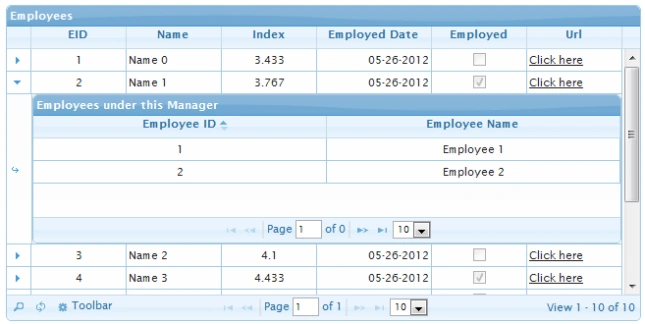
So, that's all the functionality related to jqGrid that I wanted to discuss.
The following are some useful links that have good demos of jqGrid:
http://trirand.com/blog/jqgrid/jqgrid.html
http://www.deloy-dev.com/jgrid_demo_4.0/jqGrid_comprehensive_demo.html
Now, I will explain a couple of errors that one might encounter when using the preceding approach.
json is undefined
You might get a popup message in IE (version < 8) that says "json" is undefined. The issue is that the JSON object is not available in IE 7. You'll want to include JSON2.js on your page for IE < 8 users. This library checks if the browser supports the JSON global object, if it supports it then it will do nothing, otherwise this native implementation will be used. “json2.js” can be downloaded from this link.
The following is another possible error:
Error during serialization or deserialization using the JSON JavaScriptSerializer. The length of the string exceeds the value set on the maxJsonLength property.
You will encounter this error when you are using JavaScriptSerializer. To fix this error, be sure you adjust the maximum length of the JSON string in your web.config. By default, the maximum length of a JSON string is 2097152 characters. If the serialized data that you send to the client exceeds this default size then you should change this size accordingly. This size can be changed programmatically using the JavaScriptSerializer.MaxJsonLength property or it can be changed in the web.config as follows.
In code:
JavaScriptSerializer serializer = new JavaScriptSerializer();
serializer.MaxJsonLength = 2147483644;
In web.config:
- < system.web.extensions > < scripting > < webServices > < jsonSerialization maxJsonLength = "2147483644" > < /jsonSerialization>
- </webServices > < /scripting>
- </system.web.extensions >
Teemee TangPosted Jun 11, 2020, 8:52 AM
Why is that when I populate the "var mydata" using an API I am encountering an error in curManagerID = grid.getGridParam('data')[row_id - 1]['EID'];? Error is EID is undefined
Bhoomika RupareliaPosted Jul 22, 2017, 2:56 AM
Tutorial is good. Can we have sample code to download please?
SriramPosted Jul 6, 2015, 1:47 AM
Excellent.............
Sandeep VemulaPosted Apr 16, 2015, 1:44 AM
Thanks dinesh
Dinesh BeniwalPosted Apr 16, 2015, 1:39 AM
Thanks for sharing, Welcome to C# Corner.
Sandeep VemulaPosted Apr 16, 2015, 12:23 AM
thanks to all
Santhakumar MunuswamyPosted Apr 15, 2015, 11:25 PM
Good work
Rahul Kumar SaxenaPosted Apr 15, 2015, 10:51 PM
So Good text...