

In this article you will learn how to use navigation and how to open a dialog box in jQuery mobile.
First of all add jQuery mobile file references.
<meta charset="utf-8" />
<meta name="viewport" content="width=device-width, initial-scale=1" />
<link href="jquery.mobile-1.3.1.min.css" rel="stylesheet" type="text/css" />
<script src="jquery-1.9.1.min.js" type="text/javascript"></script>
<script src="jquery.mobile-1.3.1.min.js" type="text/javascript"></script>
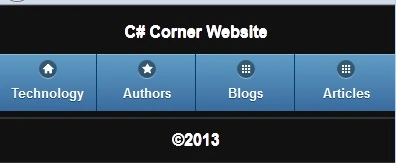
Now add a div with data-role="navbar" and insite of that div make some ul tags and li tags and in the li tag create an anchor tag with the data-rel property to the dialog and data-transition="pop" and provide an URL of each anchor tag.
<div data-role="page">
<header data-role="header">
<h1>C# Corner Website</h1>
<div data-role="navbar">
<ul>
<li><a href="#technology" data-rel="dialog" data-transition="pop" class="ui-btn-activate" data-icon="home" data-theme="b">Technology</a></li>
<li><a href="#authors" data-rel="dialog" data-transition="pop" class="ui-btn-activate" data-icon="star" data-theme="b">Authors</a></li>
<li><a href="#blogs" data-rel="dialog" data-transition="pop" class="ui-btn-activate" data-icon="grid" data-theme="b">Blogs</a></li>
<li><a href="#articles" data-rel="dialog" data-transition="pop" class="ui-btn-activate" data-icon="grid" data-theme="b">Articles</a></li>
</ul>
</div>
</header>
<footer data-role="footer"><h4>©2013</h4></footer>
</div>
Now add a popup div, as in:
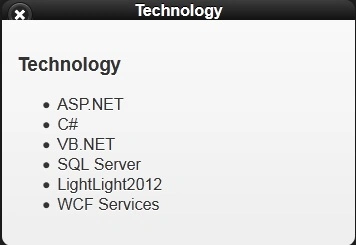
<div data-role="page" id="technology">
<header data-role="header">
Technology
</header>
<section data-role="content">
<h3>Technology</h3>
<ul>
<li>ASP.NET</li>
<li>C#</li>


Join the conversation! Your thoughts help the community grow.