
Introduction
This article is a step-by-step guide to implementing JWT-based Authentication in ASP.NET Core API.
The goal of this article is to first start by learning how JSON Web Tokens (or JWTs) work in detail, including how they can be used for User Authentication, how to refresh tokens, and how to get user details using JWT tokens.
Way to implement JWT
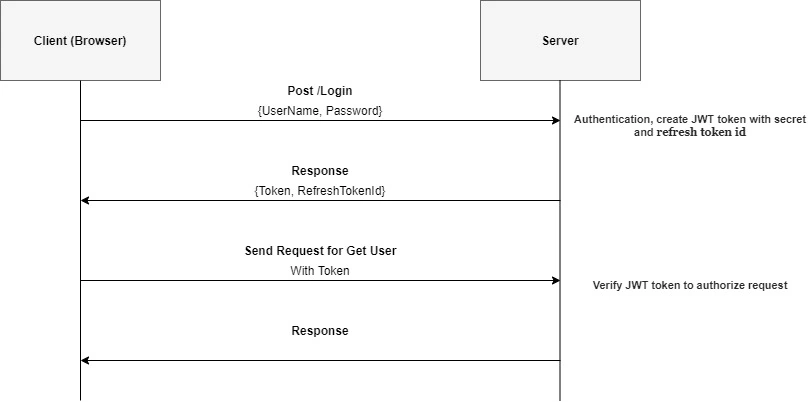
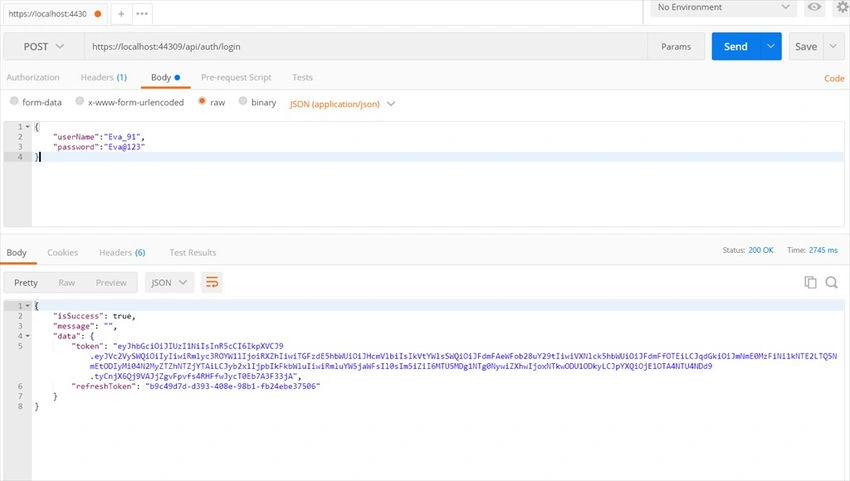
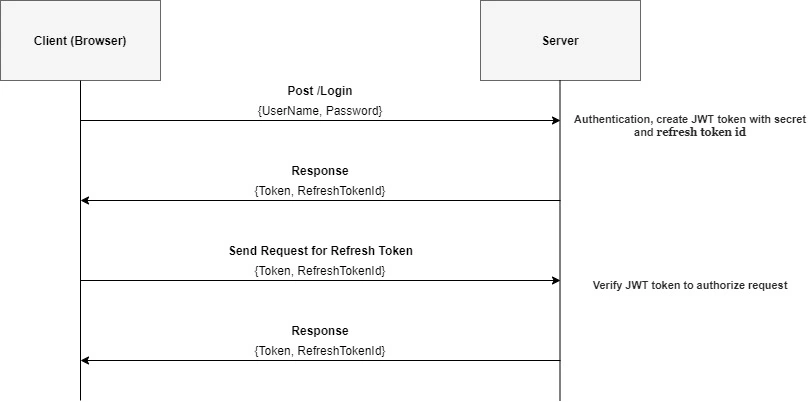
- The client sends a login request with a username and password to the server.
- The server receives the username and password, and authenticates the user.
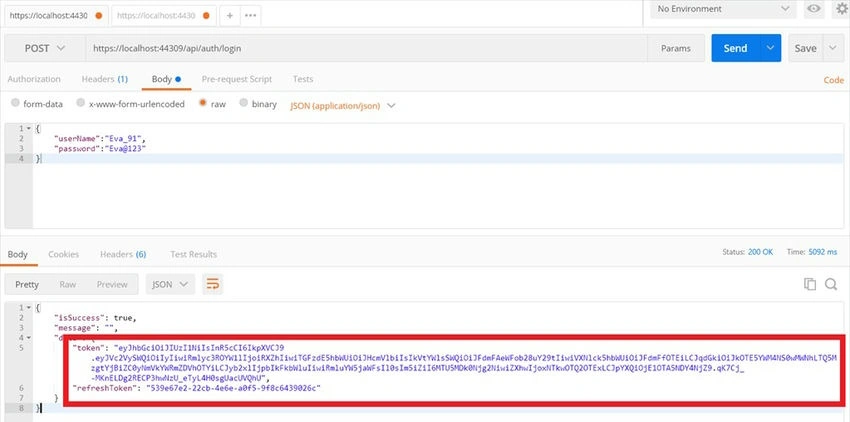
- If authentication is successful, then the server creates a JWT token called accessToken that stores the user's public info and sends it back to the client.
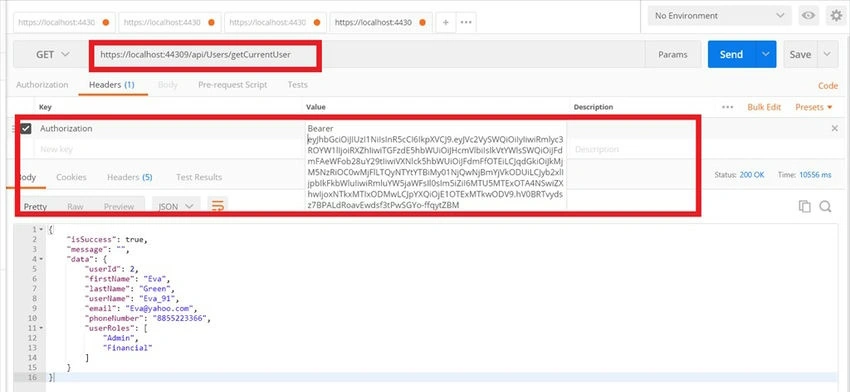
- The client receives the accessToken, from now on, the client sends any request to the server like getting the current user, the client just attaches the accessToken with the request.
- The server receives a request, authorizes the JWT token, continues processing the request, and then returns the result to the client.
What is JWT?(JSON Web Token)
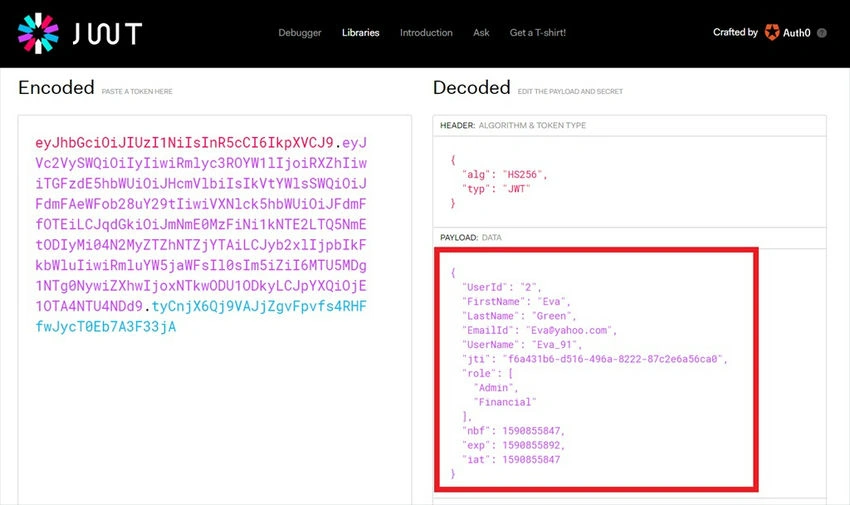
JSON Web Token (JWT) is an open standard that defines a compact and self-contained way for securely transmitting information between parties as a JSON object. This information can be verified and trusted because it is digitally signed. The tokens are signed either using a private secret or a public/private key pair using RSA or ECDSA.
How to Implement JWT Authentication in an ASP.NET Core Web API project
Prerequisites
- Software
- Dot NET Core
- Visual Studio 2017 with last update or Visual Studio 2019
- SQL Server
- Skills
- C#
Step 1. Create Project.
Open Visual Studio Click on “Create a new project”.
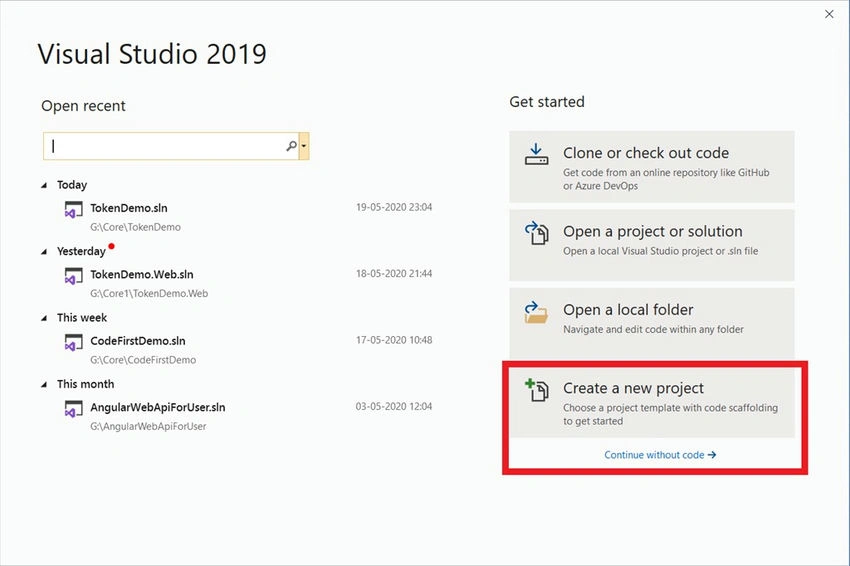
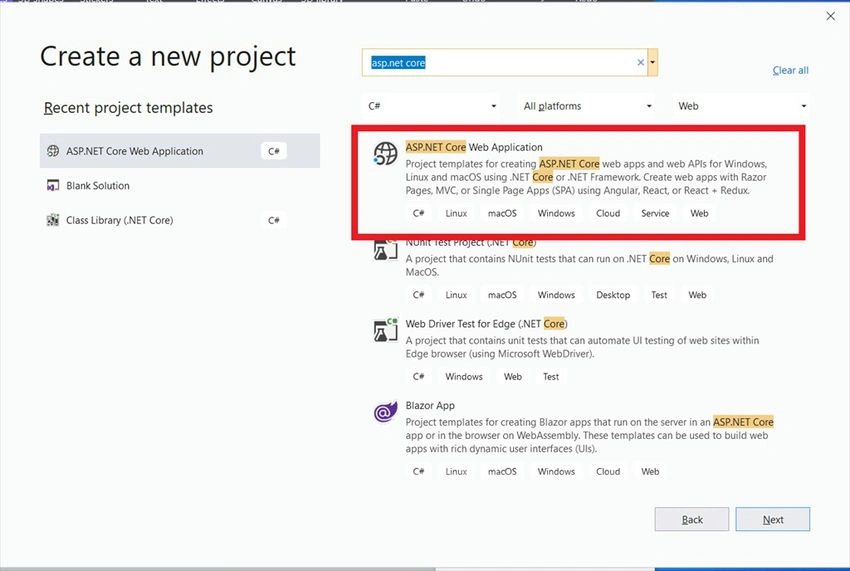
Select the ASP.NET Core Web Application option.
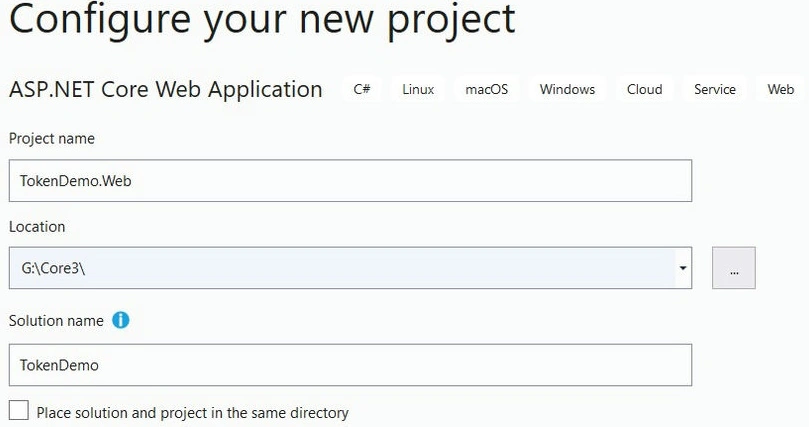
Add the Project name and Solution name.
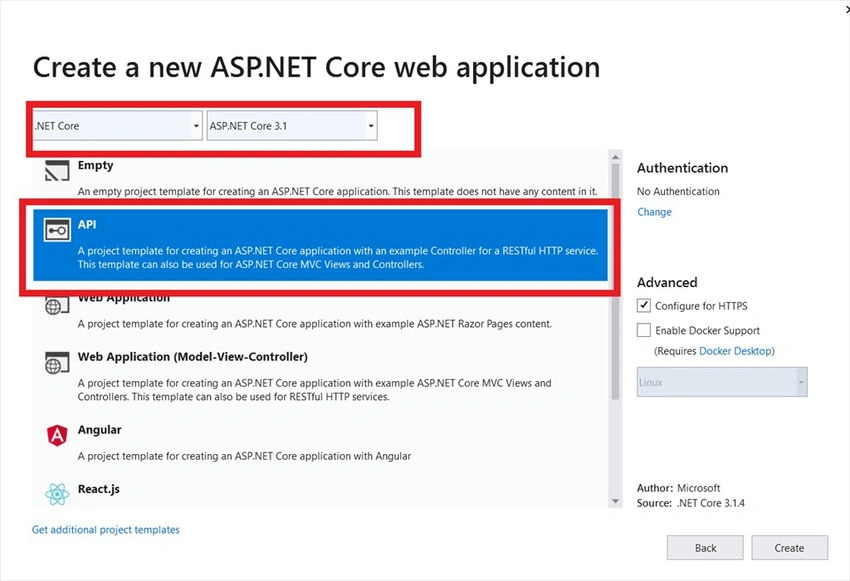
Select the “API” option with “.NET Core” and “ASP .NET Core 3.1” to create ASP.NET API
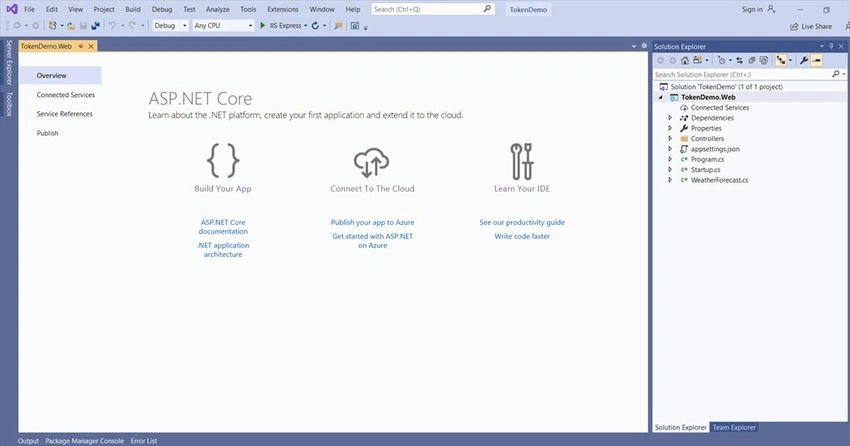
Use can see the default folder structure.
Step 2. Install Nuget Packages.
In this step, we need to install the following NuGet packages.
- Microsoft.EntityFrameworkCore.SqlServer
- Microsoft.EntityFrameworkCore.Tools
- Microsoft.IdentityModel.Tokens
- System.IdentityModel.Tokens.Jwt
- Microsoft.AspNetCore.Authentication.JwtBearer
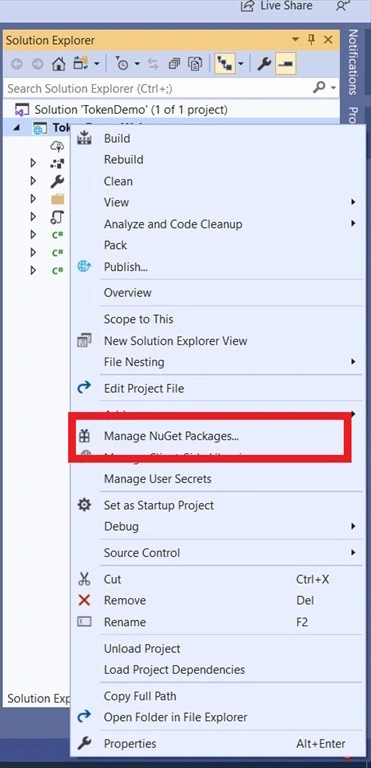
Now, we'll proceed to install the above package from Nuget, and right-click on TokenDemo.Web project.
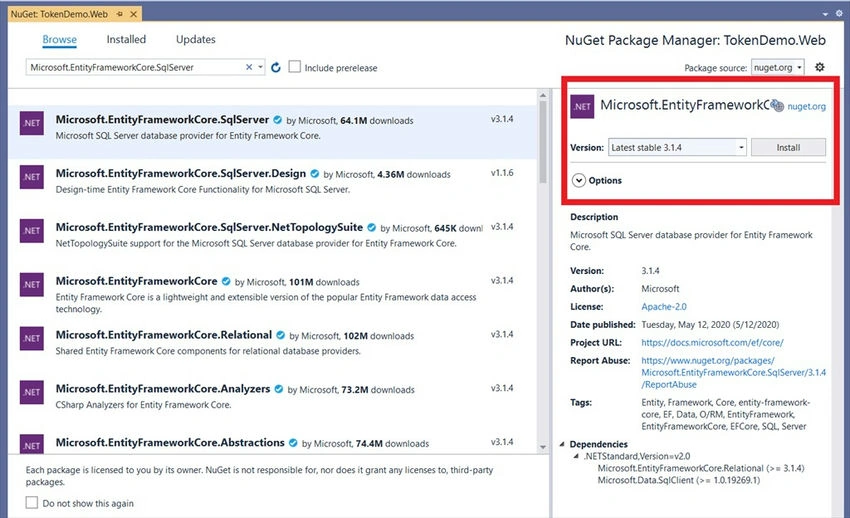
Change to browse tab and type Microsoft.EntityFrameworkCore.SqlServer.
Next,
- Install Microsoft.EntityFrameworkCore.Tools package
- Install Microsoft.IdentityModel.Tokens package
- Install System.IdentityModel.Tokens.Jwt package
- Install Microsoft.AspNetCore.Authentication.JwtBearer package
Step 3. Create DataContext.
Here we will follow the database first approach. If you want to use the code first approach, you can find database models in the “DataContext” folder in the attached project.
Shown below is the relationship between the tables.
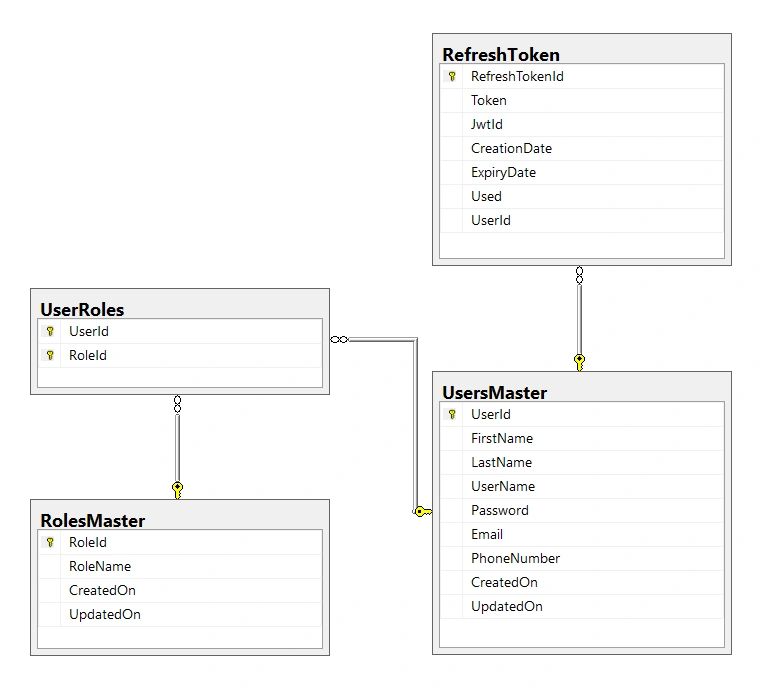
Now go to the Package Manager Console and fire the command given below with your database server name and database name.
PM> Scaffold-DbContext "Server=*SERVER_NAME*;Database=*DATABASE_NAME*;Trusted_Connection=True;" Microsoft.EntityFrameworkCore.SqlServer -ContextDir DataContext -Context DemoTokenContext -OutputDir DataContext -Force
- Replace *SERVER_NAME* with your database server name
- Replace *DATABASE_NAME* with your database name
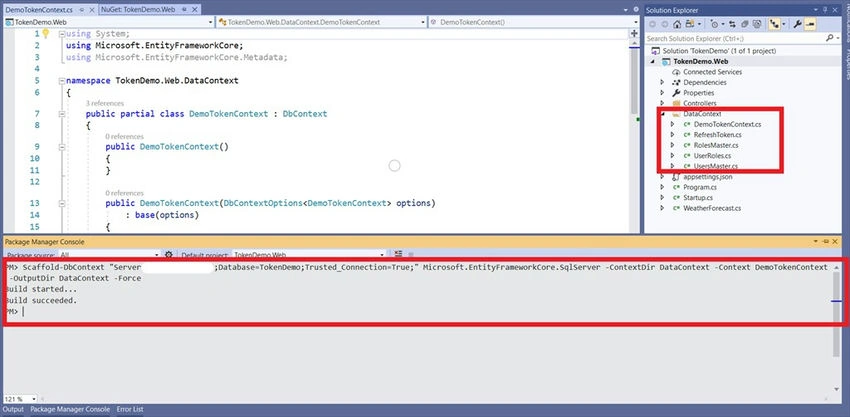
Step 4. Create Models for the controller.
Now, create a directory with the name Models and add the following files.
- ResponseModel.cs
- LoginModel.cs
- AuthenticationResult.cs
- ServiceConfiguration.cs
- ResponseModel.cs will contain definitions for the response model.
- LoginModel.cs will contain definitions for the Login Model.
- AuthenticationResult.cs will contain definitions for Authentication and TokenModel Model.
- ServiceConfiguration.cs will contain definitions for Authentication and TokenModel Model.
Code for AuthenticationResult.cs file
using Newtonsoft.Json;
using System.Collections.Generic;

namespace TokenDemo.Web.Models
{
    public class TokenModel
    {
        [JsonProperty("token")]
        public string Token { get; set; }

        [JsonProperty("refreshToken")]
        public string RefreshToken { get; set; }
    }

    public class AuthenticationResult : TokenModel
    {
        public bool Success { get; set; }
        public IEnumerable<string> Errors { get; set; }
    }
}
Code for ResponseModel.cs file
using Newtonsoft.Json;

namespace TokenDemo.Web.Models
{
    public class ResponseModel<T>
    {
        public ResponseModel()
        {
            IsSuccess = true;
            Message = "";
        }

        [JsonProperty("isSuccess")]
        public bool IsSuccess { get; set; }

        [JsonProperty("message")]
        public string Message { get; set; }

        [JsonProperty("data")]
        public T Data { get; set; }
    }
}
Code for LoginModel.cs file
using Newtonsoft.Json;

namespace TokenDemo.Web.Models
{
    public class LoginModel
    {
        [JsonProperty("userName")]
        public string UserName { get; set; }

        [JsonProperty("password")]
        public string Password { get; set; }
    }
}
Code for ServiceConfiguration.cs file
using System;

namespace TokenDemo.Web.Models
{
    public class ServiceConfiguration
    {
        public JwtSettings JwtSettings { get; set; }
    }

    public class JwtSettings
    {
        public string Secret { get; set; }

        public TimeSpan TokenLifetime { get; set; }
    }
}
Step 5. Update appsettings.Development.json.
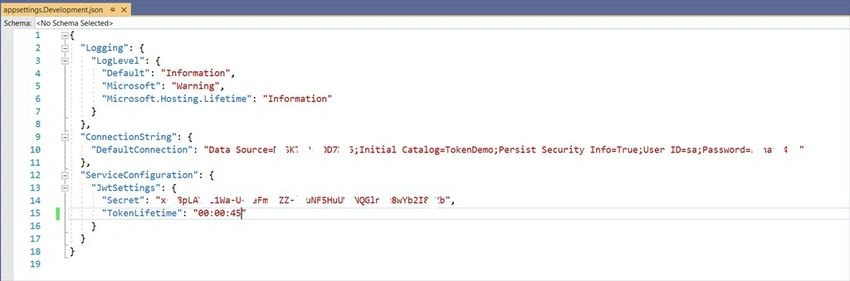
Code for appsettings.Development.json file
{
  "Logging": {
    "LogLevel": {
      "Default": "Information",
      "Microsoft": "Warning",
      "Microsoft.Hosting.Lifetime": "Information"
    }
  },
  "ConnectionString": {
    "DefaultConnection": "Data Source=*SERVER_NAME*;Initial Catalog=*DATABASE_NAME*;Persist Security Info=True;User ID=*DATABASE_USERNAME*;Password=*DATABASE_PASSWORD*"
  },
  "ServiceConfiguration": {
    "JwtSettings": {
      "Secret": "*SECRET*",
      "TokenLifetime": "00:00:45"
    }
  }
}
- Replace *SERVER_NAME* with your database server name
- Replace *DATABASE_NAME* with your database name
- Replace *DATABASE_ USERNAME * with your database username
- Replace *DATABASE_PASSWORD* with your database password
- Replace *SECRET* with any string like "DWEYGZH2K4M5N7Q8R9TBUCVEXFYGZJ3K4M6P7Q8SATBUDWEXFZH2J3M5N6"
Step 6. Create Service.
Now, create a directory with the name Services and add the following files.
Code for IdentityService.cs file
using Microsoft.Extensions.Options;
using Microsoft.IdentityModel.Tokens;
using System;
using System.Collections.Generic;
using System.IdentityModel.Tokens.Jwt;
using System.Linq;
using System.Security.Claims;
using System.Text;
using System.Threading.Tasks;
using TokenDemo.Web.DataContext;
using TokenDemo.Web.Helpers;
using TokenDemo.Web.Models;
using JwtRegisteredClaimNames = System.IdentityModel.Tokens.Jwt.JwtRegisteredClaimNames;

namespace TokenDemo.Web.Services
{
    public interface IIdentityService
    {
        Task<ResponseModel<TokenModel>> LoginAsync(LoginModel login);
    }

    public class IdentityService : IIdentityService
    {
        private readonly DemoTokenContext _context;
        private readonly ServiceConfiguration _appSettings;
        private readonly TokenValidationParameters _tokenValidationParameters;
        public IdentityService(DemoTokenContext context,
            IOptions<ServiceConfiguration> settings,
            TokenValidationParameters tokenValidationParameters)
        {
            _context = context;
            _appSettings = settings.Value;
            _tokenValidationParameters = tokenValidationParameters;
        }


        public async Task<ResponseModel<TokenModel>> LoginAsync(LoginModel login)
        {
            ResponseModel<TokenModel> response = new ResponseModel<TokenModel>();
            try
            {
                string md5Password = MD5Helpers.GenerateMd5Hash(login.Password);
                UsersMaster loginUser = _context.UsersMaster.FirstOrDefault(c => c.UserName == login.UserName && c.Password == md5Password);

                if (loginUser == null)
                {
                    response.IsSuccess = false;
                    response.Message = "Invalid Username And Password";
                    return response;
                }

                AuthenticationResult authenticationResult = await AuthenticateAsync(loginUser);
                if (authenticationResult != null && authenticationResult.Success)
                {
                    response.Data = new TokenModel() { Token = authenticationResult.Token, RefreshToken = authenticationResult.RefreshToken };
                }
                else
                {
                    response.Message = "Something went wrong!";
                    response.IsSuccess = false;
                }

                return response;
            }
            catch (Exception ex)
            {
                throw ex;
            }
        }

        private List<RolesMaster> GetUserRole(long UserId)
        {
            try
            {
                List<RolesMaster> rolesMasters = (from UM in _context.UsersMaster
                                                  join UR in _context.UserRoles on UM.UserId equals UR.UserId
                                                  join RM in _context.RolesMaster on UR.RoleId equals RM.RoleId
                                                  where UM.UserId == UserId
                                                  select RM).ToList();
                return rolesMasters;
            }
            catch (Exception)
            {
                return new List<RolesMaster>();
            }
        }

        public async Task<AuthenticationResult> AuthenticateAsync(UsersMaster user)
        {
            // authentication successful so generate jwt token
            AuthenticationResult authenticationResult = new AuthenticationResult();
            var tokenHandler = new JwtSecurityTokenHandler();

            try
            {
                var key = Encoding.ASCII.GetBytes(_appSettings.JwtSettings.Secret);

                ClaimsIdentity Subject = new ClaimsIdentity(new Claim[]
                {
                    new Claim("UserId", user.UserId.ToString()),
                    new Claim("FirstName", user.FirstName),
                    new Claim("LastName",user.LastName),
                    new Claim("EmailId",user.Email==null?"":user.Email),
                    new Claim("UserName",user.UserName==null?"":user.UserName),
                    new Claim(JwtRegisteredClaimNames.Jti, Guid.NewGuid().ToString()),
                });
                foreach (var item in GetUserRole(user.UserId))
                {
                    Subject.AddClaim(new Claim(ClaimTypes.Role, item.RoleName));
                }

                var tokenDescriptor = new SecurityTokenDescriptor
                {
                    Subject = Subject,
                    Expires = DateTime.UtcNow.Add(_appSettings.JwtSettings.TokenLifetime),
                    SigningCredentials = new SigningCredentials(new SymmetricSecurityKey(key), SecurityAlgorithms.HmacSha256Signature)
                };
                var token = tokenHandler.CreateToken(tokenDescriptor);
                authenticationResult.Token = tokenHandler.WriteToken(token);
                var refreshToken = new RefreshToken
                {
                    Token = Guid.NewGuid().ToString(),
                    JwtId = token.Id,
                    UserId = user.UserId,
                    CreationDate = DateTime.UtcNow,
                    ExpiryDate = DateTime.UtcNow.AddMonths(6)
                };
                await _context.RefreshToken.AddAsync(refreshToken);
                await _context.SaveChangesAsync();
                authenticationResult.RefreshToken = refreshToken.Token;
                authenticationResult.Success = true;
                return authenticationResult;
            }
            catch (Exception ex)
            {
                return null;
            }

        }
    }
}

Join the conversation! Your thoughts help the community grow.