

Introduction
In this article, we will learn how to use KenburnsView in Android using Kotlin. KenburnsView is an awesome Android library that provides an extension to ImageView that creates an immersive experience by animating its Drawable using the Ken Burns Effect.
Coding Part
I have divided the coding part into 3 steps as shown in the following.
- Creating a new project with Kotlin support.
- Setting up the project with KenburnsView Library.
- Implementing KenburnsView with Kotlin.
Step 1 - Creating a new project with Kotlin
- Open Android Studio and create a new project.
- Name the project as your wish and tick the Kotlin checkbox support.
- Then, select your Activity type (For Example, Navigation Drawer Activity, Empty Activity, etc.).
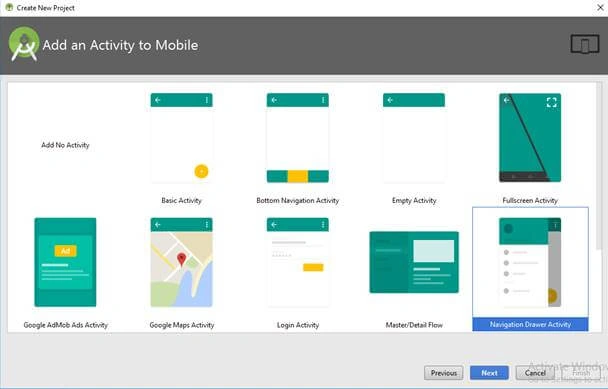
- Then, click the “Finish” button to create a new project in Android Studio.
Step 2 - Setting up the project with AndroidManifest
We will add the following lines to our app level build.gradle to add KenburnsView library to the project.
- dependencies {
- …
- implementation 'com.flaviofaria:kenburnsview:1.0.7'
- …
- }
- repositories {
- mavenCentral()
- }
Step 3 - Implementation of KenburnsView with Kotlin
- Let us start coding. Open your layout file. In my case, I have an XML included, i.e., content_main.xml. So, I have opened the content_main.xml file.
- Add the following lines of code into it.
- <?xml version="1.0" encoding="utf-8"?>
- <android.support.constraint.ConstraintLayout xmlns:android="http://schemas.android.com/apk/res/android"
- xmlns:app="http://schemas.android.com/apk/res-auto"
- xmlns:tools="http://schemas.android.com/tools"
- android:layout_width="match_parent"
- android:layout_height="match_parent"
- app:layout_behavior="@string/appbar_scrolling_view_behavior"
- tools:context="com.androidmads.kenburnsview.MainActivity"
- tools:showIn="@layout/activity_main">
- <com.flaviofaria.kenburnsview.KenBurnsView
- xmlns:android="http://schemas.android.com/apk/res/android"
- android:id="@+id/img"
- android:layout_width="match_parent"
- android:layout_height="match_parent"
- android:src="@drawable/img1" />
- </android.support.constraint.ConstraintLayout>
- Then, open your Java file and Initialize the KenburnsView Library as shown in the following.
- var mImg: KenBurnsView? = null
- mImg = findViewById(R.id.img)
- We can pause, resume, and stop the Ken Burns Effect by the library itself using the following snippets respectively.
- mImg!!.pause()
- mImg!!.resume()
- mImg!!.stop()
- We can perform our defined operations based on the transitions of KenburnsView using the following snippets.
- mImg!!.setTransitionListener(object : KenBurnsView.TransitionListener {
- override fun onTransitionStart(transition: Transition) {
- }
- override fun onTransitionEnd(transition: Transition) {
- if (imageId == R.drawable.img1) {
- imageId = R.drawable.img2
- mImg!!.setImageResource(R.drawable.img2)
- } else {
- imageId = R.drawable.img1
- mImg!!.setImageResource(R.drawable.img1)
- }
- }
- })
- Here, I have changed the image source to KenburnsView, when each image transition ends.
Full Code of MainActivity
You can find the full code implementation of MainActivty.kt in the following snippet.- class MainActivity : AppCompatActivity() {
- private var mImg: KenBurnsView? = null
- private var fab: FloatingActionButton? = null
- private var isPlaying = true
- private var imageId: Int = 0
- override fun onCreate(savedInstanceState: Bundle?) {
- super.onCreate(savedInstanceState)
- setContentView(R.layout.activity_main)
- imageId = R.drawable.img1
- fab = findViewById(R.id.fab)
- mImg = findViewById(R.id.img)
- fab!!.setOnClickListener {
- if (isPlaying) {
- mImg!!.pause()
- fab!!.setImageResource(R.drawable.ic_play)
- } else {
- mImg!!.resume()
- fab!!.setImageResource(R.drawable.ic_pause)
- }
- isPlaying = !isPlaying
- }
- mImg!!.setTransitionListener(object : KenBurnsView.TransitionListener {
- override fun onTransitionStart(transition: Transition) {
- }
- override fun onTransitionEnd(transition: Transition) {
- if (imageId == R.drawable.img1) {
- imageId = R.drawable.img2
- mImg!!.setImageResource(R.drawable.img2)
- } else {
- imageId = R.drawable.img1
- mImg!!.setImageResource(R.drawable.img1)
- }
- }
- })
- }
- }
Download Code
You can download the sample code from the following GitHub link.
Join the conversation! Your thoughts help the community grow.