

The KeySpline is the thing that determines how the animated property changes between the previous keyframe and the keyframe you selected. You can think of each keyframe as a point on a curve. Each keyframe is connected to the one before it by a segment of this curve. So selecting a keyframe then editing its KeySpline is actually editing the shape of the curve between the selected keyframe and the keyframe before that.
I am Describing here the use of KeySpline in this short Article :
- In Microsoft Expression Blend 4, Open a new document and draw a Circle using ellipse tool.
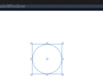
- Fill the Circle by using Gradient Brush and rename it as "Ball":

- Start the Animation by creating a new story board in the object and timeline window:
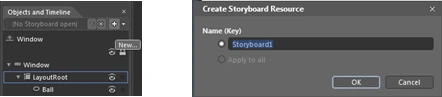
New Storyline opens like this :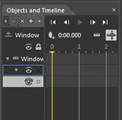
- Now start the Recording by clicking on "Record KeyFrame":
Set the recording for 4 Seconds and move the ball with rotation :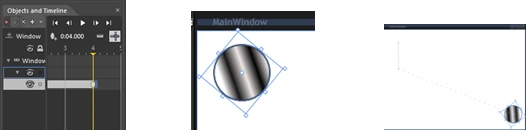
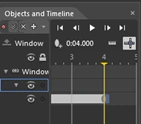
- To edit the KeySpline to get the acceleration and cooling behavior we want, select the keyframe icon on the RenderTransform row by clicking it once (It's color also Changes when you click on it properly):
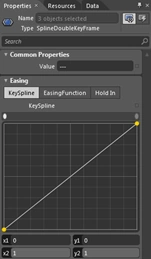
- In the property Pane you'll see an Easing category inside which is the KeySpline editor. It's currently on a normal Stage having a straight line but you can drag the two yellow control point handles around to change that, or use the number editors below to edit the coordinate values more precisely.
- Now edit the KeySpline as under and run the project:
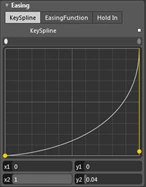
Note : Likewise you can edit according to your requirements .
- We can add functions to the ball also, just behind the keyspline there is another tab Easing Function click on it and you will get:
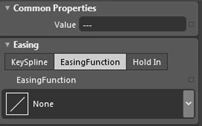
Click on the drop down arrow and select Input Bounce function :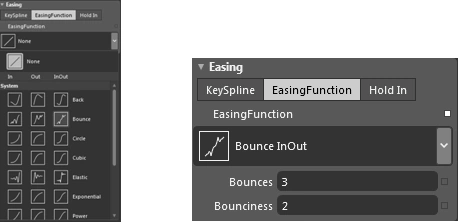
Note: You can change the number of Bounces and Bounciness.
Imp: You can do one thing at one time means if you want to give function to ball you cannot edit the Spline and if you edit Spline there will be no function.
Finally run the Application and see the Effects so that you can easily understand what's going on :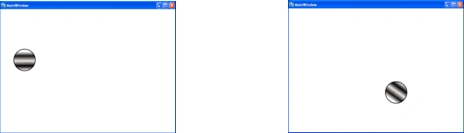
Join the conversation! Your thoughts help the community grow.