

Introduction
This article explains how to determine the location of the database created programmatically by you in Android Studio, in other words, determine where the database is stored. You often need to see the database created by you so as to determine if it is created, if the values are being inserted or not and whether the table is being updated.
Step 1
Run the application in which your database is being created. The emulator needs to be in a running state to be able to continue the following procedure. For running your application press "Shift+F10".
Step 2:
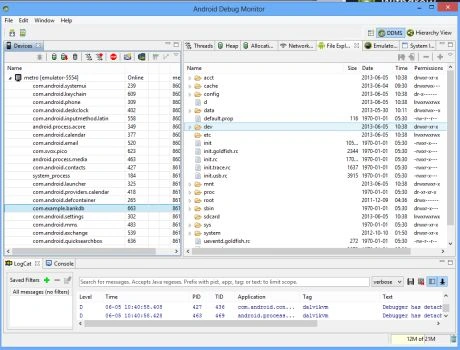
Wait until your emulator starts working. Now go to "Tools" -> "Android" -> "DDMS (monitor included)". You can also open the DDMS from:

Step 3
You will get the following:
Step 4
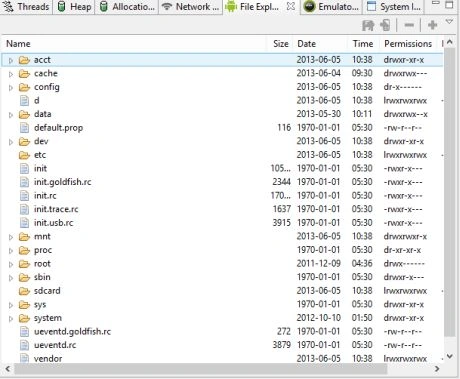
Open the File Explorer tab. You will get:
Step 5
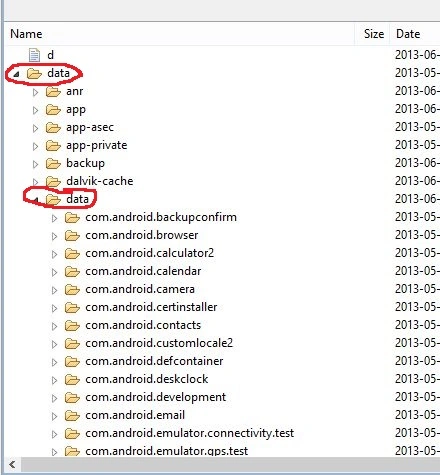
Open "data" -> "data" from this window:
Step 6
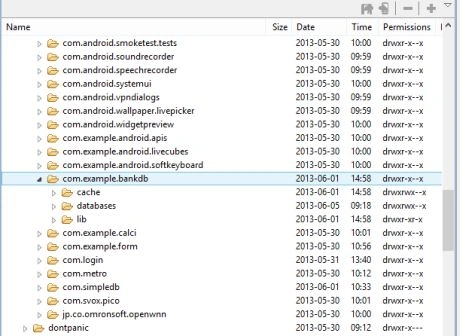
Now open your project present in this data folder.
Step 7
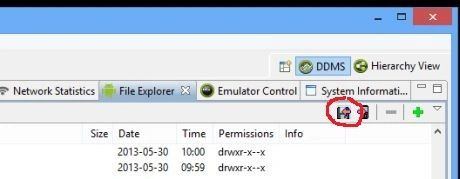
Click on "databases". Select the file with the same name as the name of your database. Click on "Pull a file from device". Now save the file with a ".db" extension.
Step 8
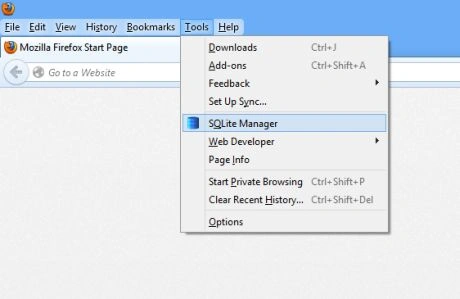
Now open Firefox. Go to "Tools" -> "SQLite Manager".
Step 9
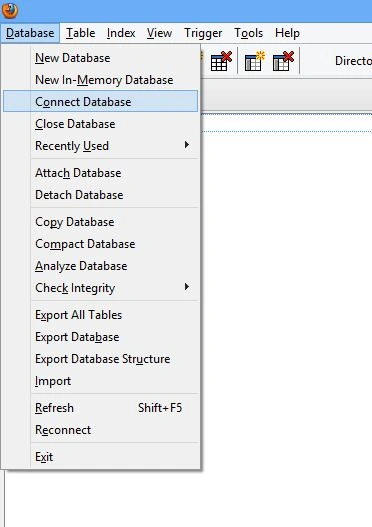
From this window select "Database" -> "Connect database".
Step 10
Now browse and select the ".db" file that you saved in step 7.
Step 11:
On the left-hand side, you will see the name of the table created by you under "tables". Double-click on it to see the data stored in the database.
Thank you :)
Anu VPosted Nov 7, 2016, 2:11 AM
Thanks for the post. Really useful...
kalu singh raoPosted Jul 12, 2016, 6:23 AM
Nice...
Amelie MoorePosted Apr 14, 2015, 12:30 AM
It is really very informative article so thanks for publishing this, I know a free database viewer for SQLite that can be helpful to browse SQLite files. Visit: http://www.sqliteviewer.org/database/android/
Satya SarathiPosted Jul 16, 2013, 2:19 AM
Hi,Thanks for the post.I followed the steps but after 2nd step it is not showing the window shown in step 3. I am using Studio 0.2.x .