

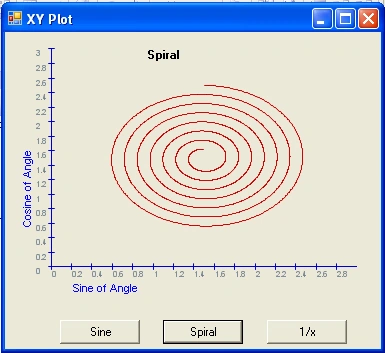
Figure 1 - Updated XY-Plot User Control
Introduction
This update of the xy-plot user control adds some significant improvements and aesthetic enhancements to the graphing code. All points are moved into a generic list instead of an object array making the code more readable. Properties are added for a title, coloring of data and axis, the number of ticks per axis, maximum and minimum values for the x and y axis and more. The graph is now double-buffered and anti-aliased to produce a smoother curve. The y-axis text is now rotated the correct way. There is an algorithm for making sure the tick values on the axis have reasonable values. Since the graph is more or less open source, feel free to e-mail suggestions at [email protected] to improve the control.
Storing Points in Generics:
The power of templates allow us to create a collection of points for our control. We could have used the existing value type PointF in our List collection, but we chose to create our own reference type called PointFloat giving us more flexibility in using our coordinate information. The collection of points declaration is shown below:
private List<PointFloat> m_points = new List<PointFloat>();
Our previous XY-Plot control used an ArrayList which stores objects rather than the type in which we are interested.
private ArrayList m_points = new ArrayList();
The difference between using the generic collection List<PointFloat> and the object collection ArrayList is that every time we want a PointFloat object out of an ArrayList we have to unbox it. This is an extra step that the program needs to take. In order to understand, let's look at an example:
Using an ArrayList:
PointFloat nextPoint = (PointFloat)m_points[i]; // (1) get the point at index i and (2) unbox it
Using a generic List<PointFloat>
PointFloat nextPoint = m_points[i]; // get the point at index i
As you can see, the generic list allows us to avoid the object class layer and go directly to manipulating the PointFloat object.
Algorithm for Creating Tics on the Axis
The axis are marked with values indicating a measure of where the point is located. In a way, an axis is like a ruler, so it should have value increments that "make sense" like a ruler. That means that the values should have precision values of 1, 2, or 5 in the last decimal spot because these values will eventually increment to a uniform unit. The algorithm below is an attempt to make this happen. First it calculates a raw increment based on the maximum and minimum axis values. Then it separates out the value to the right of the decimal. It then finds the most logical precision number that comes closest to the raw precision value and substitutes this value into the increment.
Listing 1 - Calculating the Closest logical increment for the Graph
| /// <summary> /// Calculate an increment value that makes sense /// </summary> /// <param name="min"></param> /// <param name="max"></param> /// <returns></returns> private float CalculateIncrement(float min, float max) { // figure out a raw increment value to come close to float increment = (max - min) /TicksPerAxis ; // get the precision value on the right side of the decimal float precision = increment - ((int) increment); // round this value to a whole number, and track // it's multiple float multiple = 1; while (precision < 1f) { precision *= 10; multiple *= 10; } // these are the precision values we will allow on // the right side of the decimal for our graph float[] allowablePrecisions = new float[]{1, 2, 5}; // find the closest precision (1,2, or 5) to the precision // value of our raw increment. float minimumPrecision = allowablePrecisions[0]; foreach (float nextPrecision in allowablePrecisions) { if (Math.Abs(precision - minimumPrecision) > Math.Abs(precision - nextPrecision)) { minimumPrecision = nextPrecision; } } // determine a new precision value precision = minimumPrecision/multiple; // calculate the new increment by adding the precision // to the integer value increment = ((int) increment) + precision; return increment; } |
Smoothing the Data Line
The Graphics class comes with a SmoothingMode property that allows you to antialias your graphics line. There are also HighQuality and HighSpeed modes, but I think HighQuality is the same as Anti-alias mode and HighSpeed is the same as None.
| SmoothingMode | Description |
| Antialias | Provides antialias rendering |
| None | No Antialiasing |
Josh GuyetteeditedPosted Jun 22, 2010, 11:23 AMEdited Jun 22, 2010, 11:46 AM
Well done. There are changes I needed to make though (especially because I started with the older version). One thing I needed was for the control to update itself, when properties change. If you are interested, I'm working on an enhanced version of this control for my project "LUA Calculator" (on SourceForge). I've added a variety of different features, such as plotting to a graph-paper like background, and plot "line styles". I'm using gnuplot for ideas on adding features. Also PointFloat class could be replaced by the .NET PointF class, and the adding of (0, 0) point in the constructor, seems "point-less". :)