This article will discuss how to launch the UWP app via command line arguments.
Win32 Application
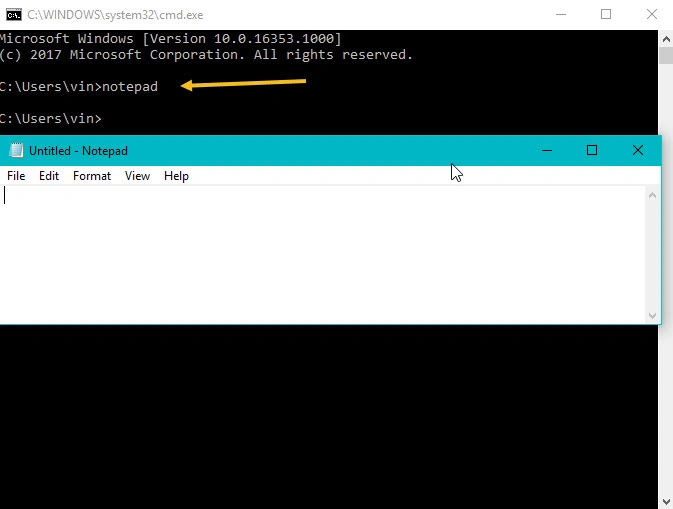
We can launch the Win32 application via command line arguments. For example, open the command line application, type notepad. Notepad application will open. Let's see how to implement this feature into our UWP application.
Note
This API will support Windows Insider Build version 16266 or greater, public version will be available October 17.
System Requirements
- Windows 10 Insider Build 16266 or greater
- Windows 10 16266 SDK or greater
- Visual Studio 2017
Steps to Implements
Create a sample UWP app
Open VisualStudio -> File -> Visual C# -> Windows Universal -> Blank App (Universal Windows), Ex: Project Name: CommandLineUWP
Open Package.appmainfest in XML editor
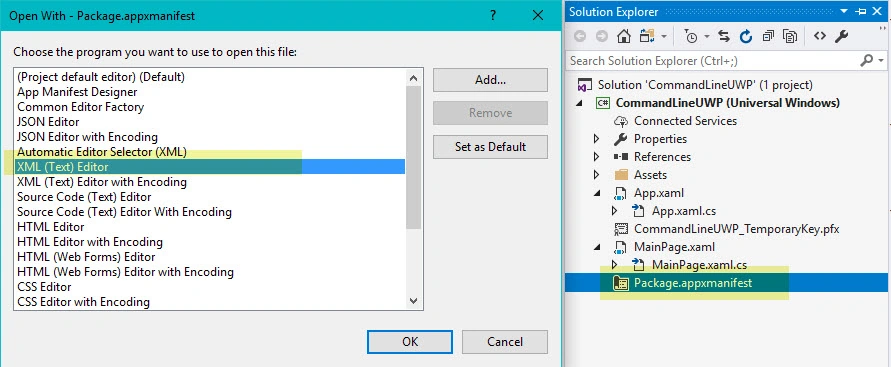
Add the namespace in the top of the file
- xmlns:uap5="http://schemas.microsoft.com/appx/manifest/uap/windows10/5"
Add the Extensions blog into the Application area
- <Extensions>
- <uap5:Extension
- Category="windows.appExecutionAlias"
- Executable="CommandLineUWP.exe"
- EntryPoint="CommandLineUWP.App">
- <uap5:AppExecutionAlias>
- <uap5:ExecutionAlias Alias="CommandLineUWP.exe" />
- </uap5:AppExecutionAlias>
- </uap5:Extension>
- </Extensions>
Category name should be “windows.appExecutionAlias”,
- Executable name - Application.Exe name (Ex: CommandLineUWP.exe)
- EntryPoint - Entrypoint tag should contain the Full name of the application class (Ref: open -> App.xaml file -> Application x: Class name)
- AppExecutionAlias - Type alias name in command prompt to open the application; give the app.exe name as alias name .
Note
If alias name conflicts with another installed app, installed app will be prioritized and your app won’t open. B
Build the application and run it one time
Open CommandPrompt
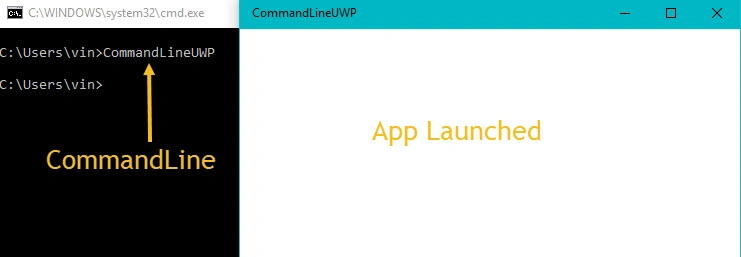
Open commandPrompt , type the alias name -> Enter
Pass the arguments via CommandLine
To Launch the application via command prompt, OnActivated function gets invoked in the application, here we can read the command line arguments,
First check if the ActivationKind is commandLineLanuch , then convert the IActivatedEventArgs as a CommandLineActivatedEventArgs. In CommandLineActivatedEventArgs class contains the CommandLineActivationOperation class object.
- protected override void OnActivated(IActivatedEventArgs args)
- {
- string argment = "OnActivated";
- if (args.Kind == ActivationKind.CommandLineLaunch)
- {
- var commandLine = args as CommandLineActivatedEventArgs;
- if (commandLine != null)
- {
- var operation = commandLine.Operation;
- CStatus.Status = operation.Arguments;
- }
- }
-
- Frame rootFrame = Window.Current.Content as Frame;
-
-
-
- if (rootFrame == null)
- {
-
- rootFrame = new Frame();
-
- rootFrame.NavigationFailed += OnNavigationFailed;
-
- Window.Current.Content = rootFrame;
- }
-
- rootFrame.Navigate(typeof(MainPage), argment);
-
- Window.Current.Activate();
- base.OnActivated(args);
- }
Build the application and run one time
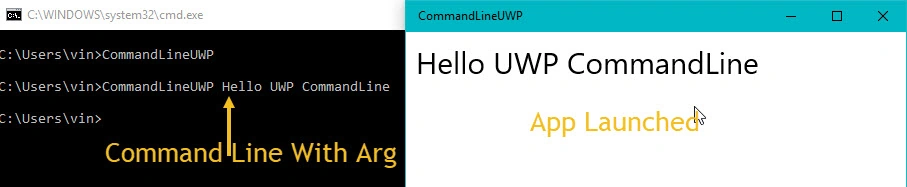
Go to command prompt; type the file name and pass the arguments
Output
 Conclusion
I hope you understood how to run the application via CommandPrompt.


Parna SanyalPosted Sep 4, 2020, 8:08 AM
Hello sir, My app stuck at splash screen when I run "CoomandLineUWP" from Command prompt. Any idea ?
pradeepagowda malaliPosted Jul 17, 2020, 2:20 AM
Hi Vinoth, I have created UWP app and deployed it. Successfuly i am able launch manualy from CLi with following cmd C:\Windows\System32\OfflineFacialLogin.exe and also Successfully launching by using this code by Visual studio debug environement with below code. var proc = new ProcessStartInfo();string yourCommand; yourCommand = OfflineFacialLogin.exe”; proc.UseShellExecute = true; proc.WorkingDirectory = @”C:\Windows\System32?; proc.FileName = @”C:\Windows\System32\cmd.exe”; proc.Arguments = “/c ” + yourCommand; proc.WindowStyle = ProcessWindowStyle.Normal;process.Start(proc); But once i placed same code in C# Custom credential provider project dll to system32 and SySwow64 folder in server and restarting machine, Custom credential provider gives me User credential tile and i will provide username and password in credential tile and enter , when i click i enter to launch UWP app OfflineFacialLogin.exe, But its not happening, any idea why its not launching and what are the dependcy to launch. or anything extra need to do
Saf SiedPosted May 16, 2020, 5:31 PM
Hi Vinod, In your CommandLine argument example, it seems you are using a TextBlock and then assigning its "Text" value as the parameter value "Hello UWP CommandLine" that you passed from the commandline. Question: In you code, where did you pick that parameter value before assigning it to the TextBlock.Text?
Sivaraman SivagurunathanPosted Dec 30, 2019, 12:30 AM
Hi Vinoth Rajendran I have use Xamarin.Forms platform to create my application. I have try to open my Xamarin.Forms.UWP app using comment prompt, I have followed the above mentioned instruction. But the application does not Launched. But it’s working fine in Native UWP. I have attached the both Xamarin and native UWP project for your reference. Can please check this and help to open the Xamarin.Forms.UWP app in comment prompt ? Samples Link: https://drive.google.com/drive/folders/1OymUfWgK9SOGE2xnVhnacbBhg7CK0HP6 Thanks & Regards, Sivaraman S
Saf SiedPosted Jul 27, 2019, 4:36 PM
1. Your example under section "Open CommandPrompt" claims that at that just Open commandPrompt , type the alias name -> Enter. But I don't think it's true. You have to first add OnActivated(....) method that you define in the second part afterwords, and then only you can run the app from command line. 2. I'v a question aslo. In your OnActivated(....) method, your one line reads: CStatus.Status = operation.Arguments; What is CStatus here? I don't see CStatus defined anywhere in your article, and when I copy your method in Visual Studio it does not recognize CStatus object.