
Introduction
This article explains how to design a button using drawable.
Android provides many drawable resources. In this, we use only a shape darwable resource. A drawable shape provides many basic shapes, such as Rectangle, Oval, Ring, Line. Form these shapes you can create many effects. All of these shapes support the following tags.
- gradient: used for gradient background
- size: used to give the size to the shapes
- stroke: used to give a stroke to the shapes
- solid: used to give solid background-color
- padding: used to give padding to the shapes
Step 1
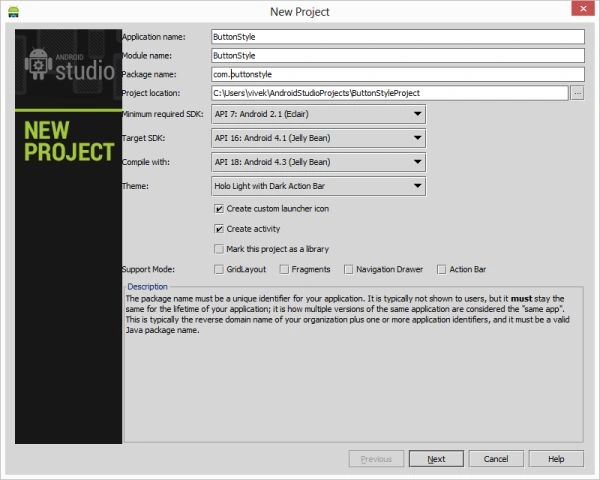
Create a project like this:
Step 2
Create an XML file and write the following.
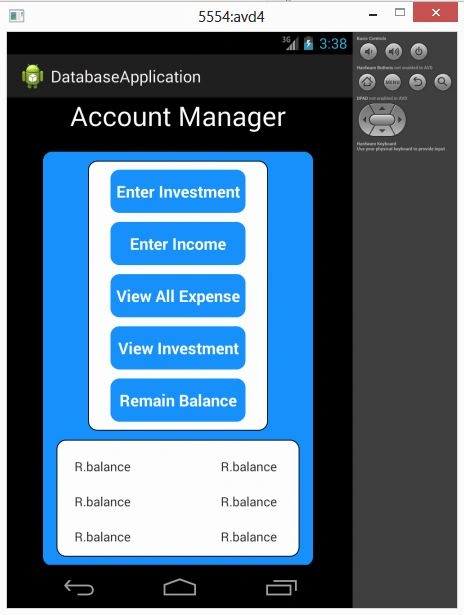
In this, I have taken multiple buttons inside a linear layout and I have given the shape and color through the drawable XML file. This will change the color and shape of the buttons. I set all the backgrounds of all the buttons to a gradient XML file that I have created inside the drawable folder.
I set the gradient2.xml file to the LinearLayout at the bottom that contains a textview.
Step 3
- <?xml version="1.0" encoding="utf-8"?>
- <LinearLayout xmlns:android="http://schemas.android.com/apk/res/android"
- android:layout_width="fill_parent"
- android:layout_height="fill_parent"
- android:orientation="vertical"
- android:background="#000000">
- <LinearLayout
- android:layout_width="fill_parent"
- android:layout_height="wrap_content"
- android:layout_marginLeft="70dp"
- >
- <TextView
- android:layout_width="wrap_content"
- android:layout_height="wrap_content"
- android:text="Account Manager"
- android:textSize="30dp"
- android:textColor="#ffffff"/>
- </LinearLayout>
- <LinearLayout
- android:orientation="vertical"
- android:layout_width="300dp"
- android:layout_height="460dp"
- android:layout_marginLeft="40dp"
- android:layout_centerVertical="true"
- android:layout_marginTop="20dp"
- android:background="@drawable/gradient">
- <LinearLayout
- android:orientation="vertical"
- android:layout_width="200dp"
- android:layout_height="300dp"
- android:layout_marginLeft="50dp"
- android:layout_marginTop="10dp"
- android:background="@drawable/gradient2"
- >
- <Button
- android:layout_width="150dp"
- android:layout_height="wrap_content"
- android:text="Enter Investment"
- android:textColor="#ffffffff"
- android:textStyle="bold"
- android:id="@+id/buttonInvestment"
- android:layout_gravity="center"
- android:layout_marginTop="10dp"
- android:background="@drawable/gradient"
- />
- <Button
- android:textColor="#ffffffff"
- android:textStyle="bold"
- android:layout_width="150dp"
- android:layout_height="wrap_content"
- android:text="Enter Income"
- android:id="@+id/buttonIncome"
- android:background="@drawable/gradient"
- android:layout_marginTop="10dp"
- android:layout_gravity="center" />
- <Button
- android:layout_width="150dp"
- android:layout_height="wrap_content"
- android:textColor="#ffffffff"
- android:textStyle="bold"
- android:text="View All Expense"
- android:id="@+id/button3"
- android:layout_gravity="center"
- android:layout_marginTop="10dp"
- android:background="@drawable/gradient"/>
- <Button
- android:layout_width="150dp"
- android:layout_height="wrap_content"
- android:text="View Investment"
- android:textColor="#ffffffff"
- android:textStyle="bold"
- android:id="@+id/button4"
- android:layout_gravity="center"
- android:layout_marginTop="10dp"
- android:background="@drawable/gradient"/>
- <Button
- android:textColor="#ffffffff"
- android:textStyle="bold"
- android:layout_width="150dp"
- android:layout_height="wrap_content"
- android:text="Remain Balance"
- android:id="@+id/button4"
- android:layout_marginTop="10dp"
- android:layout_gravity="center"
- android:background="@drawable/gradient"/>
- </LinearLayout>
- <LinearLayout
- android:layout_height="130dp"
- android:layout_width="270dp"
- android:background="@drawable/gradient3"
- android:layout_marginTop="10dp"
- android:orientation="vertical"
- android:layout_gravity="center">
- <LinearLayout
- android:layout_width="wrap_content"
- android:layout_height="wrap_content"
- android:layout_marginTop="20dp">
- <TextView
- android:layout_width="wrap_content"
- android:layout_height="wrap_content"
- android:text="R.balance"
- android:layout_marginLeft="20dp"
- />
- <TextView
- android:layout_width="wrap_content"
- android:layout_height="wrap_content"
- android:text="R.balance"
- android:layout_marginLeft="100dp"/>
- </LinearLayout>
- <LinearLayout
- android:layout_width="wrap_content"
- android:layout_marginTop="20dp"
- android:layout_height="wrap_content">
- <TextView
- android:layout_width="wrap_content"
- android:layout_height="wrap_content"
- android:text="R.balance"
- android:layout_marginLeft="20dp"
- />
- <TextView
- android:layout_width="wrap_content"
- android:layout_height="wrap_content"
- android:text="R.balance"
- android:layout_marginLeft="100dp"/>
- </LinearLayout>
- <LinearLayout
- android:layout_width="wrap_content"
- android:layout_height="wrap_content"
- android:layout_marginTop="20dp">
- <TextView
- android:layout_width="wrap_content"
- android:layout_height="wrap_content"
- android:text="R.balance"
- android:layout_marginLeft="20dp"
- />
- <TextView
- android:layout_width="wrap_content"
- android:layout_height="wrap_content"
- android:text="R.balance"
- android:layout_marginLeft="100dp"
- />
- </LinearLayout>
- </LinearLayout>
- </LinearLayout>
- </LinearLayout>
gradient.xml
- <?xml version="1.0" encoding="utf-8"?>
- <shape xmlns:android="http://schemas.android.com/apk/res/android"
- android:shape="rectangle">
- <corners
- android:bottomLeftRadius="10dp"
- android:bottomRightRadius="10dp"
- android:topLeftRadius="10dp"
- android:topRightRadius="10dp"/>
- <gradient android:startColor="#1E90FF"
- android:endColor="#1E90FF"/>
- </shape>
Step 4
Another XML file inside the drawable folder:
gradient 2.xml
- <?xml version="1.0" encoding="utf-8"?>
- <shape xmlns:android="http://schemas.android.com/apk/res/android"
- android:shape="rectangle">
- <corners android:bottomLeftRadius="10dp"
- android:bottomRightRadius="10dp"
- android:topLeftRadius="10dp"
- android:topRightRadius="10dp" />
- <gradient android:startColor="#ffffff"
- android:endColor="#ffffff" />
- <stroke android:color="#000000"
- android:width="1dp" />
- </shape>
Step 5
Join the conversation! Your thoughts help the community grow.