

Introduction
Welcome to the "Learn Umbraco CMS" article series. This article is Part 2 of the series. We will see how to create templates, Document Types, and Content Pages in Umbraco CMS.
This article starts with the concept of Umbraco cms and its various components. The previous article provided an introduction to Umbraco CMS and Installation and hosting of the same that you can get from here.
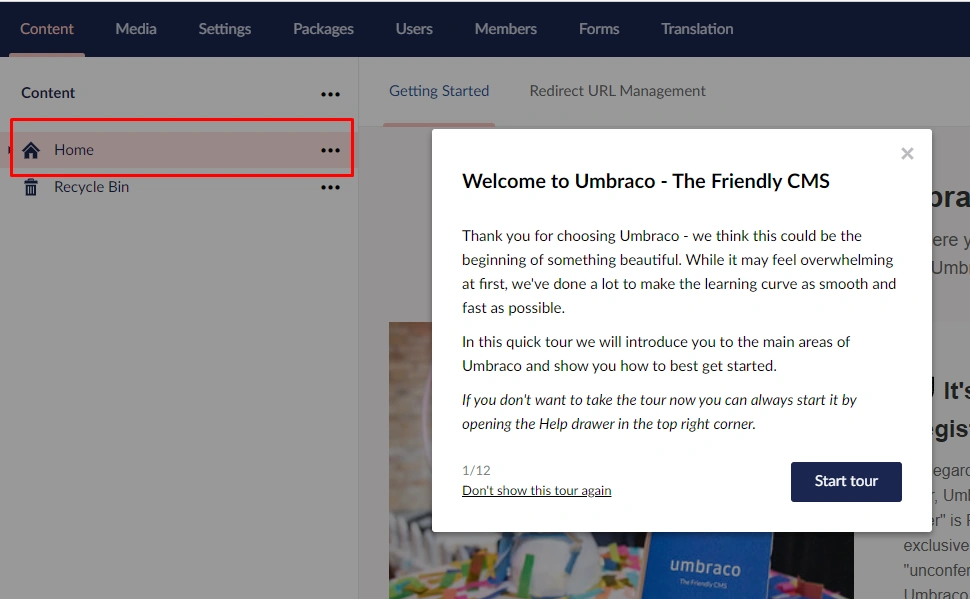
First, let's delete all the default content files
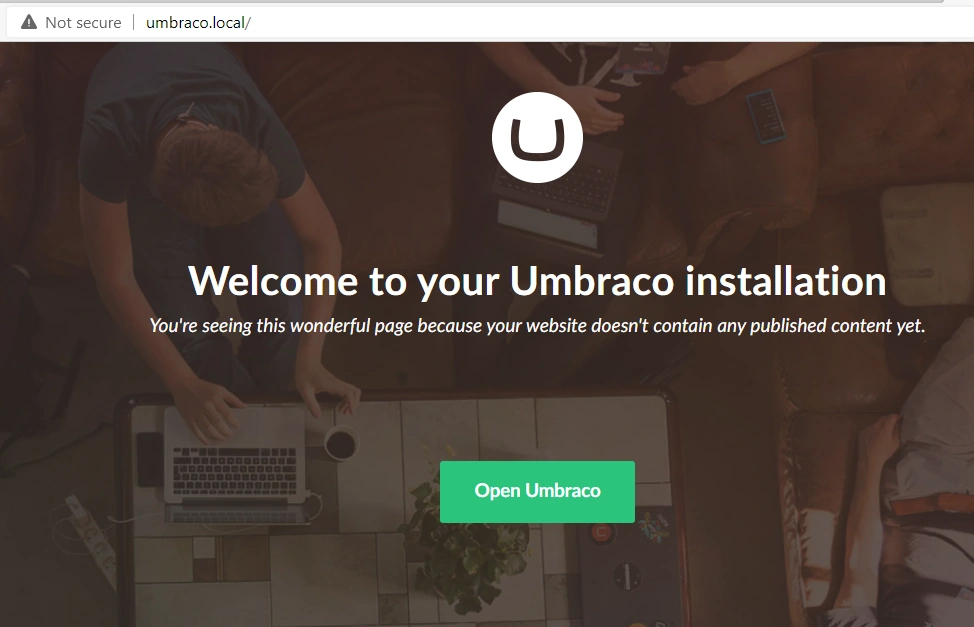
After deleting we can see the output as below
Step 2
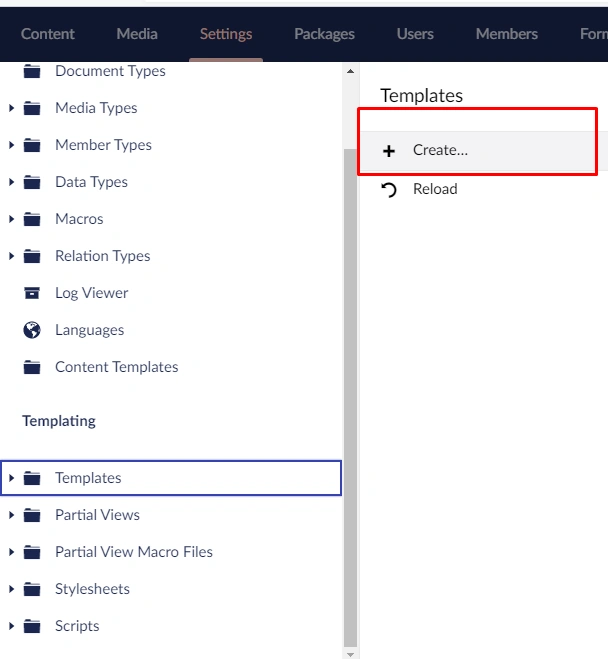
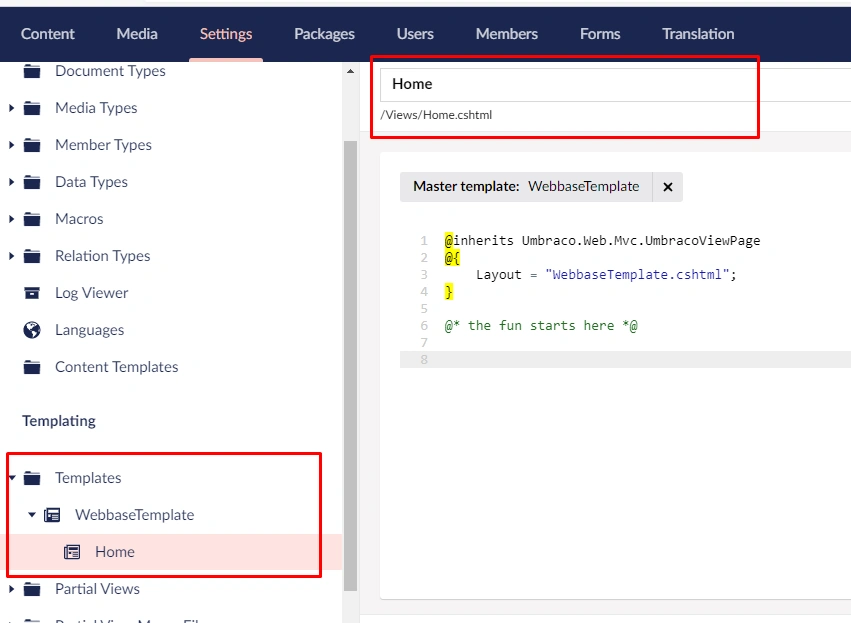
Let's create the template as below. Click on Templates and click on create
Input the name you prefer and click on save
Input the name you prefer and click on save
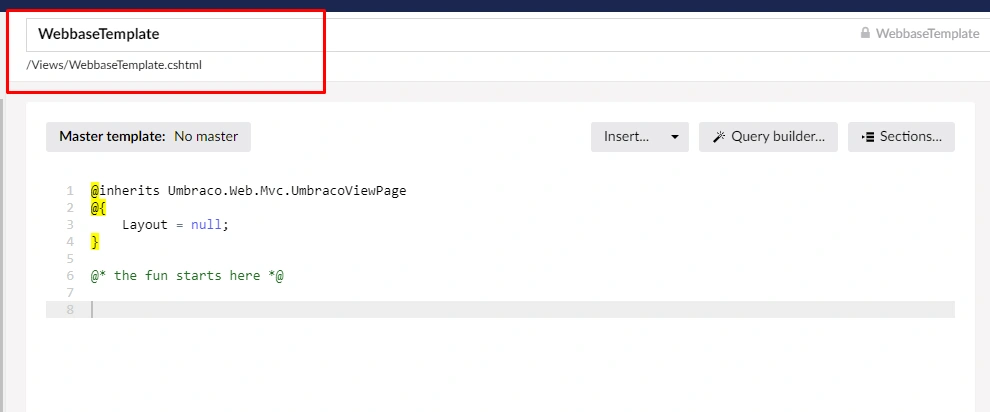
Create view Home under the template and click on save
Step 3
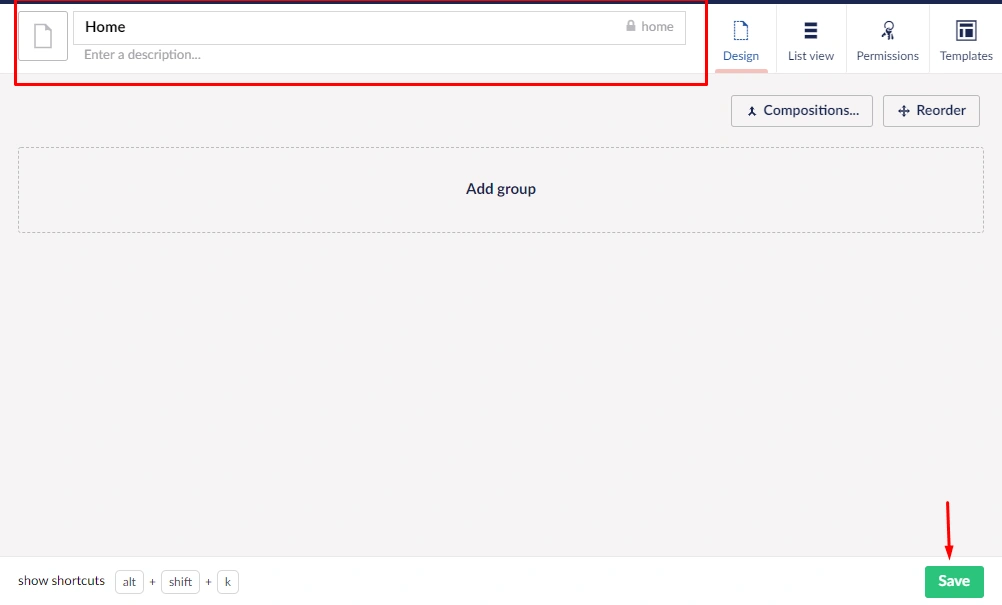
Now let's create a Document Type and select the template
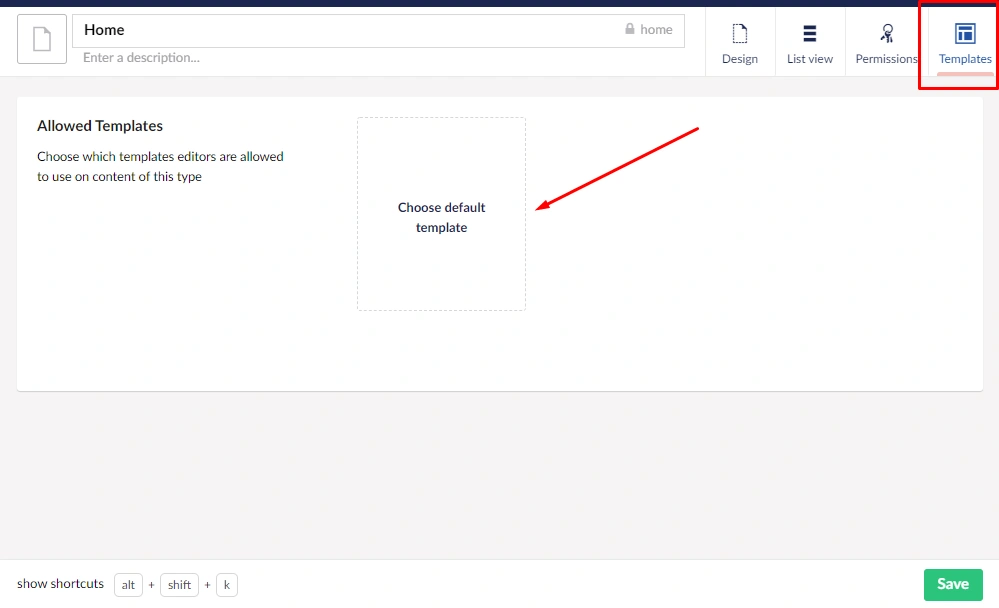
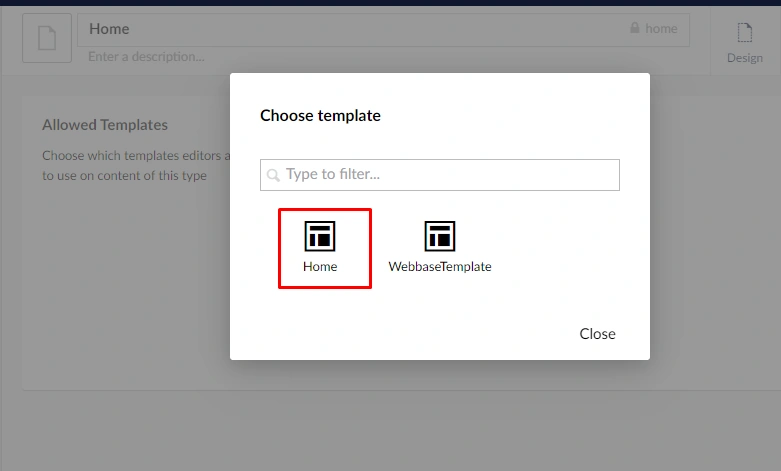
Click on Templates and select Home as default template as below
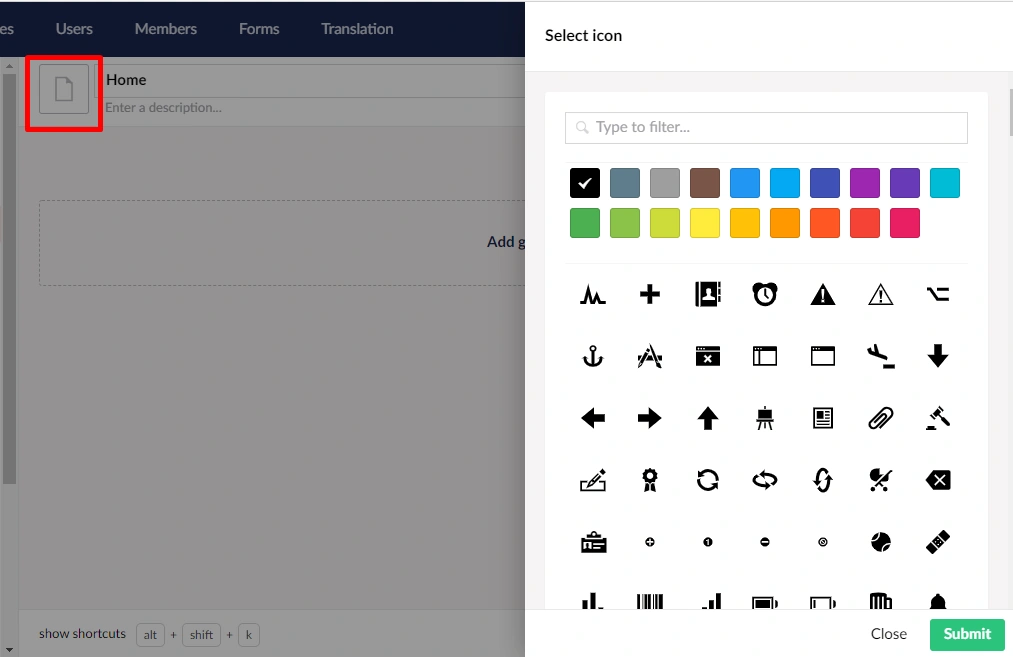
Select the icon and color as below
Step 4
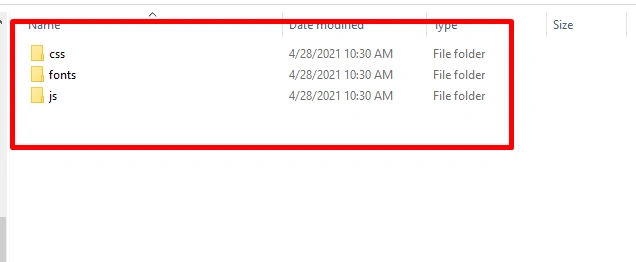
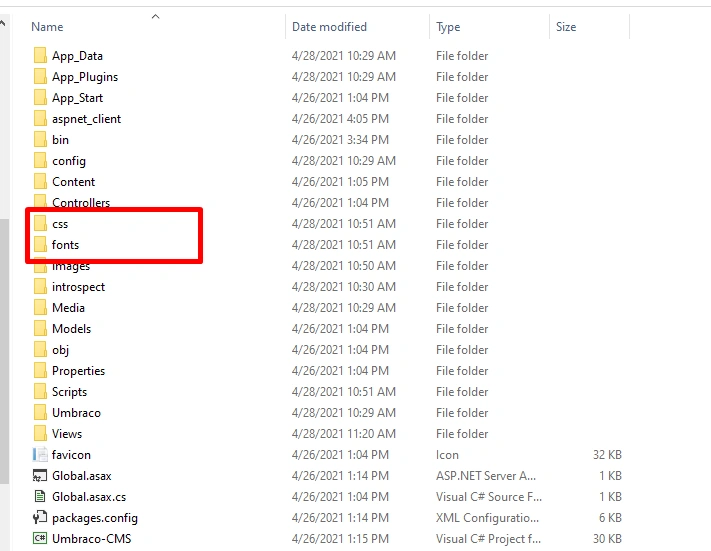
Now let's copy and paste all the assets which we have downloaded to the main solution as below
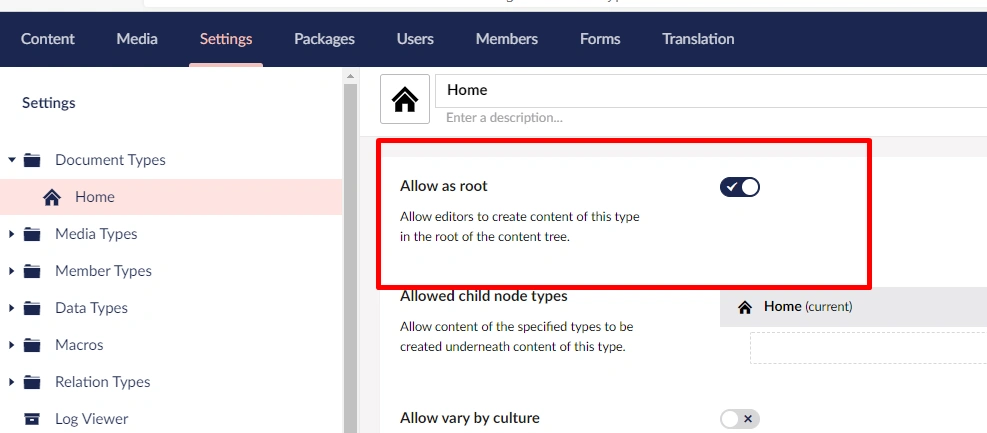
Enable the permissions in document type to all the editors as below
Step 5
Step 5
Now let's create a content page click in content and select Home
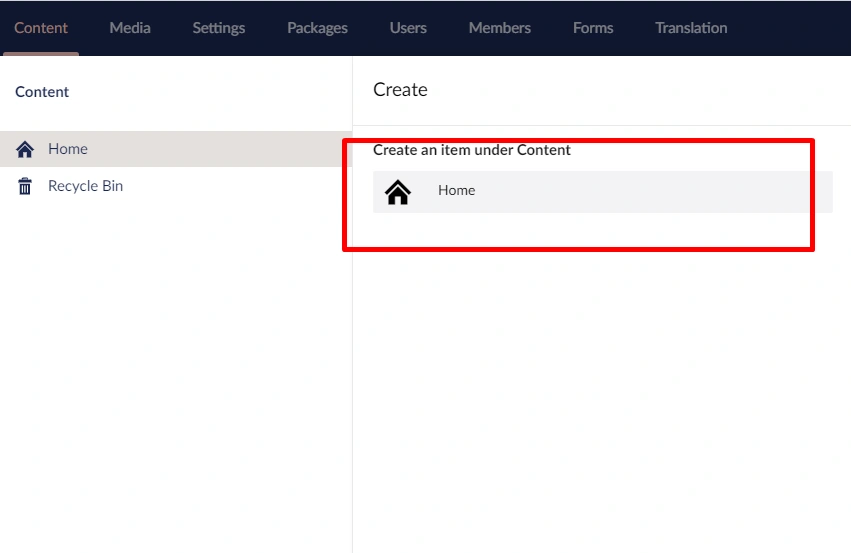
Type Home and click on save and publish
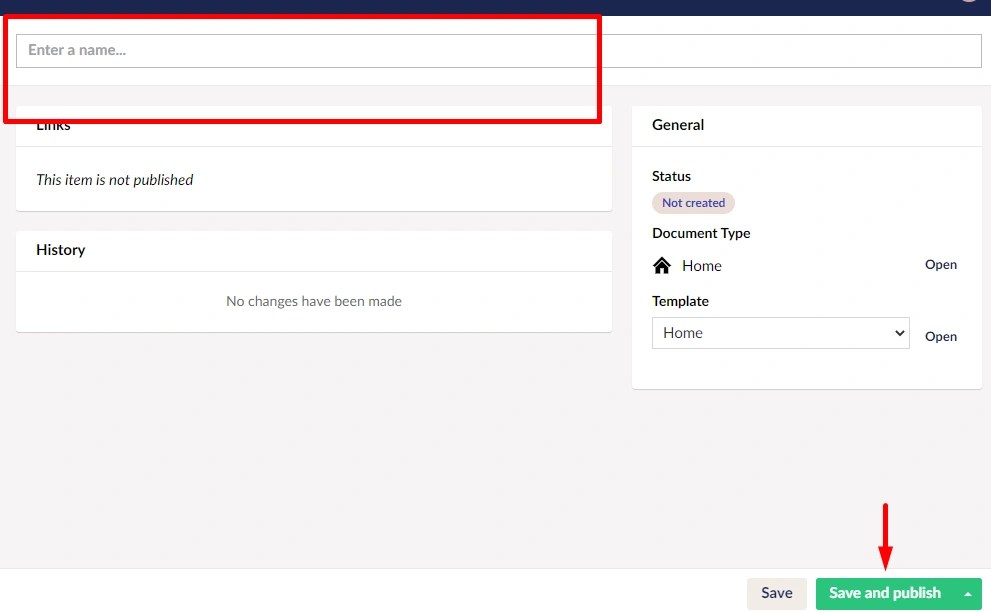
Type Home and click on save and publish
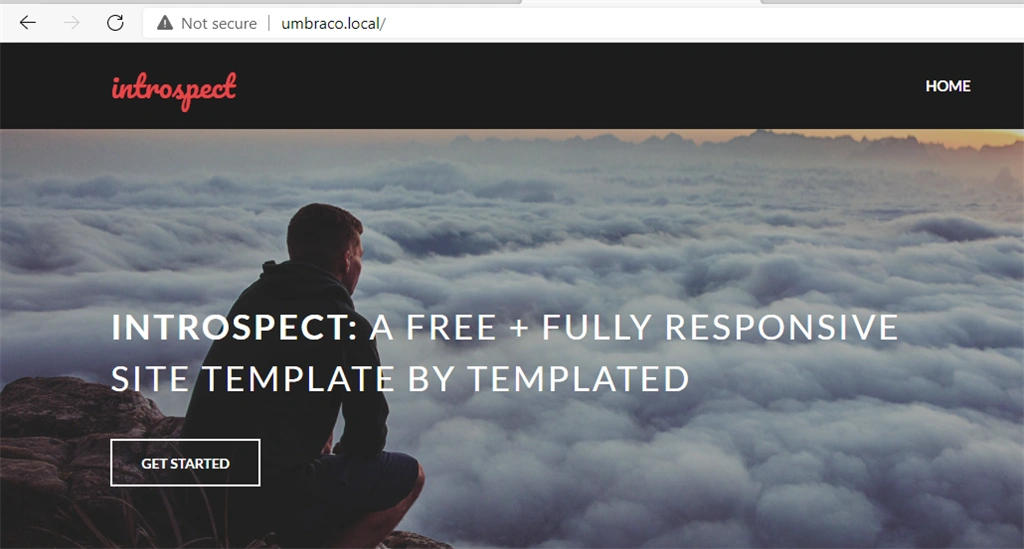
Open umbraco.local we can see the new template in action as below,
Summary
In this article, we have learned how to create Templates, Document Types and Content Type in Umbraco CMS. In future articles, we will understand more about Master Template in Umbraco cms. I hope you have liked this.
Join the conversation! Your thoughts help the community grow.