

Introduction
This article is the 29th part of my SharePoint series. Here are my previous articles,
- Learn SharePoint In Series - Part One - Introduction
- Learn SharePoint In Series - Part Two - Web Application
- Learn SharePoint In Series - Part Three - Site Collections
- Learn SharePoint In Series - Part Four - Subsites
- Learn SharePoint In Series – Part Five – SharePoint Lists
- Learn SharePoint In Series - Part Six - Power Of Versioning
- Learn SharePoint In Series - Part Seven - Lists Advanced Settings
- Learn SharePoint In Series - Part Eight - Validation Settings in List Settings
- Learn SharePoint In Series - Part Nine - Audience Targeting
- Learn SharePoint In Series - Part Ten - Rating Settings
- Learn SharePoint In Series - Part Eleven - Form Settings in List Settings
- Learn SharePoint In Series - Part Twelve- Save list as a template in List Setting
- Learn SharePoint In Series - Part Thirteen- Permission Settings in List Settings
- Learn SharePoint In Series - Part Fourteen- Enterprise Metadata and Keywords
- Learn SharePoint In Series - Part Fifteen - Retention Policy Under Information Management
- Learn SharePoint In Series - Part Sixteen - RSS Settings in List Setting
- Learn SharePoint In Series - Part Seventeen - List Columns in SharePoint
- Learn SharePoint In Series - Part Eighteen - Multiple Lines Of Text Column Type in SharePoint
- Learn SharePoint In Series - Part Nineteen - Number and Choice Column Type in SharePoint
- Learn SharePoint In Series - Part Twenty - Currency and Yes No Column types in SharePoint
- Learn SharePoint In Series - Part Twenty One - Person or Group Column types in SharePoint
- Learn SharePoint In Series - Part Twenty Two - Date and Time Column types in SharePoint
- Learn SharePoint In Series – Part Twenty Three – Look Up Column Type in SharePoint
- Learn SharePoint In Series - Part Twenty Four - Hyperlink or Picture Column Types in SharePoint
- Learn SharePoint In Series -Part Twenty Five - Calculated Column in SharePoint
- Learn SharePoint In Series - Part Twenty Six - Task Outcomes and External Data Column Type in SharePoint
- Learn SharePoint In Series - Part Twenty Seven - Managed Metadata Column Types
- Learn SharePoint In Series - Part Twenty Eight - Introduction to Site Columns
In the previous article, I have explained the basics of Site columns and how to create site columns. Now, in this article, I am going to explain how we can use site columns in our SharePoint lists. In this article, I am going to cover the following topics.
- Assigning Site Columns to List
- Editing of Site Columns from List Settings
- Editing Site Columns from Site Settings
- Deleting site columns
- Basic difference of Site Columns and List Columns.
- Summary
Assigning Site Columns to List
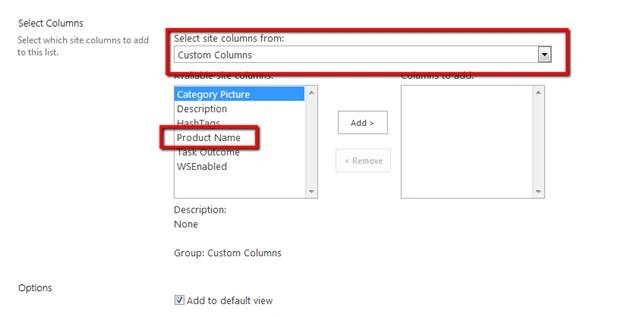
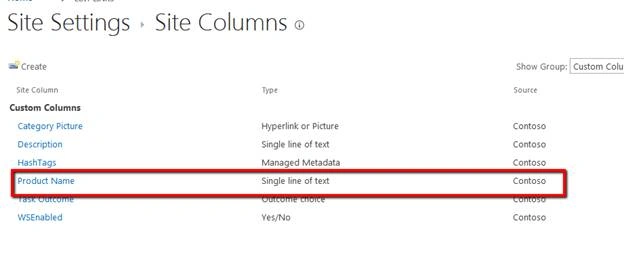
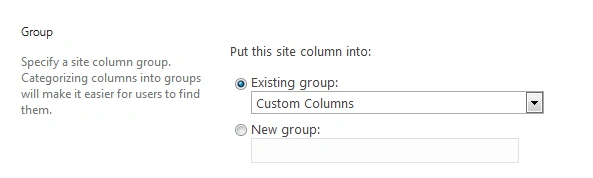
In the previous article, we have seen how to create a site column. Let’s assume that we have created Site Column with name “Product Name” of the Single line of text column type. And now, we want to use it in our list. While creating a site column, I have selected Custom group in Group option. So my column will look like this.
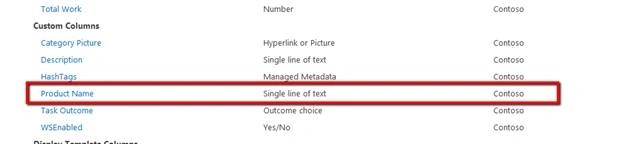
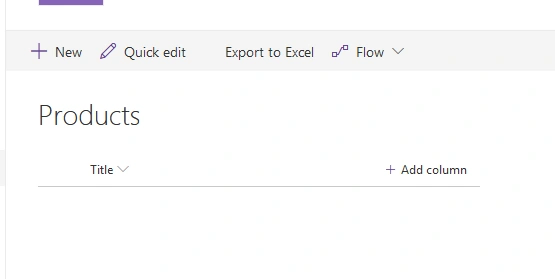
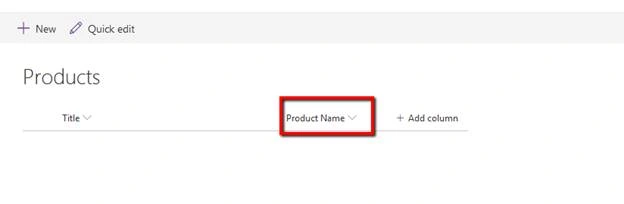
Now, I am having a list called Product. Here, I want to use the Site Column. Currently, I am not putting any column into the list.
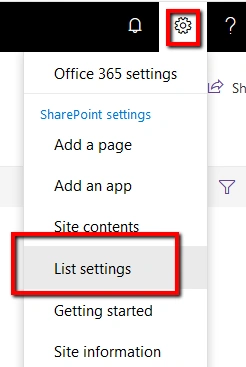
Step 1
Click on the Settings gear icon and then click on Lists Setting link.
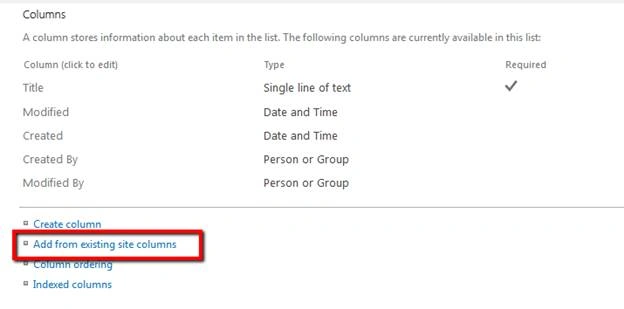
Step 2
This will open up List Settings page. Now, scroll down to Columns section and then click on “Add from existing site columns” link available.
Step 3
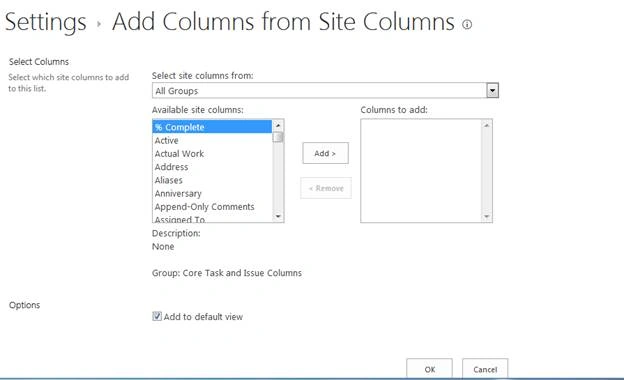
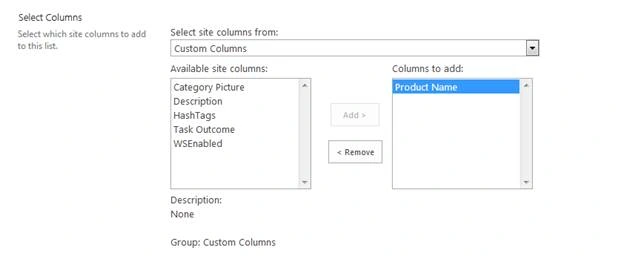
This will open up the "Add Columns from Site Columns" wizard.
Hadshana KamalanathanPosted Jul 30, 2018, 12:20 PM
Nice Article..