

Introduction
This article is the 23rd part of my SharePoint series. Here are my previous articles.
- Learn SharePoint In Series - Part One - Introduction
- Learn SharePoint In Series - Part Two - Web Application
- Learn SharePoint In Series - Part Three - Site Collections
- Learn SharePoint In Series - Part Four - Subsites
- Learn SharePoint In Series – Part Five – SharePoint Lists
- Learn SharePoint In Series - Part Six - Power Of Versioning
- Learn SharePoint In Series - Part Seven - Lists Advanced Settings
- Learn SharePoint In Series - Part Eight - Validation Settings in List Settings
- Learn SharePoint In Series - Part Nine - Audience Targeting
- Learn SharePoint In Series - Part Ten - Rating Settings
- Learn SharePoint In Series - Part Eleven - Form Settings in List Settings
- Learn SharePoint In Series - Part Twelve- Save list as a template in List Setting
- Learn SharePoint In Series - Part Thirteen- Permission Settings in List Settings
- Learn SharePoint In Series - Part Fourteen- Enterprise Metadata and Keywords
- Learn SharePoint In Series - Part Fifteen - Retention Policy Under Information Management
- Learn SharePoint In Series - Part Sixteen - RSS Settings in List Setting
- Learn SharePoint In Series - Part Seventeen - List Columns in SharePoint
- Learn SharePoint In Series - Part Eighteen - Multiple Lines Of Text Column Type in SharePoint
- Learn SharePoint In Series - Part Nineteen - Number and Choice Column Type in SharePoint
- Learn SharePoint In Series - Part Twenty - Currency and Yes No Column types in SharePoint
- Learn SharePoint In Series - Part Twenty One - Person or Group Column types in SharePoint
- Learn SharePoint In Series - Part Twenty-Two - Date and Time Column types in SharePoint
In the previous article, I have explained everything about Date and Time column type in SharePoint lists. We have seen the different behavior of the column in Lists. Now, in this article, I will be explaining Lookup Column type in detail and will also cover the following topics in detail.
- Background
- Introduction to Lookup columns in SharePoint
- Creating Lookup columns and its properties
- Entering data into Lookup columns
- Supported and Unsupported columns types in Lookup columns
- Summary
Background
Consider a scenario where you have to maintain the information of the employee and its departments. So, if you are in the SQL Server database then in that case what you will do is, you will use third normal form and design two different tables. One will be Department Master and other will be Employee Master. And later you will create Department ID or Department Name as a Primary key and use this primary key in Employee table as a reference key or foreign key. By using this method we will maintain the relationship among multiple tables. Now, coming to SharePoint, earlier we have already discussed many times that SharePoint stores the data in lists. So, now if we want to create a Department and Employee list then you will need a primary key and foreign key. For primary key SharePoint, we already have ID column which always has unique values and ID column and cannot be null, but what about the foreign key? SharePoint has a very cool column type for this feature called as Lookup columns. Let’s understand this cool column type in details.
Introduction to Lookup Columns in SharePoint
Whenever we have to create the relation between two or more list then, in that case, we can use the Lookup column type available in SharePoint. Lookup column is used to display the item from one list to another list. It is very similar to Choice columns of SharePoint. Please note that if lookup column is list level column then you can fetch the values from same sites only.
Creating Lookup columns and its properties
In order to know how to create a lookup column, you can refer to this article. You can select any way of creating columns, just select a lookup column while creating. When you will select the lookup column, you will have some options using which you can configure the lookup columns. The properties are shown in the figure below.
Get information from
Here, you will have a dropdown control. In the drop-down, every list from the current site would be auto-populated. You can select the list from which you want to create a lookup column. Once you will select the list, the next properties will be configured.
In this column
Here, you can select the column you want to give reference to your current list. The column you will select will be available in the dropdown in the current list.
Allow multiple values
If this is checked, then while selecting data from the parent list, you can select more than one value from the dropdown. By default it is unchecked so you can select only one value from the dropdown by default.
Add a column to show each of these additional fields
Here columns from the parent list (the list selected in “Get information from” dropdown) will be listed. You can select one or multiple columns. If you select any column then in the list view in this column will be also displayed as a reference.
One of the important features of having a primary key and foreign key in SQL table is cascade delete. It means that if it is configured, then the user cannot delete the data from the parent list or parent table if that data has been referenced in any of the other table. The same concept is available in SharePoint. The concept comes with a name “Enforce relationship behavior”. For more information please refer to the following image.
By default the option is unchecked. If it is checked then in that case we would have 2 options.
Restrict delete
If this option is selected, then the user will not be able to delete the data from the parent list if the data is used in any other lists. In order to delete the parent data first, the user has to delete the data from the child list.
Cascade delete
If this option is selected, then if the user deletes the data from parent list then it will automatically delete the data from the entire child list wherever it is referenced or used.
Entering Data into Lookup columns
While entering the data to the lookup columns, you will have a drop down filled will the values from the selected columns of the parent list. By default “Allow multiple values” option is unchecked, so you can select only one value from the lookup dropdown. For more information refer to the below image.
And if “Allow multiple values” is checked, then in that case you will have the option to select multiple values from the dropdown. Please refer to the following image for more details.
If you have selected multiple columns from “Add a column to show each of these additional fields” then the columns will be displayed.
The values such as Lookup: Task Name and Lookup: %Complete will be not editable from the child list as these values are displayed from the parent list.
Supported and Unsupported Columns Types in Lookup columns
While selecting the columns from the parent list, some of the column types are supported in referencing to another list and some of them are not. So, let’s have a look on which columns are supported and which columns are not supported while creating lookup columns.
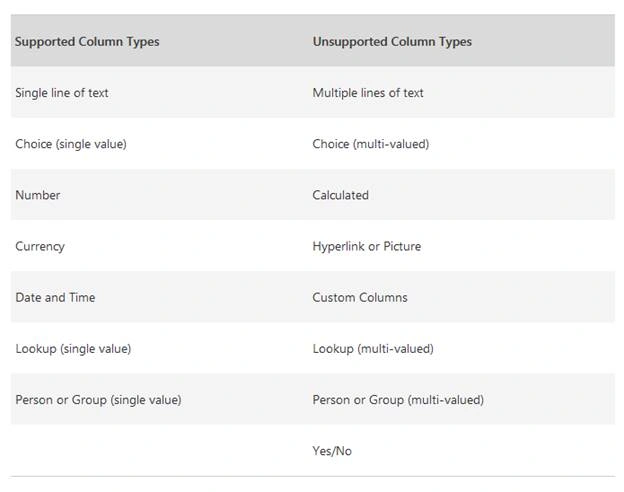
Table source
For detail level information on lookup columns and how to maintain the relationship using lookup columns is given here Create list relationships by using unique and lookup columns
Summary
In this article, we have seen detail information about Lookup columns. We have also seen how to create a lookup column, how to use it and what are the properties available with lookup columns. We have also explored which column types are supported and which columns types are not supported as a lookup columns.
If you have any query or need any help regarding building the relationship between 2 or more lists then please do comment and mention your problem.
In my next article, I am going to cover Hyperlink or Picture column types in details.
Viknaraj ManogararajahPosted Jul 14, 2018, 10:43 PM
Nice Article, Thank you for sharing.........
Hadshana KamalanathanPosted Jul 14, 2018, 9:59 AM
Thanks for sharing
Ravishankar NPosted Jul 13, 2018, 12:54 PM
Nice article