

Introduction
The development paradigm has been changing rapidly for the last few years. The out-of-box technologies have been introduced to develop the applications as fast, scalable, with an extensible structure, easy to maintain, and easy to use. "knockout.js" is an example of such emerging technologies. This is my opportunity to explain the concept and topic my way.
We'll be explaining the technology from a basic to an advanced level by just following a road-map.
Our Road-map

We'll learn "knockout.js" in the following three parts:
We'll learn "knockout.js" in the following three parts:
- Part 1: Introduction to "knockout.js" and CRUD Operations in ASP.Net Web Forms using "knockout.js" and Entity Framework.
- Part 2: Complete end-to-end CRUD operations using "knockout.js" and Entity Framework in an MVC4 application.
- Part 3: Complete end-to-end CRUD operations using "knockout.js" and Entity Framework in ASP.Net Web APIs.
Part 1: Introduction to "knockout.js" and CRUD Operations in ASP.Net Web Forms using "knockout.js"
We'll explain this part beginning with an introduction to Knockout, MVVM, and the Observer Pattern. Then by setting up a basic environment in knockout.js, create an ASP.Net web forms application that does CRUD operations.
Knockout
In today's quickly changing trends, the development of data-driven apps depends largely on JavaScript and JavaScript based libraries such as jQuery. Client-side programming appears to become complex and it is complex because the user interface becomes richer and richer. In scenarios like this the data binding and dependency tracking are highly desirable in the applications for further extensibility of the application. Knockout JS fulfills these rich requirements on the client-side programming and makes a developer's life easy and joyful. Let's explain KO in detail.
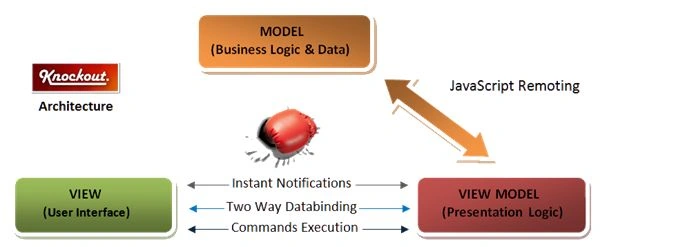 The "knockout.js" (KO) file is basically a JavaScript library that enables Declarative Bindings using an "Observable" ViewModel on the client (browser) using an Observer Pattern approach, enabling the UI to bind and refresh itself automatically whenever the bound data is modified. The "knockout.js" file provides its own templating pattern that helps us to bind our view model data easily. KO works on the MVVM pattern, in other words Model-View-ViewModel.
As the architecture is shown, Views interact with View Models in a two-way binding manner, in other words when the model is changed the view updates itself and when the view is updated, the model also updates itself instantaneously.
KO provides the following 3 most important features:
- Automatic Refresh of UI
- Two-way binding
- Templating
The entire idea of KO derives from these three major functionalities. KO also helps in developing single-page applications (SPAs). SPAs are an out-of-the-box new way of developing Rich Internet Applications (RIAs) in today's era.
Model-View-View Model (MVVM)
When we develop a rich UI internet-based application, we create views (UI like HTML and aspx pages) using server controls, HTML controls and then extend our application by writing business logic behind those views like event handling, property binding, and creation of entities. This approach increases complexities when an application is too large. Here we require the separation of concerns and maintainability of the application, especially on the client-side.
The MVVM pattern includes the following three key parts:
- Model (business rules, data access, model classes, the data displayed in a UI)
- View (User Interface (such as HTML, aspx, cshtml and so on))
- ViewModel (event handling, binding, and business logic)
View Model contains the User Interface level operations/methods/functions, performed on model data to bind the outcome to the view. The operations include business logic validations and checks to be performed before binding data to the UI. View models act as an interface between model and views and act as a wrapper over the model prior to binding to the Views.
View is the user interface of our application. View talks to the View Model to invoke certain methods/operations as explained above. View gets updated automatically whenever data from the View Model changes.
MVVM provides a clear separation of concerns between the User Interface (UI) and the business logic.
In the MVC pattern, a view acts as the broker agent between the Model (the data displayed in the View) and the Controller (server-side endpoint that takes data from the View and performs some action on that data and provides a response).
Observables for two way binding
KO provides Observables in the library to be bound to UI elements and simultaneously code is written to view models, so that when the view updates the data the model updates itself and vice versa. For example, in the following code:
- <tr>
- <td>Batch :</td>
- <td><input data-bind="value: Batch" /></td>
- <td><span data-bind="text: Batch" /></td>
- </tr>
- <tr>
- <td>Address :</td>
- <td><input data-bind="value: Address" /></td>
- <td><span data-bind="text: Address" /></td>
- </tr>
- <tr>
- <td>Class :</td>
- <td><input data-bind="value: Class" /></td>
- <td><span data-bind="text: Class" /></td>
- </tr>
The code above shows a part of a view, you can see the elements are bound to properties like text and value, these properties are provided by KO, and the right side of these properties are property key names that are bound in view-models using observables as shown below.
- var self = this;
- self.Batch = ko.observable();
- self.Address = ko.observable();
- self.Class = ko.observable();
So this would be the code in the View model; we'll be explaining all this in detail.
Note: data-bind is an HTML5 attribute.
Setting up Environment in Visual Studio for KO
We go step-by-step to set up a Knockout JavaScript environment in Visual Studio.
The prerequisite is that Visual Studio must be a version equal to or 12. I am using Visual Studio 2013 Express.
Step 1: Open Visual Studio and create a simple ASP.Net application, I have given it the name KOSetup.
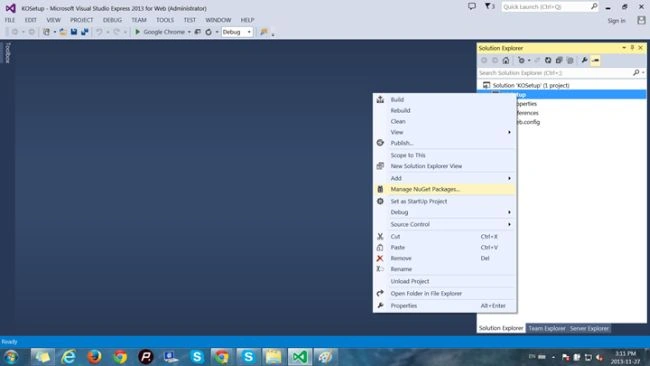
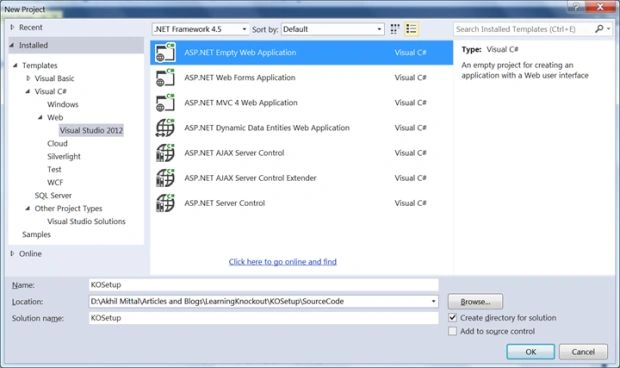 Step 2: Right-click on the project, and in the context menu select "Manage Nuget packages" to install jQuery and KO.
Step 3: Type "jQuery" in the search text box to get the latest compatible jQuery library. Click "install" to install the library.
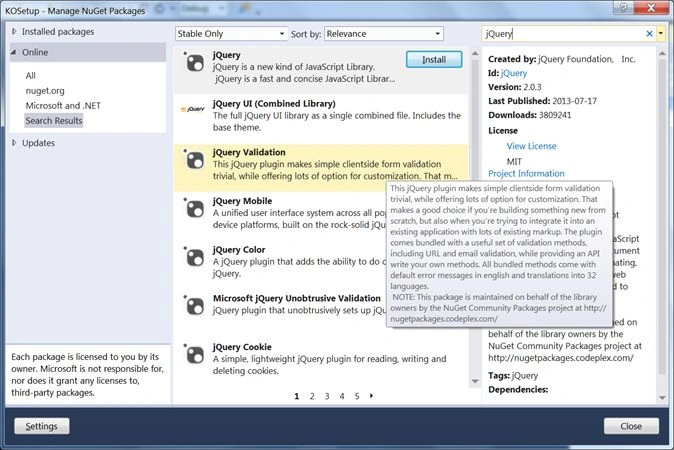
Step 4: In a similar fashion, search 'knockout' in the search TextBox and install the knockoutjs library into your application.
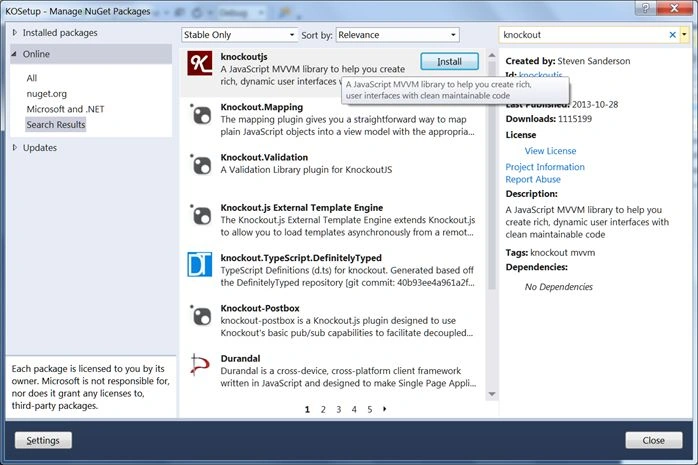
We go step-by-step to set up a Knockout JavaScript environment in Visual Studio.
Step 3: Type "jQuery" in the search text box to get the latest compatible jQuery library. Click "install" to install the library.
Step 4: In a similar fashion, search 'knockout' in the search TextBox and install the knockoutjs library into your application.
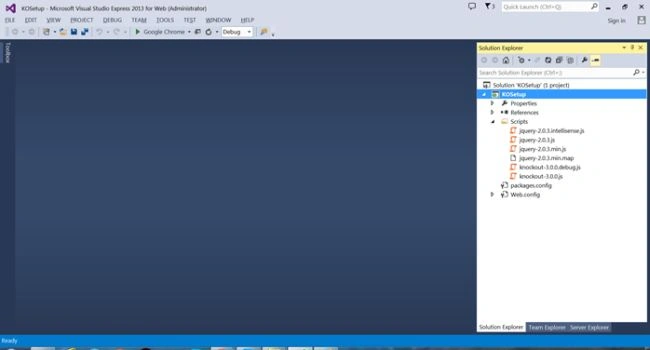
Step 5: Our solution will look as in the following. We have a folder created named "Scripts" and that contains jQuery and Knockout libraries.
Step 6: Now right-click the project and add an aspx page. I named that page "LearnKO.aspx".
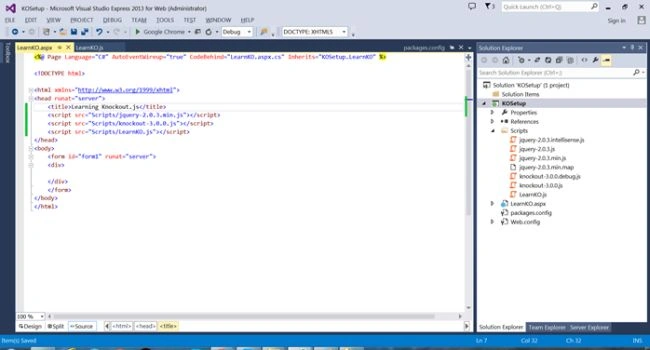 Step 7: Similarly create a JavaScript file and add that to the project. I named that file "LearnKO.js".
 Step 8: Open the "learnKO.js" file and drag the jQuery file and "knockout.js" library file to the "LearKO.js" file, we see in the following picture that references for both files are created on the JavaScript file. We did this because to provide IntelliSense support for jQuery and Knockout on our "LearnKO.js" file.
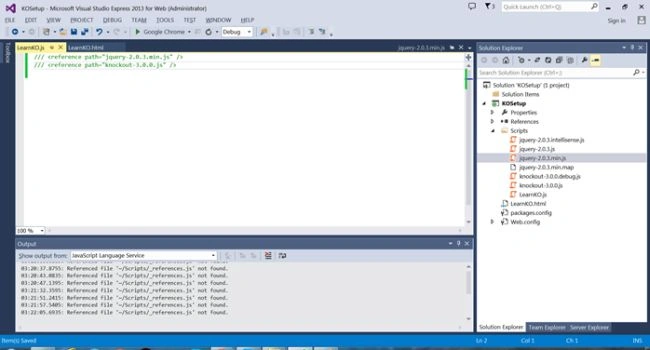
Step 9: Write the document.ready function of jQuery in our LearnKO.js file. The document.ready function is fired when our HTML document object model has been loaded into the browser.
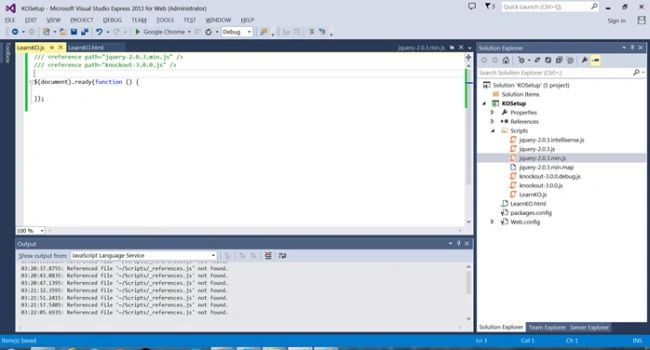 This is all we need to do to set up Knockout. Now we know how to set up the initial environment to use "knockout.js" in our application.

We proceed now to create the application, talk to a database, and create a template and view model.
Creating a Knockout application
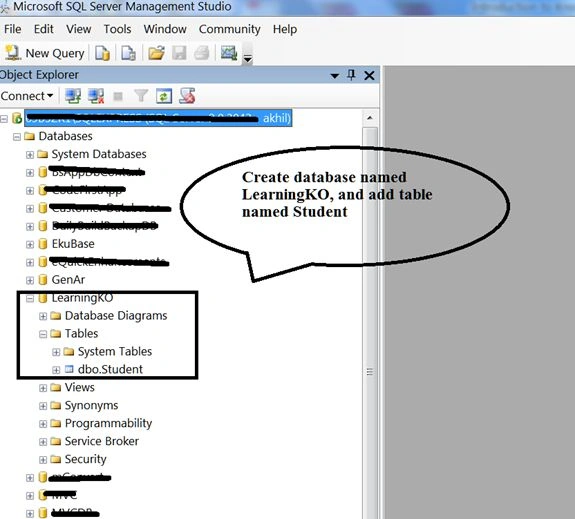
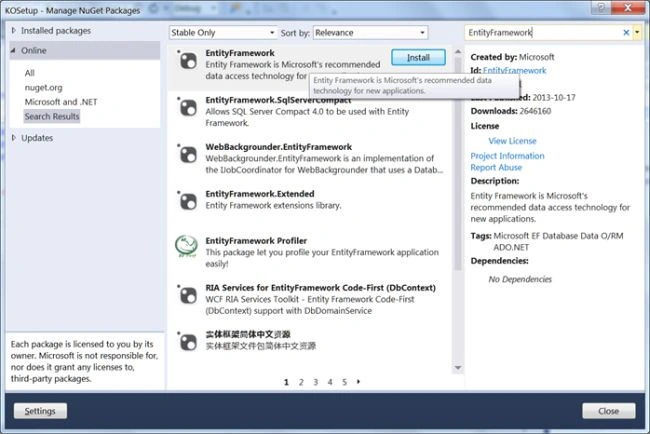
Step 10: For communication with a database, add the Entity Framework library in the same manner as we added jQuery and KO. Installing the Entity Framework library will add the Entity Framework DLL to the project. We'll talk to the database using the Entity Framework of Microsoft. Alternatively there are many ways to interface with a database, like ADO.Net, LINQ to SQL, and so on. But first things first, create a database; you need it to use SQL Server. I've provided a script for that.
Step 6: Now right-click the project and add an aspx page. I named that page "LearnKO.aspx".
Step 9: Write the document.ready function of jQuery in our LearnKO.js file. The document.ready function is fired when our HTML document object model has been loaded into the browser.
We proceed now to create the application, talk to a database, and create a template and view model.
Step 10: For communication with a database, add the Entity Framework library in the same manner as we added jQuery and KO. Installing the Entity Framework library will add the Entity Framework DLL to the project. We'll talk to the database using the Entity Framework of Microsoft. Alternatively there are many ways to interface with a database, like ADO.Net, LINQ to SQL, and so on. But first things first, create a database; you need it to use SQL Server. I've provided a script for that.
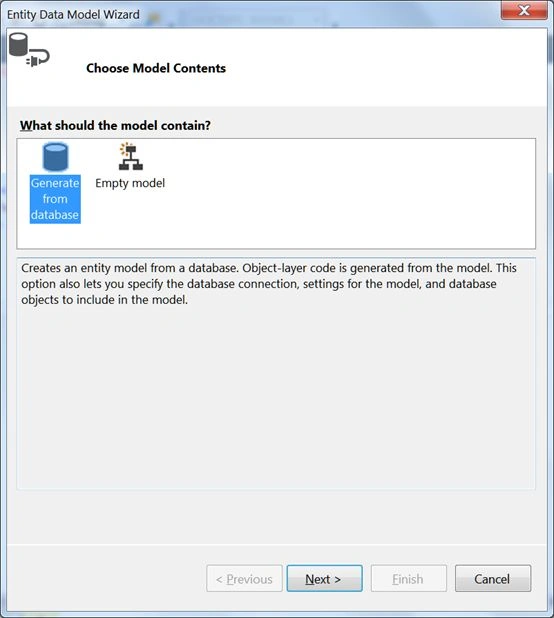
Step 11: Right-click the project and add an ADO.NET Entity Data Model, click "Add" and use the following procedure:
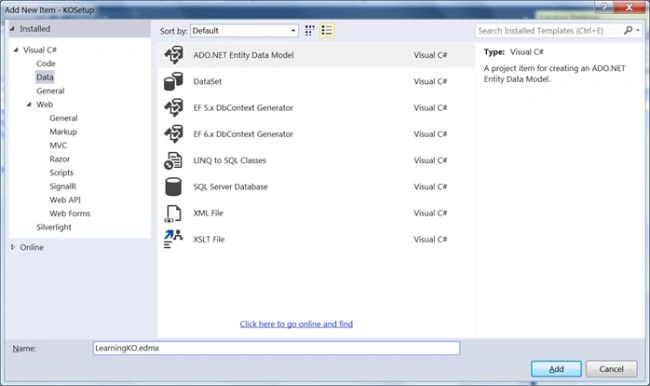
Step 12: The following is the second step of the Entity Data Model, you can choose model contents from the database you already created. So select "Generate From database". Click Next.
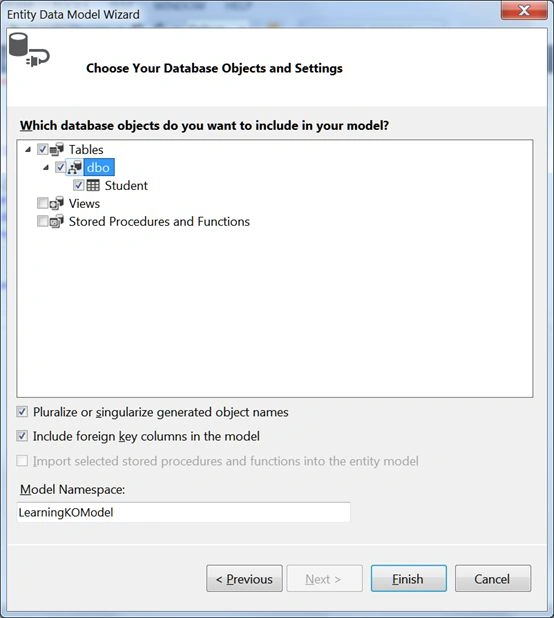
Step 13: Choose the table you want to add, in other words the Student table, as shown below in the figure. Name the model "LearningKOModel". Click "Finish".
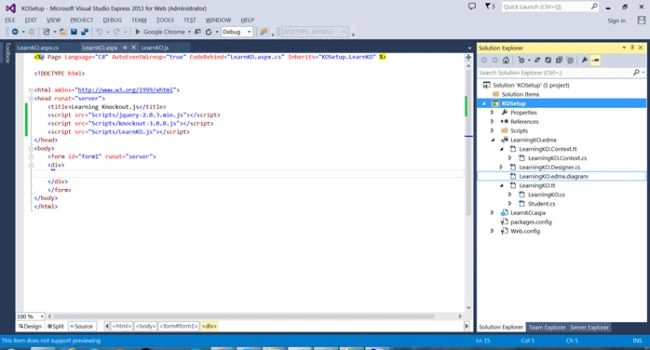
 Step 14: We get certain files in our solution, like context and tt files. We also get a "Student.CS" file, that will act as our server-side domain model. The context class contains the data communication methods of the Entity Framework.
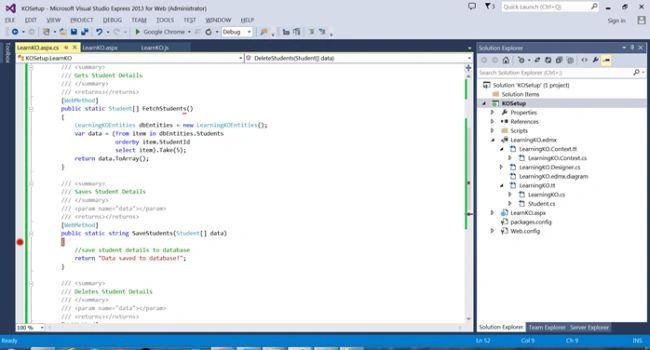
 Step 15: Write three methods using the Entity Framework in our "aspx.cs" page. One method fetches all the students and another method saves and deletes students to/from the database, as shown below. Mark them as web methods so that they could be called from the client-side.
Code
Code
- #region Public Web Methods.
- /// <summary>
- /// Gets Student Details
- /// </summary>
- /// <returns></returns>
- [WebMethod]
- public static Student[] FetchStudents() {
- LearningKOEntities dbEntities = new LearningKOEntities();
- var data = (from item in dbEntities.Students orderby item.StudentId select item).Take(5);
- return data.ToArray();
- }
- /// <summary>
- /// Saves Student Details
- /// </summary>
- /// <param name="data"></param>
- /// <returns></returns>
- [WebMethod]
- public static string SaveStudent(Student[] data) {
- try {
- var dbContext = new LearningKOEntities();
- var studentList = from dbStududent in dbContext.Students select dbStududent;
- foreach(Student userDetails in data) {
- var student = new Student();
- if (userDetails != null) {
- student.StudentId = userDetails.StudentId;
- student.FirstName = userDetails.FirstName;
- student.LastName = userDetails.LastName;
- student.Address = userDetails.Address;
- student.Age = userDetails.Age;
- student.Gender = userDetails.Gender;
- student.Batch = userDetails.Batch;
- student.Class = userDetails.Class;
- student.School = userDetails.School;
- student.Domicile = userDetails.Domicile;
- }
- Student stud = (from st in studentList where st.StudentId == student.StudentId select st).FirstOrDefault();
- if (stud == null)
- dbContext.Students.Add(student);
- dbContext.SaveChanges();
- }
- return "Data saved to database!";
- } catch (Exception ex) {
- return "Error: " + ex.Message;
- }
- }
- /// <summary>
- /// Deletes Student Details
- /// </summary>
- /// <param name="data"></param>
- /// <returns></returns>
- [WebMethod]
- public static string DeleteStudent(Student data) {
- try {
- var dbContext = new LearningKOEntities();
- var student = dbContext.Students.FirstOrDefault(userId => userId.StudentId == data.StudentId);
- if (student != null) {
- if (student != null) {
- dbContext.Students.Remove(student);
- dbContext.SaveChanges();
- }
- }
- return "Data deleted from database!";
- } catch (Exception ex) {
- return "Error: " + ex.Message;
- }
- }
- #endregion

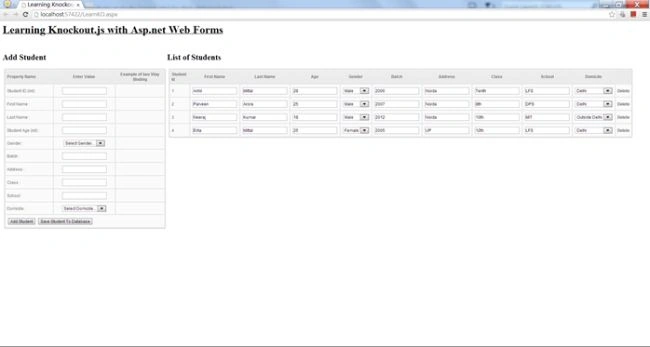
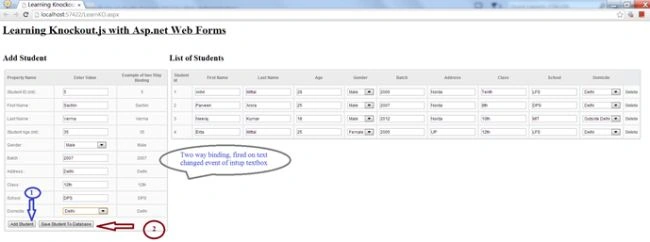
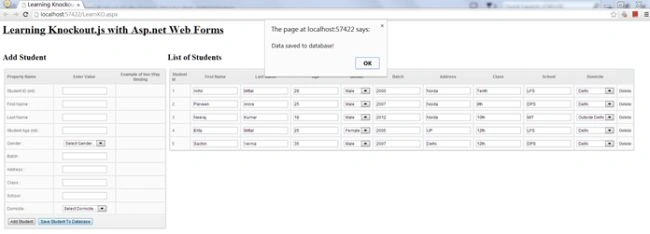


kp sharmaPosted Apr 6, 2022, 12:22 PM
How to edit the form and save into database
Mahavirsinh PadhiyarPosted Aug 29, 2019, 11:33 PM
Hello csharppulse.blogspot.in is not working.
Ankit LadPosted Nov 20, 2017, 3:47 AM
Can any one have code without using entity
Ankit LadPosted Nov 14, 2017, 2:52 AM
When I press save button nothing happened
Ankit LadPosted Nov 14, 2017, 2:51 AM
Only form is displayed
Ankit LadPosted Nov 14, 2017, 2:51 AM
My data not save in to database
Ankit LadPosted Nov 14, 2017, 2:50 AM
My data is not save
Ankit LadPosted Nov 14, 2017, 2:49 AM
My data is not save to database only
Bhuvanesh MohankumarPosted May 3, 2016, 12:42 PM
Nice
Sr KarthigaPosted Mar 2, 2016, 7:25 AM
good one
Sr KarthigaPosted Mar 2, 2016, 7:25 AM
Nice explanation
Gowtham RajamanickamPosted Apr 25, 2015, 5:56 AM
good one
Sameh NagyPosted Feb 17, 2014, 7:51 AM
maximum records to display 98 rows , how i make paging in list table ??
Devbrat RaghuvanshiPosted Dec 17, 2013, 2:38 AM
mast hai
Former memberPosted Dec 7, 2013, 7:36 PM
nice article
Arvind PradhanPosted Dec 7, 2013, 10:04 AM
very good
Sanjay KumarPosted Dec 7, 2013, 5:37 AM
Nice Articles..knockout.js
Pankaj RanaPosted Dec 6, 2013, 7:52 AM
This code giving compile time error on Add and Remove mehods
Ekta MittalPosted Dec 5, 2013, 12:05 PM
Gud one
Mahesh ChandPosted Dec 5, 2013, 8:44 AM
Job well done, akhil.
Rajneesh RaiPosted Dec 5, 2013, 4:56 AM
Excellent article !! but there is a typo error in student ViewModel i.e. "elf.Address = ko.observable();". it should be self.Address = ko.observable();"
Abhineet SrivastavaPosted Dec 5, 2013, 4:15 AM
Great One :)