

Today I will be discussing a really awesome new phenomenon that will give your site a total new Windows 8 look in terms of tile-like structuring.
Normally in past SharePoint versions we only had links as a template to store links and add as a web part to our Home or other pages but not anymore.
It is better I show you that than just expressing my awesomeness.
Go to the Site Contents of the site and click on Add an App.

- Find Promoted Links.
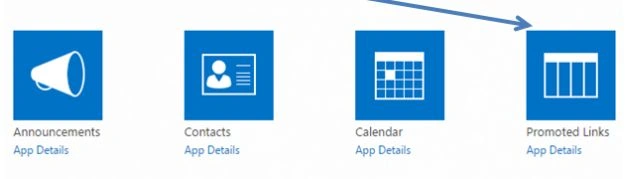
- Click on it.
- You will find the screen below, click on Add it.
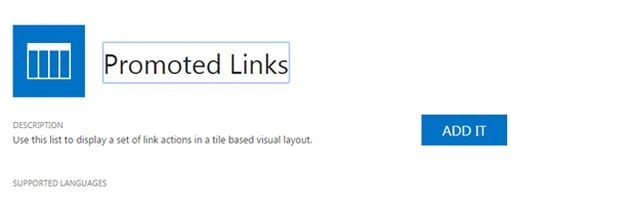
- You can name the Promoted Links and provide a description for storing all your links.
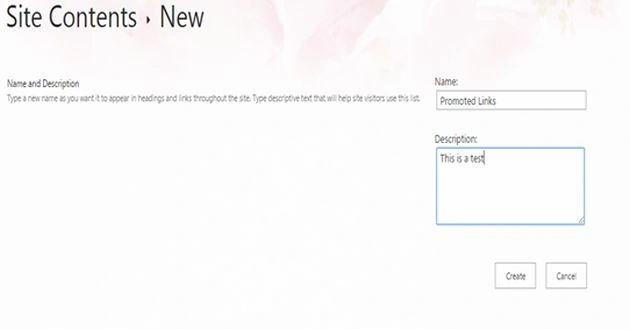
- Click on Create.
- You will find the following message:
- “The list is empty. Add tiles from the All Promoted Links View”.
- Click on It.
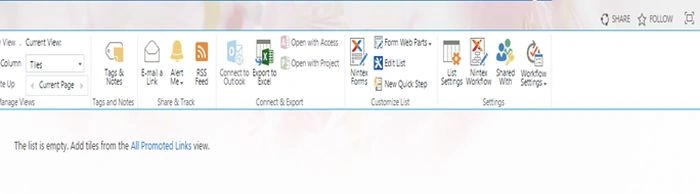
- You will be re-directed to the Promoted Links page as in the screen below.
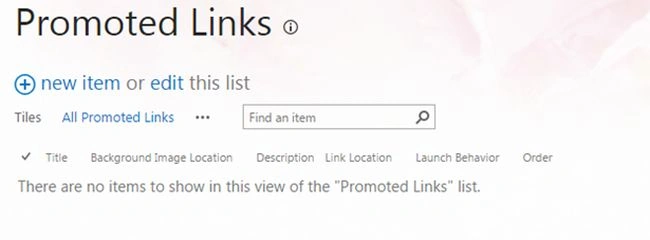
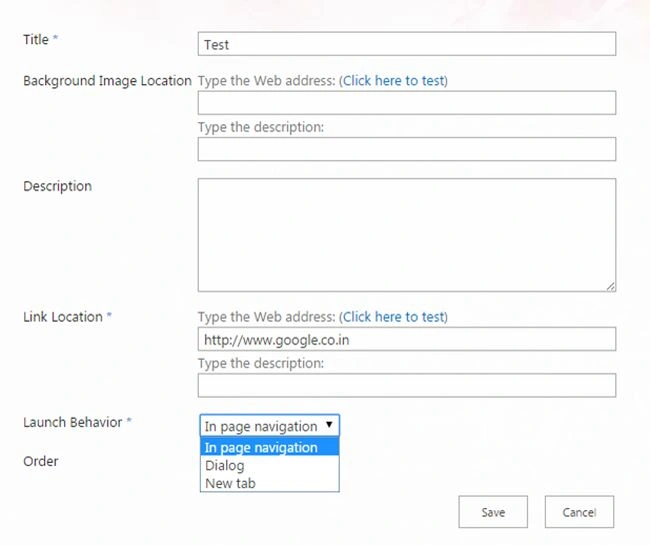
- Click on the new item link and add the following data.
- Title of the link
- Background Image Location where you can refer a URL from your picture library.
- Description of the link
- Link Location: Provide the link you want it to be associated to.
- Launch Behavior, as to where you want that link to open. In a page navigation which means on the same page, or as a Dialog or as a new tab.
- Title of the link
- Once you click, save the item.
- You will be moved to the All items links page.
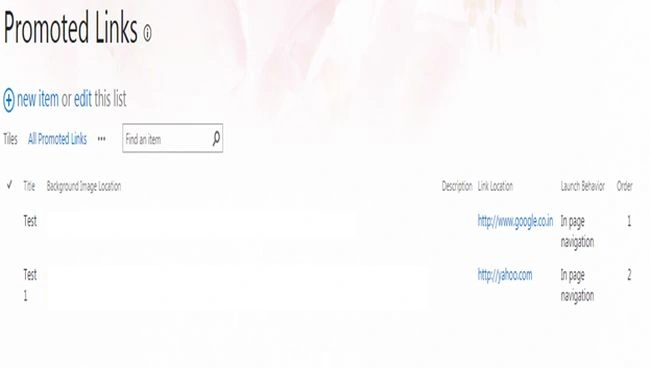
Click on Promoted Links, you will see the following Tile like structure beautifully arranged in an order.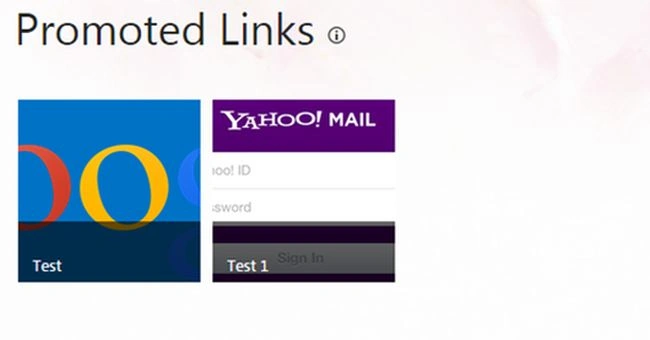
The best part is you can add it to your page as in a horizontal or vertical direction thereby giving your site a beautiful tile-like outlook.
Keep learning!
Cheers.
Manpreet SinghPosted Sep 24, 2014, 11:18 PM
Thank You Vijai Anand !!
Vijai Anand RamalingamPosted Sep 24, 2014, 10:04 PM
Nice one!!!