

Introduction
We have come a long way from the days Steve Balmer declared Linux 'a cancer', and the culture of 'fear uncertinty and doubt' was tightly ingrained across Microsoft. I recall baulking when I heard it the first time... what a guy.... :/

Thankfully things have moved far from that era, and we now have true visionaries at the wheel. I continue to be delighted daily by Microsoft 2.0, by their new embrace of openness and the seeming realisation that sharing and integrating floats everyone to the top, and thats a very good thing. My preferred operating system for work is Windows, but I am also a heavy Linux user. Generally I keep a Virtual Machine open for my Linux work or use a second or remote box. Recently however I decided to install the BASH command line tool onto all of my machines, and honestly, for most tasks, I rarely have to spin up a local virtual machine any more, I simply use the Windows Bash tool, and its highly recommended! (but might not make Steve happy!!)

Background
This short article forms part of the DevOps/Infrastructure focused series, building out a cloud agnostic virtual machine cluster on Azure using different technologies including Terraform, Kubernetes, and Docker. In the first article in this series, I introduced 'Terraform', and gave an introduction to what it is, and how to use it. The second article dicussed how to use variables, interpolation and resource count to make multiple copies of resources to save duplication of config/code. The third article covered using scripts to remotly install and update machines using Terraform scripts.
When buliding the foundation base virtual machines, we need to generate SSH keys, and also need to be abel to remote into our machines. It turns out that having 'Bash on windows' installed makes this process much easier. This article walks through the steps of setting things up.
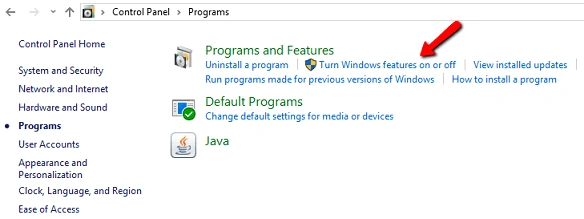
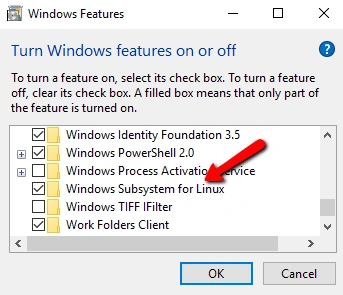
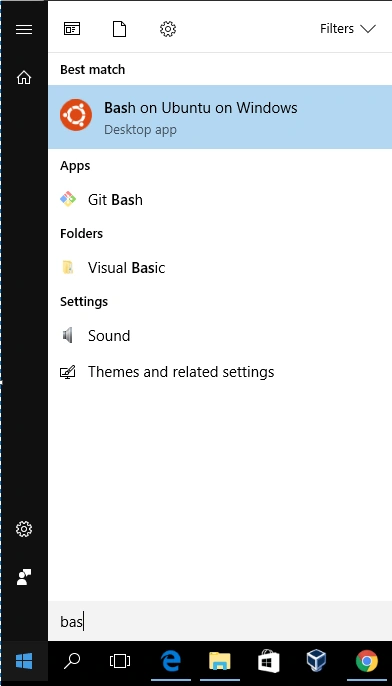
Installing BASH on Windows 10
Step 1
The Bash utility was actually introduced in the Windows 10 anniversity edition, and the major pre-requisite for installing it is to ensure that your vesion of Windows 10 is up to date, and the 64 bit version.
Step 2
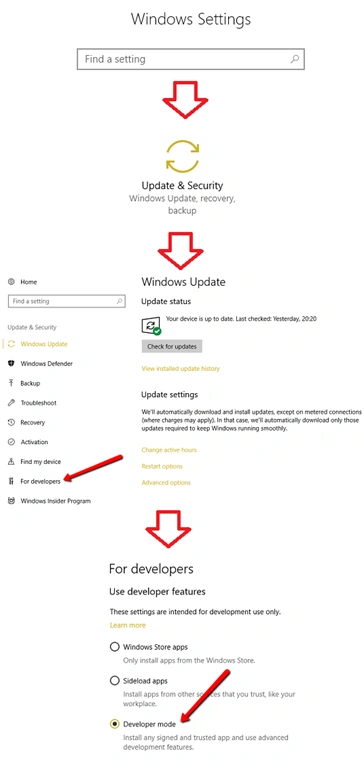
Get your machine into Developer mode state.
Go into> settings, updates and security, 'for developers', and ensure the 'developer mode' setting is turned on. If not, turn it on, accept the warning message, and reboot your machine (do it now, I'll wait...).


Muralidharan DheenadhayalanPosted Nov 7, 2017, 2:18 AM
Thanks for sharing it.