

Introduction
Today, in this article let's play around with one of the interesting and most useful concepts in SharePoint 2010.
Question: What is list definition?
In simple terms "It provides a basic template for creating a list using a XML based code format".
Step 1: Open SharePoint 2010 Central Administration and navigate to a specific site.
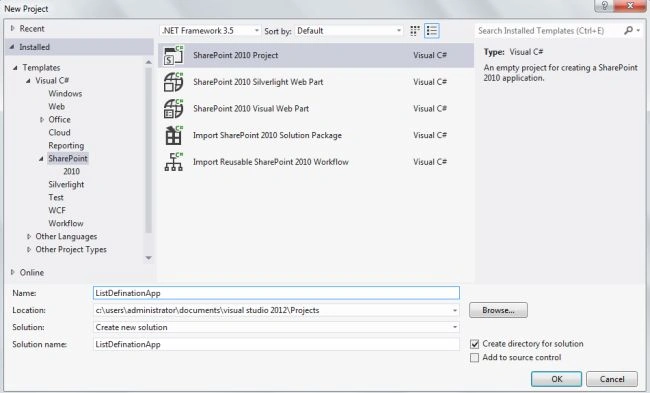
Step 2: Open up Visual Studio 2012 and create a "SharePoint 2010 Project", as in:
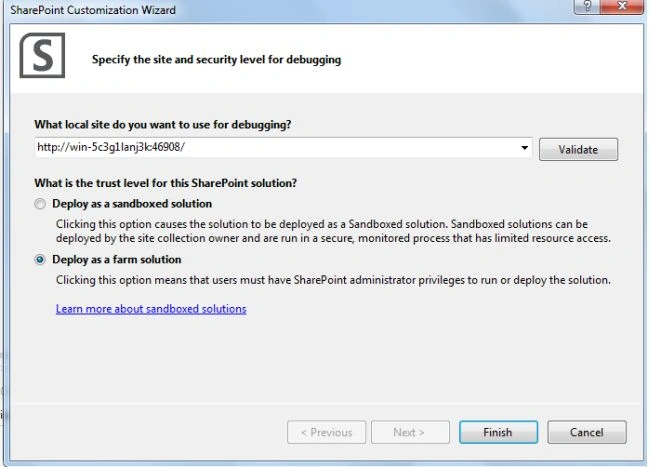
Step 3: Select "Deploy as a farm solution" as in the following and click the "Finish" button.
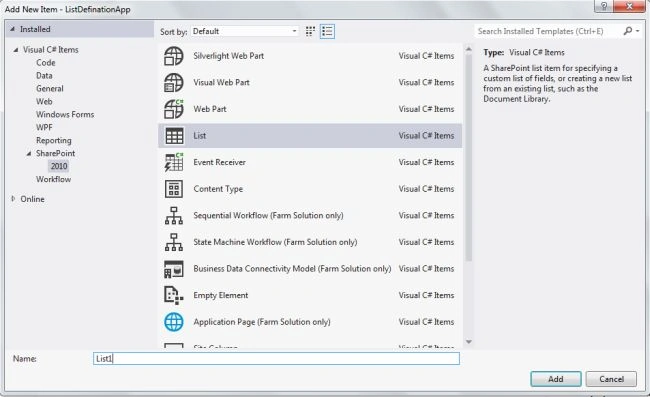
Step 4: Add a new list item to the project and click on the "Add" button, as in:
Step 5: The complete code of Element.xml looks like this:
<?xml version="1.0" encoding="utf-8"?>
<Elements xmlns="http://schemas.microsoft.com/sharepoint/">
<Field ID="{3F96E376-7035-45DF-B444-73226A4B2F16}" Name="CandidateFirstName" Type="Text" DisplayName="Candidate FirstName" Required="TRUE" NumLines="6" ></Field>
<Field ID="{05BC8B0D-BF57-45CB-8187-7978767A816F}" Name="CandidateLastName" Type="Text" DisplayName="Candidate LastName" Required="TRUE" NumLines="6" ></Field>
<Field ID="{011FBC29-B7FC-45C2-8A53-C85388C31471}" Name="CandidateAge" Type="Number" DisplayName="Candidate Age" Required="TRUE" NumLines="6" ></Field>
<ContentTypeID="0x0100736C62A68F6A408E8D0800B14AF43E0E"Name="CandidateDetails"Group="Content Types"Description="Candidate Details"Version="0">
<FieldRefs>
<FieldRef ID="{3F96E376-7035-45DF-B444-73226A4B2F16}" Name="CandidateFirstName" DisplayName=" Candidate FirstName" Required="TRUE"/>
<FieldRef ID="{05BC8B0D-BF57-45CB-8187-7978767A816F}" Name="CandidateLastName" DisplayName=" Candidate LastName" Required="TRUE"/>
<FieldRef ID="{011FBC29-B7FC-45C2-8A53-C85388C31471}" Name="CandidateAge" DisplayName=" Candidate Age" Required="TRUE"/>
</FieldRefs>
</ContentType>
<ListInstance Title="List1" OnQuickLaunch="TRUE" VersioningEnabled="TRUE"TemplateType="100" FeatureId="00bfea71-de22-43b2-a848-c05709900100" Url="Lists/List1" Description="My List Instance" Hidden="FALSE"></ListInstance>
</Elements>
Step 6: Deploy the solution file and navigate to a SharePoint site.
Step 7: The output of list created application looks like this:
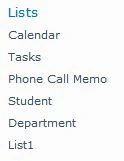
Step 8: The content type adding to list output of the application looks like this:
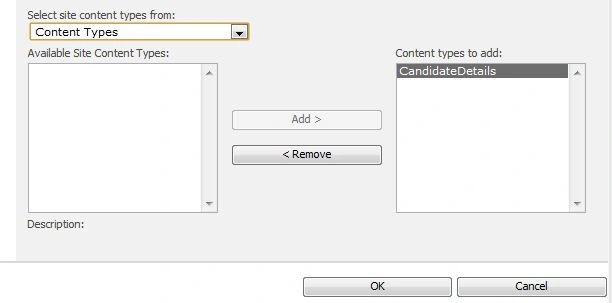
Step 9: Data entering output of the application looks like this:

Step 10: Data in list output of the application looks like this:

I hope this article is useful for you.
Comments
Join the conversation! Your thoughts help the community grow.