

This article shows you how to create and use a ListBox control available in Silverlight 2.0.
ListBox
The ListBox tag represents a Silverlight ListBox control in XAML.
<ListBox></ListBox>
The Width and Height attributes represent the width and the height of a ListBox. The x:Name attribute represents the name of the control, which is a unique identifier of a control.
The following code snippet sets the name, height, and width of a ListBox control.
<ListBox x:Name="McListBox" Width="300" Height="200">
</ListBox>
Adding ListBox Items
A ListBox control hosts a collection of ListBoxItem. The following code snippet adds items to a ListBox control.
<ListBox x:Name="McListBox" Width="300" Height="200">
<ListBoxItem Content="Coffie"></ListBoxItem>
<ListBoxItem Content="Tea"></ListBoxItem>
<ListBoxItem Content="Orange Juice"></ListBoxItem>
<ListBoxItem Content="Milk"></ListBoxItem>
<ListBoxItem Content="Iced Tea"></ListBoxItem>
<ListBoxItem Content="Mango Shake"></ListBoxItem>
</ListBox>
The above code generates Figure 1.
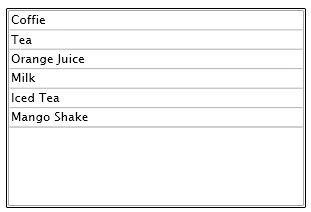
Figure 1. ListBox with items
Formatting ListBox Items
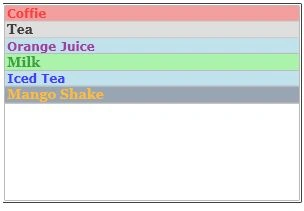
The Foreground and Background attributes of ListBoxItem represents the background and foreground colors of the item. The following code snippet sets background and foreground color of a ListBoxItem.
<ListBoxItem Background="LightCoral" Foreground="Red" Content="Coffie"></ListBoxItem>
The FontFamily, FontSize, and FontWeight are used to set a font of a ListBoxItem. The following code snippet sets font verdana, size 12, and bold of a ListBoxItem.
<ListBoxItem Background="LightCoral" Foreground="Red" Content="Coffie"
FontFamily="Verdana" FontSize="12" FontWeight="Bold"></ListBoxItem>
I set the following properties of ListBoxItems.
<ListBoxItem Background="LightCoral" Foreground="Red" Content="Coffie"
FontFamily="Verdana" FontSize="12" FontWeight="Bold"></ListBoxItem>
<ListBoxItem Background="LightGray" Foreground="Black" Content="Tea"
FontFamily="Georgia" FontSize="14" FontWeight="Bold"></ListBoxItem>
<ListBoxItem Background="LightBlue" Foreground="Purple" Content="Orange Juice"
FontFamily="Verdana" FontSize="12" FontWeight="Bold"></ListBoxItem>
JM StephensPosted Dec 28, 2010, 6:03 PM
thanks
Satyadeep BeheraPosted Sep 22, 2010, 2:57 AM
Hi I am able to solve it by using PresentaionFrameWorkCollection<Object> Items = lstBox.Items; foreach(Object Item in Items) { CheckBox chkSelect = Item as CheckBox; if(chkSelect != null) chkSelcet.IsChecked = True; } But this works when I directly add some items to the ListBox, but if i am adding as ItemsSource as ObservableCollection<Model> object then giving error, does it means i need to create separate ClientViewModel which have a property boolean to handle the check/uncheck. if you have any suggestion please let me know.
Satyadeep BeheraPosted Sep 21, 2010, 9:14 AM
Hi I am writing for "Check All" method, can you tell me in the LostBox containt how to get each checkBox. i am trying lstBox.ItemContainGenerator.ContainFromItem(lstBox,Items[i]) as CheckBox Which returns null object.