

SharePoint 2010 has a few lists created for you. They are announcements, tasks and Discussion Boards. There may occur some situations in which you may want to create your own list. Here is the procedure to do that.
To create a new list or custom list in your SharePoint 2010 Team Site you need to have Manage List Permission. This is granted by a Hierarchy Managers SharePoint group. The following procedure is the same for creating new libraries also.
Step 1
In your SharePoint site, choose site Actions and then choose more options. You can access the create page dialog. You can also access this by clicking on the create button in the "View all site content" option.
Step 2
On the create page that appears, we can see filter by section on the left side. Choose the links in that section as shown below.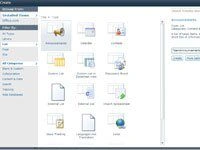
Step 3
In the middle section of the create page, select the type of list you want. If you need a custom list, click on the custom icon and on the right section and name it.
Step 4
Click on the create button.
Types of SharePoint lists
There are default lists available in the web page. Those are listed here.
- Announcements: To display a brief announcement in your site's home page. This is set for a certain period of time and they can be set an expiration date.
- Contacts: To keep track of contacts when it is synchronised with Outlook.
- Discussion Board: To create a discussion forum where users can post messages and reply to them. We can evaluate third-party add-ons if you want robust discussion forums.
- Links: We can use it to track hyperlinks. Uses a hyperlink column that automatically formats entered text as HTML anchor tags.
- Calendar: To track calendar items and can be synchronised with Outlook.
- Tasks: Can be used to track tasks from Outlook.
- Project Tasks: To track work items for a project.
- Issue Tracking: To track trouble tickets. Works with issues that have states open, closed and resolved.
- Survey: To take a poll. To create a set of questions users must walk through.
- Custom: To create a list with columns that you define.
- Key Performance Indicator: To display graphic status indicators.
- Import spread sheet: To create a list based on an existing spreadsheet.
- External: To create a list based on a data source outside SharePoint.
Lists can be used to show tables in databases to store data for an application. Lists are stored as a single table in SharePoint's content database.
Using Ribbons to manage lists
You can edit, view, delete and insert an item in a list. You can also determine which column in the list can be viewed.
The menu command in the ribbon allows you to manage a list by providing two tabs as in the following:
Items: Displays all the commands you need for working with items.
List: Displays commands for managing and customising entire lists such as creating views and exporting them to Excel.
How to enter data in SharePoint Lists
Step 1: In the Ribbon, click the items tab and then click the new item button to add an item to the list.
Step 2: Click the Save button once you have finished adding the list of items.
Step 3: To select an item in the list select the checkbox in the row to edit or view.
Step 4: To edit an item in the list use the edit item tab in the ribbon.
Step 5: To view an item in the list select the row in which you wish to view and click the view item button.
CREATING CUSTOM LISTS
On the create page category you can find the custom list category. The list categories on the Create page include:
- Custom List: Displays a list with title column.
- Custom List in Datasheet View: A list with a title column that displays in a datasheet or spreadsheet view by default.
- Imported stylesheet: A dialog that allows you to import a spreadsheet into a SharePoint list.
- External List: A list that displays information from an external source such as a database.
To create a custom list, choose any one of the preceding lists and provide a name on the TextBox at the right hand side.
Creating custom lists
- In the ribbon section of the browser, click the list tab on the ribbon and then click create column in the manage views group.
- Select a name for your column.
- Select the type of information you want to store in your column.
- In the additional columns settings section, select the option that further defines your columns type.
- You can also enable validation if you want.
- Click OK.
SriramPosted Jul 3, 2015, 8:26 AM
Good.......
Krishnanand SivarajPosted Apr 23, 2015, 11:12 AM
Thanks
Karthik Muthu KaruppanPosted Apr 23, 2015, 11:11 AM
Nice