Introduction
The Load order is used for default sorting. It can also be used for setting color and order. It can be used by two functions like FieldValue() and FieldIndex().
The FieldValue() function returns the value of a field and FieldIndex() returns either the value or reference to a value from a table.
Load order using Inline load
By using an Inline load we set the load order. The following is the procedure for specifying a Load order using an inline load in a QlikView application.
Step 1: Open the QlikView application
It is the first step, in this step you need to open the QlikView application then go to File -> New then this window will be opened.
Step 2: Open Edit Script
The second step is to open the edit script window from:
File -> Edit Script.
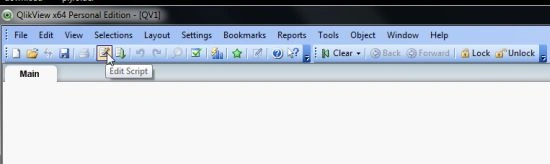
- Then this window will be opened.
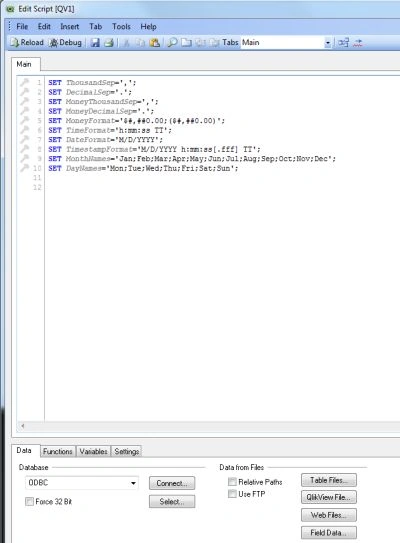
Step 3: Select Database
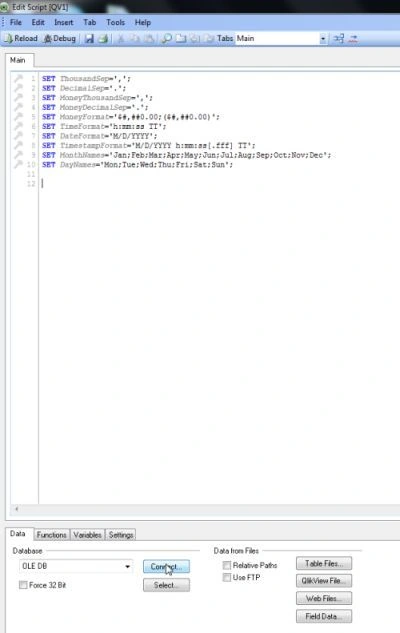
The third step is to select the database from the data tab and click on the Connect Button.
Step 4: Data link property window
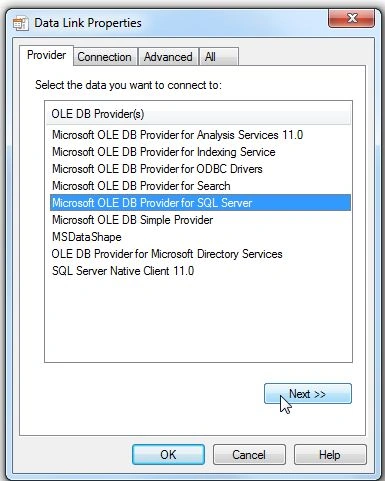
In this window we select SQL Server and click on the Next Button.
Step 5: Connection tab
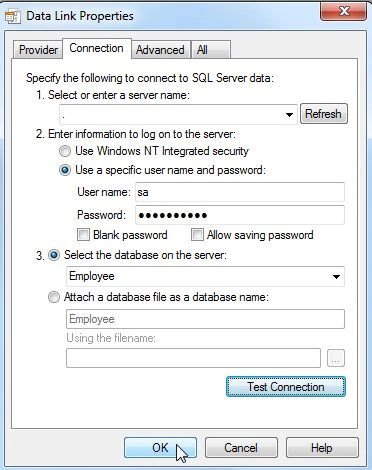
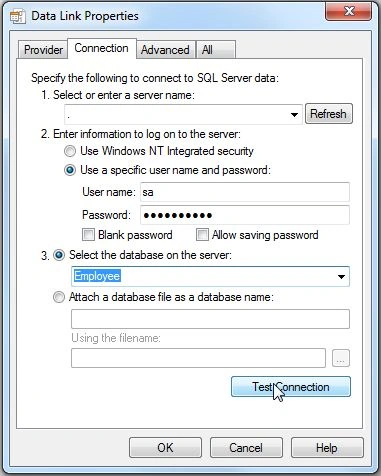
In the connection tab, enter the server name and user name and password and select the database from your server and click on Test Connection.
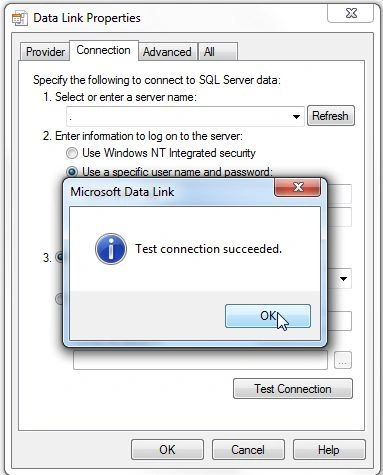
- Then you find that the test connection succeeded and click on the OK button.

- Then click on the OK button.

Step 6: SQL Server login
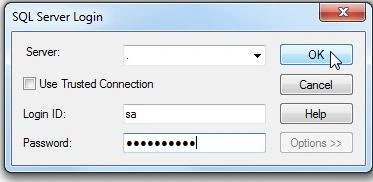
Then a SQL Server login is required so enter a valid login id and password and click on the OK button.
- Then this window will be opened.

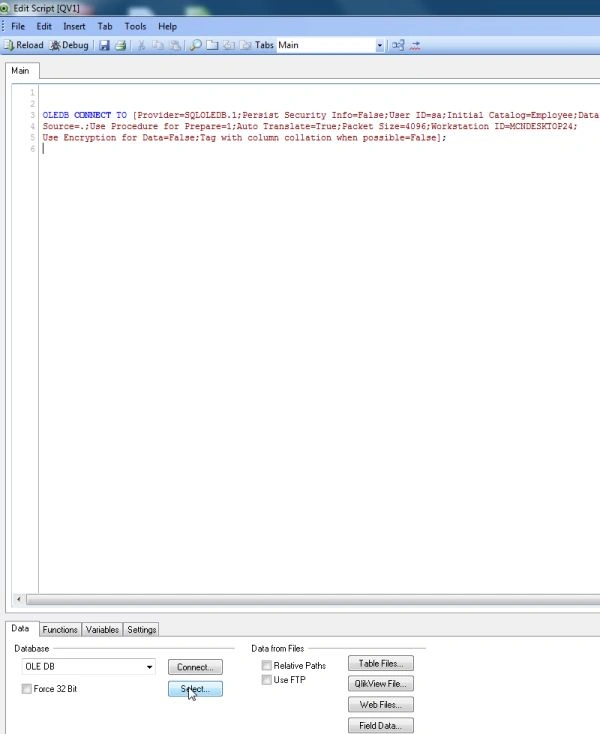
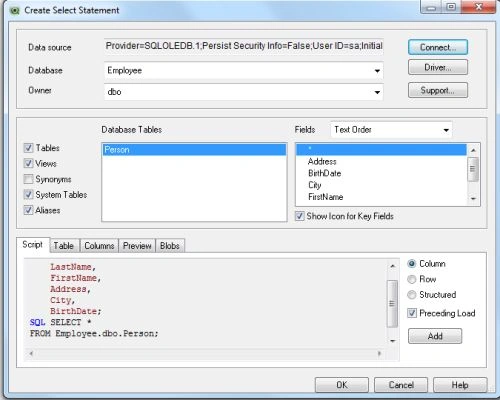
Step 7: Create select statement
When we click on the Select button on the data tab then this window will be opened.
- Then this window will be opened then click on the OK button.

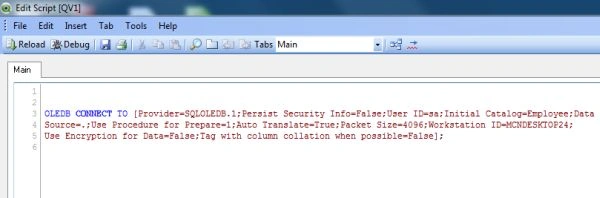
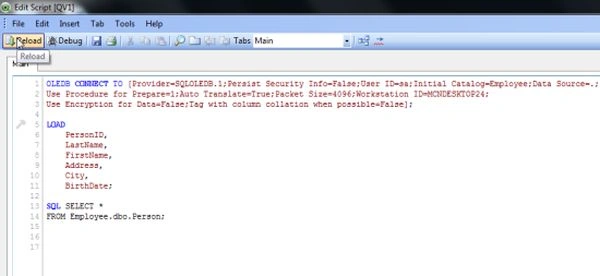
Step 8: Code of edit script
After login into the SQL Server, the edit script window will be opened and reload it.
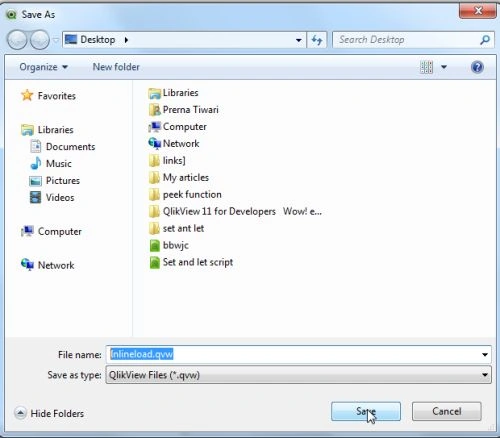
Step 9: Save QlikView file
After reloading the edit script, the next step is to save the QlikView file and click on the Save button.
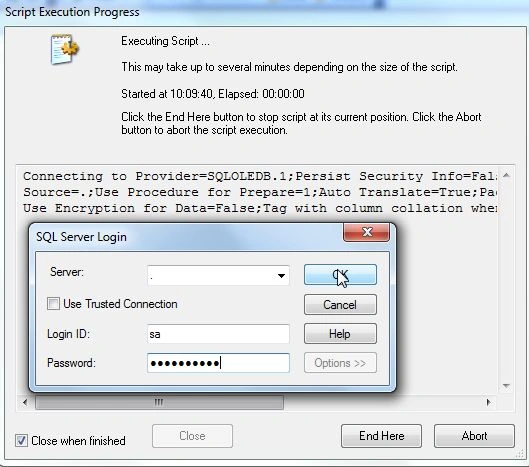
Step 10: Script execution progress
Then the script execution progress window will be opened and enter the required login Id and password and click on the OK button.
Step 11: Sheet property Window
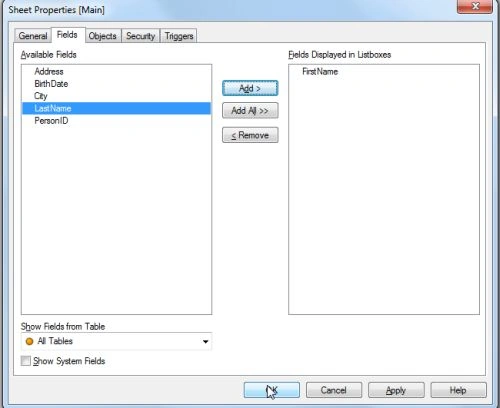
After this process, the sheet property window will be opened. If you want, add a field and select a field from the available fields and click on the OK button.
- Then this window will be opened:

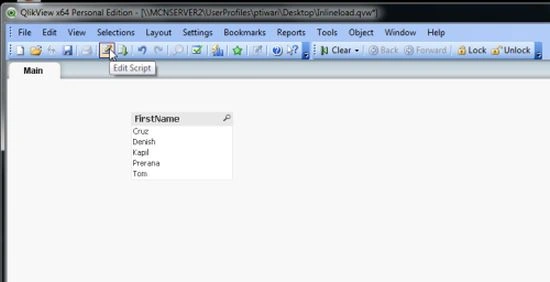
Step 12: Now you will see the main window and open again the edit script window.
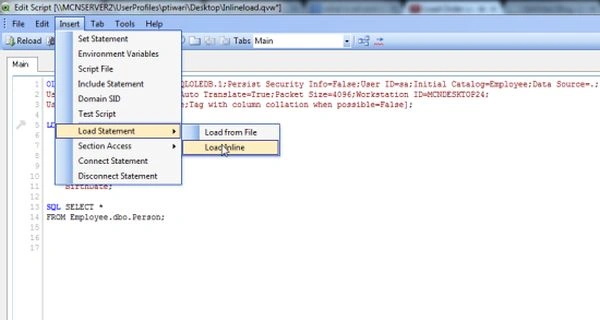
Step 13: Select Inline load
The next step is to select inline load from Insert -> Load statement -> Load inline in the edit script window.
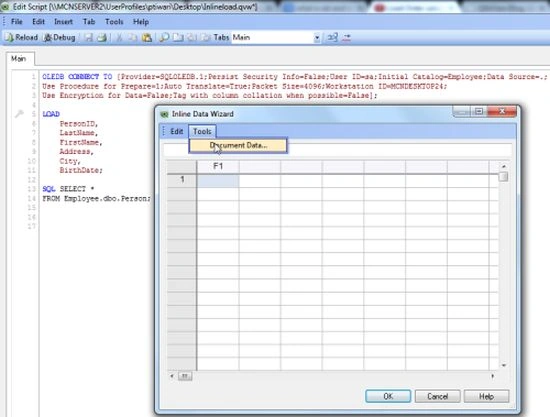
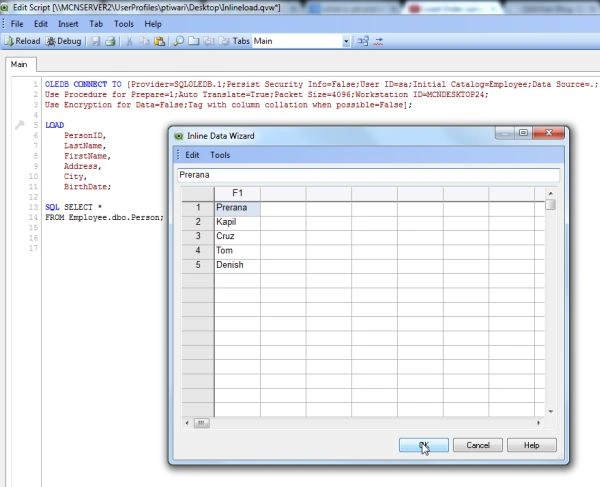
Step 14: Inline data wizard
This window will be opened and select Tools -> Document Data.
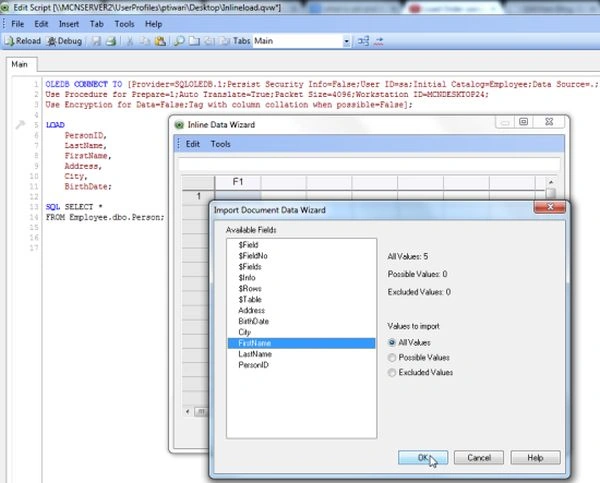
Step 15: Import document data wizard
Now this window will be opened, here we import our document that we added in the sheet property and click on the OK button.
Step 16: Now here we set the load order by using an inline load and click on the OK button.
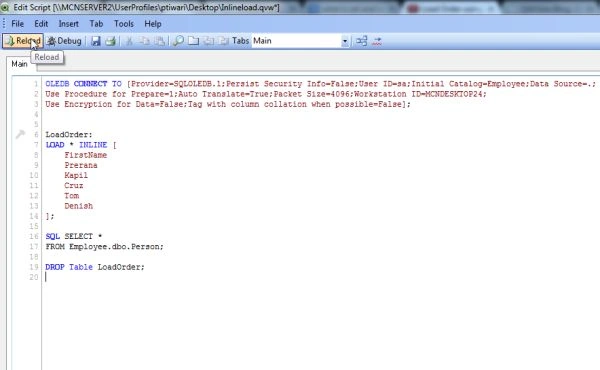
Step 17: Write this code in the edit script and reload it.
Step 18: Script execution progress
Then the script execution progress window will be opened and enter the required login id and password and click on the OK button.
Step 19: Sheet property Window
After this process, the sheet property window will be opened. Now we cannot add any field and click on the OK button.
- Then this window will be opened.

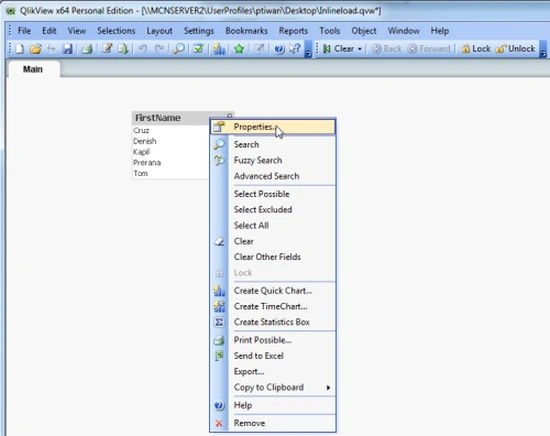
Step 20: Go to the properties of the table
Now we go to the properties of the table and set the property.
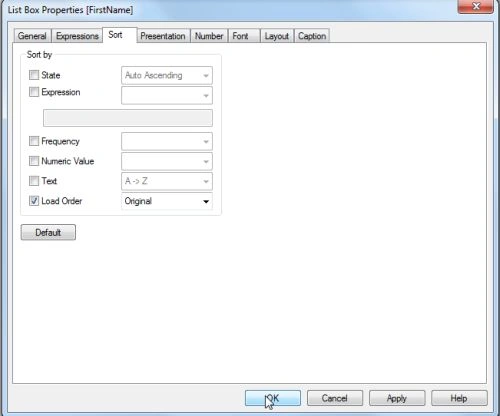
Step 21: Now the list box property window will be opened then go to the sort tab and set these properties as shown and click on the OK button.
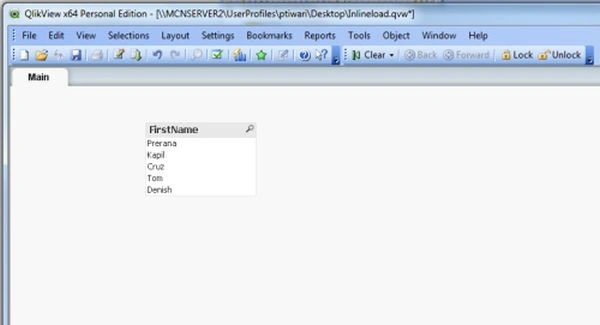
Step 22: Now you can see the final load order that you declared by using an inline load.
Summary
This article describes how we set the load order by using an inline load in a QlikView application.

Comments
Join the conversation! Your thoughts help the community grow.