

Introduction
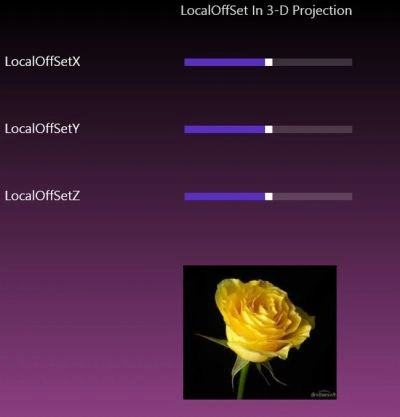
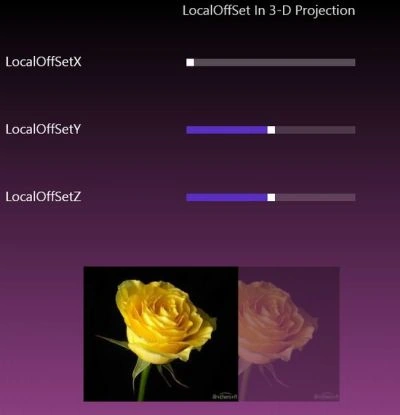
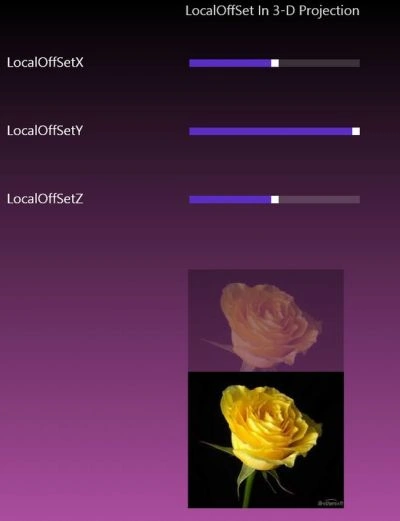
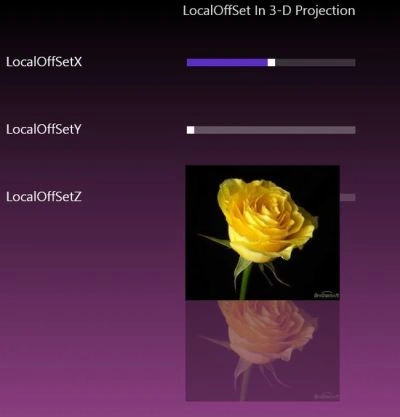
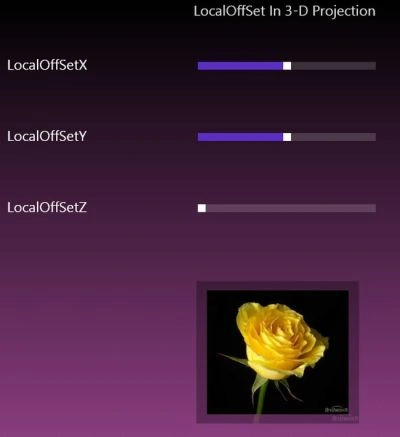
Today I am going to explain how to move an image using localoffset that is provided with 3-D Projection. We can also say that we apply the 3-D affect in the image using localoffset. For this we use the Projection properties of the image and also the PlaneProjection. To see how its works let's use the following steps.
Step 1
Open Visual Studio 2012 and go to File -> New -> Project. A window is shown; in that window select the Windows Store under the Visual C# from the left side pane and the BlankPage from the center pane. Give the name of your application as "LocalOffset" and then click ok.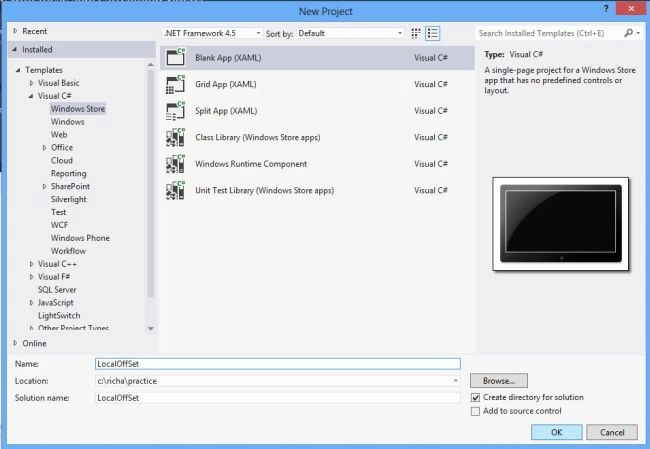
Step 2
Add any image that you want to move through the localoffset and put the 3-D affect in it, to your application, by right-clicking on the project in the Solution Explorer and click Add->Existing item, then a window is opened; in this select your image that you want to insert.
Step 3
Open the MainPage.xaml file, and apply the 3-D projection in the image as:
<Image Source="Yellow_Rose.jpg" Grid.Row="3" Margin="190,95,10,-95" Grid.ColumnSpan="2" Width="300" Height="200">
<Image.Projection>
<PlaneProjection x:Name="LocalOffSet"/>
</Image.Projection>
</Image>
Step 4
To apply the changes in the images I use the slider control that binds the projected image to the path and the mode so that the image will be moved, as:
<Slider Name="OffSetX" Minimum="-150" Maximum="150" Grid.Row="1" Grid.Column="1" Width="250" Margin="78,20,72,10" Value="{Binding ElementName=LocalOffSet, Path=LocalOffsetX, Mode=TwoWay}" />
Step 5
The complete code in MainPage.xaml file is as:
<Page
x:Class="LocalOffSet.MainPage"
xmlns="http://schemas.microsoft.com/winfx/2006/xaml/presentation"
xmlns:x="http://schemas.microsoft.com/winfx/2006/xaml"
xmlns:local="using:LocalOffSet"
xmlns:d="http://schemas.microsoft.com/expression/blend/2008"
xmlns:mc="http://schemas.openxmlformats.org/markup-compatibility/2006"
mc:Ignorable="d">
<Grid>
<Grid.Background>
<LinearGradientBrush EndPoint="0.5,1" StartPoint="0.5,0">
<GradientStop Color="Black"/>
<GradientStop Color="#FFF36CE1" Offset="1"/>
</LinearGradientBrush>
</Grid.Background>
<Grid.RowDefinitions>
<RowDefinition Height="50"/>
<RowDefinition Height="100"/>
<RowDefinition Height="100"/>
<RowDefinition Height="300"/>
</Grid.RowDefinitions>
<Grid.ColumnDefinitions>



Join the conversation! Your thoughts help the community grow.