

Introduction
In this article, we are going to explain how to lock down IE 10 by disabling Flash in Windows 8. Microsoft now includes Flash along with their Internet Explorer browser in Windows 8.
Through Internet Explorer
Step 1
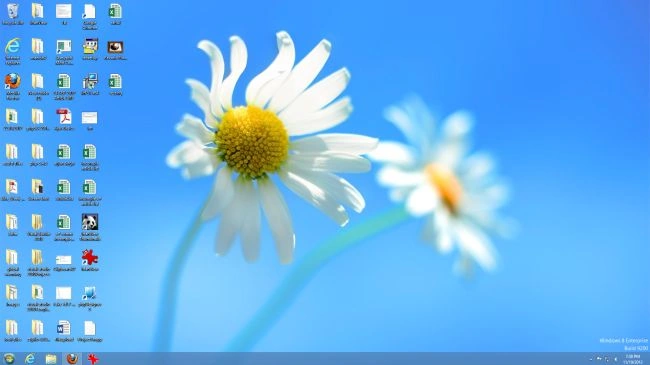
First of all, we have to move to the Windows 8 Desktop.
Step 2
Then we open Internet Explorer in the Windows 8 Desktop.

Step 3
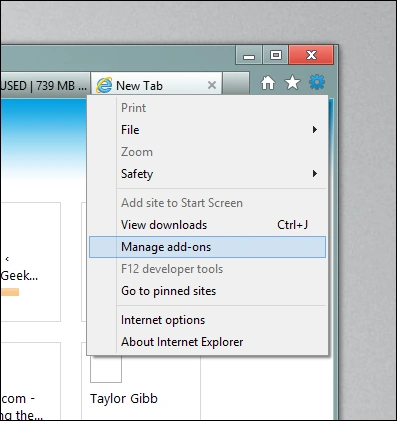
When IE opens, click on the gear icon, and then select Manage add-ons from the menu in Windows 8.
Step 4
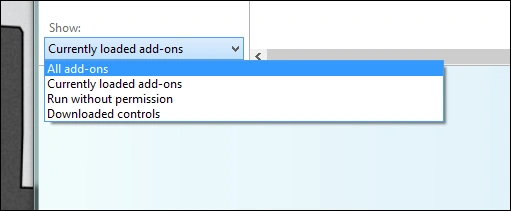
Next, we need to change the show settings, from currently loaded add-ons to all add-ons.
Step 5
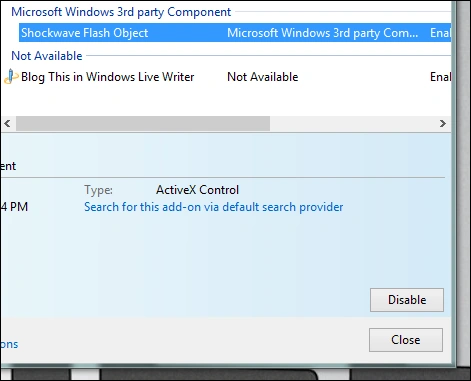
Now we select the Shockwave Flash Object add-on on the right-hand side, then click on the disable button.
Through Group Policy
Step 6
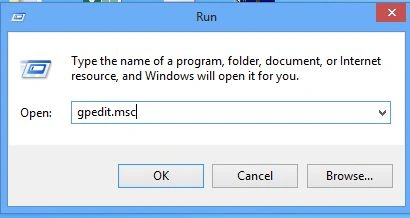
Alternatively, we could do it through a local Group Policy Object. Then we press the Win + R key, then we see a run box, and type gpedit.msc and hit enter.
Step 7
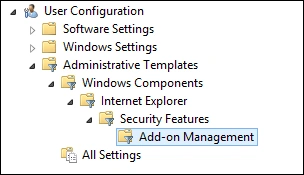
After this process we will need to drill down into:
User Configuration\Windows Components\Internet Explorer\Security Features\ Add-on Management
Step 8
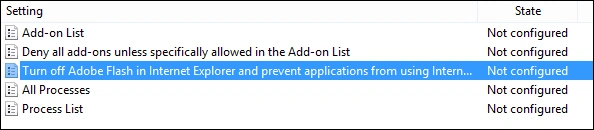
On the right-hand side of the window, we will see a setting called "Turn off Adobe Flash in Internet Explorer and prevent applications from using Internet Explorer technology to instantiate Flash objects", double-click on it.
Step 9
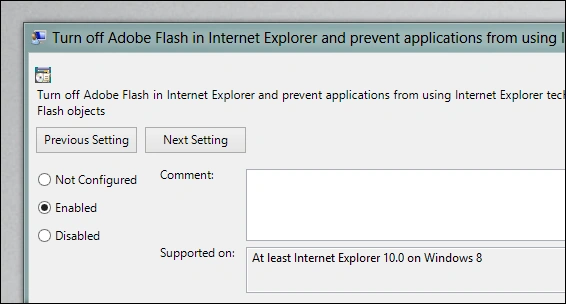
After this process, we switch the radio button from "Enabled" to "Disabled", then click on the OK button.
Step 10
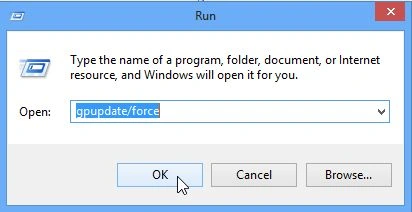
Next, we need to force the updated policy to take effect on your PC. To do this process we press the Win + R key.
When the run box opens, enter the following into it then hit Enter: gpupdate /force
It should be noted that the Group Policy method will always override what you specify in the interface.
Summary
In this article, we learned about LockDown IE 10 by Disabling Flash in Windows 8.
Join the conversation! Your thoughts help the community grow.