

Introduction
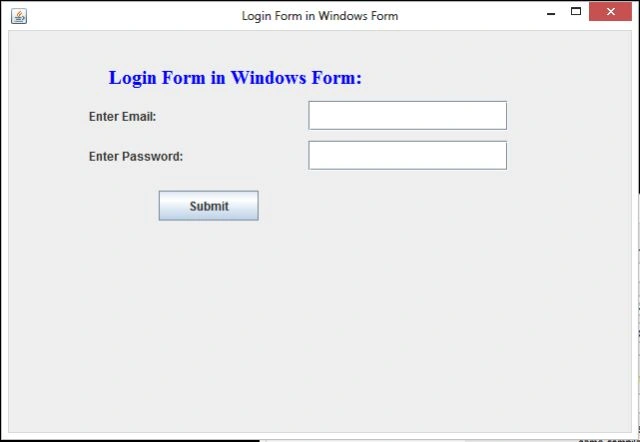
This article explains how to create a User Login in a Windows Forms application using the Swing concept of Java. The NetBeans IDE is used to create this application.
User Login App
For creating this app we need the following files:
- Java file
- SQL table
- ojdbc.jar file
1. Login.java
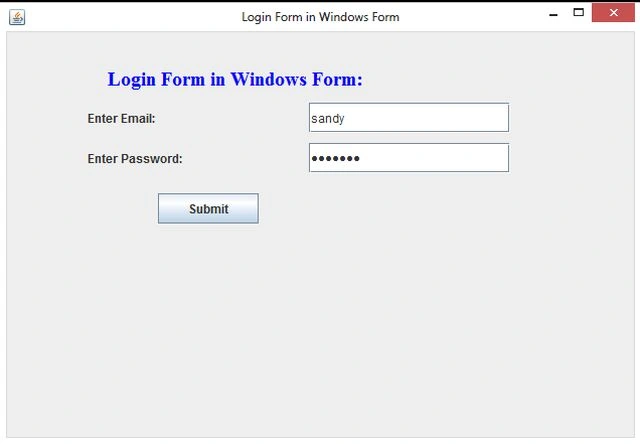
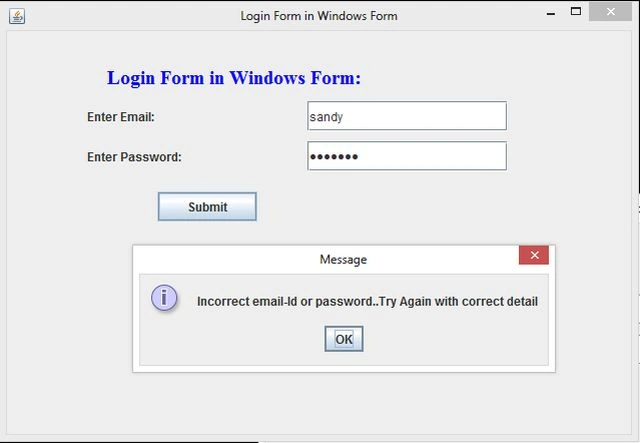
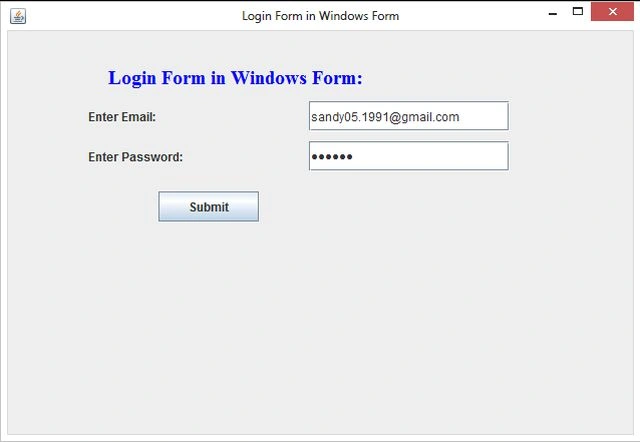
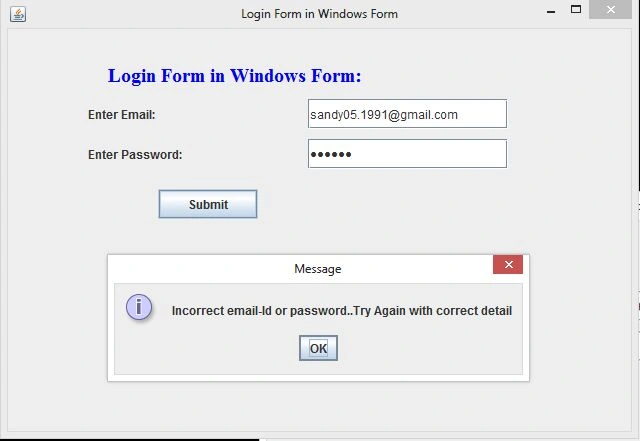
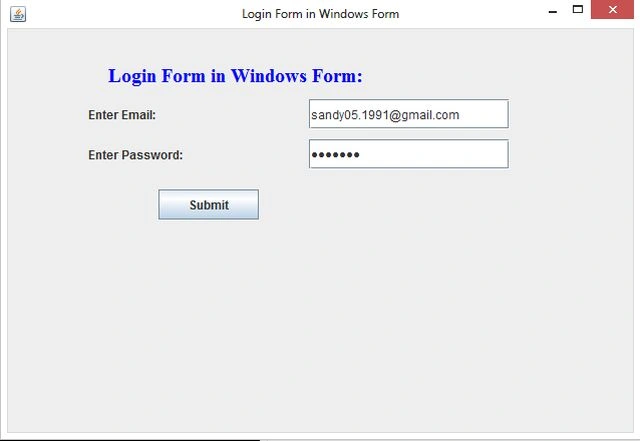
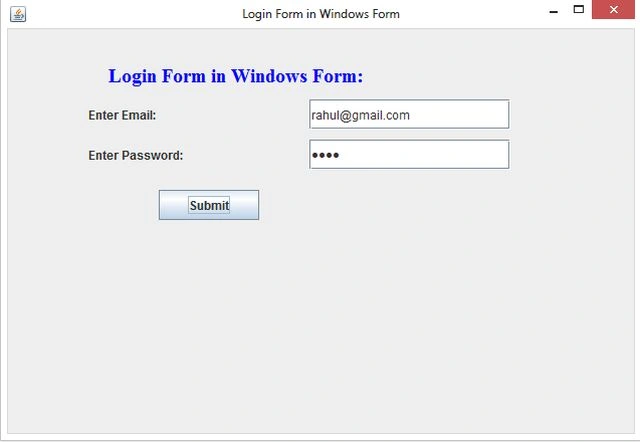
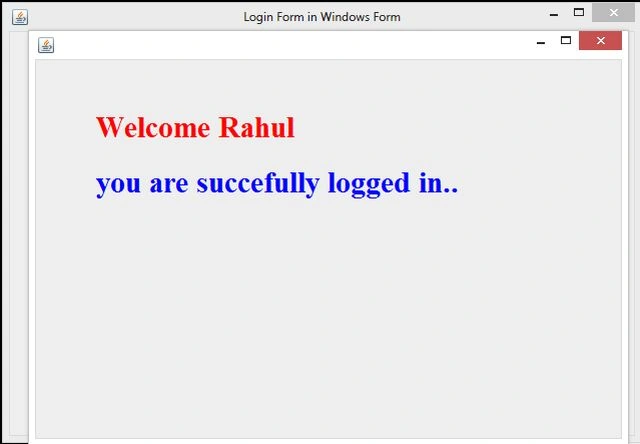
This Java file consists of all the logic. First of all we initialize JFrame components using a constructor, then create a database connection and finally set the database value to the textfield. If the given name is not found in the database then it displays an error message and displays it by running the constructor.
2. reg.sql
For fetching records we need a database table; for that we create a "reg" table in our database.
Syntax
reg.sql
create table emp
(
name varchar2(30), email varchar2(40),
pass varchar2(30), count varchar2(30),
state varchar2(30), phone number(15)
);
Insert some rows in it
1. insert into emp values ('Sandeep', '[email protected]', 'welcome', 'India','U.P','9717789441');
2. insert into emp values ('rahul', '[email protected]' , '1234', 'India','U.P','9015909090');
Now let's start creating this app. Use the following procedure to do that in the NetBeans IDE.
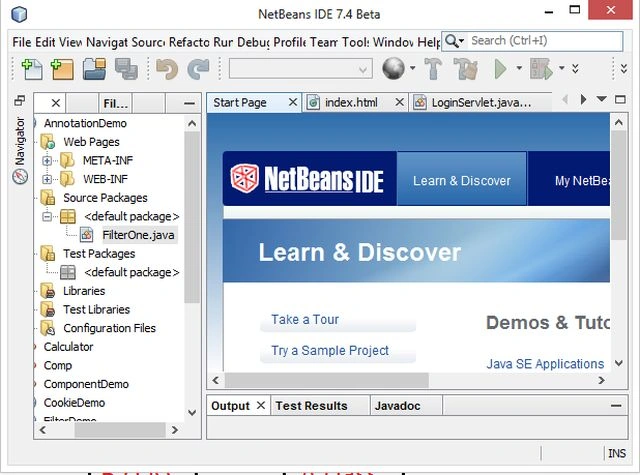
Step 1
Open the NetBeans IDE.
Step 2
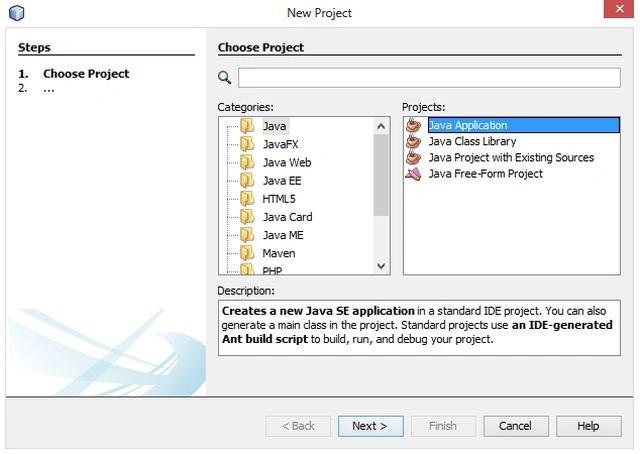
Choose "Java" -> "Java application" as shown below
Step 3
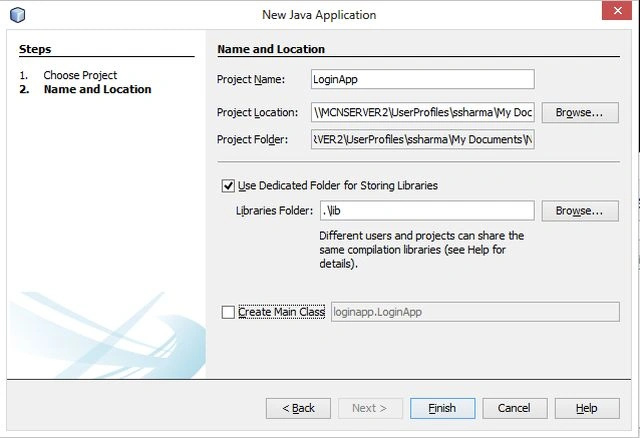
Provide the project the name "LoginApp" as in the following.
Step 4
Create a Java class named "Login" with the following code.
Login.java
import javax.swing.*;
import java.awt.*;
import java.awt.event.*;
import java.sql.*;
public class Login extends JFrame implements ActionListener
{
JLabel l1, l2, l3;
JTextField tf1;
JButton btn1;
JPasswordField p1;
Login()
{
setTitle("Login Form in Windows Form");
setVisible(true);
setSize(800, 800);
setLayout(null);
setDefaultCloseOperation(JFrame.EXIT_ON_CLOSE);
l1 = new JLabel("Login Form in Windows Form:");
l1.setForeground(Color.blue);
l1.setFont(new Font("Serif", Font.BOLD, 20));
l2 = new JLabel("Enter Email:");
l3 = new JLabel("Enter Password:");
tf1 = new JTextField();
p1 = new JPasswordField();
btn1 = new JButton("Submit");
l1.setBounds(100, 30, 400, 30);
l2.setBounds(80, 70, 200, 30);
l3.setBounds(80, 110, 200, 30);
tf1.setBounds(300, 70, 200, 30);
p1.setBounds(300, 110, 200, 30);
btn1.setBounds(150, 160, 100, 30);
add(l1);
add(l2);
add(tf1);
add(l3);
add(p1);
add(btn1);
btn1.addActionListener(this);
}

Join the conversation! Your thoughts help the community grow.