

Hello Friends,
In this article, we are going to see,
- How to create web API
- How to host web API on IIS server
- How to use web API in a desktop application using the .NET client
Prerequisites when you use this demo:
1) Download datatable structure and data
2) Execute in your SQL server
3) Set your database connection string from the web.config file
CREATE WEB API
STEP 1
Open Visual Studio, go to New Project -> Visual C# -> Web -> Asp.net Web Application, name your project, and click OK. You will see a screen as below.
Open Visual Studio, go to New Project -> Visual C# -> Web -> Asp.net Web Application, name your project, and click OK. You will see a screen as below.
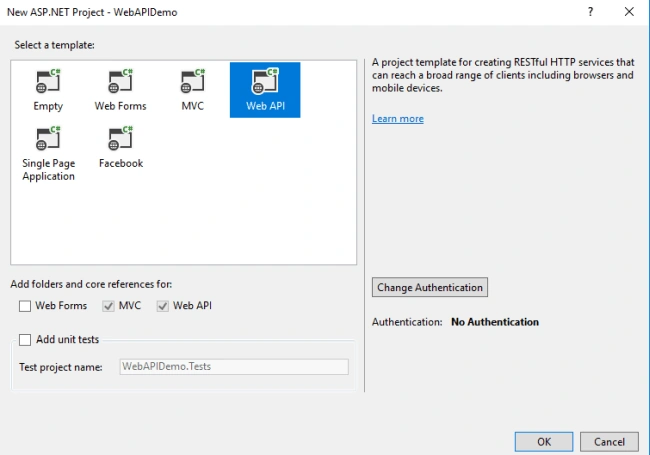
Image1
STEP 2
Select "Web API" from the template as shown in image1 and click OK. It will create a project for you as shown in image 2.
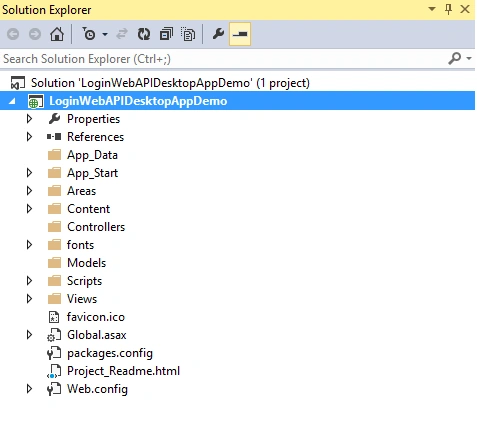
Image2
STEP 2
In this article, I am going show you how to login through web API from a desktop application. We need fields like email and password. Here, create a model for login class as shown in image 3 and add a code snippet in the newly-created model class.
In this article, I am going show you how to login through web API from a desktop application. We need fields like email and password. Here, create a model for login class as shown in image 3 and add a code snippet in the newly-created model class.
You can create a model by right clicking on Models folder -> Add Class.
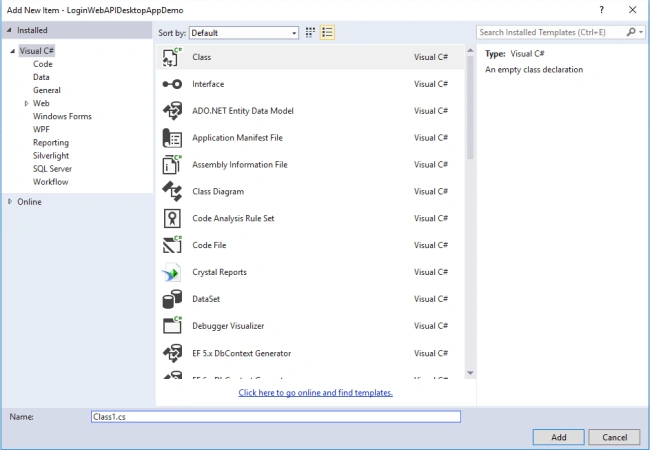
Image3
- public class Login
- {
- public int id { get; set; }
- public string UserName { get; set; }
- public string Email { get; set; }
- public string Password { get; set; }
- }
STEP 3
Create Controller by right-clicking on the Controllers folder as shown in image4
Add-> Controller -> Web API 2 Controller - Empty .
Create Controller by right-clicking on the Controllers folder as shown in image4
Add-> Controller -> Web API 2 Controller - Empty .
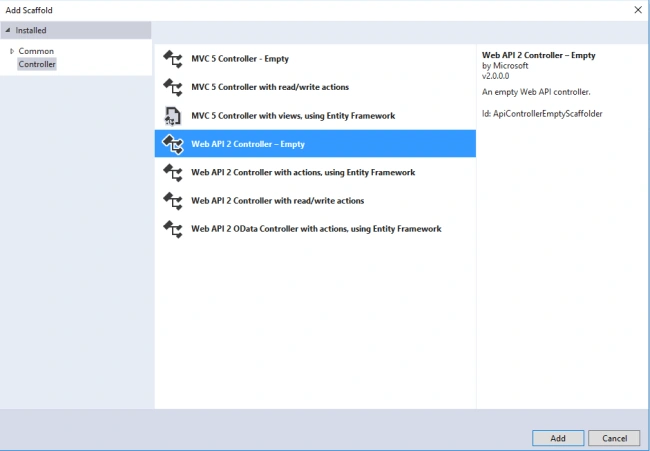
Image4
Put this below code snippet into Controller.
- using System;
- using System.Collections.Generic;
- using System.Linq;
- using System.Net;
- using System.Net.Http;
- using System.Web.Http;
- using System.Configuration;
- using System.Data;
- using System.Data.SqlClient;
- using LoginWebAPIDesktopAppDemo.Models;
- namespace LoginWebAPIDesktopAppDemo.Controllers
- {
- public class LoginController : ApiController
- {
- SqlConnection con = new SqlConnection(ConfigurationManager.ConnectionStrings["customerDB"].ToString());
- SqlCommand cmd = new SqlCommand();
- SqlDataAdapter adp = null;
- [HttpGet]
- [ActionName("getCustomerInfo")]
- public DataTable Get()
- {
- DataTable dt = new DataTable();
- try
- {
- cmd.CommandType = CommandType.Text;
- cmd.CommandText = "select * from tbl_Cust";
- cmd.Connection = con;
- if (con.State == ConnectionState.Open)
- {
- con.Close();
- }
- adp = new SqlDataAdapter(cmd);
- dt.TableName = "tbl_Cust";
- adp.Fill(dt);
- con.Close();
- }
- catch
- {
- }
- return dt;
- }
- [HttpPost]
- public int Login([System.Web.Http.FromBody] Login lgn)
- {
- int ret = 0;
- try
- {
- cmd.CommandType = CommandType.Text;
- cmd.CommandText = "SELECT count(*) FROM tbl_Cust WHERE Email ='" + lgn.Email.Trim() + "' and Password=" + lgn.Password.Trim();
- cmd.Connection = con;
- if (con.State == ConnectionState.Open)
- {
- con.Close();
- }
- con.Open();
- ret = Convert.ToInt32(cmd.ExecuteScalar());
- con.Close();
- }
- catch
- {
- }
- return ret;
- }
- }
- }
As, you can see, I have created two methods -
1) Get() is for getting all the customers' data
2) Login() is a parameterized method where we can pass email and password for validation.
NOTE
Web API will give two types of output -
Web API will give two types of output -
1) XML(Default)
2) JSON.
Getting the response in XML
When you are set up, as per step 1, build the project and run the application. For getting the results in XML, you need to follow the route and execute the URL as shown in image 5.
When you are set up, as per step 1, build the project and run the application. For getting the results in XML, you need to follow the route and execute the URL as shown in image 5.
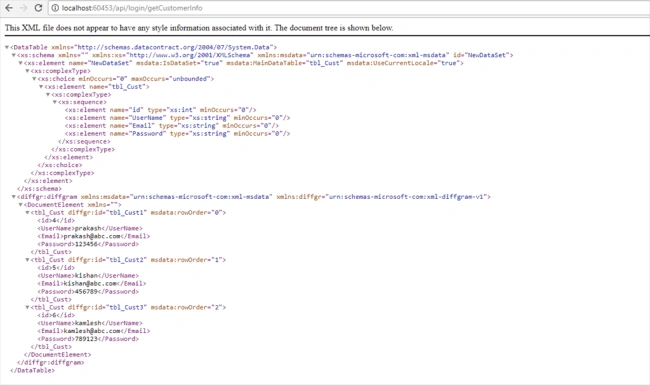
Image 5
Getting a response in JSON:
For a JSON response, you need to set mediatypeheadervalues in WebApiConfig.cs file which is located in App_Start folder. Just set the code as shown in the below code snippet.
For a JSON response, you need to set mediatypeheadervalues in WebApiConfig.cs file which is located in App_Start folder. Just set the code as shown in the below code snippet.
- using System;
- using System.Collections.Generic;
- using System.Linq;
- using System.Net.Http.Headers;
- using System.Web.Http;
- namespace LoginWebAPIDesktopAppDemo
- {
- public static class WebApiConfig
- {
- public static void Register(HttpConfiguration config)
- {
- // Web API configuration and services
- // Web API routes
- config.MapHttpAttributeRoutes();
- config.Routes.MapHttpRoute(
- name: "DefaultApi",
- routeTemplate: "api/{controller}/{id}",
- defaults: new { id = RouteParameter.Optional }
- );
- config.Formatters.JsonFormatter.SupportedMediaTypes.Add(new MediaTypeHeaderValue("text/html"));
- }
- }
- }

Image6
HOST WEB API ON IIS SERVER
STEP 1
Open IIS manager by executing inetmgr command in RUN as shown in Image 7.
STEP 1
Open IIS manager by executing inetmgr command in RUN as shown in Image 7.
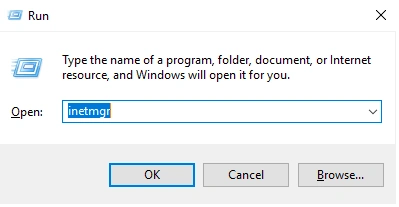
Image 7
STEP 2
Follow the steps shown in Image 8.
Follow the steps shown in Image 8.
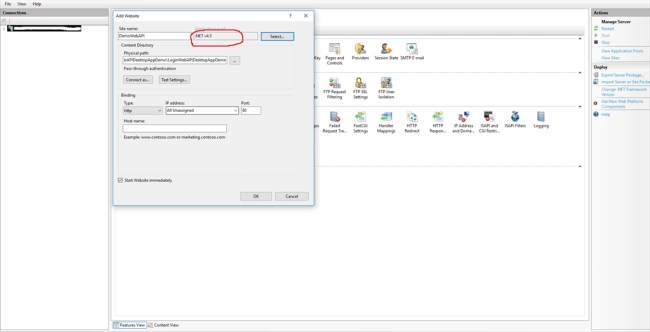
Image 8
Just, right click on the left panel, the "Connections" section, which I have blurred with black. Go to Connections -> Sites - > Add Website.
You will see Add Website popup shown as in Image 8. Now, set your site name. You need to set application pool framework the same as you developed in the web API. You can see your web API's framework by just right clicking on web API project -> Properties -> Application - > Target Framework as shown in Image9.
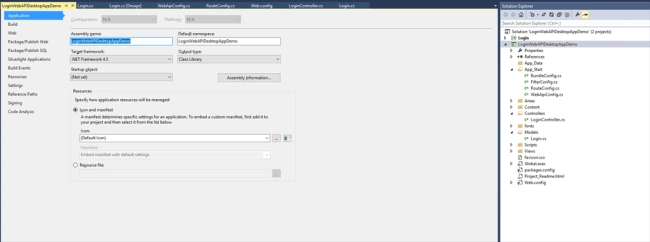
Image 9
Image 9
You are ready with your Web API and can execute it from IIS manager like this: http://localhost:80/api/login/getCustomerInfo
CREATE DESKTOP APPLICATION AND USE WEB API
STEP 1
For creating the desktop app, open Visual Studio, go to New Project -> Visual C# -> Windows -> Windows Form Application
Now, add a new form in the project with some login controls as shown in Image10.
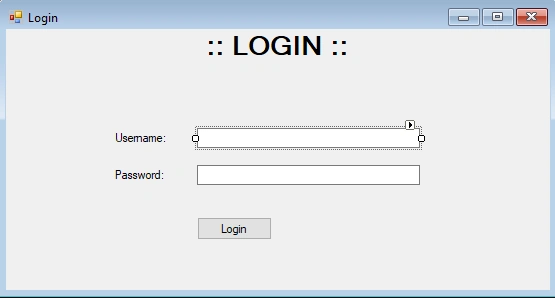
Image10
Below is the code for Login.cs file.
- using System;
- using System.Collections.Generic;
- using System.ComponentModel;
- using System.Data;
- using System.Drawing;
- using System.Linq;
- using System.Text;
- using System.Threading.Tasks;
- using System.Windows.Forms;
- using System.Data.SqlClient;
- using System.Web;
- using Newtonsoft.Json.Linq;
- using System.Text.RegularExpressions;
- using System.Net.Http;
- using System.Net.Http.Headers;
- namespace Login
- {
- public partial class Login : Form
- {
- public Login()
- {
- InitializeComponent();
- }
- private void btnLogin_Click(object sender, EventArgs e)
- {
- errorProvider1.SetError(txtUsername, "");
- errorProvider1.SetError(txtPassword, "");
- if (txtUsername.Text.ToString().Trim() != "" && txtPassword.Text.ToString().Trim() != "")
- {
- using (var client = new HttpClient())
- {
- client.BaseAddress = new Uri("http://localhost:59/");
- LoginClass lgn = new LoginClass { Email = txtUsername.Text.ToString(), Password = txtPassword.Text.ToString() };
- var response = client.PostAsJsonAsync("api/Login/Login", lgn).Result;
- var a = response.Content.ReadAsStringAsync();
- if (a.Result.ToString().Trim() == "0")
- {
- lblErrorMessage.Text = "Invalid login credentials.";
- lblErrorMessage.ForeColor = Color.Red;
- }
- else
- {
- lblErrorMessage.Text = "Loggedin successfully.";
- lblErrorMessage.ForeColor = Color.Green;
- }
- }
- }
- else if (txtUsername.Text.ToString().Trim() == "" && txtPassword.Text.ToString().Trim() == "")
- {
- errorProvider1.SetError(txtUsername, "Please enter the email");
- errorProvider1.SetError(txtPassword, "Please enter the password");
- }
- else if (txtUsername.Text.ToString().Trim() == "")
- {
- errorProvider1.SetError(txtUsername, "Please enter the email");
- }
- else if (txtPassword.Text.ToString().Trim() == "")
- {
- errorProvider1.SetError(txtPassword, "Please enter the password");
- }
- }
- private void ValidateEmail()
- {
- Regex regEmail = new Regex(@"^(([^<>()[\]\\.,;:\s@\""]+"
- + @"(\.[^<>()[\]\\.,;:\s@\""]+)*)|(\"".+\""))@"
- + @"((\[[0-9]{1,3}\.[0-9]{1,3}\.[0-9]{1,3}"
- + @"\.[0-9]{1,3}\])|(([a-zA-Z\-0-9]+\.)+"
- + @"[a-zA-Z]{2,}))$",
- RegexOptions.Compiled);
- if (!regEmail.IsMatch(txtUsername.Text))
- {
- errorProvider1.SetError(txtUsername, "Please enter a Valid Email Address.");
- }
- else
- {
- errorProvider1.SetError(txtUsername, "");
- }
- }
- private void Login_FormClosed(object sender, FormClosedEventArgs e)
- {
- Application.Exit();
- }
- private void txtUsername_Validating(object sender, CancelEventArgs e)
- {
- ValidateEmail();
- }
- public class LoginClass
- {
- public int id { get; set; }
- public string UserName { get; set; }
- public string Email { get; set; }
- public string Password { get; set; }
- }
- }
- }
STEP 2
We will receive the response from WEB API in json format. So for getting a response in a desktop application we need to add JSON.NET in out desktop app project as shown in Image 11.
Go to references -> Right Click - > Manage Nuget Packages - > Online -> Search -> Json.net
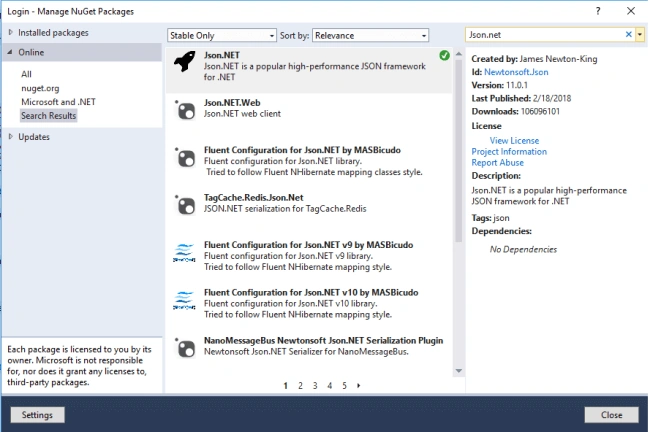
Image11
STEP 3
Now, build the desktop app project and run it. You will get a login screen as in Image 12 and you are done.
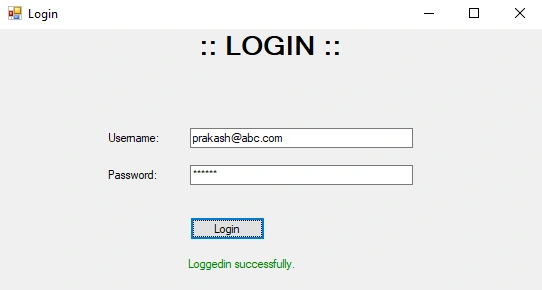
I hope you will like this article and it might be useful to you. Please let me know if you have any suggestions/changes/corrections.
MdShahbaz khanPosted Jul 15, 2023, 2:23 PM
I want to connect our windows App to connect zaka api what we have to do I don't know how connect pls help me sir
Naveen UpadhyayPosted Mar 24, 2021, 11:55 AM
Question - how you are securing your API credentials in Desktop App?
atif riazPosted Jul 28, 2019, 3:44 PM
HI! Can you tell me what's the procedure for online API cauz I am not gretting correct answer
Carlos DominguesPosted Jun 9, 2019, 3:29 PM
My application has error number CS0103 in ErrorProvider1 and lblErroMessage. "Does not exist in current context"
Prashant GuptaPosted Apr 15, 2019, 8:04 PM
Dear Sir, can you write on securing the communication between desktop app and web api? Can we use https for encrypting information sent from desktop client?
Tin NguyenPosted Nov 16, 2018, 4:25 AM
Application has an incorrect result when password incorrect input (sorry for I'm not good at English)
Heino PlaatjiesPosted May 23, 2018, 5:38 AM
This is a very good example, is it possible to show an example of posting through desktop application
Pravin GhadgePosted Mar 5, 2018, 12:14 AM
Very Nice Explanation
B PatelPosted Mar 5, 2018, 12:04 AM
Very well explain...example with code...nice...
Sagar Pandurang KapPosted Mar 4, 2018, 11:35 PM
Neatly explained...
Bhavesh JadavPosted Mar 4, 2018, 11:31 PM
Superb explanation with example thanks to share .
Naresh SinghalPosted Mar 4, 2018, 10:20 PM
Very well explained Bro Prakash Chasiya, keep it on..........