

In this article, we will look into the built-in logging features of IIS 7 and 7.5 to log request details. An IIS log is a useful resource to troubleshoot requests. In IIS 7 and 7.5, we can log the details of a request, such as client IP, time taken, response size, cookie and so on into a file. This information helps to find the load on the server in terms of number of requests, size and time taken to serve the request. Let's open IIS, configure logging for a website and analyze it. We can configure logging at server level or website level. Let's do it at the website level. Go to Default Web Site, go to the Logging feature and click "Enable":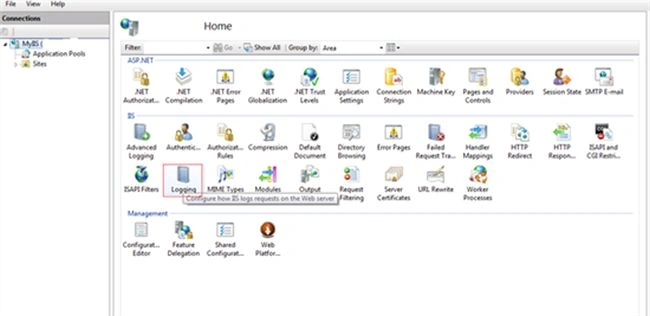
In the following Logging dialog, we can configure the format of the log file, it can be:
- IIS: IIS log file format is a fixed ASCII text-based format, so you cannot customize it (Can't select fields) and fields are separated by commas.
- W3C (default format): It is a customizable ASCII text-based format. You can use IIS Manager to select which fields to include in the log file and fields are separated by spaces.
- NCSA: its log file format is a fixed ASCII text-based format, so you cannot customize it and contains less information than an IIS log format.
- Custom: ODBC logging is implemented as a custom logging module and helps to log information into ODBC-compliant databases like SQL Server or Microsoft Access.
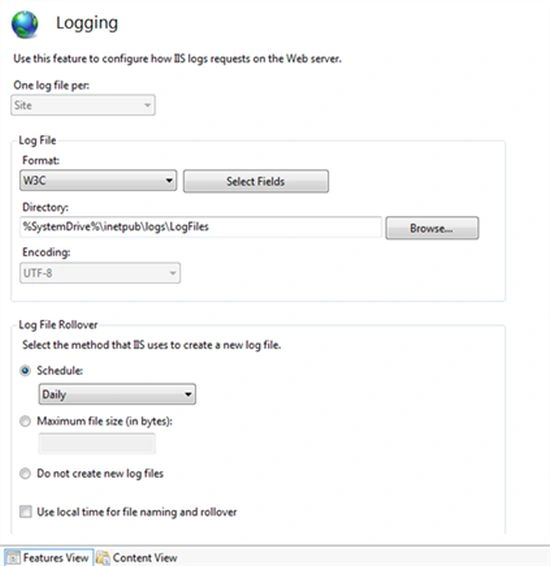
Select W3C as log format, click on "Select Fields" and choose the fields that need to be logged in the log file.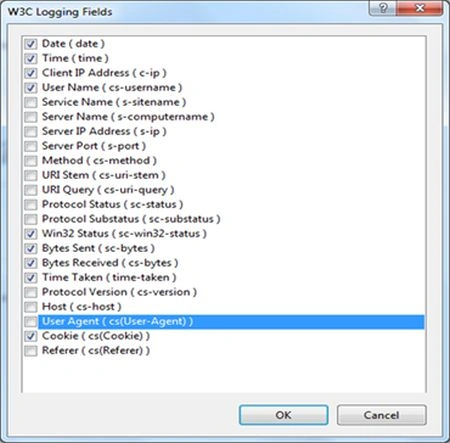
We can set the location or directory for the log files, set options to create a new log file based on file size, daily or weekly and so on. When we check "Use local time for file naming and rollover" it will use the local server time instead of UTC for log file naming and time for log file rollover. This setting will not affect the time field format of the request logged in the file and uses UTC time format.
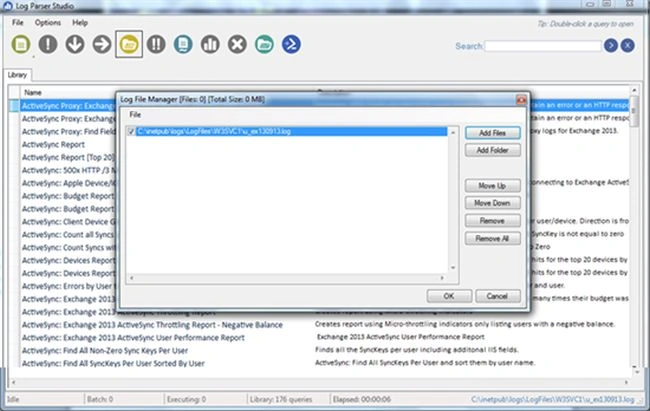
Let's may a request to welcome.png present in the Default Web Site and analyze the log file. This log file will be under the path set in the Logging Feature + W3SVC<website identifier>. In my case, it is "C:\inetpub\logs\LogFiles\W3SVC1" and contains the following information:
Most of the fields are self-explanatory and field prefixes have the following meanings:
Join the conversation! Your thoughts help the community grow.