

In this article I am going to show how we can magnify an image. By magnifying mean we can zoom a particular part of an image.
This is the xaml code
<UserControl x:Class="MagnifyingGlassEffect.MainPage"
xmlns="http://schemas.microsoft.com/winfx/2006/xaml/presentation"
xmlns:x="http://schemas.microsoft.com/winfx/2006/xaml"
xmlns:d="http://schemas.microsoft.com/expression/blend/2008"
xmlns:mc="http://schemas.openxmlformats.org/markup-compatibility/2006"
mc:Ignorable="d"
d:DesignHeight="350" d:DesignWidth="450">
<Canvas x:Name="LayoutRoot" Background="White">
<Image x:Name="ImageToMagnify" Width="320" Height="240" Source="Earth.jpg" MouseMove="ImageToMagnify_MouseMove"
MouseLeftButtonDown="ImageToMagnify_MouseLeftButtonDown" MouseLeftButtonUp="ImageToMagnify_MouseLeftButtonUp" />
<Image x:Name="glass" Width="320" Height="240" Visibility="Collapsed" Source="Earth.jpg" IsHitTestVisible="False">
<Image.RenderTransform>
<ScaleTransform ScaleX="2" ScaleY="2"/>
</Image.RenderTransform>
<Image.Clip>
<EllipseGeometry x:Name="geometry" RadiusX="40" RadiusY="40" />
</Image.Clip>
</Image>
</Canvas>
</UserControl>
This is my xaml.cs code
using System;
using System.Collections.Generic;
using System.Linq;
using System.Net;
using System.Windows;
using System.Windows.Controls;
using System.Windows.Documents;
using System.Windows.Input;
using System.Windows.Media;
using System.Windows.Media.Animation;
using System.Windows.Shapes;
namespace MagnifyingGlassEffect
{
public partial class MainPage : UserControl
{
public MainPage()
{
InitializeComponent();
}
private void ImageToMagnify_MouseLeftButtonDown(object sender, MouseButtonEventArgs e)
{
glass.Visibility = Visibility.Visible;
UpdateGlassPosition(e.GetPosition(ImageToMagnify));
}
private void ImageToMagnify_MouseLeftButtonUp(object sender, MouseButtonEventArgs e)
{
glass.Visibility = Visibility.Collapsed;
}
private void ImageToMagnify_MouseMove(object sender, MouseEventArgs e)
{
UpdateGlassPosition(e.GetPosition(ImageToMagnify));
}
private void UpdateGlassPosition(Point position)
{
geometry.Center = new Point(position.X, position.Y);
glass.SetValue(Canvas.LeftProperty, -position.X);
glass.SetValue(Canvas.TopProperty, -position.Y);
}
}
}
When run the application then
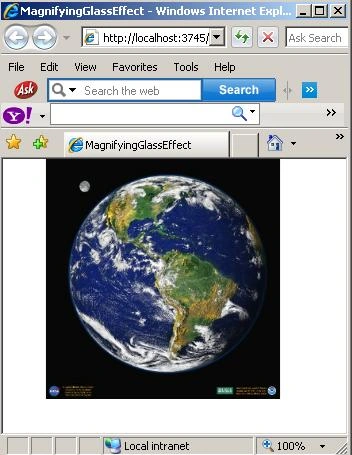
Image 1.
When we magnify this image
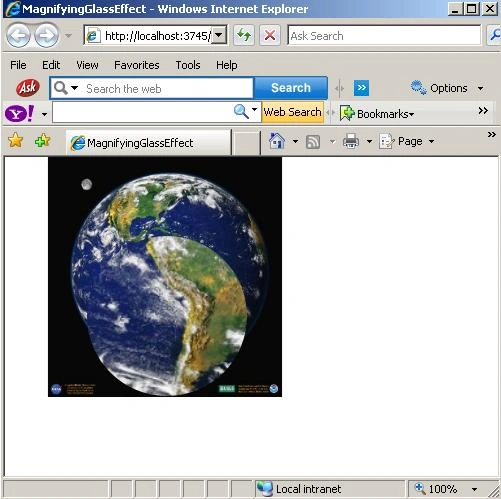
Image 2.
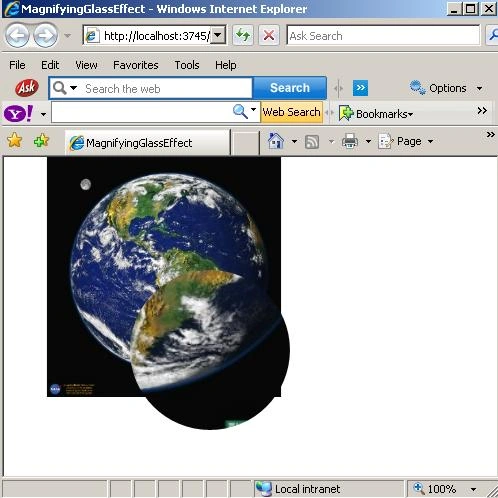
Image 3.
Join the conversation! Your thoughts help the community grow.