

Introduction
In this article, we are going to explain how to make our Windows 8 computer login automatically.
How to Set Windows 8 to Logon Automatically?
Step 1
In the Windows 8 Desktop, first, we press the "Win + R" key. The Run window opens. Then type "netplwiz" into the Run box and click "OK".

Step 2
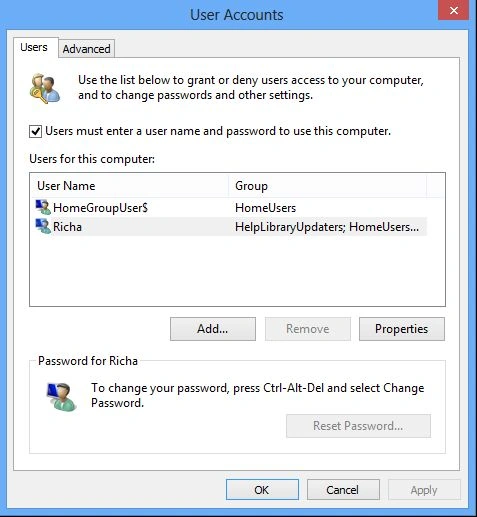
The User Account dialog box opens, which will display a list of all the users on our computer.
Step 3
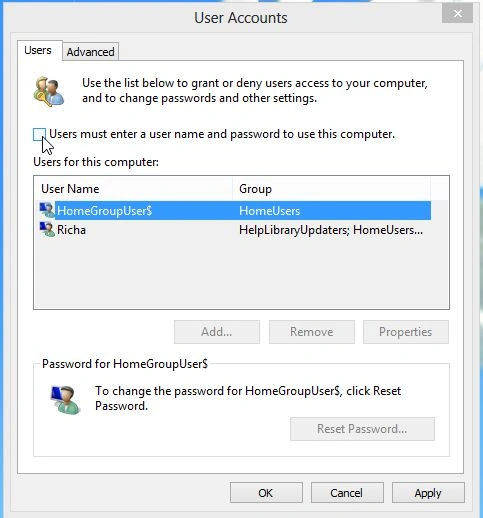
Select our user account from the list, then uncheck the "Users must enter a user name and password to use this computer" checkbox then click the apply button.
Step 4
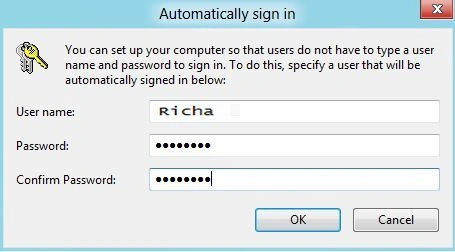
This will bring up the Automatically sign in dialog, where we will need to input your password then click "OK".
Step 5
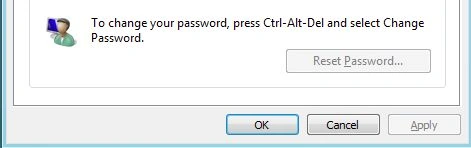
Click "OK" again to close the User Accounts dialog and you're good to go.
That's all there is to it.
Summary
In this article, we learned about Make Our Windows 8 Computer Logon Automatically.
Join the conversation! Your thoughts help the community grow.