

Introduction
In this article, we explain how to open PDFs and photos in the Windows 8 Desktop. Windows 8 opens PDFs and photos in Metro style apps in full screen by default, which is annoying. When we're working in the Desktop, we need to get things done quickly, not bounce between work and the new Windows 8 UI.
How to open PDFs and photos in a Desktop program?
Step 1
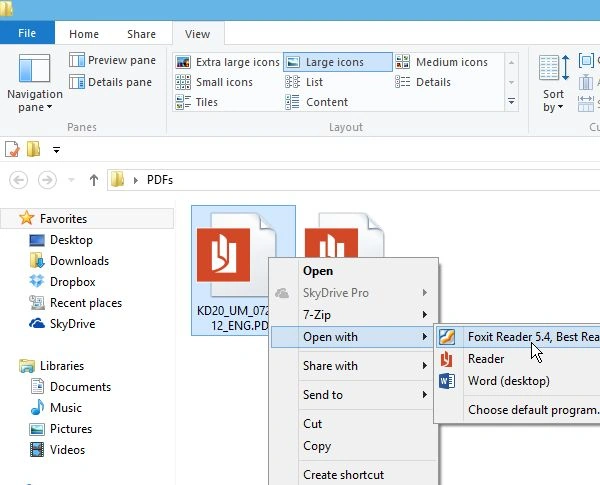
First, we right-click the file and select "Open" with and then the program you want to use.
Step 2
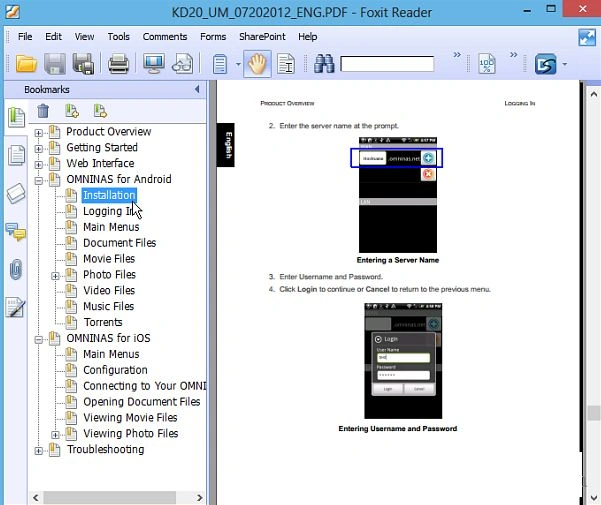
Here I set it to Foxit Reader. For a more minimalist approach, make Google Chrome your default PDF reader.
Step 3
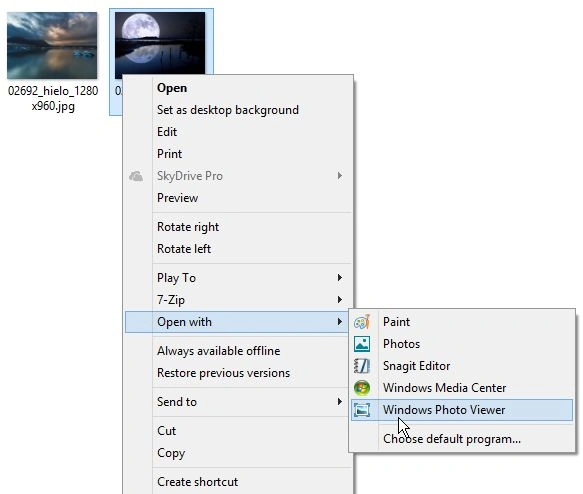
Or for a picture, right-click the file and go to "Open" and click "Windows Photo Viewer" or whatever program you want to use.
Step 4
Now we can easily re-size the window and get your work done.
Step 5
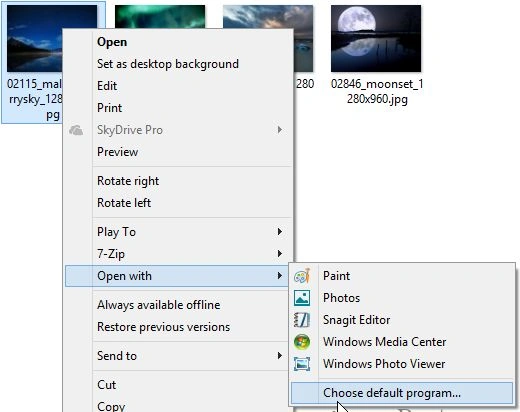
Permanently open a PDF or picture in a certain program, to go "Open with" and select the default program.
Step 6
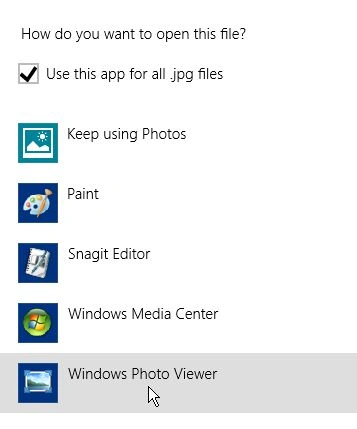
A list of programs will come up, click the one you want to always open the file with. Here I'm selecting "Windows Photo Viewer" to open JPG files. You'll need to set it as a default for other image file types like PNG and GIF too.
Step 7
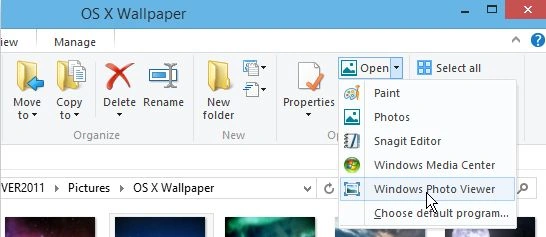
We can get the same option to open your photo or PDFs from the new Explorer ribbon and clicking the "Open" dropdown menu under the home tab.
Change All File Type Associations
Step 8
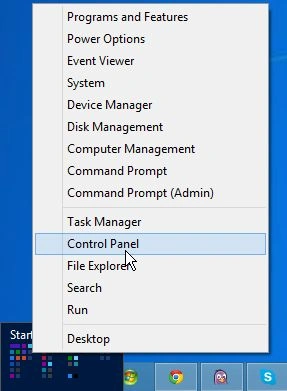
Instead of doing each file type individually, we can configure Windows 8 to open all file types in specific programs in one fell swoop. Pull up the "Power User Menu" on the Desktop and select Control Panel.
Step 9
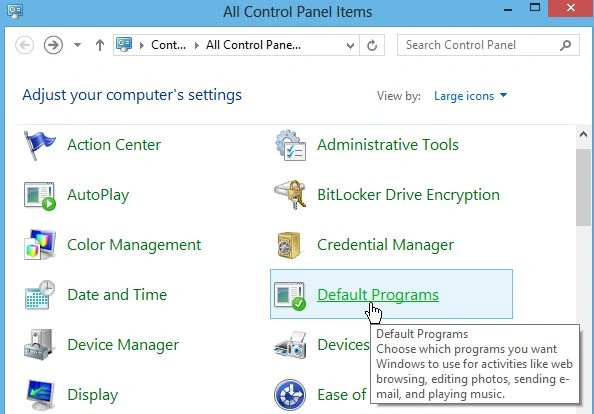
Then select "Default Programs" in Control Panel.
Step 10
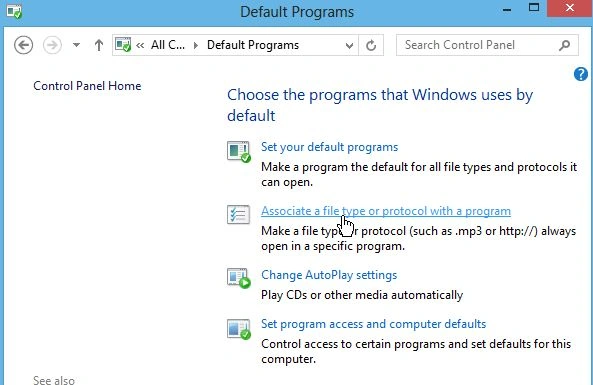
Next click "Associate a file type or protocol with a program".
Step 11
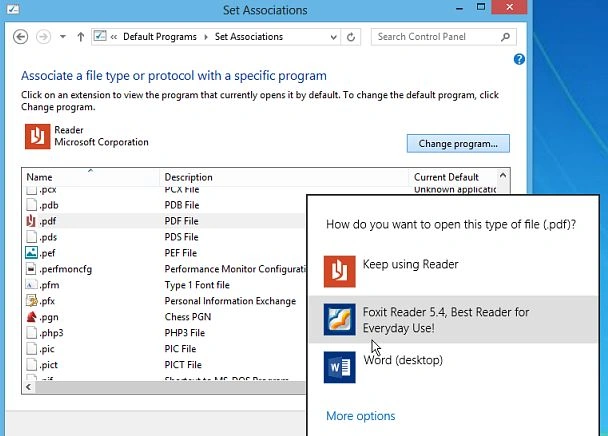
Go through the list and highlight a file type, click "Change Program" and select the one you want to use from the list. Of course, you can change Music and Video file types to open in Desktop programs too.
Summary
In this article, we learned about Make PDFs and Photos Open in Windows 8 Desktop Programs.
Vineeth KannanPosted Feb 18, 2013, 4:34 AM
Hello Aman, I need ur help in c#.. m getting an error.. plz mail me.. my email id is [email protected]... plz reply asap